
You have bank statements in Excel format and want to reconcile them without paying for accounting software. Excel-based reconciliation works well for small businesses with simple bookkeeping, using VLOOKUP, INDEX-MATCH, or SUMIFS formulas to match converted transactions against your register. The setup takes 30-60 minutes, but the monthly reconciliation then takes 5-10 minutes.
Quick Answers: Excel bank reconciliation uses VLOOKUP or INDEX-MATCH formulas to match transactions from your converted bank statement against your register. The setup takes 30-60 minutes; the monthly reconciliation takes 5-10 minutes. The formula approach scales to 500-1,000 transactions per month, which covers most freelancer and small business needs. For higher volumes, switch to accounting software with native bank reconciliation. Excel works without bank feeds, but you can add a Power Query data source from your bank for fully automated refresh.
What is Excel-based reconciliation?
Excel-based reconciliation is a workflow where you maintain your bank transactions in one Excel sheet (the register) and your converted bank statement in another sheet, then use formulas to match them. The formulas flag matches and discrepancies, and you visually review the result. The workflow is a 1-2 hour setup that you then use monthly.
The two main approaches are VLOOKUP-based matching and SUMIFS-based reconciliation. VLOOKUP looks up transactions one by one and flags whether each register transaction appears on the bank statement. SUMIFS aggregates transactions by date or amount and compares totals. For most use cases, VLOOKUP is simpler and easier to maintain, but SUMIFS is faster for high-volume reconciliations.
The advantage of Excel-based reconciliation over accounting software is flexibility: you can customize the formulas, add custom columns, and create custom reports without being constrained by the software’s fixed workflow. The disadvantage is that you maintain the spreadsheet yourself, including backing up the file and ensuring the formulas are correct. For businesses with simple bookkeeping, Excel-based reconciliation is fully sufficient.
How does the VLOOKUP formula work for reconciliation?
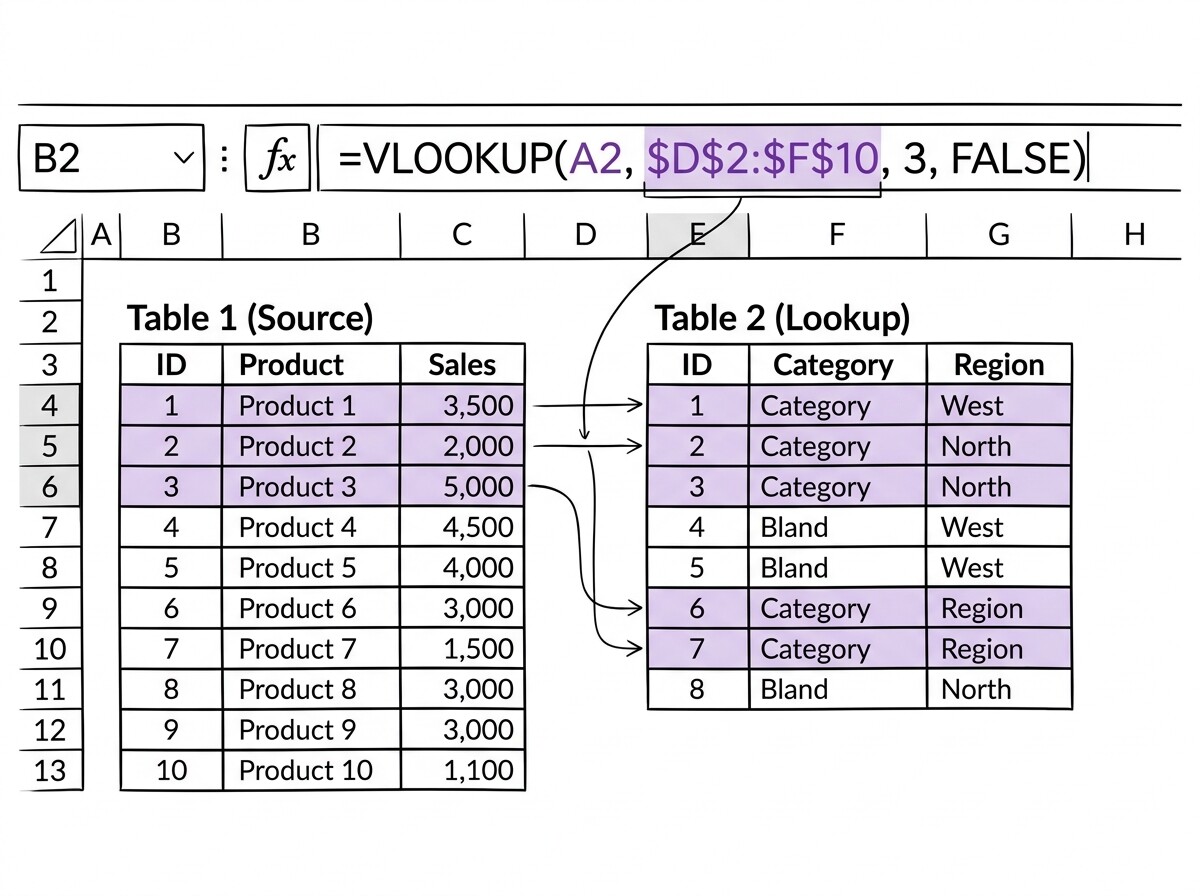
VLOOKUP takes a value from one column, looks it up in a table on another sheet, and returns a matching value.
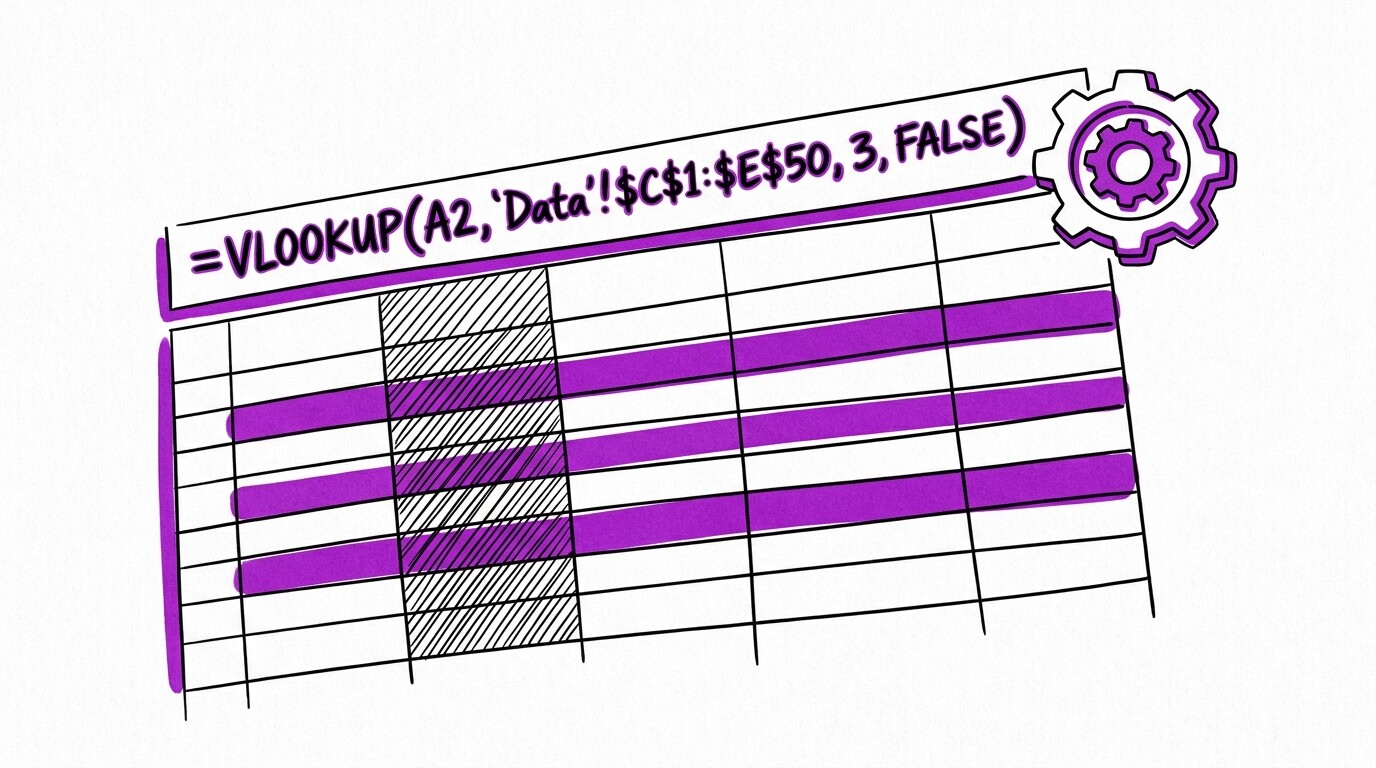
For reconciliation, the typical setup is: in your register sheet, add a column called “Bank Statement Match” with a VLOOKUP formula that takes the transaction amount, looks it up in the bank statement sheet, and returns “MATCH” or “NO MATCH” based on whether it finds the amount.
A basic VLOOKUP formula for reconciliation looks like: =IFERROR(VLOOKUP([@Amount], 'Bank Statement'!A:D, 4, FALSE), "NO MATCH"). This formula takes the amount from the current row, looks it up in column A of the Bank Statement sheet, returns the value from column 4 (typically the description or date) if found, or returns “NO MATCH” if not found.
The IFERROR wrapper handles cases where the amount doesn’t exist in the bank statement.
The limitation of basic VLOOKUP is that it only matches on amount, ignoring date and description. If you have two transactions with the same amount on different dates (a common scenario: two $100 vendor payments to the same vendor), VLOOKUP matches the first one it finds, which may not be the correct one.
The fix is to add a concatenated key column (amount + date) and use VLOOKUP on the concatenated key for more precise matching.
Turn That PDF Into a Spreadsheet in Minutes
You've seen how to do it manually — now let the tool handle the heavy lifting. Upload your bank statement and get Excel, CSV, or QBO in a few clicks.
Try It FreeHow do you set up the reconciliation spreadsheet?
The setup involves three sheets: Register (your ongoing transaction log), Bank Statement (the converted monthly statement), and Reconciliation (a summary sheet showing matches and discrepancies). The Register sheet has columns for Date, Description, Amount, and optionally Category. The Bank Statement sheet has the same columns plus a Bank Reference column. The Reconciliation sheet has formulas that compare the two.
Step 1: Set up the Register sheet with your ongoing transactions. If you don’t already have one, create it with headers and start entering transactions as they occur. For historical transactions, you can import them from your previous accounting software or enter them manually.
Step 2: Convert your bank statement PDF to CSV using a conversion tool, then import the CSV into the Bank Statement sheet. The columns should be Date, Description, Amount, and Bank Reference. Verify the column headers match between the two sheets, because VLOOKUP is column-name-sensitive.
Step 3: Add VLOOKUP formulas to the Reconciliation sheet. The formula compares each Register row against the Bank Statement and flags matches. The Reconciliation sheet can also include SUMIFS formulas to compute totals and verify that the sum of matched transactions equals the bank statement ending balance.
What is SUMIFS-based reconciliation?
SUMIFS-based reconciliation aggregates transactions by date or category and compares totals. The formula syntax is: =SUMIFS(RegisterAmounts, RegisterDates, ">="&StartDate, RegisterDates, "<="&EndDate). This formula sums all register transactions between two dates and returns the total, which you can then compare against the bank statement’s beginning and ending balances.
SUMIFS is faster than VLOOKUP for high-volume reconciliations because it operates on ranges, not individual cells. For 1,000 transactions per month, SUMIFS reconciles in seconds while VLOOKUP may take a minute. The tradeoff is that SUMIFS doesn’t identify specific unmatched transactions, just the totals.
The combined workflow is: use SUMIFS to verify the totals match, then use VLOOKUP to identify which specific transactions are unmatched if the totals don’t reconcile.
For businesses that want both speed and detail, the optimal setup is: SUMIFS formulas on the Reconciliation sheet for daily/weekly totals checks, and VLOOKUP formulas for the monthly detailed reconciliation. This dual approach gives you ongoing visibility (SUMIFS) and detailed verification (VLOOKUP) without one being slow.
How do you handle unmatched transactions?
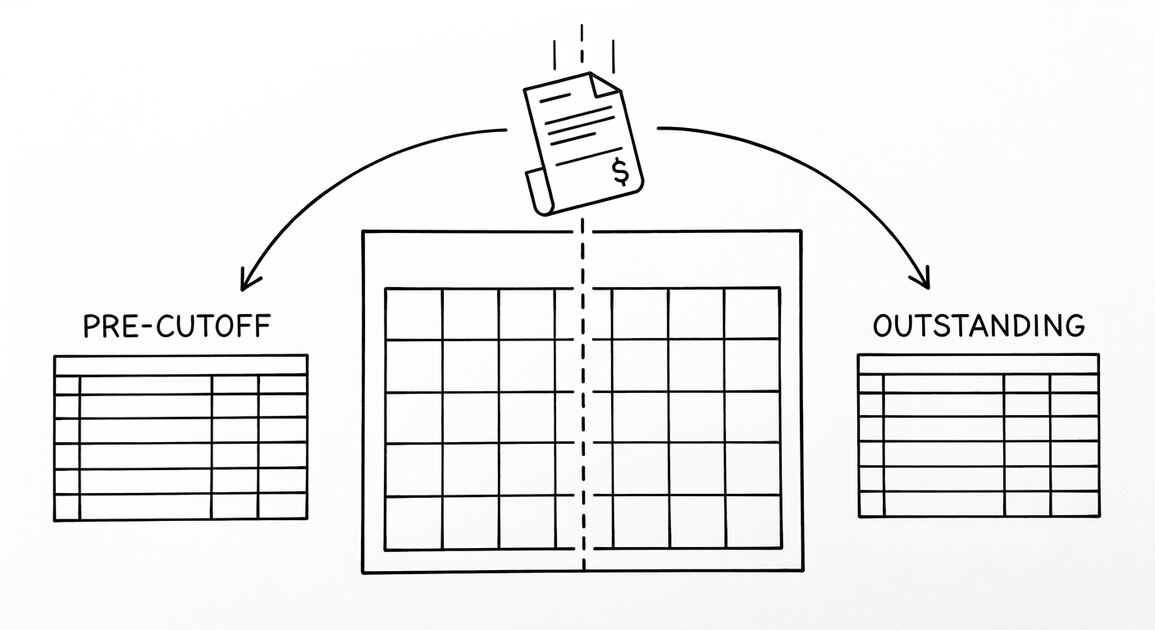
Unmatched transactions fall into three categories: (1) outstanding (in register but not yet on bank statement, like checks in transit), (2) missing (on bank statement but not in register, like bank fees you forgot to enter), and (3) mismatched (different amount or date between register and bank statement, indicating an error). The Excel-based reconciliation needs formulas or conditional formatting to identify each category.
For outstanding transactions, use a formula that flags transactions with “Bank Statement Match = NO MATCH” AND “Transaction Date is before the reconciliation end date.” These are the transactions that should eventually clear on a future statement. Add a column to track when each outstanding transaction clears.
For missing transactions, the workflow is: list all bank statement transactions that have no corresponding register entry, then enter them in the register as adjustments. Common missing transactions are bank fees (which the bank charges but you forgot to enter) and interest income (which the bank pays but you forgot to record). Adding these adjustments makes the register match the bank statement.
For mismatched transactions, the fix is to find the row where the amount or date differs between register and bank statement, then correct the register entry. Common mismatches are typos (entering $123 instead of $132) and date errors (entering the transaction date as the bank posting date when they differ by 1-2 days).
How does Power Query automate the workflow?
Power Query is Excel’s data transformation tool that can pull data from external sources (CSVs, databases, APIs) and load it into Excel sheets. For reconciliation, Power Query can auto-import your monthly bank statement CSV into the Bank Statement sheet, eliminating the manual import step. After the initial setup, refreshing the data is a one-click operation.
The setup is: Data tab > Get Data > From File > From CSV, select your bank statement CSV, configure the column types, and load it to a table in the Bank Statement sheet. Power Query saves the connection, and you can refresh it each month to pull the latest data. The reconciliation formulas then update automatically when the data refreshes.
For more advanced automation, you can connect Power Query to your bank’s API (if available) or to Plaid’s API. This eliminates the manual CSV download entirely: the data flows from your bank to Excel via Plaid to Power Query, with no manual steps. The setup is more complex than simple CSV import, but it reduces the workflow to “open the spreadsheet and check the reconciliation.”
What are the limits of Excel-based reconciliation?
Excel-based reconciliation scales to about 500-1,000 transactions per month. Beyond that, the spreadsheet becomes slow (formulas take seconds to recalculate) and error-prone (manual formula maintenance, single point of failure if the file is corrupted). For higher volumes, switch to accounting software with native reconciliation.
Other limitations of Excel-based reconciliation: (1) no multi-user collaboration (only one person can edit at a time without conflicts), (2) no audit trail (Excel doesn’t preserve who changed what), (3) no automatic backups unless you set them up, (4) limited reporting (you can build reports but they require more Excel work).
These limitations are acceptable for sole proprietors and freelancers but become problematic for larger businesses.
The optimal migration path from Excel-based reconciliation is: when transaction volume exceeds 200/month, switch to Wave (free); when you need multi-entity, switch to QuickBooks Online; when you need project-based or industry-specific accounting, switch to Sage Intacct. Each transition preserves your reconciled history via CSV import, so you don’t lose data.
How does Excel reconciliation compare to accounting software?
Compared to QuickBooks Online, Excel-based reconciliation is free where QBO starts at $30/month. Excel is more flexible (you can customize formulas) but has fewer built-in features (no bank feeds, no automatic matching, no multi-user). For freelancers and sole proprietors with low transaction volume, Excel is fully sufficient.
Compared to Wave (also free), Excel-based reconciliation is similar in cost but Wave includes bank feeds and automatic matching out of the box. Wave is the better choice for users who want free reconciliation without the setup overhead of Excel formulas. Excel is the better choice for users who need custom formulas or specific workflows that Wave doesn’t support.
For most small businesses and freelancers, Excel-based reconciliation is the right starting point because it requires no monthly fee and gives you complete control. When transaction volume grows or you need more automation, you can migrate to Wave, QuickBooks, or Sage with your historical data intact.
The Excel-based workflow is also valuable as a backup: even if you adopt accounting software later, you can use Excel to reconcile specific accounts or to double-check the software’s reconciliation.
From PDF to Excel in one click
Forget retyping line by line. Upload any bank statement, get a spreadsheet you can actually use. Your files are never stored, and you can test the converter with 3 free conversions.
Try it free