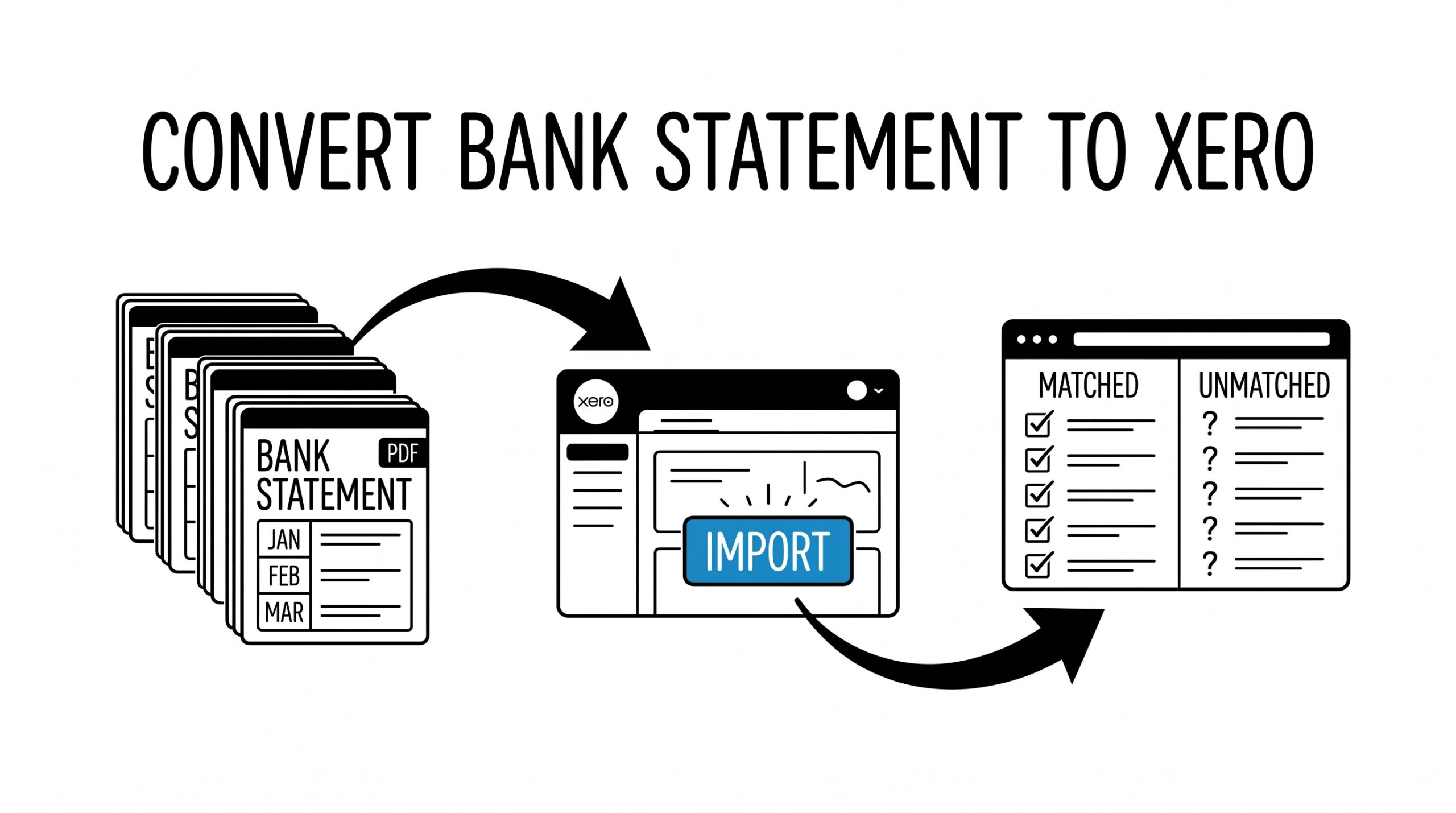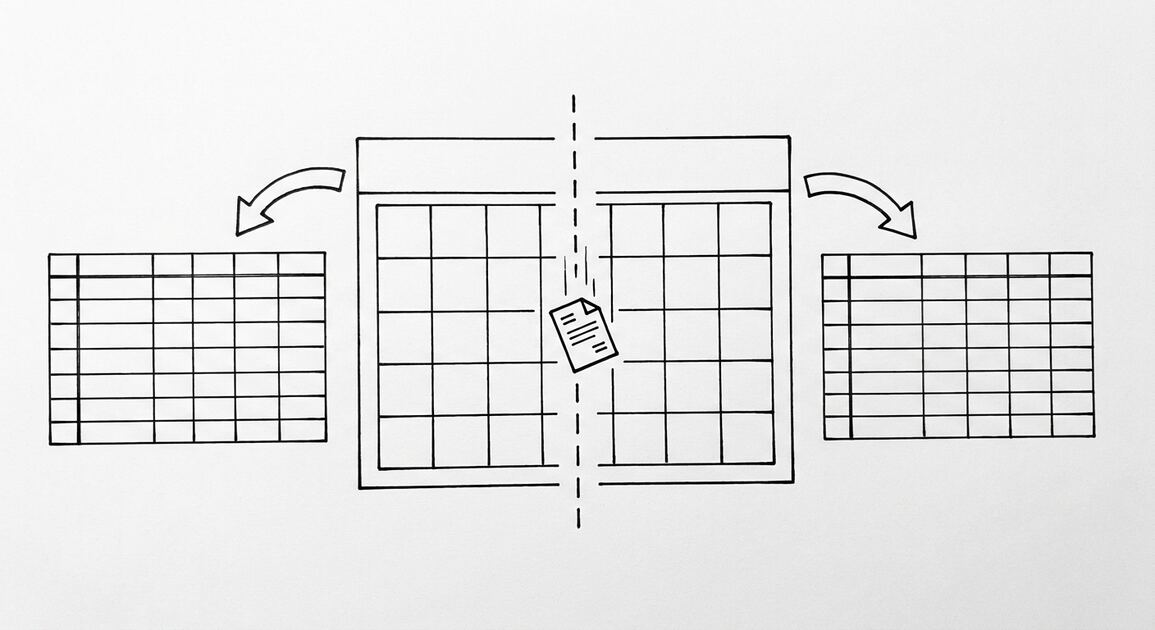

Converting a bank statement to Excel looks like one task. It is six tasks chained together, and each link in the chain decides whether the output is usable or garbage. The links are the same regardless of the input format (PDF, scan, photo) or the output format (Excel, CSV, QBO, Google Sheets).
Approximately 15-30 minutes per statement disappear into troubleshooting when the chain breaks. Knowing which link failed turns 30 minutes into 2 minutes.
TL;DR. Converting a bank statement to Excel is a 6-link chain: file intake, page detection, transaction block isolation, row parsing, balance verification, and output formatting. The mechanism is identical for every input format and every output format. The hardest link is transaction block isolation. The integrity check is balance verification. Format-specific code is a 5-line wrapper around the parsed data.
A bookkeeper with 6 small business clients is converting 50 bank statements per month from 4 different banks. Each bank formats their statement differently. The bookkeeper needs to know which part of the conversion is bank-specific (format) and which part is universal (mechanism). The answer is that 95% of the work is the mechanism. The format is the wrapper.
The 6-Link Chain
Every bank statement conversion, regardless of the tool, passes through these six links. The links run in sequence. If any link fails, the next link either fails or produces wrong output.
What most guides miss about Excel conversion is that the quality depends on the mechanism, not on the tool. Two tools that look different on the surface often run the same 4-step process underneath: read, find, parse, verify. The difference is in how well each step handles edge cases (merged cells, missing balances, non-standard date formats, scanned vs digital input). Choosing between tools based on UI alone misses the actual quality lever.
Link 1: File intake. The PDF (or scan, or photo) enters the system. The system identifies the file type, checks for password protection, and prepares it for text extraction. Digital PDFs skip directly to text extraction. Scanned PDFs and photos require OCR first.
Link 2: Page detection. The system identifies which page contains the transaction list. Most bank statements put the transaction list on page 1, but statements with high transaction volume span multiple pages. The system must walk through the pages and identify which ones contain rows of transactions versus which contain summaries, disclosures, or ads.
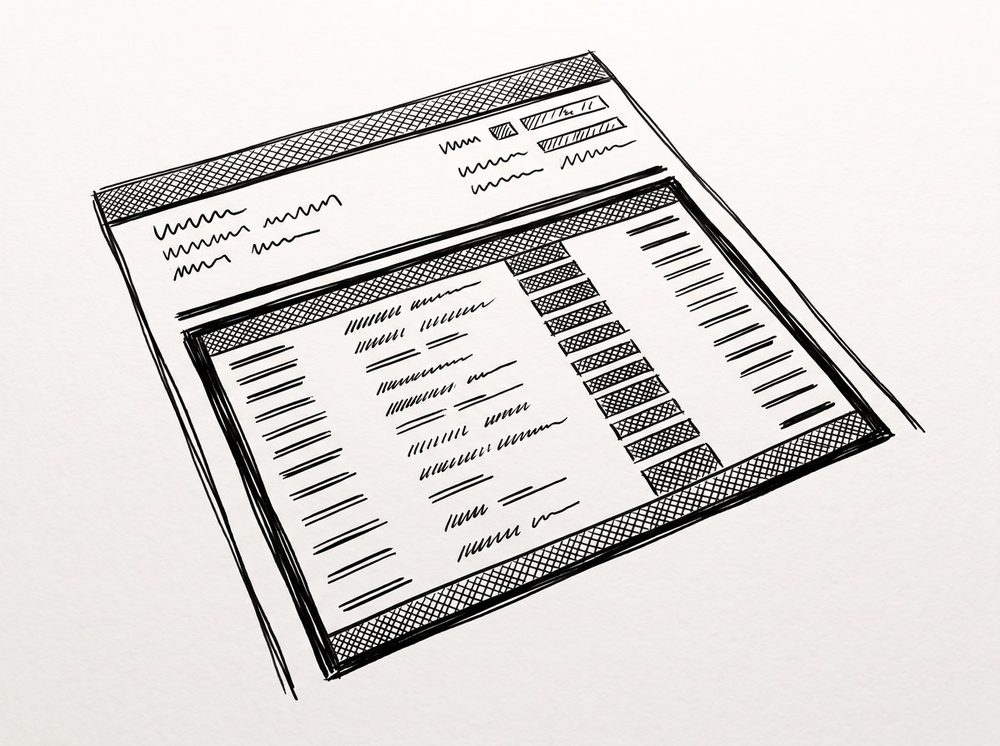
Link 3: Transaction block isolation. The system identifies the rectangular region on the page that contains the transaction list. This is the hardest link because most pages contain a header (account info), the transaction block (the rows), and a footer (summary, page numbers, ads). The system must draw a boundary around just the transaction block, excluding the header and footer.
Link 4: Row parsing. The system extracts the date, description, amount, and balance from each row. The amount may be positive (deposit) or negative (withdrawal). The description may include merchant name, location, and reference number. The date format varies by bank (MM/DD/YYYY, DD/MM/YYYY, YYYY-MM-DD). The system must normalize all of these into a consistent output schema.
Link 5: Balance verification. The system checks that the running balance in the parsed output walks through the rows correctly. If row 1 has a starting balance of $1,000, row 2 is a $50 deposit, the running balance should be $1,050. If the parsed output shows $1,030, the parsing failed somewhere. The system flags the discrepancy.
Link 6: Output formatting. The system writes the parsed and verified data into the output format the user chose. Excel gets an .xlsx file with columns for date, description, amount, balance. CSV gets a comma-separated file. QBO gets a QuickBooks-compatible file. Google Sheets gets a sheet import. The format-specific code is 5-10 lines. The mechanism is the 5 previous links.
Where Conversions Break
Most conversion failures happen in links 3, 4, and 5. The first three links are where the bulk of the engineering effort goes. The last three are simpler. For more on convert a bank statement to a spreadsheet, see the convert a bank statement to a spreadsheet page. For more on convert bank statement to excel, see the convert bank statement to excel page. For more on quickbooks bank feed failure, see the quickbooks bank feed failure page. For more on bank statement excel template, see the bank statement excel template page.
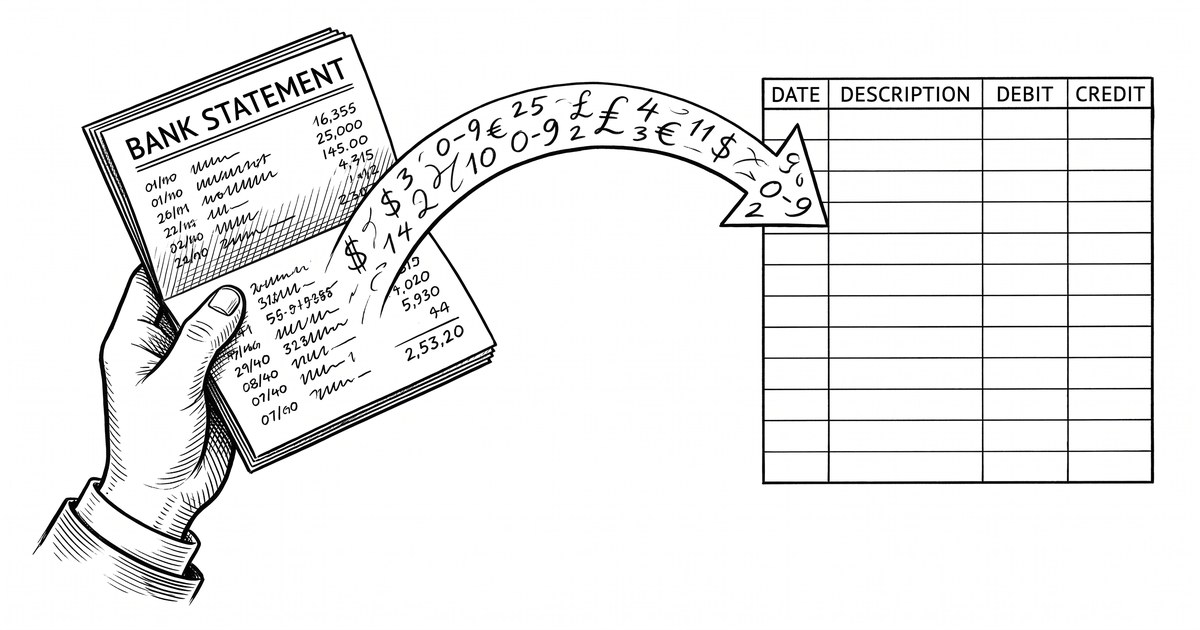
Transaction block isolation fails when: the page layout is unusual (multi-column transactions, side-by-side summaries), the bank uses an unusual table format, or the PDF was generated from a scanned image and the OCR output is noisy. The failure mode: the system includes header text or footer text as a transaction row, producing garbage in the output.
Row parsing fails when: the bank uses a non-standard date format, the amount column has currency symbols or thousand separators that confuse the parser, or the description spans multiple lines and the system treats each line as a separate transaction. The failure mode: dates are wrong, amounts are wrong, or transactions are duplicated.
Balance verification fails when: a transaction was missed in parsing (the running balance walks correctly but ends off by the missed transaction amount), a transaction was duplicated, or the sign convention was inverted (deposits shown as withdrawals and vice versa). The failure mode: the output total does not match the bank-printed ending balance.
Turn any PDF statement into a clean sheet
Skip the typos and the hours of copying. Our converter handles any bank statement format and outputs Excel, CSV, or QBO for QuickBooks. No file retention, free to try.
Convert your statementWhy Format Wrappers Are Trivial
Once the mechanism produces a clean parsed dataset (date, description, amount, balance per row), the output format is just a serialization step. Excel wraps the data in an .xlsx file. CSV writes the data as comma-separated text. QBO wraps the data in QuickBooks’ specific format. Google Sheets exports the data in a format the Sheets API can import.
The format-specific code is 5-10 lines. The mechanism is hundreds of lines. This is why a tool that “converts PDF to Excel” and a tool that “converts PDF to CSV” use the same underlying mechanism. The user picks the output format, the mechanism runs once, and the output is generated.
When a conversion fails, the failure is almost never in the format wrapper. The failure is in the mechanism. The user blames the format (“Excel doesn’t work for this PDF”) when the real problem is the mechanism failed to parse a specific row or block.
Bank-Specific Differences
The mechanism is universal. The implementation has to handle bank-specific differences. The main differences are in date formats, amount column conventions, transaction block layout, and balance column behavior.

Chase, Wells Fargo, and Bank of America use similar layouts: header on top, transaction list in the middle, summary at the bottom. The transaction rows are clean: date, description, amount, balance. Most modern converters handle these banks with high accuracy.
Citi, Capital One, and Discover sometimes use unusual layouts. Citi occasionally puts two transaction columns side by side. Capital One sometimes omits the running balance. Discover uses a different transaction block layout than the other major banks. Converters need bank-specific rules to handle these edge cases.
Credit unions and regional banks vary the most. Some use modern layouts that match the major banks. Others use older layouts from core banking systems that have not been updated. The hardest conversions are usually from credit unions with custom core banking platforms.
The Universal Schema
Regardless of the input bank or format, the output schema is the same: date, description, amount, balance. This is what every accounting tool, spreadsheet, and bookkeeper expects.
Date: the transaction date, normalized to YYYY-MM-DD or the user’s locale format.
Description: the merchant name, location, and any reference number. The system tries to parse out the merchant name (first line) and the location (second line, if present) but the full description is always preserved.
Amount: the transaction amount, with a sign convention (positive for deposit, negative for withdrawal). The sign convention is critical. Some banks use the opposite convention (positive for withdrawal, negative for deposit). The system normalizes to the universal convention.
Balance: the bank-printed running balance after this transaction. This is the integrity check. The system walks the balance through every row and confirms it matches.
How to Diagnose a Bad Conversion
When a conversion produces wrong output, the diagnostic sequence is: check the transaction block isolation first, then the row parsing, then the balance verification.
Check 1: Does the output include header text, footer text, or summary text as transactions? If so, the transaction block isolation failed. The block boundary is wrong. Look at the PDF visually and compare to the parsed output.
Check 2: Are the amounts, dates, or descriptions wrong on specific rows? If so, the row parsing failed. The most common cause is an unusual format (negative amount shown as a credit, date in DD/MM format parsed as MM/DD). Look at the source PDF and the parsed row to see the mismatch.
Check 3: Does the output total match the bank-printed ending balance? If not, the balance verification failed. The most common cause is a missed transaction, a duplicated transaction, or a sign convention error. Walk through the rows and find the discrepancy.
Common failure mode bookkeepers report: the output looks fine, the column headers are correct, the dates are in the right format, but the total is off by $50. The temptation is to add a balancing line or adjust the total manually. The right move is to find the row that is wrong and fix the parser for that row format.
Choosing a Converter
A good converter handles all 6 links well. The marketing material focuses on the format wrapper (Excel, CSV, QBO) because that is what the user sees. The actual quality is in links 1-5.
Five questions to evaluate a converter:
First, what is the error rate on your specific bank? Test 5 statements from your actual bank and check the output. If more than 1% of transactions are wrong, the converter is not handling your bank well.
Second, does the converter show its confidence on each row? A converter that marks low-confidence rows for review is more useful than one that produces clean-looking but wrong output.
Third, what is the integrity check? A converter that walks the running balance and flags discrepancies is more trustworthy than one that just produces rows.
Fourth, how does it handle edge cases? Password-protected PDFs, scanned PDFs, multi-page statements, statements with non-standard layouts. Test the edge cases that match your actual workflow.
Fifth, what happens to your data? A browser-based converter that does not retain the file is more secure than a server-based one that stores your statements in a database.
For most bookkeepers, a dedicated bank statement converter handles all 6 links and produces clean output for the major banks. The 2-5 minutes saved per statement, times 50 statements per month, is 100-250 minutes per month. That is the time the mechanism saves.
The same mechanism applies across the CSV conversion, QuickBooks QBO import, and transaction extraction workflows. The format wrappers change. The mechanism does not.
When Manual Entry Is Faster
For statements with under 20 transactions, manual entry into a spreadsheet is sometimes faster than running the conversion. The setup time for a converter (uploading, waiting, downloading, verifying) is 2-3 minutes. Manual entry of 20 transactions is 5-10 minutes. The crossover is around 30-50 transactions.
For statements with over 50 transactions, conversion is always faster. The mechanism handles the bulk parsing, the integrity check catches the errors, and the format wrapper produces the output the bookkeeper needs.
For scanned PDFs (older statements, statements from credit unions), the OCR step adds 30-60 seconds per statement but the accuracy is usually 95%+. The remaining 5% requires manual review, which is still faster than full manual entry.
What to Do Right Now
If you are about to convert a bank statement, do these three things in this order.
First, check the statement visually. Identify the transaction block. Note the date format and the sign convention (deposits positive or negative). This is the data the mechanism needs to produce correct output.
Second, run the conversion with integrity checking enabled. Compare the output total to the bank-printed ending balance. If they match, the conversion succeeded. If they do not match, walk through the rows to find the discrepancy.
Third, review the low-confidence rows. A good converter marks rows where the parsing was uncertain. Spend 1-2 minutes reviewing those rows. The remaining rows are reliable.
For the actual conversion tool, use a bank statement to Excel converter that handles all 6 links and produces verified output. The 2-5 minutes saved per statement compounds across every statement you convert. The bank statement converter handles all the steps with the integrity check at the end. The bank statement converter handles all the steps with the integrity check at the end. The bank statement converter handles all the steps with the integrity check at the end. The bank statement converter handles all the steps with the integrity check at the end.
From PDF to Excel in one click
Forget retyping line by line. Upload any bank statement, get a spreadsheet you can actually use. Your files are never stored, and you can test the converter with 3 free conversions.
Try it free