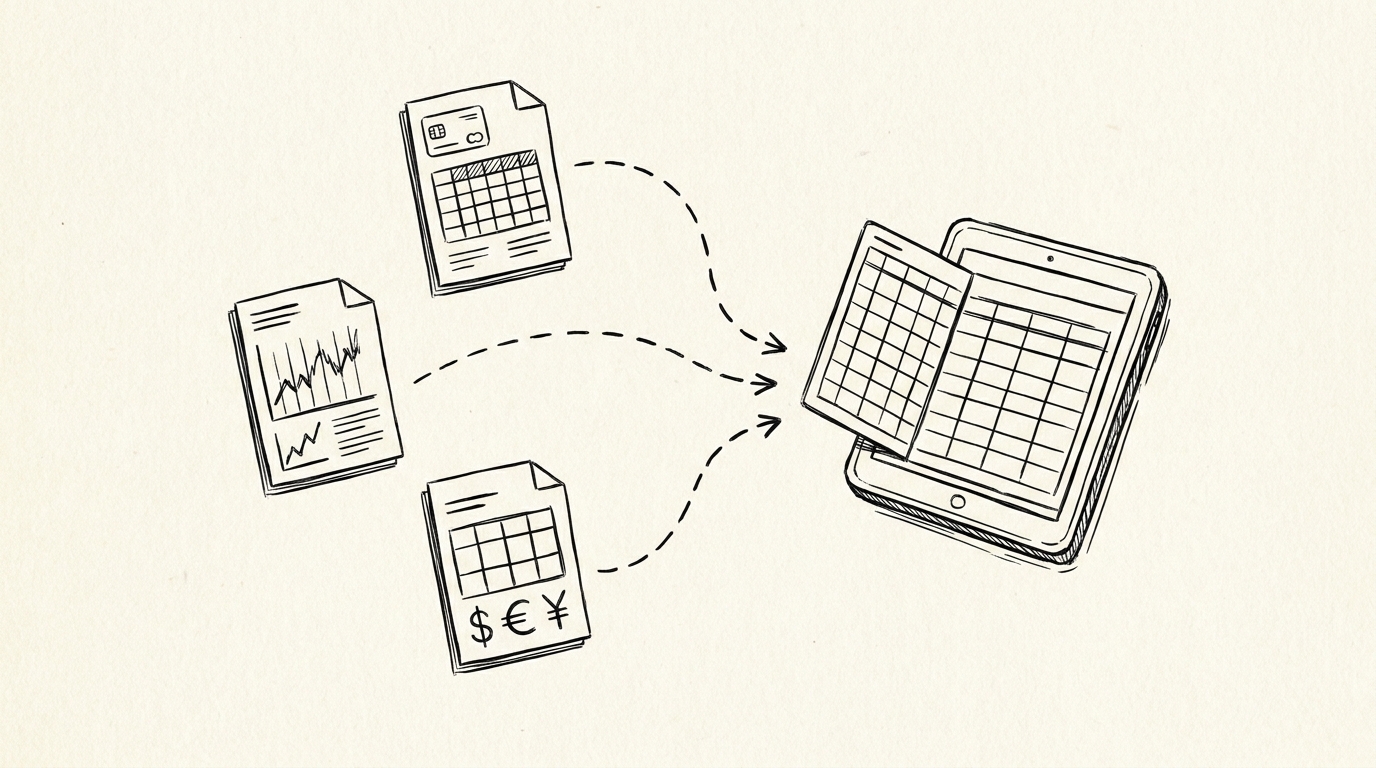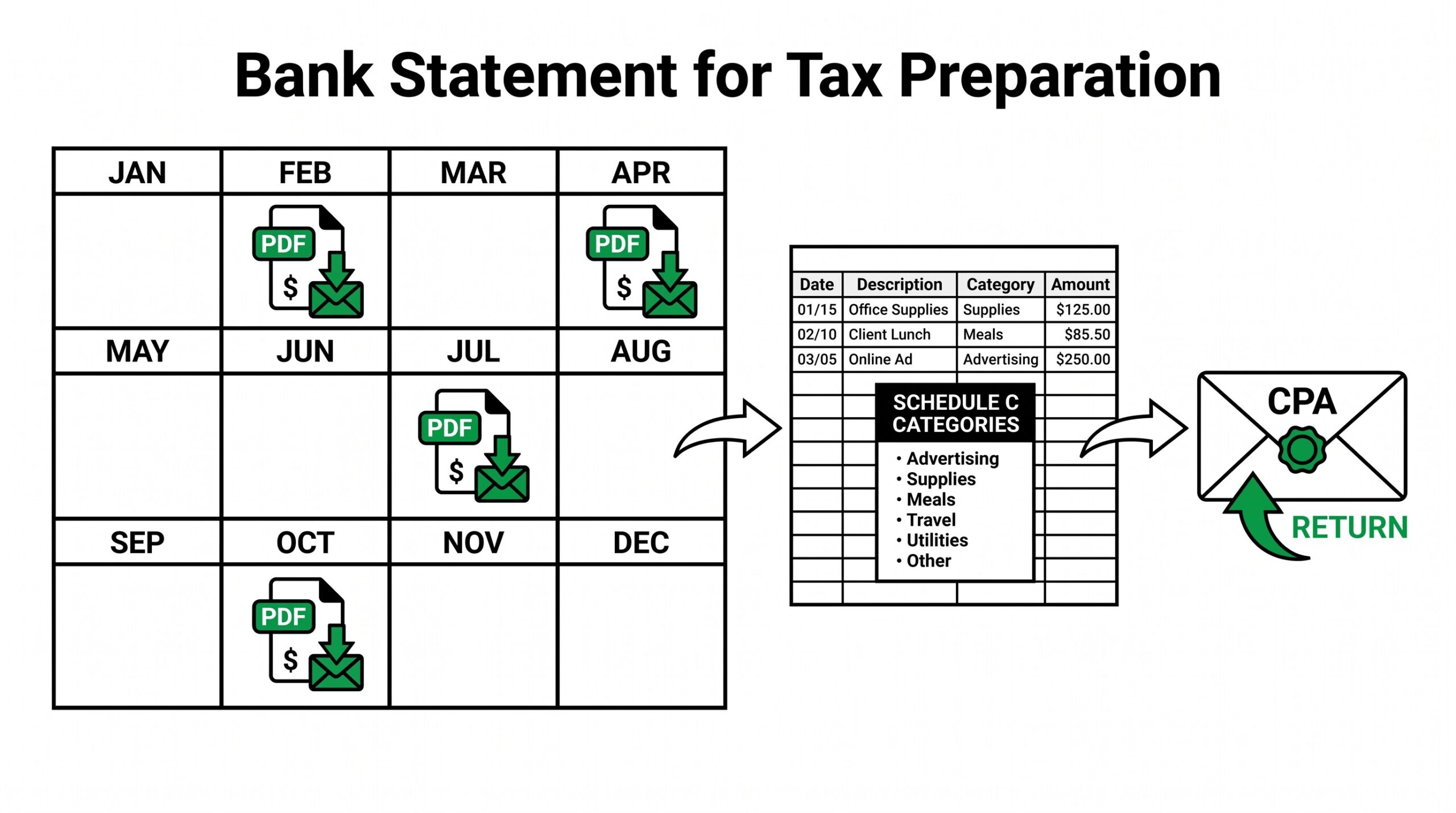

You are a self-employed consultant with 4 months until your tax filing deadline. You have 6 months of business checking statements, 12 months of business credit card statements, and 4 months of business receipts across 8 accounts. Your CPA needs everything converted to a spreadsheet by March 5, organized by Schedule C category.
You don’t want to lose $500 of legitimate deductions to poor categorization, and you definitely don’t want to pay your CPA to retype 800 transactions.
Tax preparation is the annual workflow that runs January-April in the US, where 12+ months of bank statements get converted into spreadsheets for CPA delivery or tax software import. The end goal is the same as business bookkeeping: get transactions into structured columns.
But the use case is different: monthly bookkeeping is recurring, tax preparation is annual, and the deliverable format is optimized for tax software rather than management reporting.
Quick Answers: Tax preparation conversion is the annual workflow (typically Jan-April) where 12+ months of bank statements get converted into spreadsheets for CPA delivery or tax software import. The 7-step workflow takes 3-6 hours for a sole proprietor with 4-6 accounts. The CPA needs the data in CSV format with consistent column headers (Date, Description, Amount, Category), not PDFs.
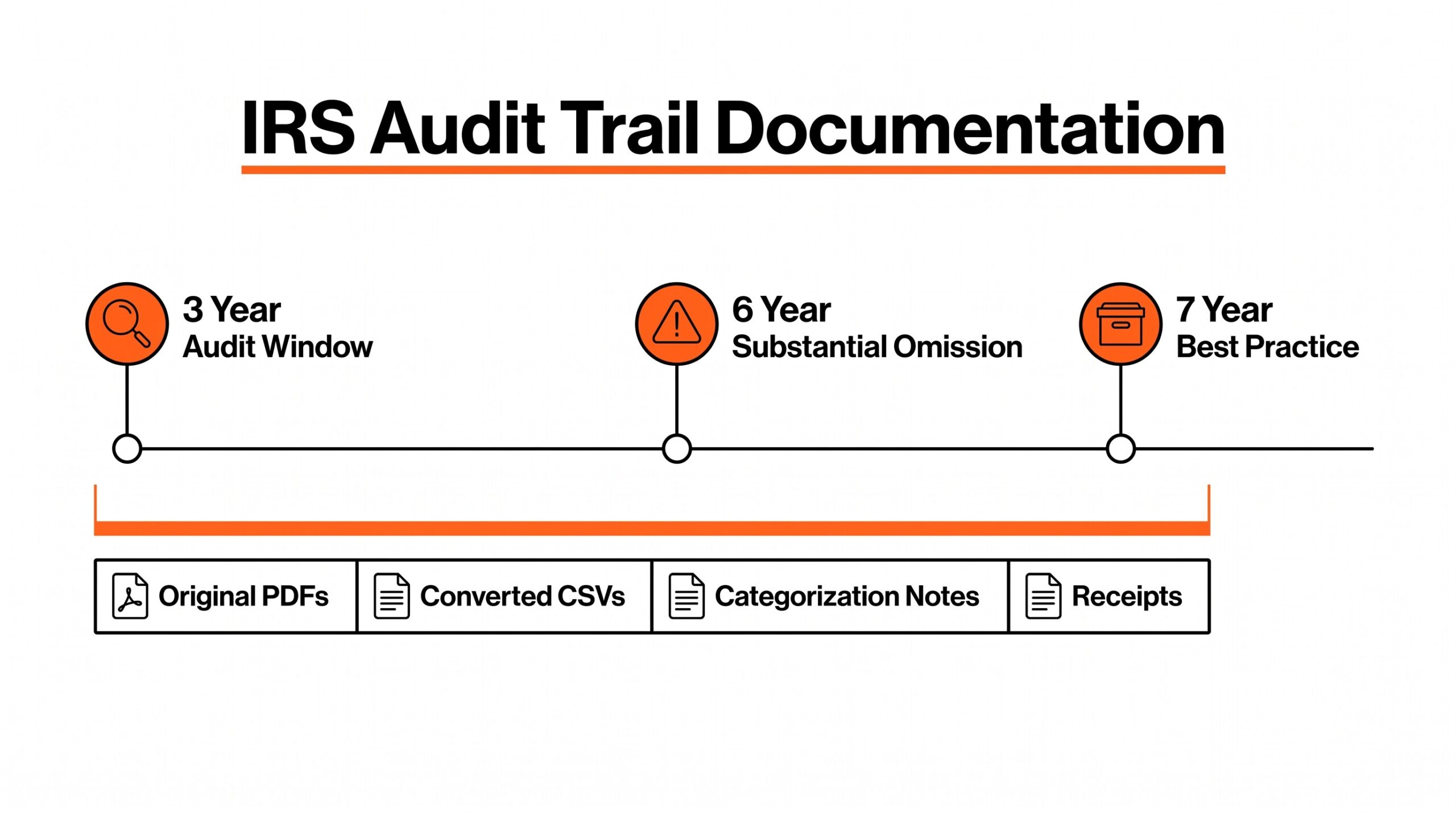
Sole proprietors typically have 4-6 accounts; corporations may have 10-20 accounts requiring coordinated conversion. Keeping the original PDF AND the converted CSV for 7 years is the audit-trail best practice; the IRS can audit up to 3 years back (6 years for substantial omissions).
What Tax Preparation Conversion Covers
Tax preparation conversion is the process of taking 12+ months of bank and credit card statements (in PDF format from the bank) and converting them into CSV or spreadsheet format organized by Schedule C category. The result is a single file per account (or a consolidated file for all accounts) that the CPA or tax software can read directly.
Imagine you are a freelance designer with business checking at Chase ($45,000 in transactions over 12 months), a business credit card at Amex ($32,000 in transactions), and a personal credit card you use for occasional business ($4,000 in mixed transactions).
The conversion produces 3 CSV files (or one consolidated file split by account) covering all 16 months of activity, with each transaction tagged with its Schedule C category. Your CPA opens the files, sees the categories, and prepares your Schedule C without typing a single transaction.
What tax preparation conversion does NOT cover is ongoing bookkeeping throughout the year. The annual tax prep workflow is a focused 1-2 week effort that consolidates and categorizes the year’s transactions. Monthly bookkeeping throughout the year makes the tax prep workflow easier but isn’t required for tax prep itself.
If you do monthly bookkeeping well, the tax prep workflow may only take 1-2 hours; if you skip monthly bookkeeping, tax prep can take 10-20 hours.
The tax preparation conversion workflow has 7 distinct steps. Each step has a typical time budget, and the total workflow usually takes 3-6 hours for a sole proprietor with 4-6 accounts.
Step 1: Gather all bank statements (30-60 minutes). The first step is collecting all the bank statements that arrived during the prior calendar year. For a typical self-employed individual, this means 6-12 accounts: business checking, business savings, 1-3 business credit cards, possibly PayPal business, Stripe business, or Square. Create a checklist of expected accounts and mark off each one as you retrieve it.
Step 2: Convert all PDFs to CSV or spreadsheet format (60-180 minutes). ESS reads both digital PDFs and scanned paper forms, producing one CSV per PDF. For a sole proprietor with 8 accounts and 96 statements (12 months × 8 accounts), the conversion produces 96 CSV files in about 60-180 minutes of total processing time.
Step 3: Consolidate by account (15-30 minutes). After conversion, each account has 12 monthly CSVs. For ease of review, consolidate the 12 CSVs into one master CSV per account. This step uses basic spreadsheet functions (VSTACK, CONCAT, or copy-paste) to merge the files.
Step 4: Apply Schedule C categories (60-120 minutes). This is the longest step. Each transaction needs to be tagged with its Schedule C category: advertising, supplies, software, meals (50%), travel, vehicle, insurance, etc. Some categories are obvious from the description (Adobe → software, Marriott → travel); others require judgment.
Step 5: Match receipts (30-60 minutes). For transactions above a dollar threshold (varies by CPA), match the bank transaction to the original receipt. Most CPAs want receipts for any expense $75+ or for specific categories (meals, travel, equipment). The matching is mostly manual but can be streamlined by transaction description keywords.
Step 6: Reconcile against tax software expectations (15-30 minutes). Verify that the total expenses per category match what the tax software expects. Schedule C has 14 main expense categories; if any are unexpectedly low or zero, double-check the categorization.
Step 7: Deliver to CPA (15-30 minutes). Send the consolidated CSVs to your CPA along with a summary of categories and any categorization notes. Most CPAs accept CSVs via email attachment or secure portal; very few want PDFs of statements because they don’t re-type transactions from PDFs.
What Format CPAs Actually Need
Most CPAs want the data in CSV format, not PDFs. A few years ago, many CPAs required clients to hand over bank statement PDFs because they had to manually re-type transactions. Today, modern CPAs prefer CSV files because they can import directly into tax software and avoid manual re-typing.
The standard CSV format that CPAs expect has these columns: Date (YYYY-MM-DD), Description (merchant name), Amount (positive or negative), and optionally Category (your pre-applied tag). Most CPAs also accept CSV with extra columns like Memo, Reference, or Account Name because they can ignore those during import.
What CPAs do NOT want: PDF files of bank statements (because they need to be re-typed), Excel files with merged cells or complex formatting (because they’re hard to import), handwritten expense logs (because they need to be transcribed), or category tags they don’t understand.
If your CPA insists on PDFs, that’s a red flag about their technical capability. Most professional CPAs accept CSV files in 2026 because the time savings are substantial. If yours doesn’t, ask why and consider whether to switch CPAs or use the tax software import directly instead.
For broader conversion workflows that apply to all year-round bookkeeping, the general bank statement to Excel workflow covers the conversion step, and the PDF to Google Sheets workflow covers an alternative target format.
From PDF to Excel in one click
Forget retyping line by line. Upload any bank statement, get a spreadsheet you can actually use. Your files are never stored, and you can test the converter with 3 free conversions.
Try it freeSole Proprietor vs Corporation Differences
The tax prep conversion workflow varies significantly based on business structure. Sole proprietors have simpler needs; corporations have more accounts and more complex categorization.
Sole proprietor (Schedule C). A sole proprietor typically has 4-6 accounts: 1-2 business checking, possibly 1 business savings, 1-3 business credit cards, possibly 1 PayPal/Stripe business. The conversion produces 4-6 consolidated CSV files tagged with Schedule C categories (advertising, supplies, software, meals, travel, etc.). Total workflow time: 3-6 hours.
S-corp or C-corp (corporate return). A corporation typically has 10-20 accounts: business checking, business savings, payroll account, multiple credit cards (one per executive or category), possibly lines of credit, possibly trust accounts. The conversion needs to coordinate with payroll records (W-2 forms, payroll tax filings) and may require separate categorization for shareholder distributions vs operating expenses.
Partnership (1065). A partnership has 10-15 accounts and may have partner-level credit cards and draws. The conversion needs to track each partner’s share of expenses for K-1 preparation. The categorization is similar to a corporation but with partner-specific allocations.
The complexity increases with the entity type. A sole proprietor can DIY the entire workflow; a corporation typically benefits from a CPA or bookkeeper doing the conversion and categorization. The conversion step (PDF to CSV) is the same regardless of entity type; the categorization and reconciliation are where the complexity differs.
IRS Audit Trail: What to Keep and for How Long
The IRS can audit tax returns for 3 years back from the filing date (6 years for substantial omissions, indefinitely for fraud). The audit trail is the documentation that supports your tax return: original PDFs of bank statements, converted CSVs, categorization notes, receipts, and the delivery email to your CPA.
The IRS recommends keeping tax records for at least 3 years after filing (matching the standard audit window). Many tax professionals recommend keeping records for 7 years to cover extended audit windows and professional liability claims. Digital storage (cloud storage, encrypted local backup) is acceptable as long as the records can be retrieved on demand.
For tax prep conversion, the audit trail includes: original PDFs of all bank statements, converted CSV files, categorization notes (especially for ambiguous transactions), receipts for deductible expenses, the email or message delivering the data to your CPA, and your CPA’s return delivery (often via secure portal).
The practice of keeping both the original PDF and the converted CSV is important because the conversion is lossy. If the IRS questions a specific transaction, you’ll want the original PDF to verify the conversion accuracy. Cloud storage (Google Drive, Dropbox, OneDrive) makes this practical at low cost.
For related workflows, see the monthly close conversion guide for the year-round workflow, the Xero conversion guide for Xero-specific tax prep, the business credit card conversion guide for Amex and other business cards, and the PDF to CSV conversion workflow for the format-handling step.
For the broader categorization context, the bank transaction categorization workflow covers how to apply consistent categories across all imported transactions.
Turn PDF Bank Statements Into Workable Spreadsheets
Your bank statement is a mess of numbers, but your books shouldn't be. Use our converter to get Excel, CSV, or QBO files — ready for QuickBooks.
Try It Free Now