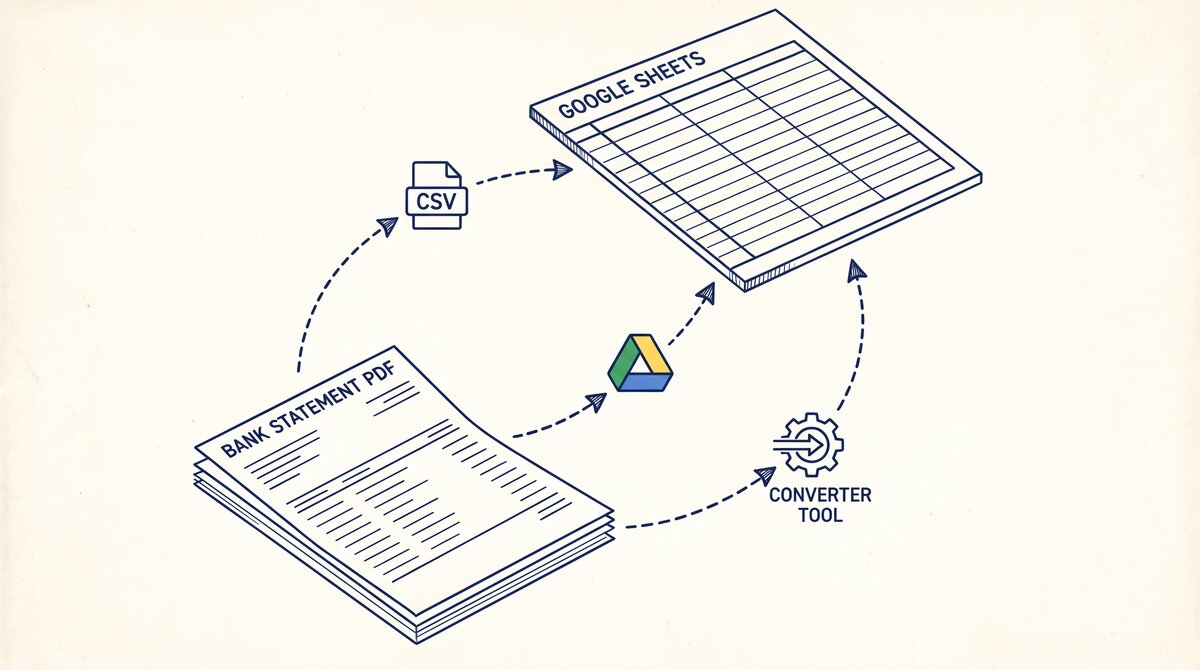

Converting your TD Bank statement to Excel takes 2 to 5 minutes with the right tool. The short answer: download the PDF from td.com/us, convert it to Excel using a browser-based converter, and verify the totals match the closing balance. The 5-step process is the same for every TD Bank account (checking, savings, money market, credit card). The hardest step is getting the PDF in the first place, because TD Bank’s online banking has a 24-month download limit and the older statements require a separate request.
TL;DR. To convert a TD Bank statement to Excel: (1) log into online banking, (2) download the statement PDF for the month you need, (3) use a browser-based converter to extract the transactions, (4) verify the closing balance matches, (5) import to your accounting software. The whole process takes 2 to 5 minutes for current statements and 5 to 10 minutes for statements older than 24 months. Founded in 1852 and headquartered in Cherry Hill, NJ, TD Bank offers checking and related products. The PDF format works with any major converter because TD Bank uses a standard table layout.
Why TD Bank Statements Need Conversion
TD Bank provides monthly statements in PDF format, but PDFs are not usable in accounting software, spreadsheets, or for analysis. To do anything with the data (reconcile, categorize, tax prep, loan applications), you need the transactions in Excel or CSV format. The conversion extracts the table from the PDF and outputs structured rows: date, description, amount, balance.
What most guides miss about Excel conversion is that the quality depends on the mechanism, not on the tool. Two tools that look different on the surface often run the same 4-step process underneath: read, find, parse, verify. The difference is in how well each step handles edge cases (merged cells, missing balances, non-standard date formats, scanned vs digital input). Choosing between tools based on UI alone misses the actual quality lever.
The conversion matters because:
- Bookkeeping: QuickBooks, Xero, Wave, and other accounting software need Excel/CSV/QBO to import transactions. Manual entry is 50x slower than importing converted data.
- Tax prep: Your CPA needs the categorized transactions. Sending a PDF means the CPA has to manually transcribe. Sending an Excel file means the CPA imports and is done.
- Loan applications: Most lenders (mortgage, auto, business) require 2-3 months of bank statements. PDFs are accepted, but the underwriter often needs to verify amounts. Excel is faster to verify.
- Analysis: If you want to know how much you spent at restaurants last quarter, you need structured data. PDFs are unsearchable.
How to Get Your TD Bank Statement

There are 3 ways to get your TD Bank statement as a PDF, depending on how old the statement is.
Method 1: Online Banking (Current 24 Months). Log into td.com/us, navigate to Statements or Documents, select the month you need, and download the PDF. The statement is in your Downloads folder as a PDF file. This is the easiest method and works for any account (checking, savings, money market, credit card).
Method 2: Mobile App (Current 12 Months). Open the TD Bank mobile app, tap your account, tap Statements, select the month, and tap Download. The PDF is the same as Method 1, just a different access path. The mobile app may have a shorter history than online banking.
Method 3: Request from Bank (Older Than 24 Months). Statements older than 24 months are typically not in online banking. To get them, call TD Bank customer service or visit a branch. There may be a fee (typically $5 to $25 per statement) and a processing time of 5-10 business days. The PDF is mailed or emailed.
Turn That PDF Into a Spreadsheet in Minutes
You've seen how to do it manually — now let the tool handle the heavy lifting. Upload your bank statement and get Excel, CSV, or QBO in a few clicks.
Try It FreeThe TD Bank Statement Format
TD Bank statements follow a standard US bank statement format. The PDF is 2-5 pages for personal accounts and 5-20 pages for business accounts with high transaction volume. The 4 key components are:
- Header (top 15% of page 1): account holder name, account number, statement period, opening balance
- Transaction table (middle 60-75%): one row per transaction with date, description, amount, balance
- Footer (bottom 10-15% of last page): closing balance, total deposits, total withdrawals, fees, interest
- Account info (top right of page 1): customer service phone, website, FDIC notice
The transaction table is what the converter extracts. The 4 standard columns are:
- Date: the date the transaction posted to the account (MM/DD/YYYY format)
- Description: the merchant name or transaction memo (truncated for long names)
- Amount: the dollar amount (positive for deposits, negative for withdrawals, sometimes shown with parentheses)
- Balance: the running balance after the transaction
The format is consistent across TD Bank account types: checking, savings, money market, and credit card. The credit card statement adds payment information and APR in the footer.
5 Common Issues When Converting TD Bank Statements

5 issues that come up specifically with TD Bank statements:
1. Multi-line transaction descriptions. A merchant name like “AMAZON.COM RETAIL ORDER #123-4567890-1234567” wraps to 2 visual lines. The converter has to merge the lines into a single row. A good converter does this automatically; a manual copy-paste approach loses the second line.
2. Same-day transactions out of order. If you have 3 transactions on January 15 (a deposit, a withdrawal, a fee), the statement may list them in any order. The conversion preserves the bank’s order, which is fine for bookkeeping but means a “by date” sort may not show the exact chronological order.
3. Combined debit/credit columns. Some TD Bank statements use a single “Amount” column with negative numbers for withdrawals. Others use separate “Withdrawals” and “Deposits” columns. A good converter handles both; a manual approach requires the bookkeeper to normalize.
4. Pending vs posted transactions. The statement only shows posted transactions. Pending transactions (those shown in online banking but not yet posted) do not appear. This matters for reconciliation: the bank balance and the statement balance will differ by the pending amount until the transactions post.
5. Check images. If you wrote checks during the statement period, the statement may include check images at the back. The check images are not part of the transaction table. A good converter skips the images; a bad converter may try to “extract” them as transactions and produce garbage.
How to Verify the Conversion
After the conversion, verify the output before importing to your accounting software. The verification takes 2-3 minutes and catches 99% of conversion errors.
Check 1: Row count. Count the rows in the converted Excel file. Compare to the number of transactions in the statement summary. They should match (within 1-2 for fee rows or sub-totals that the converter may have excluded).
Check 2: Opening and closing balance. The first row’s balance should match the opening balance on the statement. The last row’s balance should match the closing balance. If either is off by more than $0.01, the conversion is missing a transaction or has an extra.
Check 3: Sum of transactions. Sum the “Amount” column in Excel. The total should equal (Closing balance – Opening balance). If the difference is non-zero, the conversion is wrong.
Check 4: Date range. The first row’s date should be within the statement period. The last row’s date should also be within the statement period. If a date is outside, the converter may have misread a header or footer row as a transaction.
Check 5: Description format. Scan 5-10 random descriptions. They should be the merchant names you would expect (for example, “AMAZON.COM”, “STARBUCKS”, “SHELL OIL”). If a description is garbled (for example, “AMA ZON.CO M”), the OCR misread a column break.
TD Bank Specific Considerations
A few things specific to TD Bank that affect the conversion:
Account number masking. TD Bank statements typically show the full account number on the header. If you need to redact the account number for security (sending to a bookkeeper, uploading to a converter), do this BEFORE the conversion. The converter does not redact automatically.
Joint accounts. TD Bank joint account statements show both account holder names. The conversion extracts the header as text. The account holder name is not used in the transaction table.
International transactions. If you used a TD Bank debit card internationally, the statement shows the foreign currency and the conversion rate. The converted Excel will show the USD amount. If you need both currencies, you have to use the original PDF.
Multiple accounts. TD Bank allows you to download statements for multiple accounts in one session. Each account has its own PDF. Convert each PDF separately, then combine the results in Excel if needed.
A common failure mode bookkeepers report is treating this as a single operation rather than a chain of dependent steps. The temptation is to find a tool that ‘just works’ and stop investigating the mechanism. The result is a wrong-fix cycle: the tool gives partial output, the bookkeeper spends 30+ minutes troubleshooting, the fix is for the wrong step, and the same error recurs on the next statement. The fix: identify which step failed and apply the right intervention to that step.
Start with the Converter
The fastest path: download the PDF from td.com/us, use a browser-based converter, verify the output, import to your accounting software. The bank statement converter handles TD Bank statements in 2-5 minutes with no upload to a server, which is the safest option for your financial data.
For combining multiple months of TD Bank statements into one file, see the combine multiple bank statements guide. For reconciling after conversion, see the bank statement reconciliation page. For tax prep with the converted data, see the bank transaction categorization reference. For the broader bank statement glossary, see the bank statement glossary.
For a similar walkthrough for Frost Bank, see the Frost Bank statement to Excel guide.
From PDF to Excel in one click
Forget retyping line by line. Upload any bank statement, get a spreadsheet you can actually use. Your files are never stored, and you can test the converter with 3 free conversions.
Try it free