
You have an HSBC account. You need 12 months of history for a tax filing.It downloads in 30 seconds. The columns are Date, Description, Amount, Balance, and Currency.
The file opens in Excel directly. This is the second cleanest export of any major US bank (Citi is the cleanest).
This page is the HSBC export guide. It covers the 2 download options for US accounts (PDF and CSV), the multi-currency support, the difference between HSBC US and HSBC global, and how to combine transactions from multiple HSBC accounts in one file.
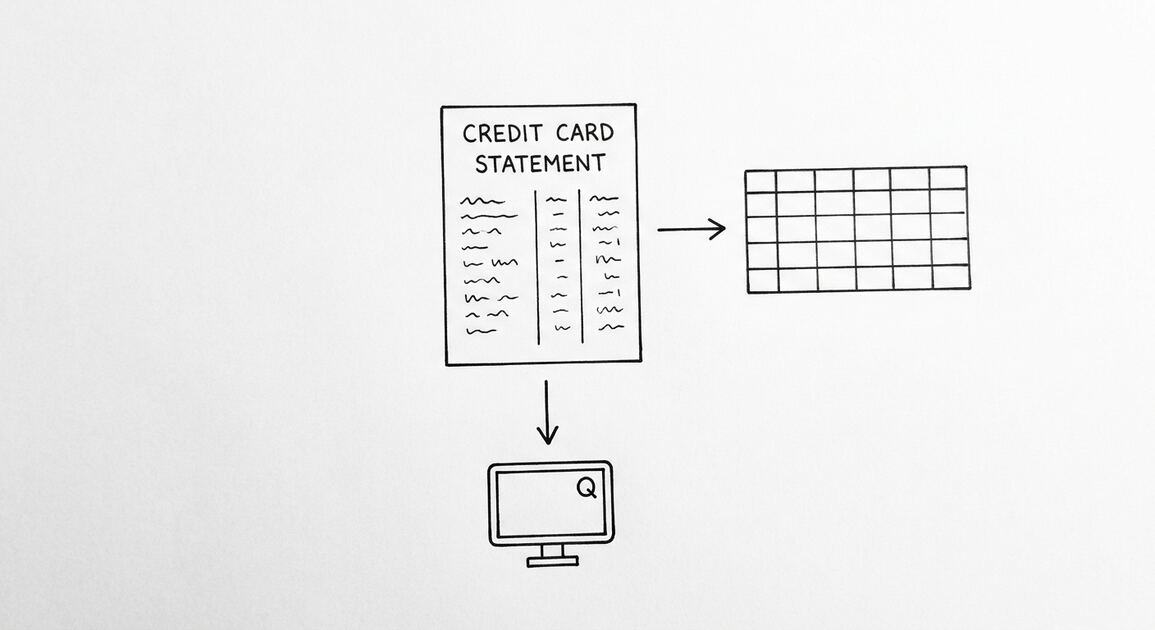
HSBC gives you 7 years of monthly PDF statements and 18 months of combined CSV download. The HSBC CSV is similar to Citi’s: real columns, real data, no PDF dance. The CSV opens directly in Excel without conversion.
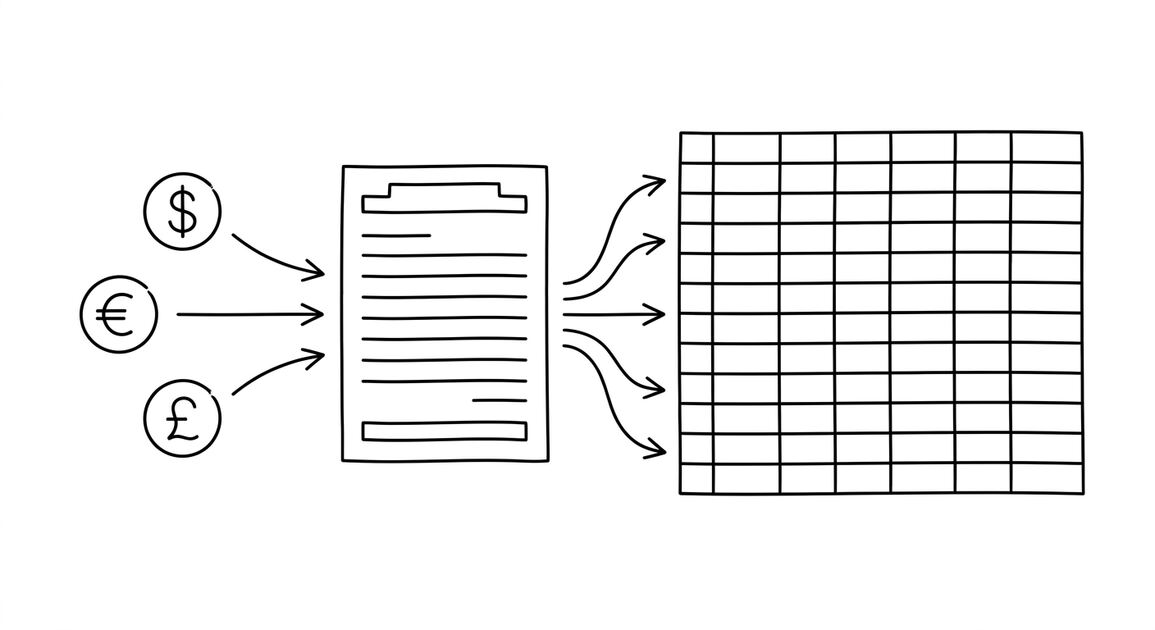
HSBC has the best multi-currency support of any major US bank. If you have accounts in USD, EUR, GBP, or other currencies, the CSV handles all of them in a single file. The Currency column identifies which currency each transaction is in.
HSBC US is a separate entity from HSBC global. The US portal at us.hsbc.com is for US-based accounts. The global portal at hsbc.com is for international accounts. The two portals are separate, and the export flows are different.
What HSBC US Actually Gives You
HSBC’s US online portal at us.hsbc.com gives personal account holders 2 export options. Both are useful in different situations.
What most guides miss about Excel conversion is that the quality depends on the mechanism, not on the tool. Two tools that look different on the surface often run the same 4-step process underneath: read, find, parse, verify. The difference is in how well each step handles edge cases (merged cells, missing balances, non-standard date formats, scanned vs digital input). Choosing between tools based on UI alone misses the actual quality lever.
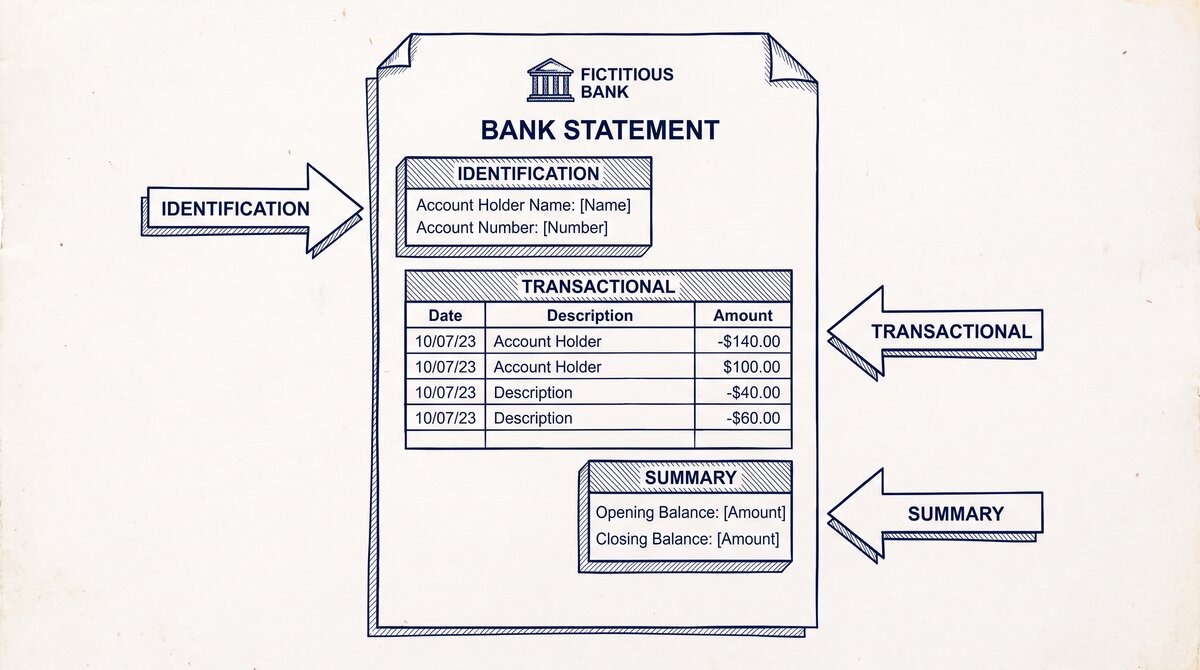
- Monthly PDF Statements going back 7 years. One PDF per month per account. The PDF has the standard HSBC branding, the account summary, and the transaction list.
- Combined CSV Download going back 18 months. This is the cleanest export. The file is a single CSV with all transactions for the date range. It opens directly in Excel or Google Sheets without conversion.
There is no OFX, no QFX, no QBO. For users on QuickBooks, the CSV is the right path, but the import requires a small dance (the HSBC CSV uses MM/DD/YYYY dates by default, which QuickBooks may need adjusted).
There is no combined statement feature, but the CSV includes all accounts on the same customer ID in a single file. If you have multiple HSBC accounts (checking, savings, credit card), the CSV has an “Account” column that identifies which account each transaction belongs to. This is one of 10 banks covered in our US bank export guide.
How to Download HSBC CSV Step by Step
The CSV export is the cleanest path. Here is the click-by-click flow.
- Log into us.hsbc.com with your Username and Password.
- Click on the account you want the statement for.
- Click “Account services” in the navigation.
- Click “Download transactions” in the sub-navigation.
- Set the date range. The maximum is 18 months.
- Choose “CSV” as the format.
- Click “Download”. The file saves to your default downloads folder.
The file is named something like hsbc_activity_2024-07-15_to_2026-01-15.csv. Open it in Excel. The data is in 5 or more columns, depending on how many accounts you have.
I learned this the hard way the first time an HSBC client needed 12 months of history. I downloaded 12 monthly PDFs. Then I found the CSV export, which gave me everything in one file. The lesson: always check the CSV first, fall back to PDF only if you need a specific month’s official statement.

From Bank Statement to QuickBooks-Ready File
That manual cleanup you just read about? This tool skips it. Turn your PDF into QBO for QuickBooks without storing your data anywhere.
Start ConvertingMulti-Currency Support: The HSBC Advantage
If you have HSBC accounts in multiple currencies (USD, EUR, GBP, JPY, etc.), the CSV download handles all of them in a single file. The Currency column identifies which currency each transaction is in. The Amount column is in the local currency. The Balance column is in the local currency.
For example, if you have a USD account and a EUR account, the CSV will have rows for both accounts, with the Currency column telling you which is which. The Amount column will be in the respective currency (no conversion).
To convert to USD, you need to do the math in Excel using the exchange rate on the transaction date. The CSV does not include the exchange rate. You will need to add a column with the daily rate and a calculated column for the USD equivalent.
HSBC’s Premier and Jade accounts offer a “World Currency” account feature, which is a single account that holds balances in multiple currencies. For these accounts, the CSV includes a Currency column and the transactions are tagged with the currency they were made in.
HSBC US vs HSBC Global
HSBC operates in many countries under the HSBC brand, but the US entity (HSBC Bank USA) is a separate company from the global HSBC Holdings. The two have different online systems.
For US-based accounts, the portal is at us.hsbc.com. For international HSBC accounts (e.g., HSBC HK, HSBC UK, HSBC Singapore), the portals are different:
- HSBC UK: uk.hsbc.com. PDF and OFX, 7-year history.
- HSBC HK: hk.hsbc.com. PDF and CSV, 7-year history.
- HSBC Singapore: hsbc.com.sg. PDF and CSV, 5-year history.
- HSBC China: services.cn.hsbc.com. PDF only, 2-year history.
If you have HSBC accounts in multiple countries, you will need to log into each portal separately and run the export for each. The export formats vary by country. The CSV column structures also vary slightly between countries.
How to Download HSBC PDF Step by Step
The PDF export is in the “Statements” section. Here is the click-by-click flow.
- Log into us.hsbc.com.
- Click on the account.
- Click “Account services” in the navigation.
- Click “Statements” in the sub-navigation.
- You will see a list of monthly statements going back 7 years.
- Click the statement you want. The PDF opens in your browser.
- Save the PDF (Ctrl+S or File > Save).
The PDF is one file per month per account. For 24 months of history across 2 accounts, you are downloading 48 files. The PDF is well-formatted and a converter that handles HSBC’s standard layout will extract the transactions cleanly.
International Wire Transfers in the CSV
For HSBC customers who make international wire transfers, the CSV export includes both the source currency and the destination currency in the Description column. The Amount column shows the amount in the source currency. The balance is in the source currency’s account.
For example, if you wire $1,000 USD to a EUR account, the CSV will show:
- Date: the date of the wire
- Description: includes “Wire transfer to EUR account” plus the EUR amount and exchange rate
- Amount: -$1,000.00 (negative, since it’s a withdrawal from the USD account)
- Balance: the USD balance after the wire
- Currency: USD
The Description column usually includes both the source amount and the destination amount, plus the exchange rate used. This is helpful for reconciliation. For example, “Wire transfer 1000 USD to 920 EUR, rate 0.92”.
The 18-Month CSV Limit (and How to Get More)
HSBC’s CSV export goes back 18 months. For most users, that is enough. For some use cases (long-term tax audits, historical financial analysis), 18 months is not enough.
Two ways to get more than 18 months:
- Download the CSV in 18-month chunks. Run the export for the last 18 months. Then run it for the 18 months before that. HSBC’s portal lets you pick any date range, but the maximum span is 18 months for CSV. Combine the two files in Excel with a simple append.
- Use the PDF statements for older history. The PDF download goes back 7 years. Download the older PDFs and convert them. Combine with the CSV.
For most users, 18 months is enough. The 18-month limit is an HSBC portal limit, not a banking limit. Older data exists. Getting it requires a phone call or the PDF route.
How to Use the HSBC CSV in QuickBooks
The HSBC CSV works with QuickBooks Online (QBO) and QuickBooks Desktop, but the import requires a small dance. QBO does not accept the HSBC CSV format directly. The workaround:
- Save the HSBC CSV as .xlsx (just rename or open and save in Excel).
- In QBO, go to Banking > Add account > Upload file.
- Map the columns: Date to Date, Description to Description, Amount to Amount. The Currency and Balance columns can be ignored (QBO has its own currency handling).
- Click “Import”.
For multi-currency files, the import is more complex. QBO treats multi-currency files as separate accounts. You may need to import each currency separately and then combine in the chart of accounts. Our QuickBooks conversion guide covers the multi-currency import dance in detail.
The 2am Test for HSBC Conversions
If you are exporting an HSBC statement at 2am, here is the flow that works.
- Open us.hsbc.com. Log in.
- Click the account. Click “Account services”. Click “Download transactions”.
- Set the date range. Choose CSV. Click Download.
- Open the CSV in Excel. The data is already in 5 columns.
- Convert the date format to YYYY-MM-DD if needed.
- Save the file as .xlsx if you want to keep working in Excel.
There is no conversion step. The CSV is the file. This is one of the easiest exports of any major US bank. For PDFs from older history, our general PDF-to-Excel conversion guide covers the broader workflow.
A common failure mode bookkeepers report is treating this as a single operation rather than a chain of dependent steps. The temptation is to find a tool that ‘just works’ and stop investigating the mechanism. The result is a wrong-fix cycle: the tool gives partial output, the bookkeeper spends 30+ minutes troubleshooting, the fix is for the wrong step, and the same error recurs on the next statement. The fix: identify which step failed and apply the right intervention to that step.
What to Do With Multiple HSBC Accounts
If you have multiple HSBC accounts on the same customer ID, the CSV export gives you everything in one file. No combining needed. The Account column identifies which account each transaction belongs to.
If you have HSBC accounts in multiple countries, the export flow is more complex. Each country’s portal is separate, the export formats vary, and the column structures differ. The combined file requires manual mapping in Excel.
For users managing many HSBC accounts across countries, the combined approach is essential for tax reporting. Most accounting software cannot directly import from multiple HSBC portals. The workaround is to convert the OFX files (if any) to CSV using a converter, then combine all the CSV files in Excel with manual column mapping. Our batch conversion guide covers the desktop converter setup for multi-portal scenarios.
For a deeper look at the conversion step, see our general guide to converting bank statements to Excel. For QuickBooks users, see our QuickBooks-specific conversion guide. If you have multiple banks to convert at once, see our batch conversion guide. For the full map of which bank gives what, see our US bank export guide. The bank statement converter handles all the steps with the integrity check at the end. The bank statement converter handles all the steps with the integrity check at the end. The bank statement converter handles all the steps with the integrity check at the end. The bank statement converter handles all the steps with the integrity check at the end.
From PDF to Excel in one click
Forget retyping line by line. Upload any bank statement, get a spreadsheet you can actually use. Your files are never stored, and you can test the converter with 3 free conversions.
Try it free