
How to Categorize Bank Statement Transactions, A Bookkeeper’s Workflow
You open a converted bank statement in Excel and see 250 transactions staring back at you. Every line needs a category. Some are obvious: Adobe Creative Cloud, AWS, FedEx. Some are ambiguous: Costco at $250 with no clear split. Some are dangerous: a $5,000 wire to a 1099-NEC contractor that could be reclassified if the wrong code is applied.
You’re staring at four hours of clicking through categories one transaction at a time, and you’re not sure you’re picking the right ones. The good news is that a systematic workflow cuts this from four hours to one, and the difference between the two is whether you have a system or not.
Quick Answers: The most efficient workflow is to (1) sort transactions by merchant name, (2) batch-categorize the 80% that follow patterns, (3) handle the four special patterns (transfers, owner draws, 1099-NEC payments, refunds) separately, and (4) verify with bank rules set up in your accounting software. Common merchant patterns: Adobe → Line 18 Office Expenses; AWS → Line 22 Supplies; gas stations → Line 9 Car/Truck; FedEx/UPS → Line 22 Supplies; Stripe fees → Line 10 Commissions and Fees. Categorization reduces from 4 hours (manual) to 1 hour (with rules) to 30-60 minutes (with AI-assisted) per typical monthly statement.
The 4-Step Categorization Workflow
End-to-end categorization for a typical 200-250 transaction monthly statement follows four steps. Once you establish this workflow, every statement takes about an hour or less:
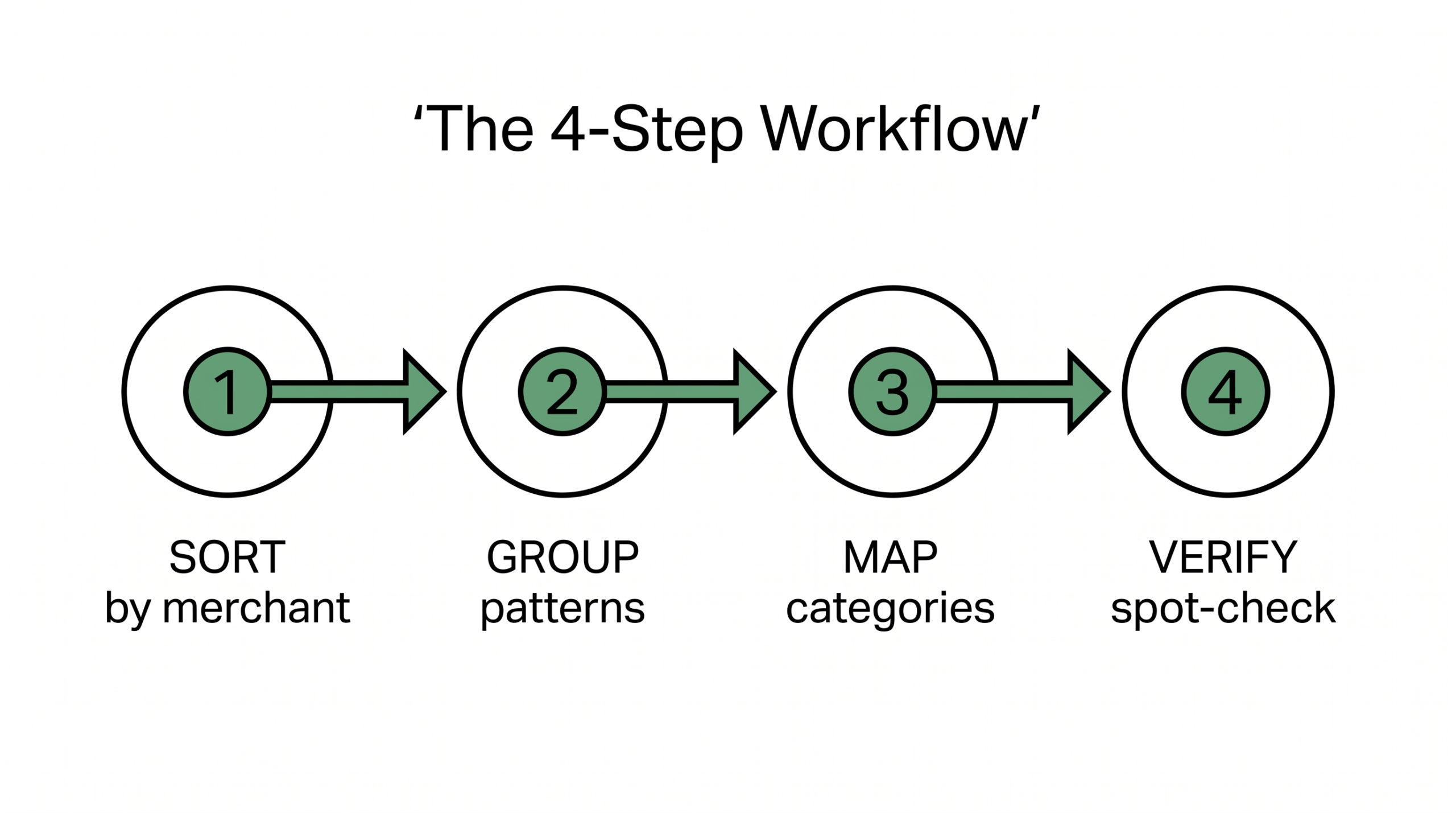
- Sort. Open the converted CSV in Excel or Google Sheets and alphabetize by merchant description. This groups the recurring patterns together visually. Without sorting, you’ll read each transaction fresh and lose track of patterns.
- Group. Identify the 5-10 most common merchant patterns. A typical statement has 30-50 unique merchants, but 10-15 of them appear repeatedly. Group similar descriptions (e.g., “ADOBE *CREATIVE CLOUD” + “ADOBE *STOCK” both map to the same Adobe subscription line).
- Map. Categorize the most common 80% first. Build bank rules for these. Then deal with the unusual 20% one at a time, with fresh eyes.
- Verify. Spot-check 10 random transactions against receipts and bank rules. Look for double-counts, missed subscriptions, or accidentally categorized tax payments.
The order matters: sort first, group second, map third. Each step makes the next one faster. Without sorting, grouping is invisible. Without grouping, mapping wastes time re-thinking the same merchant.
Turn PDF Bank Statements Into Workable Spreadsheets
Your bank statement is a mess of numbers, but your books shouldn’t be. Use our converter to get Excel, CSV, or QBO files — ready for QuickBooks.
Turn That PDF Into a Spreadsheet in Minutes
You’ve seen how to do it manually — now let the tool handle the heavy lifting. Upload your bank statement and get Excel, CSV, or QBO in a few clicks.
Turn PDF Bank Statements Into Workable Spreadsheets
Your bank statement is a mess of numbers, but your books shouldn't be. Use our converter to get Excel, CSV, or QBO files — ready for QuickBooks.
Try It Free NowCommon Merchant → Schedule C Mapping
Most bank transactions fall into predictable merchant patterns. The exact mapping depends on your chart of accounts, but these 50 patterns cover roughly 80% of typical small business bank statements:
| Merchant Pattern | Schedule C Line | Rationale |
|---|---|---|
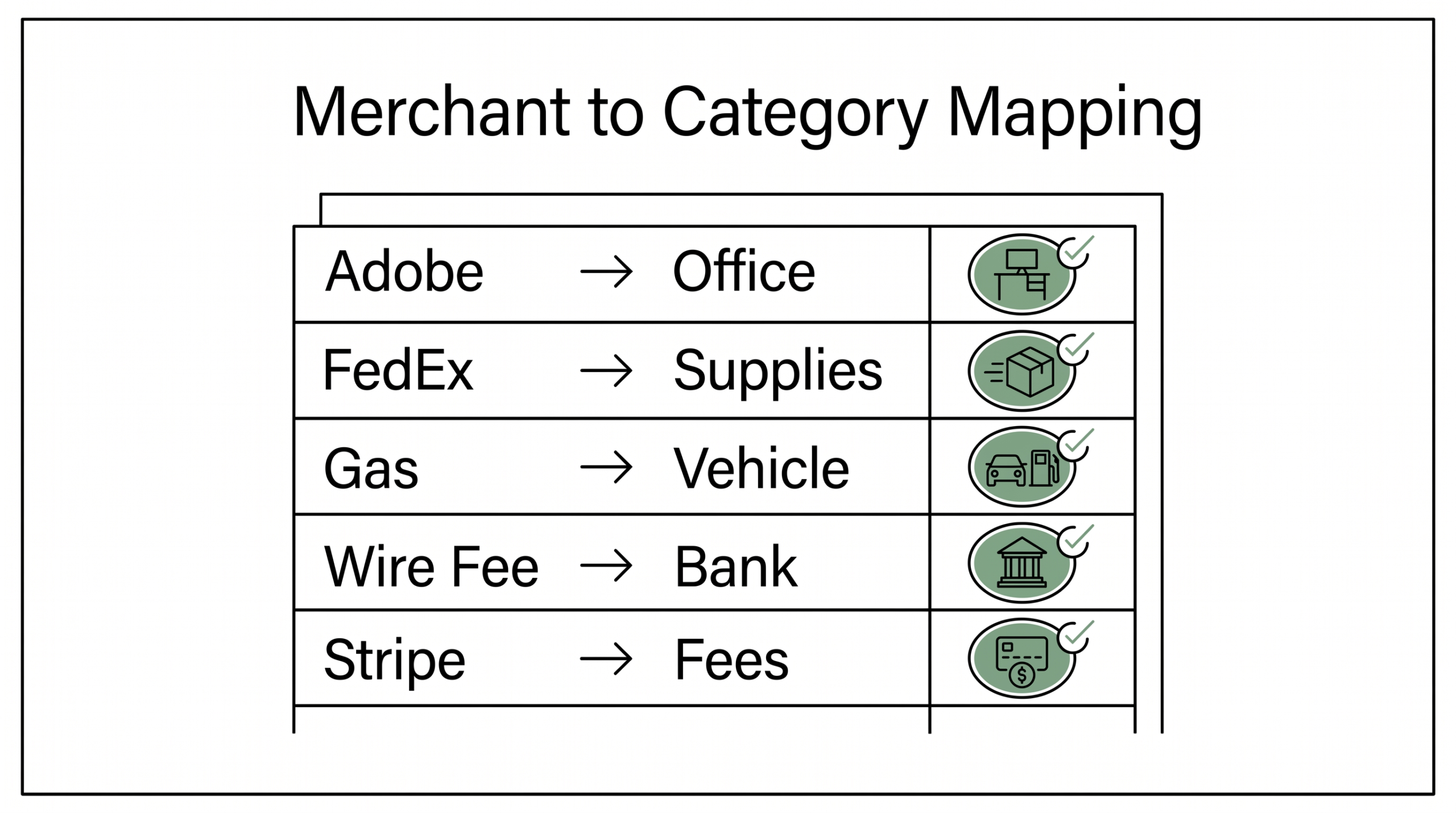
| Adobe Creative Cloud, Microsoft 365, Zoom, Notion | Line 18 Office Expenses | Software subscriptions |
| AWS, DigitalOcean, Google Cloud, Azure | Line 22 Supplies | Cloud infrastructure (digital supplies) |
| GoDaddy, Cloudflare, Namecheap | Line 22 Supplies OR Line 25 Other Expenses | Domain and hosting |
| Slack, Asana, ClickUp, Linear | Line 18 Office Expenses | Productivity SaaS |
| Gas station (Shell, Exxon, BP, Chevron) | Line 9 Car and Truck Expenses | Vehicle fuel |
| Uber, Lyft (business purpose) | Line 9 OR Line 24a | Local travel vs ride to airport |
| United Airlines, Delta, American Airlines | Line 24a Travel | Air travel |
| Marriott, Hilton, Hyatt, Airbnb (business) | Line 24a Travel | Lodging |
| FedEx, UPS, USPS, DHL | Line 22 Supplies | Shipping and postage |
| Amazon (business) | Line 22 Supplies | General supplies |
| Costco (split) | Line 22 + Line 24b (50/50 typical) | Mix of supplies and meals |
| Office Depot, Staples | Line 18 Office Expenses | Office supplies |
| Apple Store, Best Buy | Line 22 Supplies OR Line 13 Depreciation | Equipment, track for asset threshold |
| LinkedIn, Indeed, ZipRecruiter | Line 8 Advertising OR Line 17 | Recruiting |
| Google Ads, Facebook Ads, Reddit Ads | Line 8 Advertising | Paid marketing |
| Stripe fee, Square fee, PayPal fee | Line 10 Commissions and Fees | Payment processing |
| Bank fee, wire fee, overdraft fee | Line 27a Other Expenses | Bank charges |
| Insurance premium (State Farm, Allstate, Hiscox, NEXT) | Line 15 Insurance | Business insurance |
| Comcast, Verizon, AT&T (business) | Line 25 Utilities | Communications utilities |
| PG&E, ConEd, National Grid | Line 25 Utilities | Power and gas utilities |
| Rent payment to landlord | Line 20 Rent | Office or workspace rent |
| Loan payment to bank | Line 16a (interest) + Line 26 (principal) | Business loan servicing |
| ADP, Gusto, QuickBooks Payroll, Paychex | Line 12 Taxes and Licenses OR Line 14 | Payroll service fees |
| Healthcare, dental, vision premiums | Line 14 Employee Benefit Programs OR Line 19 | Health insurance |
These mappings aren’t universal. Some bookkeepers prefer Line 27a for software subscriptions; others file everything under Line 18. The exact line matters less than the consistency. Schedule C line numbers are IRS-defined categories, use them consistently across the year, then check at year-end that the right totals are appearing in the right boxes.
4 Special Patterns Requiring Manual Review
Four transaction patterns trip up most new bookkeepers. They require explicit attention during categorization:
- Transfers between company accounts. A wire or ACH from your business checking to your business savings, or to a tax savings account, is an internal transfer, neither income nor expense. Categorize as “Owner’s Equity Transfer” or “Inter-account Transfer” in your chart of accounts, not a deductible expense. Categorizing a transfer as Office Supplies will inflate your expenses artificially.
- Owner draws (single-member LLC). A draw from the business to the owner for personal use, or to pay personal expenses, is NOT a deductible business expense. Categorize as “Owner’s Draw” or “Distribution.” The IRS treats the LLC’s profit as the owner’s personal income whether or not draws happen. Drawing from the business doesn’t change tax owed.
- 1099-NEC contractor payments. A payment to an independent contractor who earned $600+ during the year must be tracked for 1099-NEC issuance at year-end. Categorize as Line 11 Contract Labor. Verify the contractor’s W-9 is on file before payment, and produce the 1099-NEC in January for all qualifying payments. Misclassifying contractor payments as Office Expenses can trigger IRS scrutiny.
- Refunds and chargebacks. A refund issued by a vendor for returned goods should reverse the original category. If you categorized the original purchase as Line 22 Supplies, the refund enters as a credit to Line 22 Supplies. The bookkeeper’s job is to match the refund to the original purchase, not treat it as new income.
These four patterns aren’t the majority of transactions, but they’re the ones most likely to be wrong. A bookkeeper who gets these four right has materially lower audit risk than one who doesn’t.
Bank Rules vs Manual Categorization (The 80/20 Split)
Bank rules in QuickBooks Online, Xero, and Wave are the most powerful time-saving tool. A bank rule says: “If the transaction description contains ‘X’, categorize as Y.” Once you’ve categorized a transaction once manually, the next time it appears, the rule auto-categorizes it.
The 80/20 split: for a typical 200-transaction monthly statement, roughly 80% of the transactions (160 of them) follow patterns covered by 6-10 well-built bank rules. The remaining 20% (40 transactions) need manual review because they’re unique or one-off.
Bank rule patterns that cover most businesses:
- Rule 1: Anything containing “ADOBE” → Line 18 Office Expenses.
- Rule 2: Anything containing “AMAZON” → Line 22 Supplies.
- Rule 3: Anything containing “SHELL” / “EXXON” / “CHEVRON” / “BP ” → Line 9 Car and Truck Expenses.
- Rule 4: Anything containing “LYFT” / “UBER” / “CAB ” → Line 9 Car and Truck Expenses.
- Rule 5: Anything containing “STRIPE” or “PAYPAL” or “SQUARE” → Line 10 Commissions and Fees.
- Rule 6: Anything starting with “WIRE TRANSFER FEE” → Line 27a Bank Charges.
- Rule 7: Anything containing “ADPNBC” or “GUSTO” or “PAYCHEX” → Line 12 Payroll Service.
- Rule 8: Anything containing “SHELL OIL” or “COSTCO GAS” → Line 9 Vehicle Fuel.
Building these rules takes an hour the first time. The payoff is that the next month, 80% of the transactions are auto-categorized. For multi-client bookkeepers, the same set of rules works across most clients; only the merchant-specific subscriptions need per-client rules.
Time Comparison: Rules vs AI-Assisted vs Manual
The time difference between approaches for a 200-transaction monthly statement:
| Approach | Time | Best For |
|---|---|---|
| Pure manual | 4 hours | First-time categorization, very unusual business patterns |
| Bank rules (8-12 well-built rules) | 1-1.5 hours | Recurring patterns, established businesses |
| AI-assisted (QBO AI, Xero Analytics) | 30-60 minutes | Pattern-rich statements, recent QBO/Xero versions |
| Hybrid (AI pre-categorize + verify) | 45-75 minutes | Most professional bookkeepers today |
AI-assisted categorization (QuickBooks Online’s “Smart Categorization,” Xero’s “Analytics Plus”) uses machine learning trained on millions of historical categorizations. The software suggests a category as transactions flow in. The bookkeeper accepts, edits, or rejects each suggestion. Over time, the AI learns the specific business’s patterns.
The trade-off: AI-assisted still requires verification. The bank rules + AI hybrid is the practical sweet spot, AI handles the typical patterns, rules catch specific merchant-to-line mappings, and manual review handles the 20% unusual.
Year-End Cleanup: The 4-Week Annual Review
Categorization isn’t a one-time event. The patterns drift over the year as merchants rename, subscriptions change, and the business pivots. Year-end cleanup catches the drift before filing. Here’s a four-week protocol:
- Week 1: Categorization report. Run the “Transactions by Category” report in QBO/Xero for the full year. For each uncategorized transaction, assign a category. Most months will have 0-3 uncategorized transactions; aim to clear them all before the next month starts.
- Week 2: Spot-check accuracy. Pull 10 random transactions from each month. Verify the category is right by checking the source receipt or invoice. If more than 1 is wrong, dig deeper into that month’s pattern.
- Week 3: Verify 1099-NEC contractors. Generate a list of all contractor payments (Line 11). For each contractor paid $600+, confirm: W-9 is on file, address is current, 1099-NEC will be issued. Update the contractor master file as needed.
- Week 4: Reconcile all balances. Reconcile business bank + credit card + loan balances against the books. Any discrepancies trigger a deep dive into the month’s transactions to find the missing or duplicate entry.
This annual review catches categorization drift that would otherwise surface during an audit or a tax filing dispute. Most bookkeepers do it in late December or early January, before the tax filing deadline.
Tools That Support Categorization
The tool stack matters less than the system, but these tools materially help:
- QuickBooks Online Essentials and above, built-in categorization, bank rules, AI suggestions, vendor memory.
- Xero with Analytics Plus, strong categorization, machine-learning suggestions, bank rules, project tracking.
- Wave Accounting, free tier supports basic categorization and rules, suitable for very small businesses.
- PDF-to-CSV converters, for converting monthly statements before manual import. Saves the manual entry step.
- Receipt capture apps (Dext, Hubdoc, AutoEntry), for capturing receipts and matching them to categorized transactions.
The combination that works for most bookkeepers: accounting software (QBO or Xero) + bank feeds where available + PDF-to-CSV converter for historical + receipt capture for verification. Each layer addresses a different bottleneck.
Audit Defense: Building Receipts and Notes Per Category
An IRS audit will ask: “Show me receipts for these expenses.” The bookkeeper’s job at categorization time is to make this answerable. For each category with significant dollar value (>$1,000 in a single line item or >$5,000 in aggregate), keep:
- The receipt (digital or paper) attached to the transaction record.
- A note describing the business purpose (especially for Travel, Meals, Entertainment).
- The relationship to a specific client or project, especially for contractor payments.
Most accounting software supports attached files and per-transaction notes. Building this audit trail during categorization takes a few seconds per transaction. The audit-defense value compounds: a question that takes 30 seconds to answer at audit time would otherwise take 30 minutes of searching.
Categorization isn’t bookkeeping for the sake of bookkeeping, it’s the work that makes the books meaningful. A well-categorized bank statement tells the story of where the money went, why, and whether it was deductible. A badly categorized one is a list of numbers that requires reconstruction before any decision can be made.
Turn PDF Bank Statements Into Workable Spreadsheets
Your bank statement is a mess of numbers, but your books shouldn’t be. Use our converter to get Excel, CSV, or QBO files — ready for QuickBooks.
Turn any PDF statement into a clean sheet
Skip the typos and the hours of copying. Our converter handles any bank statement format and outputs Excel, CSV, or QBO for QuickBooks. No file retention, free to try.
Turn PDF Bank Statements Into Workable Spreadsheets
Your bank statement is a mess of numbers, but your books shouldn't be. Use our converter to get Excel, CSV, or QBO files — ready for QuickBooks.
Try It Free Now