
You have a bank statement in PDF. You need the transactions extracted.
PDF bank statements are the most common input, but they are also the hardest format to extract from because the data is locked inside a layout.
This page is the guide to extracting transactions from PDF bank statements. It covers the digital vs scanned distinction, the OCR layer, the 4-step mechanism for digital PDFs, and the 5 things that go wrong. The bank-specific extraction guides for 11 major US banks are linked below.
Extracting transactions from a PDF bank statement (also called PDF transaction extraction) is the process of pulling structured fields (date, description, amount, balance) from the PDF and writing them into a file software can process. The output is the dataset the downstream tool consumes: a spreadsheet for editing, an accounting import, or a reconciliation feed.
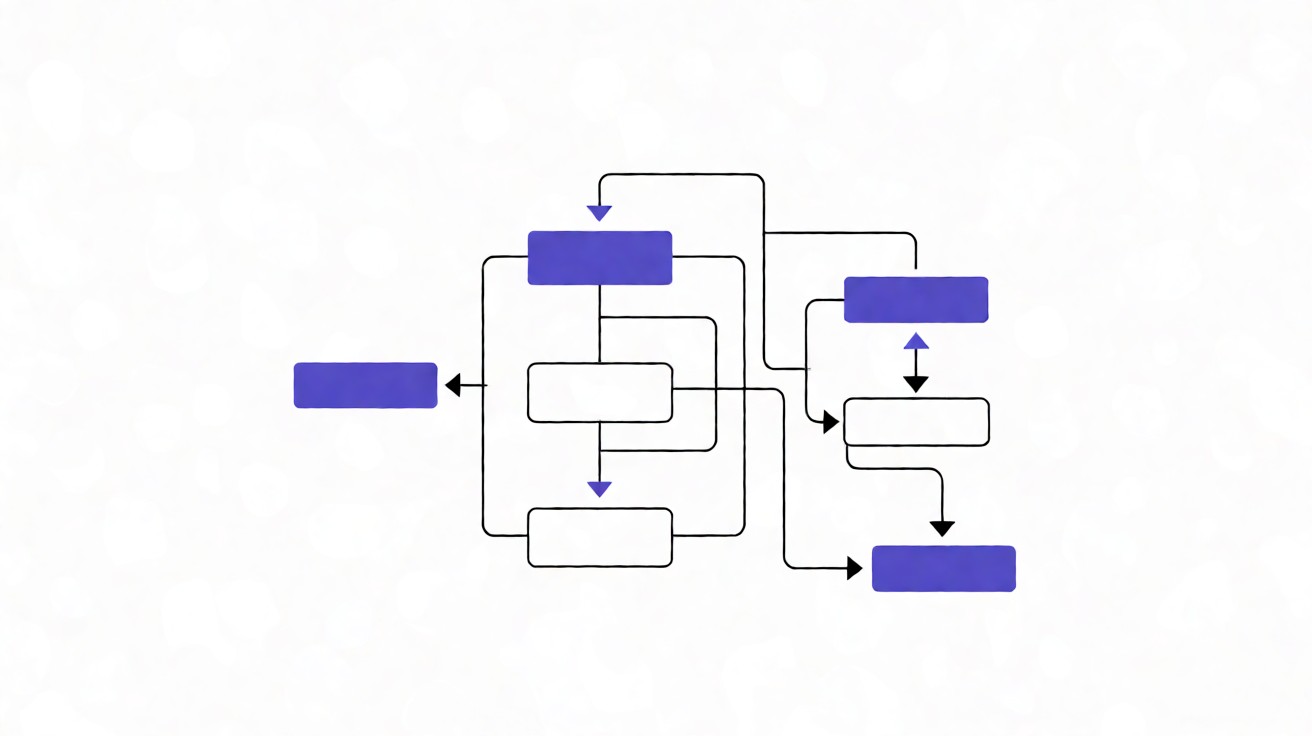
The mechanism is the same regardless of the source: read the PDF, find the transaction table, parse each row, write the output. The differences are in the input (digital vs scanned), the format (Excel vs CSV vs QBO), and the validation layer.
For the broader extraction mechanism (not just PDF), see the extract transactions from bank statement guide. For the field dictionary (what each column means), see the data extraction guide.
The PDF Format: What You’re Working With
How to Open a Bank Statement PDF
Bank statement PDFs are standard PDF files. You can open them with any PDF reader: Adobe Acrobat, Preview (macOS), the built-in browser viewer, or a mobile PDF app. The file opens the same way as any PDF. There is no special software required.
What most guides miss about PDF extraction is that the quality depends on the mechanism, not on the tool. Two tools that look different on the surface often run the same 4-step process underneath: read, find, parse, verify. The difference is in how well each step handles edge cases (merged cells, missing balances, non-standard date formats, scanned vs digital input). Choosing between tools based on UI alone misses the actual quality lever.
The 10-second test that matters: after opening, try to select the text. Click and drag over a line in the transaction table. If you can highlight and copy the text, the PDF is digital (the bank generated the file from a database, and the text is real text). If the cursor does not select anything, or only selects a single image, the PDF is scanned or image-only (the bank scanned a paper statement, and the text is a picture).
This test determines the extraction path. Digital PDFs extract cleanly in 1 to 2 minutes with high accuracy. Scanned or image-only PDFs need OCR and a 60-second visual review. Most US bank statements are digital. Paper statements received by mail, or statements from smaller credit unions, are more likely to be scanned.
To open a password-protected bank statement PDF, you will need the password the bank set (typically your zip code, last 4 digits of SSN, or date of birth). For more on the password workflow, see the password-protected bank statement conversion guide.
A bank statement PDF is not just any PDF. It is a structured document with a known shape, and the structure is the same across banks. Only the layout varies. Knowing the structure is what makes the rest of the workflow predictable.
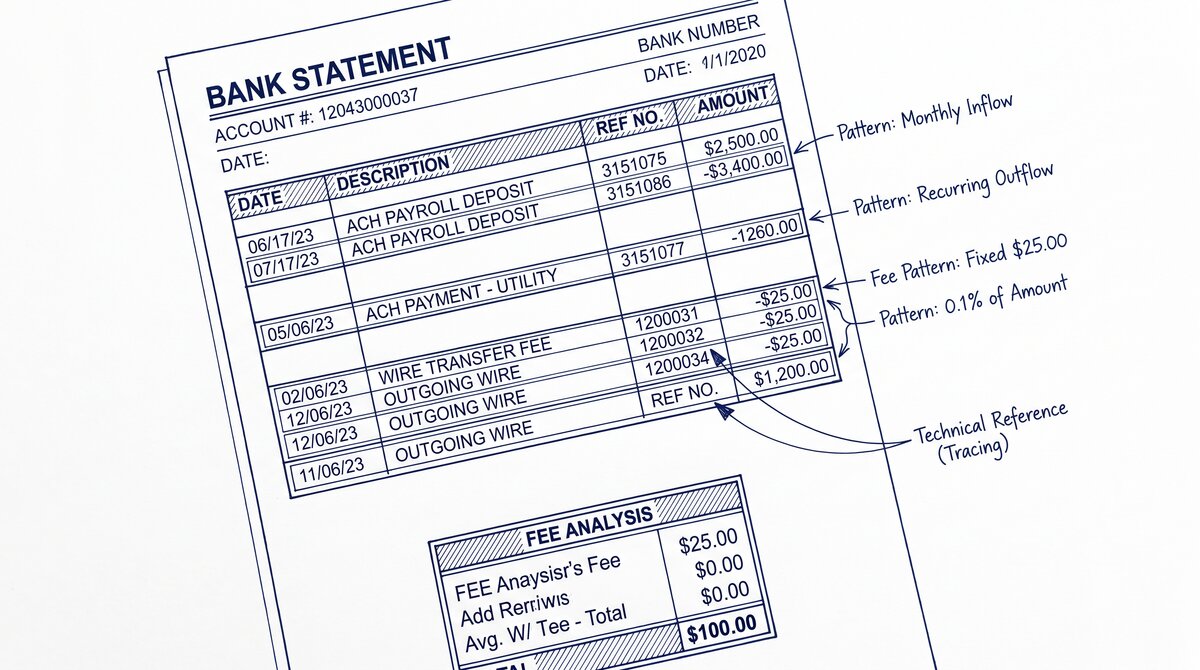
The shape: a header (bank name, account number, statement period), a transaction table (date, description, amount, balance), and a footer (closing balance, summary totals). The variation is in the layout, not the structure.
Most US banks produce their statements as digital PDFs (the bank generates the file from a database). Some produce scanned PDFs (a paper statement scanned at the branch or mailed to you). A few produce image-only PDFs that look like text but are actually a single image. Knowing which type you have is the first decision.
How to tell which you have. Open the PDF and try to select text. If you can drag a cursor over the text and copy it, it is digital. If the selection tool does nothing or copies a single character, it is scanned. This 10-second test determines your extraction path.
A few common PDF variations to know about. Most statements are 2 to 5 pages, with the running balance continuing across pages. Some banks send password-protected PDFs by default (the password is usually your zip code, last 4 of SSN, or date of birth). For more on password-protected statements, see the password conversion guide.
Every bank has its own layout. A converter with explicit layout models for 60-plus US banks handles this well. A generic OCR-only tool does not.
The 5-Step PDF Extraction Workflow
The full workflow from PDF to transactions is five steps. Each has a specific output and a specific check. The first time through, it takes 5 to 10 minutes. By the fifth statement, you will be done in under 2 minutes per file.
Step 1: Assess the PDF type
Determine if the PDF is digital or scanned (the 10-second test above). Also check the page count, the file size, and whether the file is password-protected. A digital PDF with 3 pages and no password is the easy case. A scanned PDF with 8 pages and a password is the harder case.
This assessment sets expectations. If the PDF is digital, you should get near-perfect extraction. If it is scanned, you should expect a 60-second visual review at the end. The way you set up for either path is the same. The time and accuracy differ.
Step 2: Upload to the converter
Upload the PDF to your converter of choice. Online tools accept the file via drag-and-drop or file picker. Desktop tools accept a file path. Most converters process the file in memory, with no disk write. If you are processing 12 months of statements for one account, batch upload is faster than one-at-a-time.
Step 3: Review the detected transaction block
Before the converter writes the output, it shows you which block of the PDF it identified as the transaction list. The detection should be correct for digital PDFs from major banks. For scanned PDFs or unusual layouts, the detection sometimes misses.
If the detected block is wrong, most converters let you draw a different rectangle over the right region. This is a 30-second fix that prevents a bad output. Skipping this step is the most common source of failed extractions. I learned this the hard way on a Chase statement where the converter picked up the header and missed 40 rows of transactions.
Step 4: Parse and emit
The converter parses each transaction row into date, description, amount, and balance, then writes the output to your chosen format. This is the step that takes seconds. The output is a file you can open in Excel, upload to QuickBooks, or import to your accounting software. The full mechanism (read, find, parse, emit) is on the four-step mechanism page.
Step 5: Validate the output
Open the output file and check it against the source statement. The transaction count should match. The opening and closing balances should match. The running balance on the last row should match the closing balance on the source. The full validation workflow is in the data check guide. For digital PDFs it takes 30 seconds. For scanned PDFs it takes 2 minutes.


From PDF to Excel in one click
Forget retyping line by line. Upload any bank statement, get a spreadsheet you can actually use. Your files are never stored, and you can test the converter with 3 free conversions.
Try it freeDigital vs Scanned: Which Path You’re On
Knowing which type you have determines the time, accuracy, and review effort. The two paths are not the same.
The fast path: digital PDFs
Digital PDFs are the common case. Every major US bank offers online statement download as a digital PDF. The extraction is fast (5 to 30 seconds per statement), accurate (over 99 percent), and requires minimal review.
If you can download the statement from your bank’s online portal instead of using a paper copy, do it. The digital version extracts better than any scan. Most banks keep the last 12 to 24 months online. Older statements require a request to the bank. For scanned paper statements, the scanned PDF guide has the 5-minute pre-processing that makes them work.
The slower path: scanned PDFs
Scanned PDFs take longer to process (1 to 3 minutes per statement), have slightly lower accuracy (95 to 98 percent), and require a visual review of the output. The extraction still works. The differences are speed, accuracy, and review effort.
For scanned PDFs, the OCR step is the bottleneck. The output quality depends on the OCR quality, which depends on the scan quality. A converter using AI-based or LLM-based OCR is meaningfully better than one using traditional template-based OCR.
Three generations of OCR exist. Template-based (fast, fragile, requires per-bank setup). AI-based (computer vision, no templates, handles layout variation). LLM-based (treats the page as a document, reads it like a human). For bank statements, AI-based and LLM-based are the right choice.
Common PDF Pitfalls (and How to Avoid Them)
Most extraction failures come from one of five PDF pitfalls. Each has a specific cause and a specific fix.
Five pitfalls and their fixes
Image-only PDFs masquerading as text. Some PDFs look like text but are actually a single image. The text-selection test reveals it. You can drag a cursor over the page, but nothing selects. This happens with bank statements that are printed to paper, then scanned and re-saved as PDF.
The fix: treat it as a scanned PDF. The converter will run OCR, which is the right path for image-only content. The accuracy is the same as for any other scanned statement.
Low-DPI scans. A scan at 150 DPI or lower produces fuzzy text that the OCR misreads. The minimum recommended DPI for bank statements is 300. A 600 DPI scan produces the best results but quadruples the file size.
The fix: re-scan at 300 DPI or higher. If the original PDF was created from a low-DPI scan, there is no fix. The data is gone. Re-request a digital statement from the bank.
Skewed or cropped pages. A page that is rotated, skewed, or cropped (with the right or bottom edge missing) produces partial output. The OCR misses rows that fall outside the visible page.
The fix: re-scan with the page aligned. Place the statement on a flat surface, align the corners, and scan in a single pass. Use an automatic document feeder if possible. Avoid scanning pages one at a time on a flatbed.
Missing pages. Sometimes a page is missing from a multi-page statement. The converter processes the pages it has, but the output is missing the transactions on the missing page. The transaction count check in the validation step below catches this. The fix: re-export the PDF from the bank portal with all pages included. If transactions are missing, see the missing transactions guide.
Non-standard bank layouts. Some smaller banks and credit unions use non-standard layouts that the converter’s bank models do not cover. The converter falls back to structural detection (looking for repeated rows with date-like and amount-like fields), which usually works but is less accurate. The fix: check the list of supported banks before uploading. A few non-standard layouts may need manual adjustment after extraction.
How to Validate the Output
Validation is the strongest quality check. The output is correct only when the transaction count, the running balance, and a spot-check all line up. Four specific checks catch almost every extraction error.
The four validation checks
Transaction count check. Count the transactions on the source statement. Count the rows in the output. They should match. This is the fastest check and catches the most common failure mode (missing page, dropped rows at a page break, or merged/split rows).
Balance verification. The last row in the output should have a running balance that matches the closing balance on the source statement. If the running balance walks correctly through every row, the amounts are correct. If it diverges at some point, an error occurred at that row and the rows after it inherit the error.
Spot-check 5 to 10 transactions. Pick 5 to 10 transactions at random from the source statement. Verify the date, description, and amount match the output exactly. This catches the rare case where the transaction count is right but a specific row has wrong data (misread amount, misaligned column, wrong date format).
Opening and closing balance match. The first transaction’s running balance minus the first transaction’s amount should equal the opening balance. The last transaction’s running balance should equal the closing balance. These two checks confirm the start and end of the statement are correct, regardless of what happens in the middle. The full validation workflow is in the data check guide.
Run all four checks for scanned statements. For digital statements, the transaction count and balance verification are usually enough.
Choosing the Right Output Format for PDF Data
The PDF input is the same. The output format depends on what you are doing with the data. Excel is the right output when you want to look at the data yourself. Each transaction becomes a row with date, description, amount, and balance as columns. The file opens in Excel, Google Sheets, Numbers, and LibreOffice Calc. The Excel conversion guide has the specifics.
CSV is the right output when you are importing the data into accounting software that does not accept QBO (Xero, Wave, FreshBooks, or any tool that has a CSV import). CSV is plain text, with one row per transaction and fields separated by commas. The CSV conversion guide covers the format details.
QBO is the right output when you are feeding QuickBooks Online or QuickBooks Desktop. The QBO file is a Web Connect file that QuickBooks imports as a native bank feed, with no column mapping. The QBO conversion guide covers the import workflow.
Real-World Scenarios
Three common scenarios come up in practice. The 5-step workflow above is the same for all three. The difference is the volume and the consolidation step.
Single statement. You have one statement, for one account, for one month. The workflow takes 1 to 3 minutes total. Upload, confirm the transaction block, parse, validate. Done.
12-month reconciliation. You have 12 statements, for one account, for a full year. Batch upload all 12 PDFs. The converter processes each independently and gives you 12 output files (or one combined file, depending on the tool).
Sort the combined output by date. The reconciliation workbook reads the rows directly. 12 stacked statement PDFs become one combined output, sorted by date, ready for the reconciliation workbook.
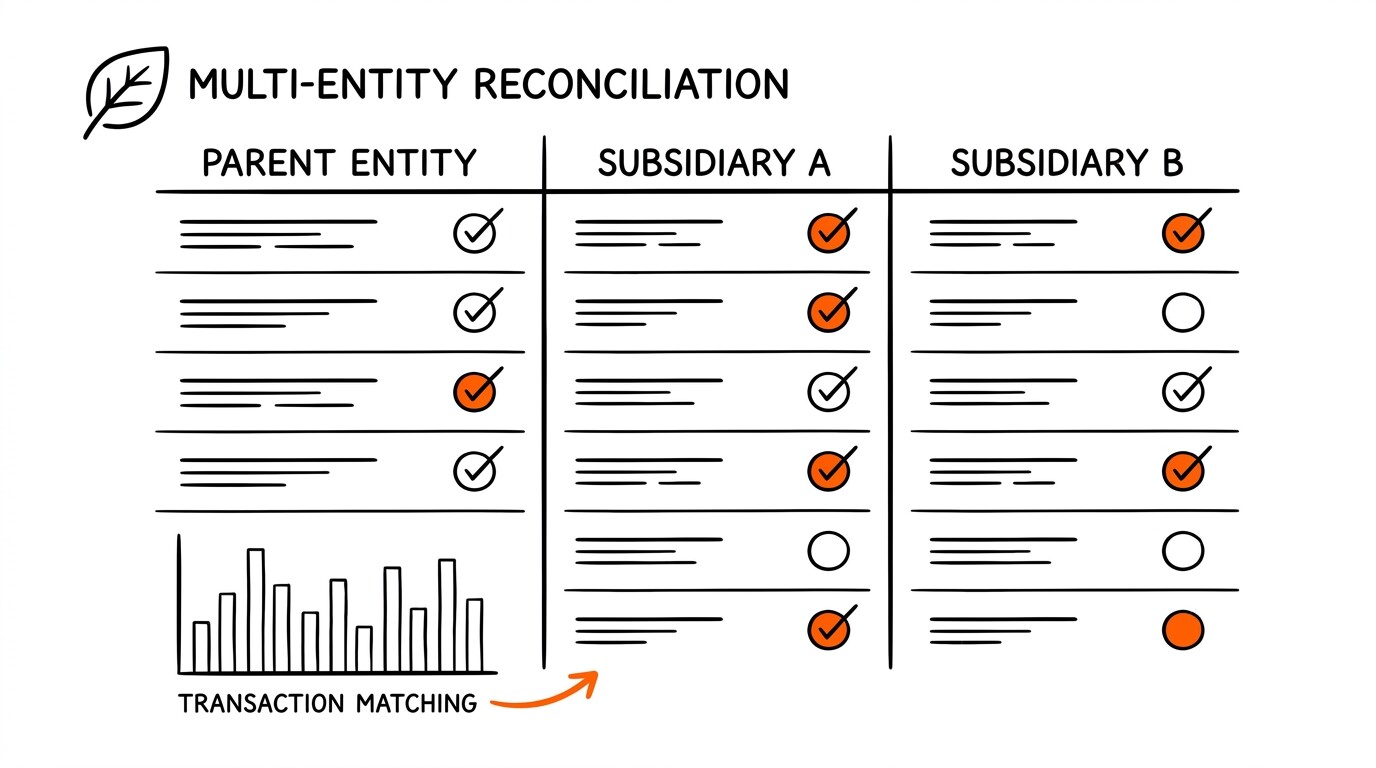
Multi-account extraction. You have statements for 3 to 5 accounts (checking, savings, credit card, business, personal). Upload each account’s statements separately. The converter handles each batch independently. Combine the outputs in a single spreadsheet with an account-name column. Run the reconciliation across all accounts. For tools and pricing on multi-account workflows, see the converter overview.
For deeper understanding, see: Bank Statement Extract Transactions Mechanism, How Extract From Pdf Mechanism.
From PDF to Excel in one click
Forget retyping line by line. Upload any bank statement, get a spreadsheet you can actually use. Your files are never stored, and you can test the converter with 3 free conversions.
Try it free