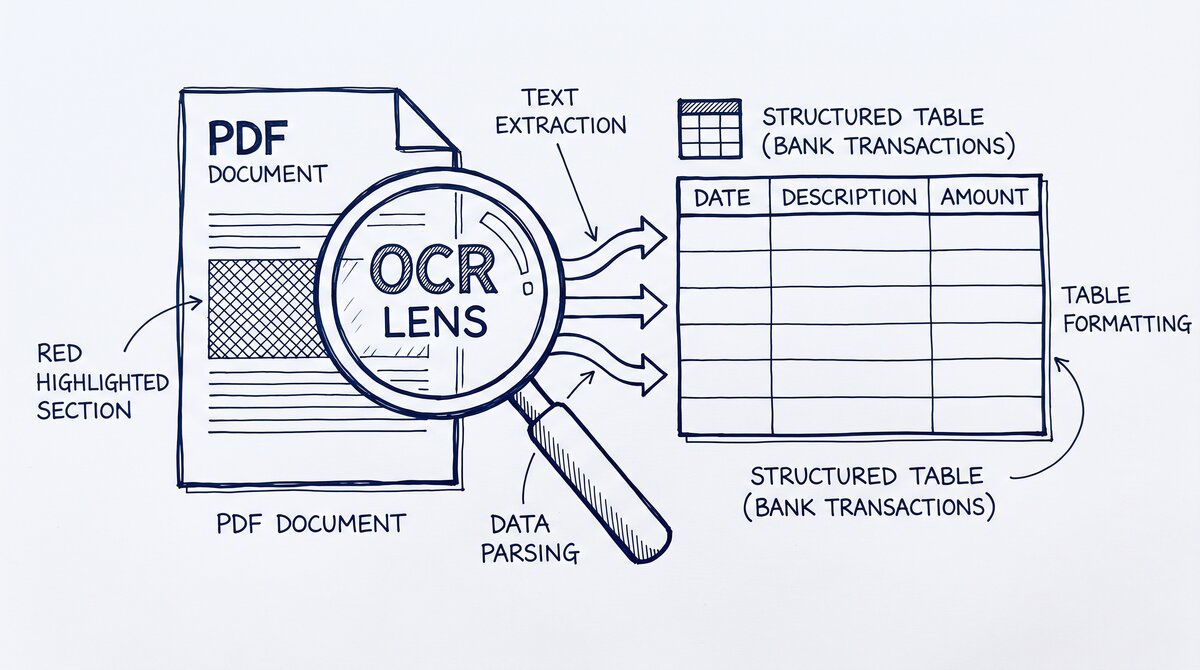

Lisa runs an e-commerce business selling specialty coffee. Every month she downloads 3 bank statements from her business account: the operating checking, the PayPal account, and the merchant processor account.
She used to spend 3 hours per month manually tagging each transaction in QuickBooks: which deposits were sales revenue, which were refunds, which were shipping label purchases, which were ad spend. Most of those decisions were the same every month.
She figured there had to be a faster way.
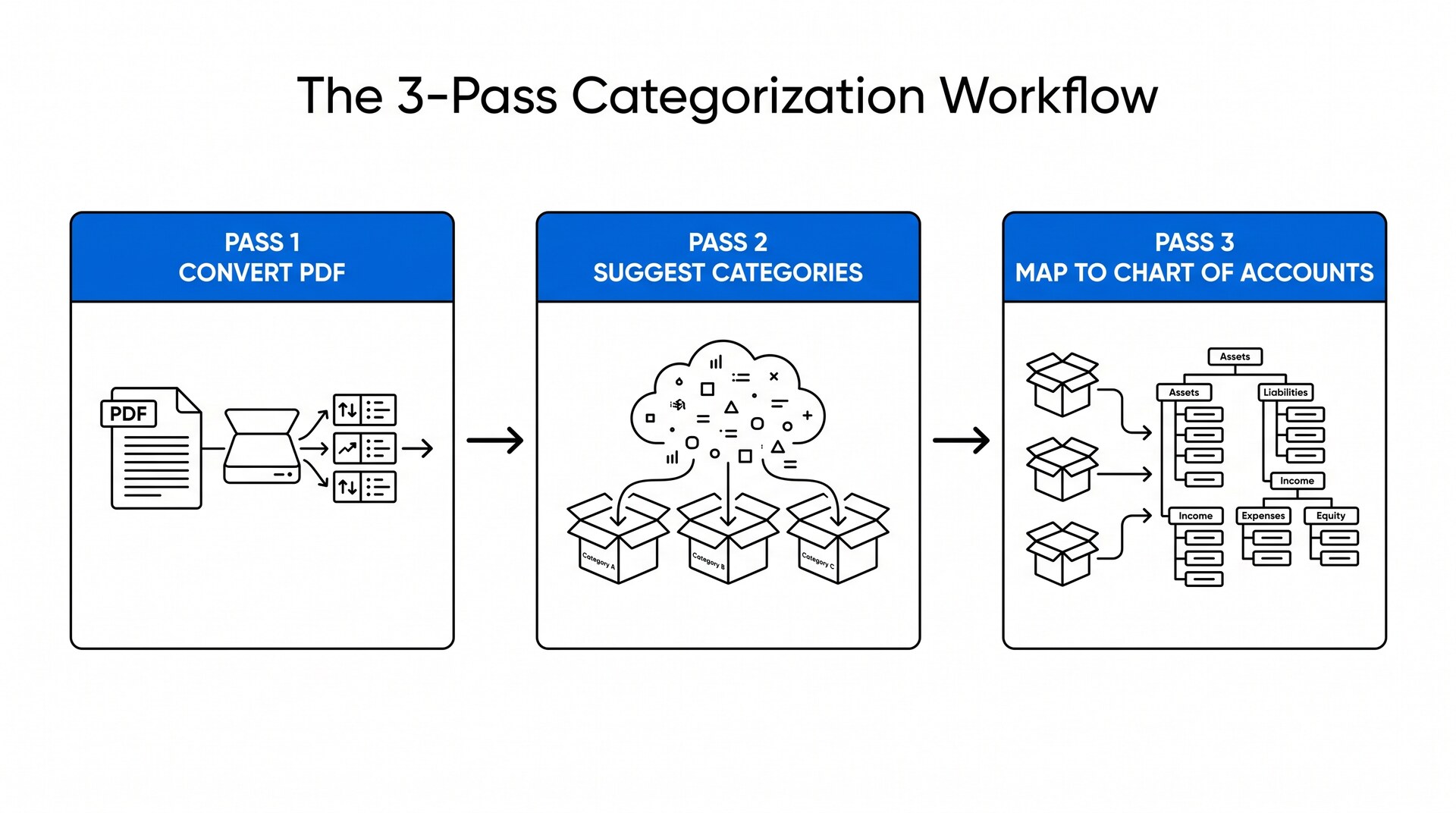
The faster way is a 3 pass workflow: convert the PDF once, let a categorization engine suggest categories based on merchant names, then map those categories to her QuickBooks chart of accounts before importing. The result is a categorized Excel file that imports in 5 minutes instead of 3 hours of manual tagging.
Quick Answers: A business bank statement with categorization is a PDF that needs to land in QuickBooks or Xero with each transaction already tagged to a chart of accounts category: revenue, COGS, payroll, marketing, rent. Most PDF converters extract the transactions but do not assign categories. The fix is a 3-pass workflow: convert, suggest categories based on merchant name, then map to chart of accounts before import.
What categorization adds on top of conversion
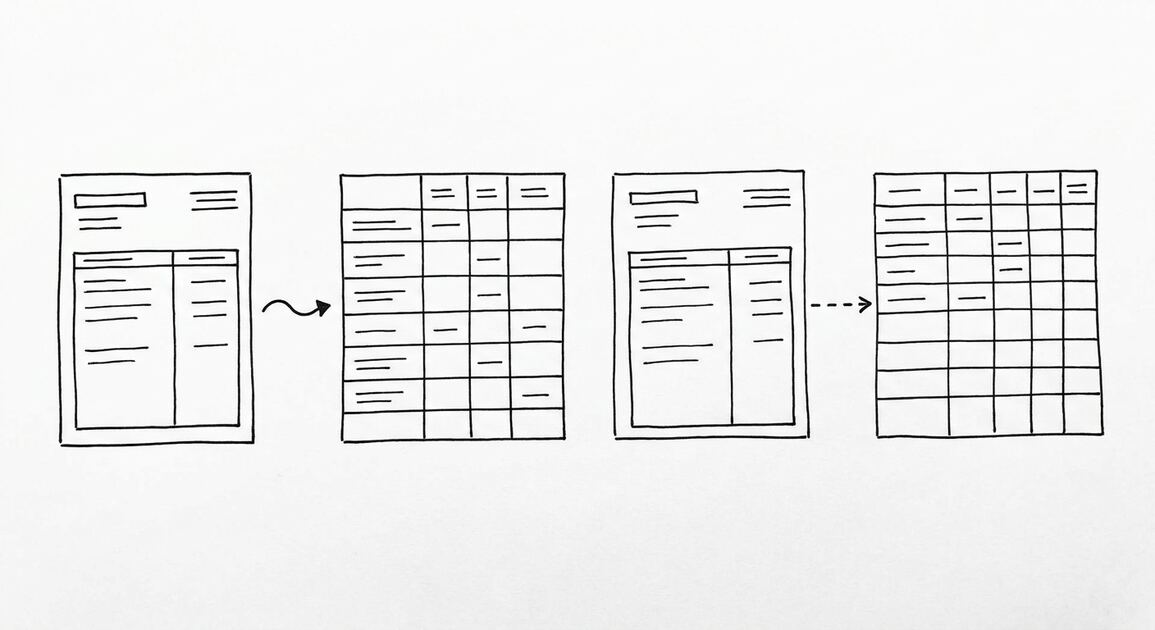
Conversion gets you from PDF to Excel. The output is a clean table with date, description, amount, and currency. For a personal statement, that is usually enough. For a business statement, it is just the starting point.
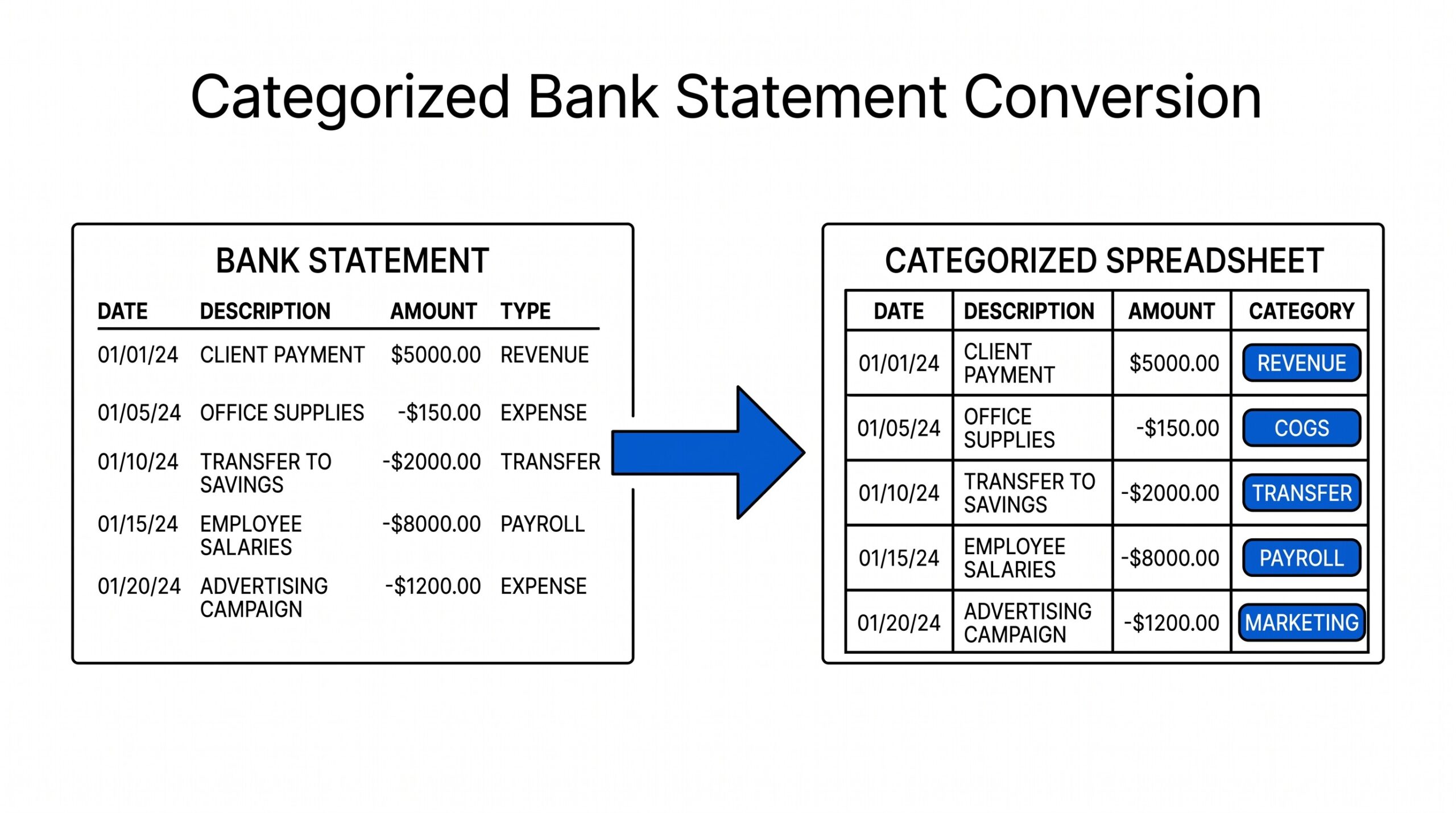
Categorization adds a column to that table: a category label for each transaction. The categories come from your chart of accounts (in QuickBooks or Xero) or from a simpler set like Revenue, Expenses, Transfers, Owner Draws. Once every transaction has a category, you can:
- Import directly into QuickBooks without manual tagging
- Run a profit and loss report by category without re sorting the data
- See which expense categories grew month over month
- Catch unusual transactions (a $5000 office supplies charge) faster
Without categorization, the converted statement is just rows. With categorization, it is a ready to import accounting file.
Why most converters do not categorize
PDF to Excel converters are built to extract data, not interpret it. They read the bank statement’s text layer, identify date, description, amount, and currency, and output those values in a table.
They do not know what your chart of accounts looks like. They do not know that “AMZN Mktp US” should be categorized as Office Supplies or Inventory Cost. They do not know that your “Stripe Transfer” deposit is Sales Revenue and your “Stripe Fee” withdrawal is a Processing Fee.
This is a feature, not a limitation. A converter that auto categorized without knowing your categories would guess wrong 20 to 40% of the time, and you would spend more time fixing the guesses than you would have spent tagging from scratch.
The right approach is a 3 pass workflow: convert first (objective), categorize second (semi automatic with your rules), map to chart of accounts third (your specific chart). Each pass has a different level of automation.
From Bank Statement to QuickBooks-Ready File
That manual cleanup you just read about? This tool skips it. Turn your PDF into QBO for QuickBooks without storing your data anywhere.
Start ConvertingThe 3 pass workflow
Pass 1: Convert the PDF
Convert the business bank statement PDF to Excel using a converter that preserves all the fields your accounting software needs: date, description, amount, currency, and ideally the running balance. Most modern converters handle this. The output is a clean table, one row per transaction.
What to check: open the Excel file and confirm every transaction is present. Cross reference the total at the bottom of the PDF with the sum of the amount column in Excel. If the totals match, the conversion is complete. If they do not match, re run the conversion or check for missing rows.
Pass 2: Suggest categories from merchant names
Once you have the Excel file, add a column called “Suggested Category”. For each row, look at the description and assign a category. Common patterns:
- “AMZN Mktp US” or “Amazon” or “AMAZON.COM” → Inventory Cost or Office Supplies
- “Stripe Transfer” or “PayPal Transfer” → Sales Revenue
- “Stripe Fee” or “PayPal Fee” → Processing Fees
- “GoDaddy” or “Cloudflare” or “Google Workspace” → Software or Subscriptions
- “FB Ads” or “Google Ads” or “TikTok Ads” → Advertising or Marketing
- “Uber” or “Lyft” → Travel or Transportation
- “Shell” or “Chevron” or “Exxon” → Fuel or Auto Expenses
- “Payroll” or “ADP” or “Gusto” → Payroll
The hard part: many merchants can fall into multiple categories depending on context. “Amazon” could be Office Supplies, Inventory Cost, or even Shipping Supplies. The right category depends on what you actually bought. For a coffee e-commerce business, Amazon purchases are usually packaging supplies (Inventory Cost). For a consulting business, Amazon purchases are usually books or software (Office Expenses).
The way to handle this is a personal rules table. Build a list of merchant name patterns and the category each maps to. The list grows over time as you encounter new merchants. After 3 to 6 months, your rules table covers 80% to 90% of transactions. The remaining 10% to 20% need manual review.
Pass 3: Map to your chart of accounts
The Suggested Category column uses general labels like “Advertising” or “Inventory Cost”. Your QuickBooks chart of accounts might have more specific accounts: “Advertising:Facebook Ads”, “Advertising:Google Ads”, “COGS:Packaging”, “COGS:Coffee Beans”. The mapping step turns the general label into the specific account.
How to do this: in Excel, use a VLOOKUP against a separate sheet that maps general labels to specific chart of accounts. The lookup table has two columns: general label and specific account. When you import the Excel into QuickBooks, the import wizard reads the specific account column and applies it.
For multi entity businesses, add a third column: “Entity” (which company this transaction belongs to). For businesses with multiple LLCs or DBAs sharing a bank account, this column routes each transaction to the correct entity’s books.
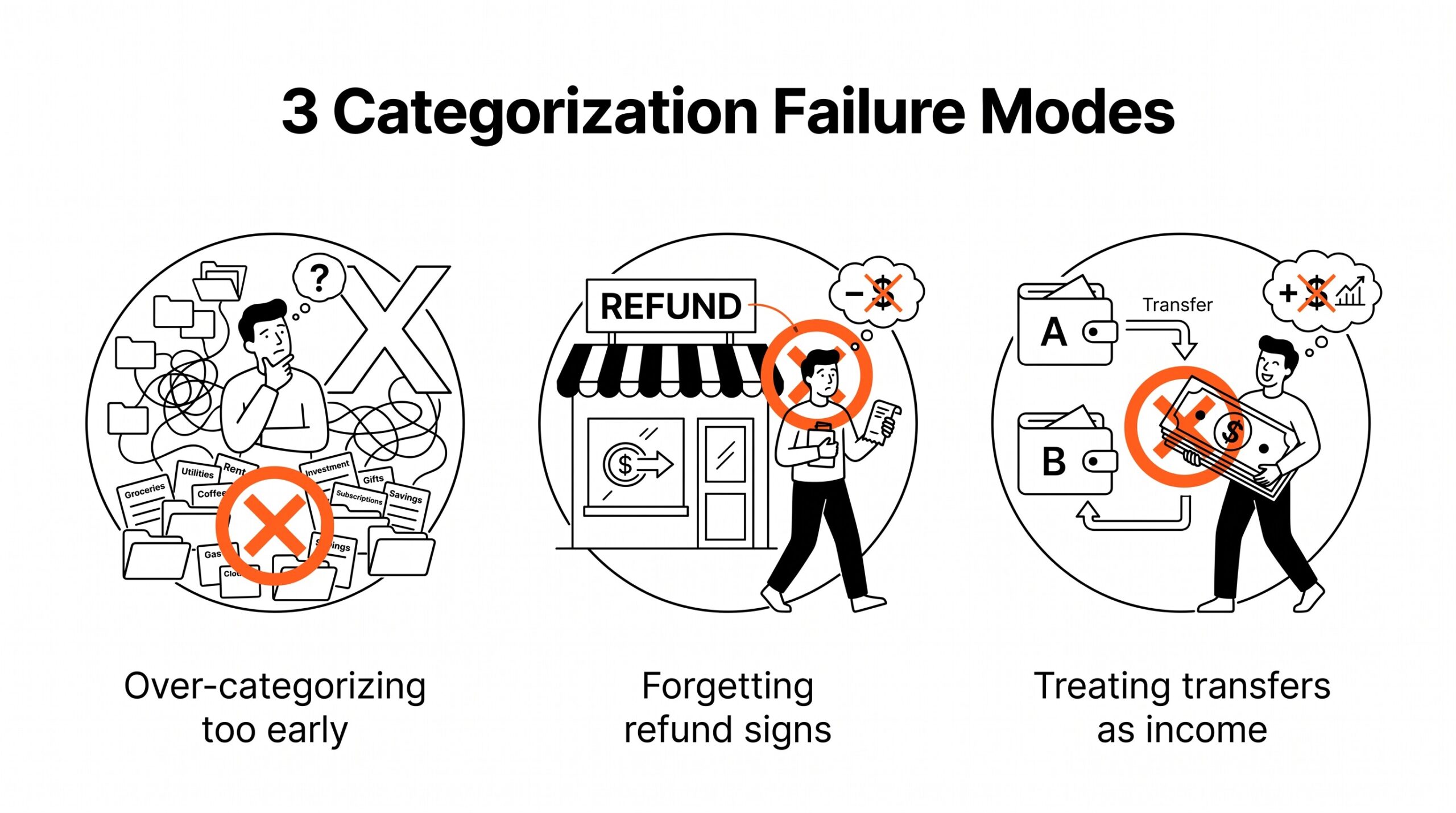
3 failure modes specific to categorization
Failure 1: Over categorizing too early
A common mistake bookkeepers report is trying to assign the final chart of accounts category during the first pass. They look at “AMZN Mktp US” and immediately try to decide between Office Supplies and Inventory Cost, when they have not yet looked at the larger pattern of the month’s purchases. The result is inconsistent categorization across the month.
The fix: use general labels in Pass 2 (Office Supplies vs Inventory Cost are both “Operating Expenses”). Refine to specific accounts in Pass 3 once you see the month’s full pattern.
Failure 2: Forgetting refund and reversal signs
Another common mistake is treating all amounts as positive numbers during categorization. A $200 Amazon purchase and a $200 Amazon refund both show as “Amazon” with similar amounts.
Without checking the sign (positive for refund, negative for purchase in most bank statements), the categorization engine tags both as Office Supplies. The actual category should be a contra expense (refunds reduce Office Supplies, they do not increase it).
The fix: in Pass 2, check the sign of the amount. If negative, flip the category logic (purchase of supplies → Office Supplies; refund of supplies → Office Supplies Refund or contra expense).
Failure 3: Categorizing transfers as income or expense
A third mistake is treating account transfers as business income or expense. A transfer from the operating checking to the savings account is not revenue. It is a transfer. The categorization engine that ignores transfer patterns will inflate both revenue and expenses, distorting the profit and loss report.
The fix: identify transfer patterns before categorization. Common transfer descriptions include “Online Transfer”, “Mobile Transfer”, “Transfer to Savings”, “Transfer from Operating”. Tag these as Transfer (or split into Transfer In and Transfer Out if your accounting needs it) and exclude from income and expense totals.
What most converters miss on business statements
Most PDF to Excel converters treat a business statement the same as a personal statement: extract the rows, output the table, done. They do not flag which transactions look like revenue (deposits from payment processors), which look like expenses (vendor payments), and which look like transfers (account to account movements).
For business statements, you need a converter that supports categorization as part of the workflow. Either the converter asks for your rules upfront and applies them during conversion, or the output includes enough metadata (running balance, transaction type hints) for your categorization step to be more accurate.
The other thing most converters miss is the merchant normalization step. The same merchant can appear as “AMZN Mktp US”, “Amazon.com”, “AMZ*Amazon.com”, and “Amazon Prime” in the same statement. Without normalization, your rules table needs 4 entries for the same merchant. With normalization, the rules table has 1 entry: “Amazon” → Inventory Cost.
Common chart of accounts for small business
A typical small business chart of accounts has 20 to 40 categories. Common ones include Revenue (broken down by product line or service type), Cost of Goods Sold (broken down by component: materials, packaging, shipping), Operating Expenses (broken down by function: rent, utilities, software, marketing, payroll), and Other Income or Other Expense (for unusual items like interest income or one-time fees). The exact categories depend on the business type and the CPA recommendation.
When to bring in a bookkeeper
If your monthly close takes more than 2 days of manual categorization, or if your categorization rules table has more than 50 entries, the manual workflow has reached its limit. A bookkeeper or accountant can build the rules table, set up the import workflow, and catch the categorization errors that slip past manual review. The break even point is usually around $3000 per month in time saved.
Related guides on adjacent conversion workflows: small business bank statement, QuickBooks conversion, transaction categorization, importing transactions, bank statement abbreviations Also relevant: how bank reconciliation.
See also
The general PDF bank statement to Excel workflow covers conversion without categorization. For business accounts that mix revenue, expenses, and COGS, the business statement conversion guide covers the full chart of accounts mapping. For business accounts that also span multiple currencies, the multi currency workflow handles both categorization and currency conversion.
Turn That PDF Into a Spreadsheet in Minutes
You've seen how to do it manually — now let the tool handle the heavy lifting. Upload your bank statement and get Excel, CSV, or QBO in a few clicks.
Try It Free