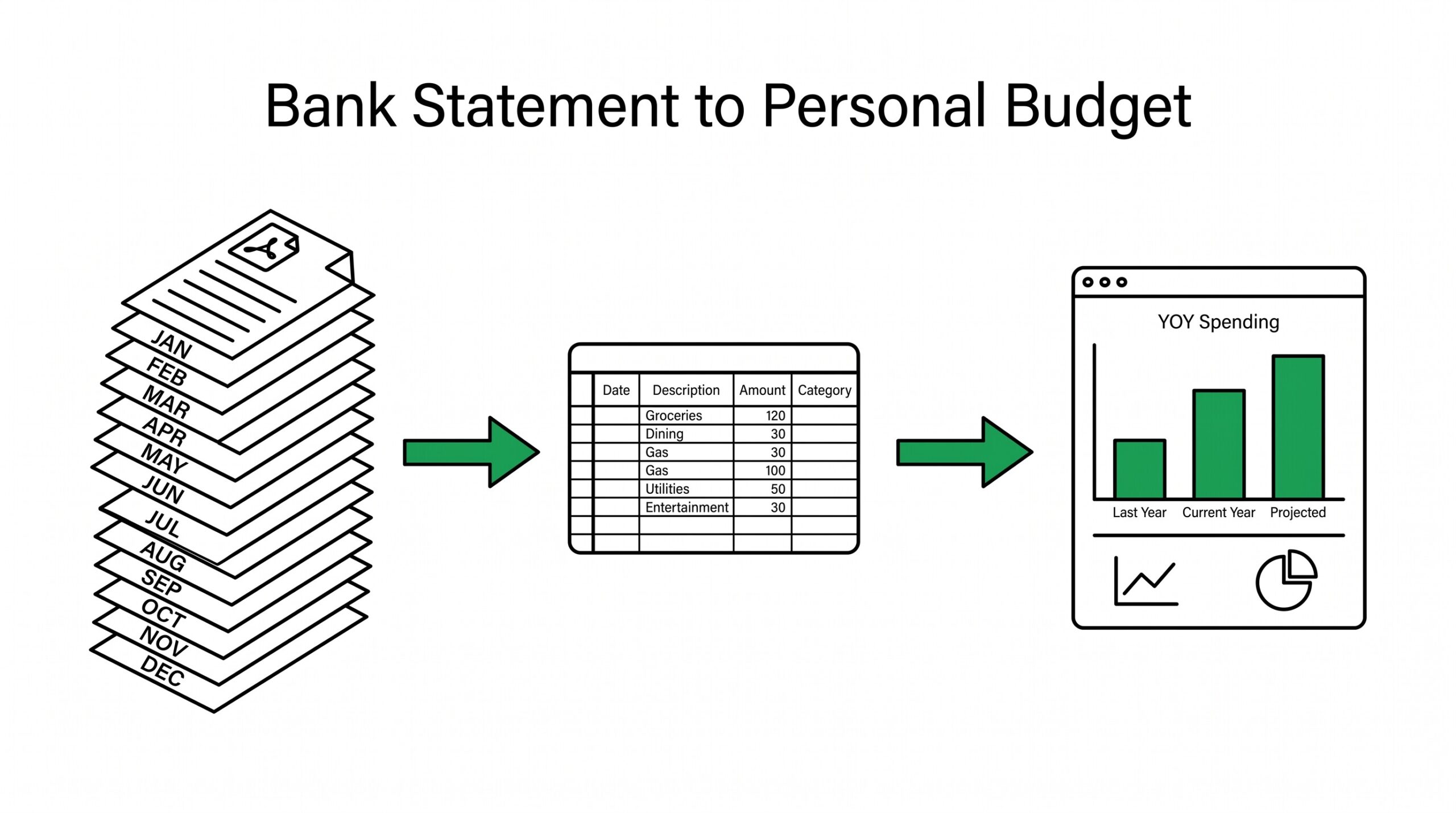

You have 24 months of bank statement PDFs saved in a folder on your desktop. In early 2024, Mint announced it was shutting down, and you migrated to Monarch Money to keep tracking your spending. You want to import all 24 months of historical data into Monarch Money so you can see year-over-year trends and verify your budget assumptions.
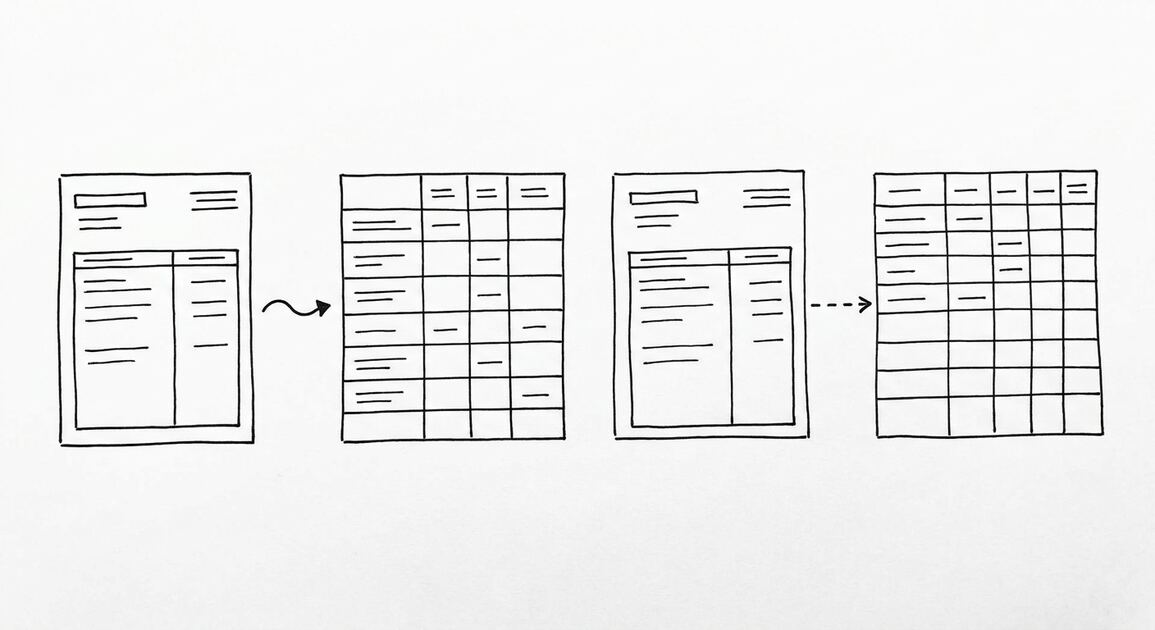
But Monarch Money accepts CSV or OFX files for import, not PDFs. You have 48 PDFs (2 banks × 24 months) and need a workflow that converts them all to a format Monarch Money can read without retyping transactions by hand.
Converting bank statement PDFs for personal budgeting is a different workflow than business bookkeeping or tax preparation. The end goal is the same: get transactions into structured columns. But the use case is different. Personal budgeting apps like Mint, YNAB, Monarch Money, and Personal Capital accept CSV or OFX files, apply their own categorization rules, and present the data in a dashboard.
The conversion step is what bridges your bank’s PDF format to the budget app’s import format.
Quick Answers: Most personal budgeting apps (Mint, YNAB, Monarch Money, Personal Capital) accept CSV or OFX/QFX file formats. Converting bank statement PDF to CSV preserves the key fields: date, transaction description, amount, and optional balance. Different apps handle categorization differently: some auto-categorize based on merchant name, others require manual rules, YNAB requires manual category assignment. Multi-month conversion creates year-over-year trend visibility.
ESS converts bank statement PDFs to CSV with the same workflow used for business and tax use cases.
Imagine you are sitting at your kitchen table on a Sunday morning with 24 months of bank statement PDFs spread across the table. You just signed up for Monarch Money after the Mint shutdown, and you want to import all your historical transactions before you start budgeting for the new month. The Monarch Money import screen asks for a CSV file. You need to convert each of those 24 PDFs into a single CSV that captures the date, description, and amount for every transaction, then upload it to Monarch Money where the app takes over the categorization and dashboard work.
What Personal Budgeting Apps Accept
The four most common personal budgeting apps in use today have different import mechanisms and format requirements. Knowing what your specific app accepts saves time during the conversion setup.
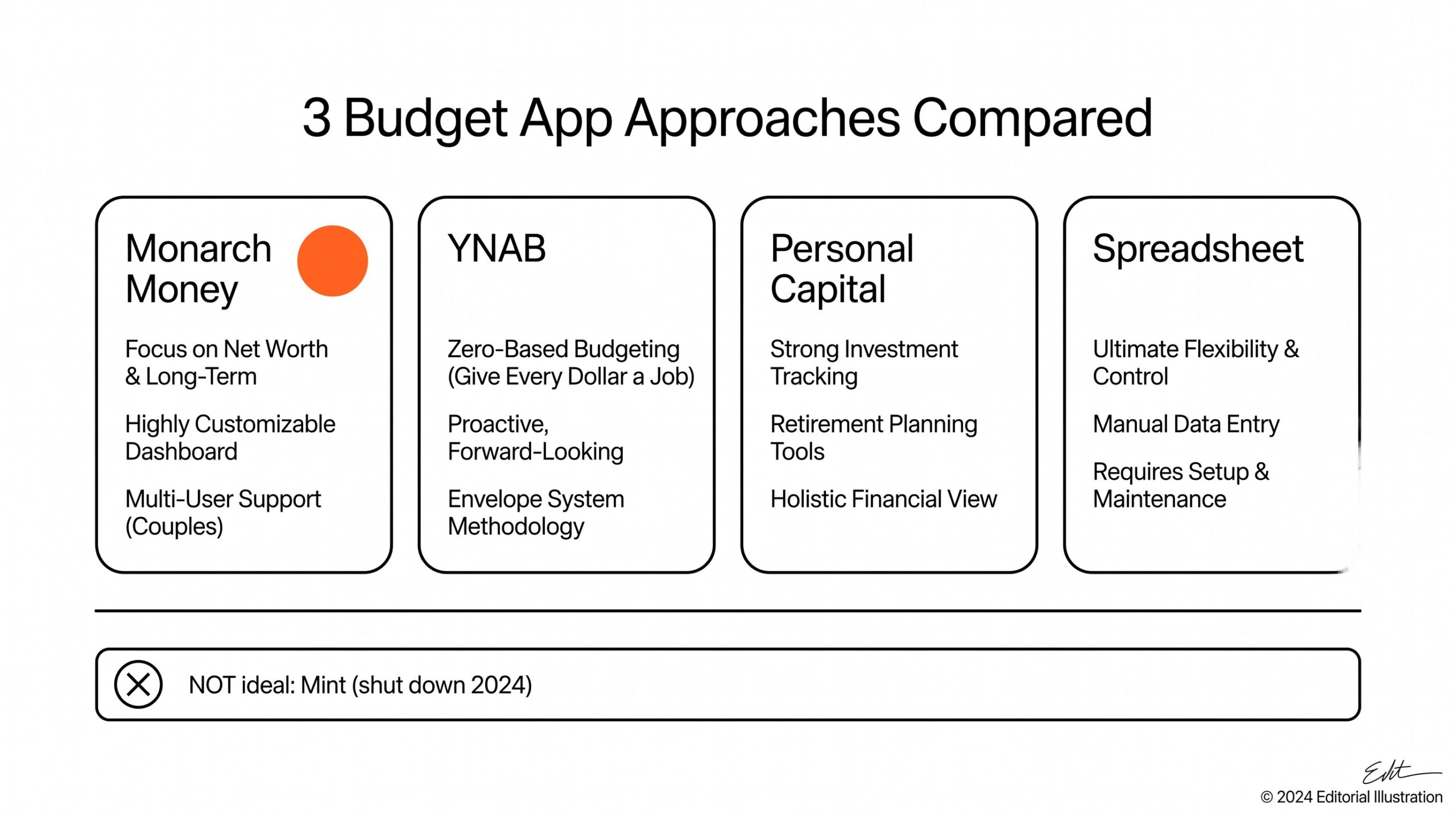
Monarch Money (the most common Mint replacement since 2024) accepts CSV files with the standard columns: date, merchant name, amount. It also accepts OFX/QFX files when imported directly from banks. The import flow is: Settings → Import → Upload CSV. Monarch applies its own auto-categorization on import and lets you override categories for individual transactions afterward.
YNAB (You Need A Budget) takes a different approach. It accepts CSV files for direct import, but it also supports OFX/QFX through bank connections. The YNAB workflow emphasizes manual category assignment: when you import transactions, YNAB asks you to assign each transaction to a category. This is the opposite of automatic categorization and is part of YNAB’s budgeting philosophy.
Importing 24 months of historical data into YNAB requires manually categorizing each transaction or setting up rules to do it automatically.
Personal Capital (now Empower) is more focused on investment tracking than budgeting, but it does have a cash flow tool that accepts CSV and OFX imports. The import flow is similar to Monarch Money’s: upload a CSV, the system applies categories, and you can adjust afterward.
Spreadsheet-based budgets (Google Sheets or Excel) don’t have a fixed import format. You import the CSV into the spreadsheet, then use formulas or pivot tables to categorize. This approach gives you complete control over categorization but requires more setup work. For a budget-conscious user who wants full transparency, this is often the best approach.
The general bank statement to Excel workflow covers the conversion step, and the PDF to CSV workflow covers the alternative for spreadsheet-based budgets.
The 5-Step Workflow for Personal Budget Import
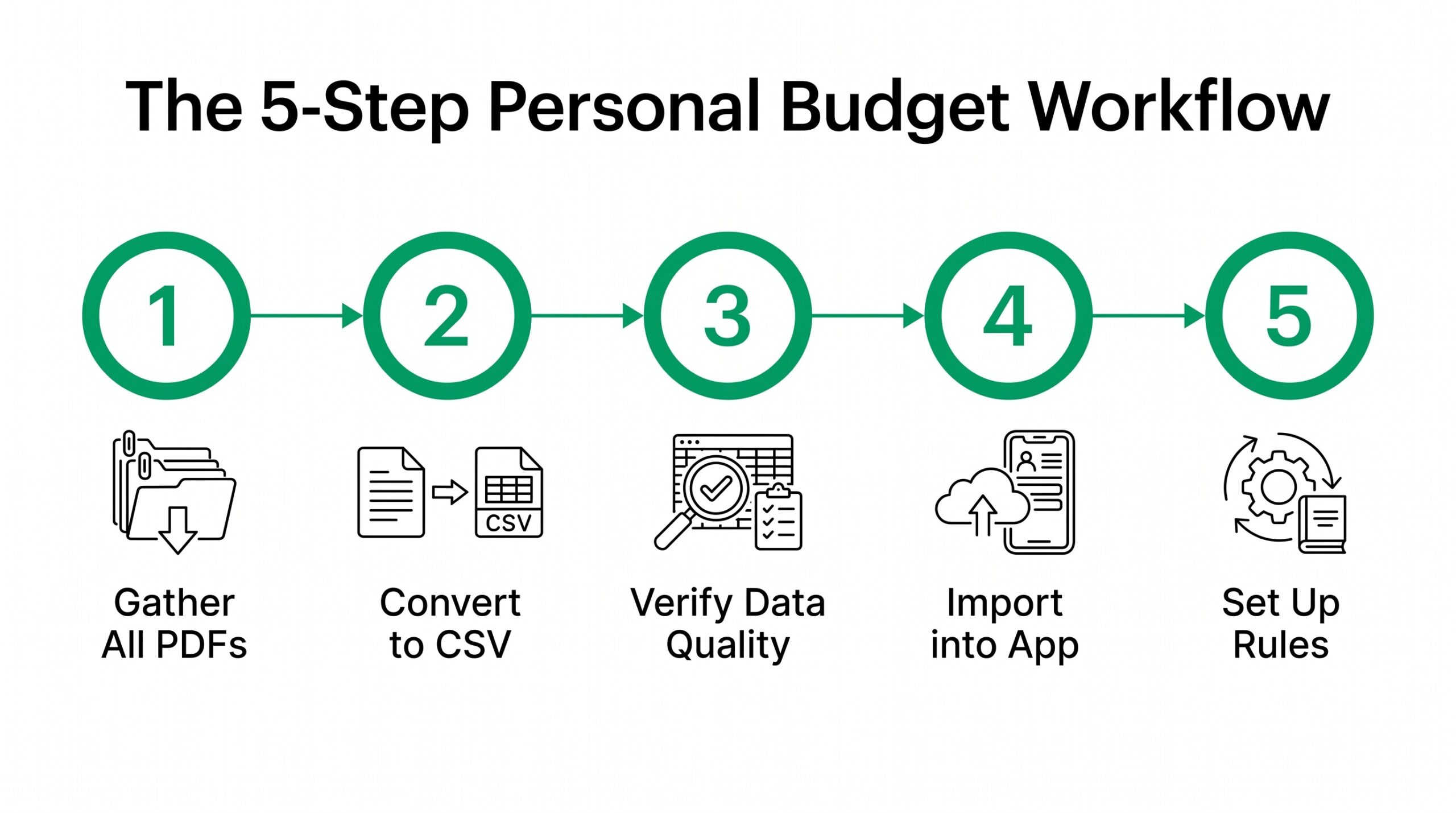
The conversion workflow for personal budgeting is similar to the business workflow but with different end goals. Five steps take a folder of bank statement PDFs to an imported budget dataset.
Step 1: Gather all your bank statement PDFs. Most personal finance users have multiple bank accounts (checking, savings, credit cards) and want to track all of them. Put all PDFs in one folder with clear filenames: “2025-01-chase-checking.pdf”, “2025-01-amex-gold.pdf”, and so on. Having all PDFs organized before conversion prevents the scenario where you remember a missing statement halfway through.
Step 2: Convert each PDF to CSV or spreadsheet format. ESS reads both digital PDFs (where text is selectable) and scanned paper forms (where OCR is needed). The output is one CSV per PDF with the standard columns: date, merchant name, amount, and optional balance.
For multi-month conversion, you can either keep one CSV per month (easier to track which data came from where) or combine them into one master CSV (easier to import once).
Step 3: Verify the data quality. Open the converted CSV and spot-check three transactions per file. Look for: dates in the correct format (most apps want MM/DD/YYYY or YYYY-MM-DD), amounts as numbers (not text strings), merchant names without extra characters (some PDFs add weird Unicode chars that confuse budget apps). Fix any issues before importing.
Step 4: Import each CSV into your budget app. For Monarch Money, Personal Capital, or YNAB, the import flow is straightforward. For spreadsheet-based budgets, open the CSV in your spreadsheet and start categorizing. The multi-bank statement conversion workflow covers the case where you have multiple banks to combine.
Step 5: Set up categorization rules or review the auto-categorization. Most apps auto-categorize based on merchant name. Review the first few weeks of categories to verify the auto-categorization is correct. For recurring merchants (Amazon, Walmart, your landlord), set up permanent rules so future transactions get categorized consistently.
From PDF to Excel in one click
Forget retyping line by line. Upload any bank statement, get a spreadsheet you can actually use. Your files are never stored, and you can test the converter with 3 free conversions.
Try it freeWhat Fields to Preserve in the CSV
Most budget apps only need four core fields, but a few optional fields make the data much more useful for analysis. The minimum and recommended CSV columns are slightly different depending on your goals.
Minimum fields for any budget app: date, transaction description, amount. The date is what the app uses for chronological ordering. The description is what the app uses for auto-categorization. The amount determines the transaction direction (positive = income or refund, negative = expense).
Recommended additional fields: account name (for multi-account tracking), category (if you pre-categorize in the spreadsheet), memo or notes (for adding context), running balance (for verification against the original PDF). The category column is especially useful for spreadsheet-based budgets where you do the categorization yourself.
Optional fields for advanced users: check number (for paper checks you scanned), transaction type (debit/credit/transfer), MCC code (if your bank includes it). Most budget apps ignore these fields, but they’re useful if you do custom analysis later.
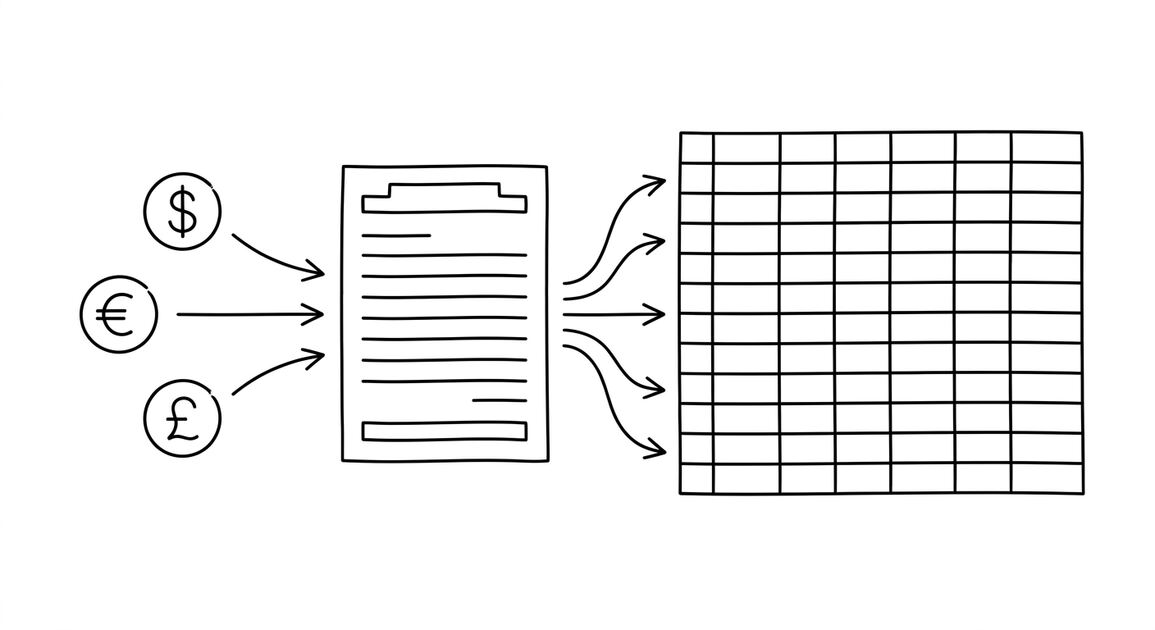
Different banks use different field names in their PDFs. Chase may call the description “Merchant” or “Transaction Description,” while Bank of America may use “Payee.” The CSV conversion normalizes these to a consistent field name. If you need a specific field name for your budget app, you may need to rename columns in the CSV before importing.
How Multi-Month Conversion Creates Trend Visibility
The biggest value of converting 12 or 24 months of historical statements is year-over-year trend visibility. Most budget apps don’t import historical data automatically (you usually have to connect each account live), so manual CSV import is the way to get historical context.
For year-over-year trends, look for: total spending by category (compare March 2025 to March 2024), subscription accumulation (which monthly charges have been increasing), seasonal patterns (when does utility spending spike), and category drift (have dining expenses grown faster than groceries over time). These patterns are hard to see when looking at one month at a time but become obvious with 12+ months of data.
For multi-month conversion, the typical approach is to convert each month’s PDF separately, then concatenate them in a spreadsheet. Some apps (Monarch Money, Personal Capital) support importing multiple CSV files at once. Others (YNAB) require separate imports per account or per time period. The general old bank statements workflow covers conversion of statements from years ago, which may have different PDF formats than current statements.
One practical tip: when you import historical data into your budget app, mark those imports as “historical” rather than “current.” Most apps have a way to flag data as not current, which prevents the historical data from skewing your current budget calculations while still letting you reference it for trends.
Switching Between Budget Apps
The Mint shutdown in 2024 left many users searching for alternatives and migrating their data. If you have switched between budget apps multiple times (Mint to Personal Capital to Monarch Money, for example), the conversion workflow becomes even more important because each migration typically requires re-importing historical data.
The export format varies between apps. Mint’s export was CSV with date, description, amount, category, and account. Monarch Money’s export is similar but with slight field name differences. YNAB’s export includes additional fields like memo and flag. Personal Capital’s export is detailed investment-focused with cash flow as a separate section.
When switching apps, the typical migration flow is: export from the old app → reformat the CSV if needed → import into the new app → reconcile any missing or duplicated transactions. The reconcile step is important because exports and imports may handle different transaction types (transfers between accounts, pending vs posted, refunds) differently.
For users who switch frequently, a spreadsheet-based budget may be a better long-term choice because the data stays in your control. The CSV files you import become the source of truth, and you can move them between budget apps or use them for tax preparation without going through each app’s export feature. The PDF to Google Sheets workflow covers one approach to this spreadsheet-based budget.
Common Issues When Importing Bank Statements
Most budget apps have a few common quirks that cause import failures or incorrect data. Recognizing these issues saves time during the import process.
Date format issues. Some banks export dates as MM/DD/YYYY while the budget app wants YYYY-MM-DD, or vice versa. The CSV may need column reformatting before import. Most apps will warn about unparseable dates and skip those transactions, which can leave gaps in your data. Verify the date format before importing.
Amount sign confusion. Most apps expect negative amounts for expenses and positive for income. Some bank statements use the opposite convention (positive for expenses, negative for income). The CSV may need to flip signs before importing. Check a few transactions against your known spending to verify the convention.
Pending vs posted transactions. Some bank statements include pending transactions that may not actually post. If you import pending transactions, you may see duplicates when the same transactions appear as posted later. Most apps handle this by treating the pending as the same transaction, but the import may show duplicates if the pending amount differs from the posted amount.
Special characters in merchant names. Some PDFs include unusual Unicode characters (curly quotes, em-dashes, foreign language characters) that can confuse budget app parsers. The conversion step should normalize these to standard ASCII characters, but if you see weird characters in the imported data, the conversion may need adjustment.
For the broader bank statement conversion workflow that applies to all budgeting apps, the bank statement data extraction workflow covers the technical details of how data flows from PDF to spreadsheet.
How to Verify the Conversion Worked
Once your transactions are imported, the verification step is what makes the difference between a budget you trust and one that lies to you. Three checks catch most import errors before they pollute your spending analysis.
Spot-check against your bank statement. Open the original PDF and your budget app side by side. Pick three random transactions per account and verify the date, description, and amount match exactly. The conversion process can occasionally drop transactions or misread amounts, especially on statements with rotated text or unusual fonts.
Compare category totals to last month’s reality. If your imported data says you spent $3,200 on dining last month but you can recall only a handful of restaurant trips, the auto-categorization is probably misclassifying grocery or shopping charges as dining. This kind of error compounds over months if not caught early.
Verify the account balance matches. Your bank statement shows a closing balance each month. After importing, the running total in your budget app should match this balance (or be very close, depending on whether the app counts pending transactions). If the numbers are off by more than a few dollars, there’s a missing or duplicated transaction somewhere.
See also
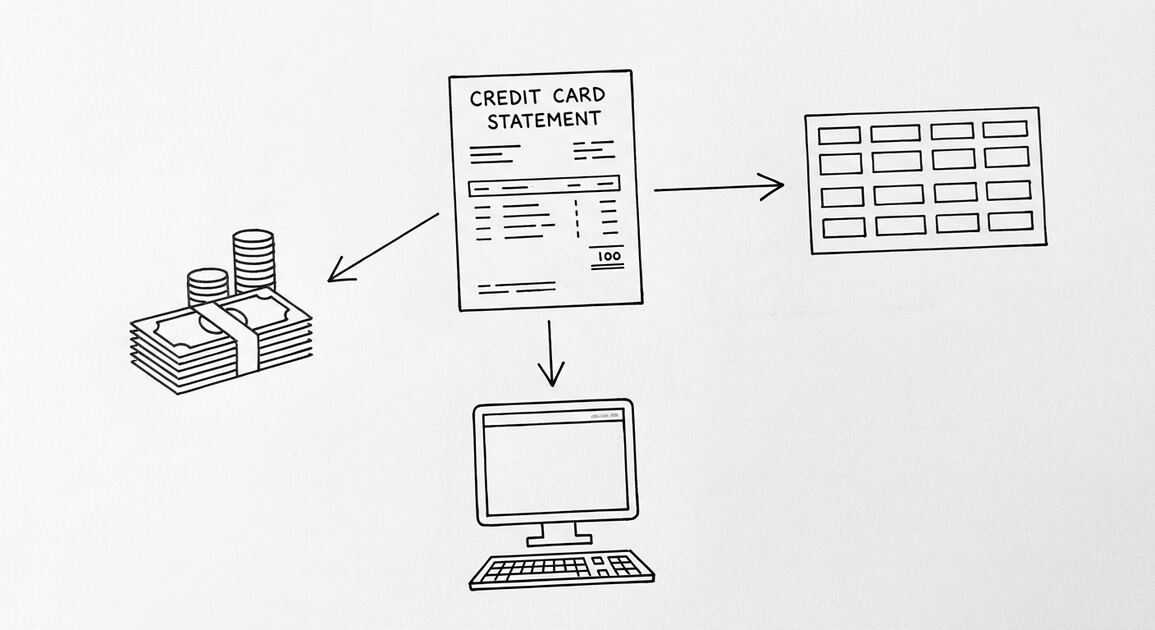
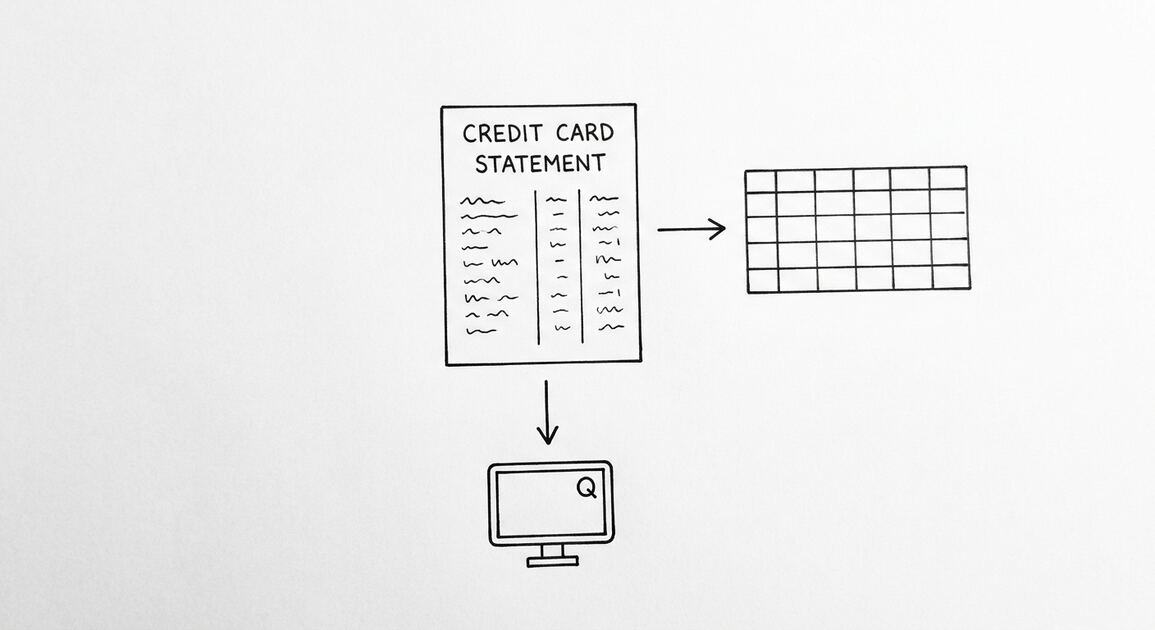
For the broader PDF-to-spreadsheet conversion workflow, see the bank statement to Excel guide and the PDF to Google Sheets workflow. For multi-bank conversion, the multiple bank statements workflow covers how to combine statements from different banks. For converting credit card statements (which have different column structures than bank statements), the credit card statement conversion workflow covers the specifics.
From PDF to Excel in one click
Forget retyping line by line. Upload any bank statement, get a spreadsheet you can actually use. Your files are never stored, and you can test the converter with 3 free conversions.
Try it free