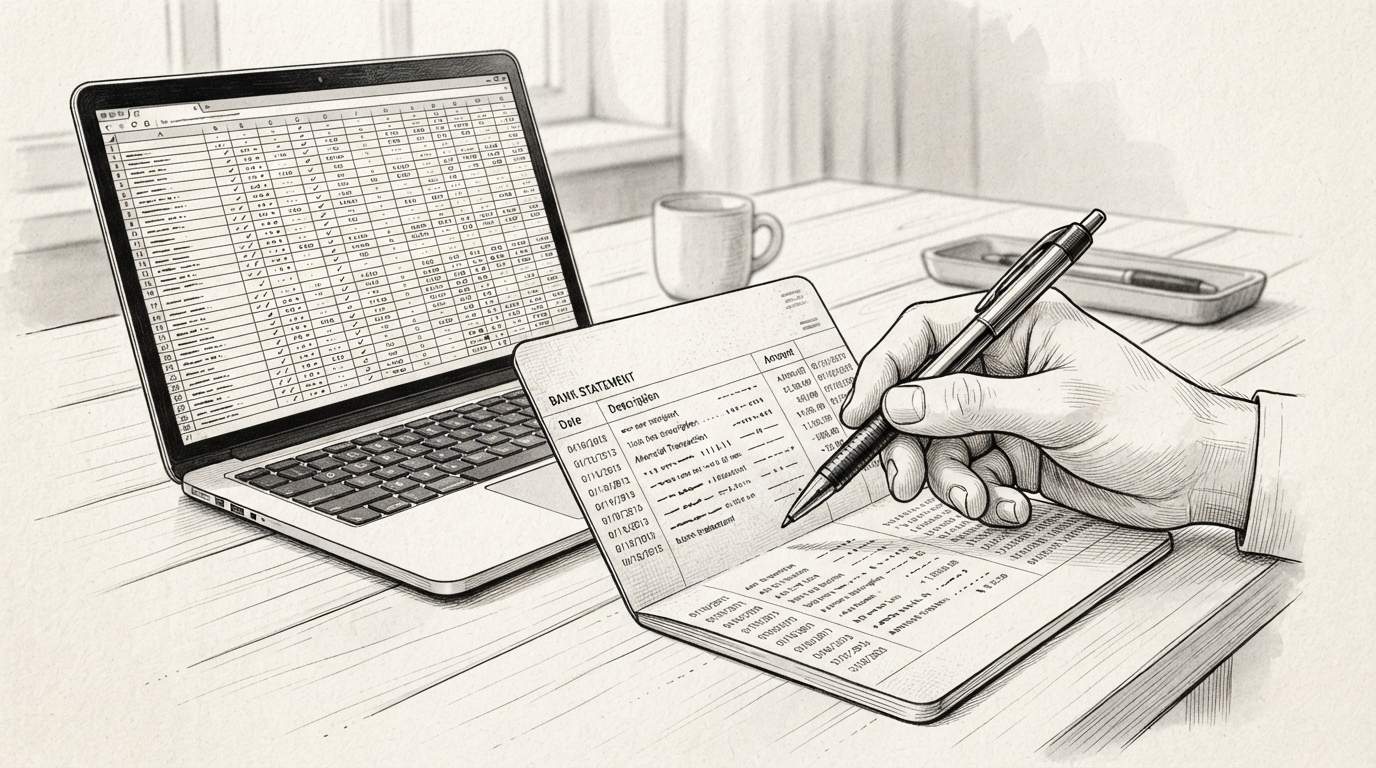

Converting a bank statement takes a PDF the bank produced for human reading and turns it into structured transaction data. This page covers the input formats, the output formats, the workflow, the trade-offs, and how to pick the right path for your situation.
The detailed guides for specific banks, use cases, and non-bank sources are linked below.
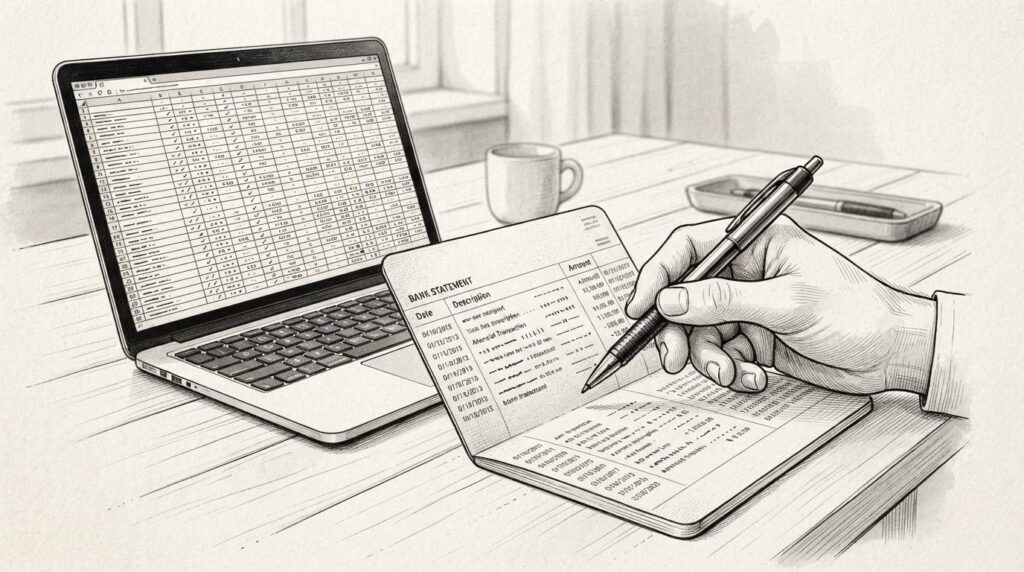
Converting a bank statement (also called bank statement conversion or turning a PDF into transaction data) is the bridge from the bank’s PDF to a row-and-column dataset: date, description, amount, balance. Whether you need the result in Excel, CSV, or a spreadsheet, the conversion step is the same: parse the PDF, structure the transactions, export to your format.
5 paths cover most situations: Excel for editing, CSV for upload, QBO for QuickBooks, batch for multiple accounts, scanned OCR for paper statements. How to convert a bank statement: pick the output format that matches your destination, then run the statement through a converter.
Most modern converters work online and handle the PDF parsing, structuring, and export in about 2 minutes per statement. The output is a clean file you can open in Excel or Google Sheets, or import directly into accounting software.
How to Convert a Bank Statement: The 5-Step Process and What “Conversion” Means
At its core, converting a bank statement (also called a monthly statement or account statement) means three things:
What most guides miss about this workflow is that the quality depends on the mechanism, not on the tool. Two tools that look different on the surface often run the same 4-step process underneath: read, find, parse, verify. The difference is in how well each step handles edge cases (merged cells, missing balances, non-standard date formats, scanned vs digital input). Choosing between tools based on UI alone misses the actual quality lever.
- Reading the source statement (the file your bank gave you).
- Extracting each transaction from that file, the date it posted, what it was for, how much it was, and the running balance after it.
- Writing those transactions into a structured format (rows and columns) that other tools can open, sort, sum, and reconcile.
The source is almost always a PDF today, but the meaning is the same whether the file is a digital statement your bank emailed you, a scan of a paper statement, or a screenshot from online banking.
The output is almost always one of three things: a spreadsheet (Excel or Google Sheets), a CSV file, or an accounting import file (most commonly the QBO format used by QuickBooks Online).
The conversion itself is usually invisible to the end user. You hand over a statement, you get back a file with hundreds of neatly lined-up rows.
The interesting part is what determines whether that output is trustworthy, complete, and ready for the next step in your workflow.
A useful mental model: A bank statement PDF is a report. A converted bank statement is a dataset. The conversion is the move from one to the other.
Source Formats: What You’re Actually Converting From
Before choosing an output, it helps to know what kind of input you’re working with. Bank statements come in a few flavors, and they behave differently.
1. Digital (born-digital) PDFs
Most banks now email statements or let you download them from online banking as a true PDF, text and numbers baked into the file, with selectable rows, hyperlinks, and machine-readable tables.
These are the easiest to convert because the data already exists as text. No OCR is needed. A tool just has to find the transaction block and parse each row.
2. Scanned PDFs and image-only statements
Some banks still mail paper statements. Some users scan them. Some “PDFs” are actually collections of page images wrapped in a PDF container.
In all three cases, the file looks like a PDF but contains no selectable text. Conversion here requires OCR (optical character recognition), a layer that turns pixels of numbers and letters back into machine-readable characters before the data can be extracted.
OCR is slower, slightly less accurate, and more sensitive to scan quality.
3. Pre-structured exports (CSV, OFX, QFX)
Some online banking portals let you export transactions directly as CSV, OFX, or QFX. These are already structured, no conversion needed in the traditional sense, but they have limits.
They usually only cover a limited date range, may exclude check images and footnotes, and often don’t include the running balance.
When you need the full statement (with balance, header info, period dates), a PDF is the canonical source.
What this means for you
If you have a digital PDF, conversion is fast and clean. If you have a scan, expect OCR and a small accuracy tax. If you already have a CSV from your bank, the conversion is mostly already done, but you may still want to pull the PDF for a complete record.
For a deeper walkthrough of the PDF path, see Convert Bank Statement PDF.


From Bank Statement to QuickBooks-Ready File
That manual cleanup you just read about? This tool skips it. Turn your PDF into QBO for QuickBooks without storing your data anywhere.
Start ConvertingWhat the Output Looks Like: The Anatomy of Converted Transaction Data
Every converted bank statement, regardless of output format, contains the same essential columns. Get these right and the rest is detail.
| Column | What it is | Example |
|---|---|---|
| Date | When the transaction posted (sometimes the transaction date and posted date differ) | 2026-04-12 |
| Description | The merchant or counterparty name; sometimes includes check numbers, reference IDs, or memo text | AMAZON MKTPL*AB1CD2 |
| Amount | The transaction value, usually split into a debit (withdrawal) and credit (deposit) column or signed with +/- | -42.18 |
| Balance | The running account balance after the transaction (when the source provides it) | 4,872.41 |
Beyond these four, good conversions preserve:
- Transaction type or category hints (POS, ACH, fee, interest, transfer)
- Reference numbers (check numbers, confirmation IDs)
- Original and posted dates when they differ
- Currency when the statement is multi-currency
- Header metadata, account number (masked), statement period, opening/closing balance
The presence of the running balance is what separates a true statement conversion from a simple transaction export. A balance column lets you reconcile line-by-line against the bank’s numbers. Without it, you’re working blind.
The Conversion Workflow: What Actually Happens
Although different tools handle it differently, every reliable conversion follows the same five-stage pipeline. Once you see the stages, convert bank statement stops being a black box.
1. Acquire the statement file
Download the PDF from your bank’s website, open the email attachment, or scan a paper statement.
Verify the file actually opened and isn’t a 0 KB stub or a password-protected file you can’t unlock.
2. Identify the source
A good tool detects whether the file is a digital PDF, a scanned image, or a pre-structured export. This decides whether OCR is needed.
For a specific breakdown of how different bank layouts are handled, the Extract Transactions from Bank Statement page covers the extraction layer in detail.
3. Extract the transactions
The tool locates the transaction table on each page, reads each row, and captures the columns above. For scanned statements, OCR runs first; for digital PDFs, text parsing runs directly.
This is the stage where most errors happen, a misread decimal, a missing row, a misaligned column on a multi-page statement.
4. Validate and clean
A trustworthy output cross-checks itself: the number of transactions matches what the statement reports (or comes close), the sum of transactions equals the difference between opening and closing balance, and dates are monotonic.
Anything that fails validation gets flagged for review rather than silently exported.
5. Write to the chosen output format
The cleaned transactions are written to the destination, an .xlsx workbook, a .csv file, or a .qbo file ready for QuickBooks. The choice here is mostly about what happens next, not about the conversion itself.
That’s the whole pipeline. Everything else, which tool you use, how much you automate, how much you review, is a decision about how to run those five stages, not a different definition of the work.
Choosing the Right Output Format
The conversion is the same; the output is where your workflow diverges. Each format fits a different next step.
1. Excel / Google Sheets: for analysis, review, and human work
Best for: personal budgeting, manual review, categorization in a spreadsheet, sharing with someone who wants to see the raw rows, ad hoc analysis.
Excel and Google Sheets are the most flexible destinations because they’re the most familiar. You can sort, filter, color-code, add formulas, and pivot immediately.
For a full walkthrough of the Bank Statement to Excel path, including how formulas behave, how to handle multi-currency, and how to set up a review template, the dedicated page covers it.
Trade-off: spreadsheets don’t enforce structure. A typo in a date column silently breaks sorting. A number stored as text silently breaks summing. The flexibility is also the risk.
2. CSV: for plumbing between tools
Best for: importing into accounting software, sharing with developers or data tools, feeding into a reconciliation pipeline, version-controlling transaction data.
CSV is the universal interchange format. Almost every bookkeeping tool, every database, and every data pipeline can read it. If your next stop is software rather than a human, CSV is usually the right answer.
The Bank Statement to CSV page goes deep on the encoding, delimiter, and import quirks that matter when CSV is the destination.
Trade-off: CSV is dumb. No formatting, no formulas, no types, every column is just text. Dates need to be in a format the destination tool understands (usually
YYYY-MM-DDorMM/DD/YYYY), and amounts need to be plain numbers without currency symbols or thousand separators.
3. QBO: for QuickBooks Online specifically
Best for: small business owners already on QuickBooks Online who want their bank transactions in the right place without manual entry or CSV mapping.
QBO is a specialized format. QuickBooks Online can import a .qbo file directly and the transactions land in the register ready for matching, categorization, and reconciliation.
If QuickBooks is your destination, you don’t need a generic CSV import, you need a Bank Statement to QBO conversion that produces a QBO file the right way.
The general-purpose CSV path will technically work, but QBO skips the manual column mapping.
Trade-off: QBO is a one-way street out of QuickBooks. If you ever want the same data in another tool, you’ll need to re-export from QuickBooks rather than reuse the original conversion.
A quick decision rule
- Want to look at it and work with it by hand? Excel or Google Sheets.
- Want to feed it into another piece of software? CSV.
- Want it to land in QuickBooks Online cleanly? QBO.
If you’re not sure yet, CSV is the safest default, it converts to anything else with one more step.
Validation: How to Know the Conversion Worked
A converted file isn’t trustworthy until you’ve checked it. Most “bad” conversions don’t fail loudly, they silently drop a row, misread a decimal, or skip a page. A 30-second validation pass catches the common cases.
Five checks, in order of how much they catch:
- Row count vs. the statement’s summary. Most statements print “X transactions this period” or list a summary at the top. Your output row count should match (allowing for any opening/closing balance rows being excluded).
- Sum of transactions equals the change in balance. Opening balance + (deposits − withdrawals) = closing balance. If this math doesn’t reconcile to the penny, something is off.
- Date continuity. Dates should run monotonically within the statement period. A random 2019 date mixed in usually means a misread transaction date.
- Description sanity. Spot-check five descriptions against the PDF. If “AMAZON MKTPL” came out as “AMA20N MKTPL” or as empty, OCR or parsing is failing on that pattern.
- Largest transactions present. A $4,200 payroll deposit should not be missing. The big-ticket rows are where conversion errors are most expensive.
Any tool that automates the conversion should at least run the first two checks. A human review pass on the others is worth the time before the data goes near a tax return, a loan application, or a year-end reconciliation.
The Trade-Offs Worth Knowing Up Front
Converting a bank statement is rarely a question of “can it be done”, it almost always can. The real questions are about time, accuracy, control, and what you give up.
Time vs. accuracy
Fully automated conversion of a clean digital PDF is fast and accurate. The moment you bring in scans, multi-currency, or unusual bank layouts, accuracy drops and you spend time reviewing.
The right trade-off depends on what the data feeds into: a one-off budget review forgives a missed transaction; a tax return does not.
Automation vs. control
Manual entry in Excel gives you total control but doesn’t scale past a few dozen transactions. Automated conversion scales to thousands of rows but asks you to trust (and verify) the output.
The middle ground, automated conversion with a quick human review pass, is what most workflows settle on.
Convenience vs. privacy
Any conversion that uploads a statement to a third-party server involves handing over a document that contains account numbers, balances, and a full record of where your money went.
For personal accounts, that’s usually fine. For business accounts with sensitive vendor and payroll detail, it’s worth understanding how the tool handles storage, retention, and deletion.
Look for explicit statements on data retention, encryption in transit, and whether the file is used for training.
EasyStatementSheet processes statements in a session-bound workflow designed to minimize persistent storage; specifics live on the product page rather than here.
Free vs. paid
Free manual entry in a spreadsheet is free for a reason, it costs you the time. Free automated converters often come with limits (a few pages, a few statements per month, watermarks, or privacy terms you wouldn’t accept for a business account).
Paid converters typically earn their price by handling edge cases (multi-page layouts, scans, multi-currency) that free tools don’t bother with.
Native bank exports vs. PDF conversion
If your bank lets you export CSV or OFX directly, that export is often almost enough. It usually lacks the running balance and may have a short date window.
PDF conversion gives you the complete statement, header, period, balance, every transaction, at the cost of a processing step.
A common failure mode bookkeepers report is treating this as a single operation rather than a chain of dependent steps. The temptation is to find a tool that ‘just works’ and stop investigating the mechanism. The result is a wrong-fix cycle: the tool gives partial output, the bookkeeper spends 30+ minutes troubleshooting, the fix is for the wrong step, and the same error recurs on the next statement. The fix: identify which step failed and apply the right intervention to that step.
Picking the Right Path for Your Situation
A quick orientation by reader type. Pick the one closest to your situation and follow the link. If you are looking for the tool itself, the bank statement converter page covers what it is and how to pick one.
I’m a freelancer or individual with a personal account.
You probably want a spreadsheet to categorize spending, maybe a CSV to share with a tax preparer. Start with Bank Statement to Excel if you’ll work with it yourself, or Bank Statement to CSV if you’re handing it off.
I’m a small business owner doing my own books.
QuickBooks Online is the most common destination. A Bank Statement to QBO conversion skips the manual column-mapping step and lands transactions in the register ready to categorize. If you also want a spreadsheet copy for review, do the QBO conversion and a separate Excel export.
I have a scanned or paper statement.
The OCR layer is the bottleneck. The Convert Bank Statement PDF page covers what to expect from scanned input, including the quality issues that affect accuracy most. Plan for a slightly longer review pass.
I have a credit card statement, not a bank statement.
The mechanics are nearly identical, but the columns and balance behavior differ slightly. The Convert Credit Card Statement page is written for that case specifically.
I just want the best tool for the job, not a workflow.
The Best Way to Convert Bank Statements page compares the main paths and points you at the one that fits.
I want to understand the extraction step itself.
That’s a separate question. The Extract Transactions from Bank Statement page covers how the actual parsing works, what’s hard about it, and what affects accuracy. For the related bank statement conversion checklist: 10 steps from pdf to verified data page, see the linked article.
Turn PDF Bank Statements Into Workable Spreadsheets
Your bank statement is a mess of numbers, but your books shouldn't be. Use our converter to get Excel, CSV, or QBO files — ready for QuickBooks.
Try It Free Now