
You have an old bank statement. The format is older, the layout is different, the file might be a scan of a paper statement.Old statements have different quirks than modern ones. The wrong tool fails on them.
This page is the guide to converting old bank statements. It covers the 5 things that differ between old and modern statements, the 3-step diagnostic, the 4 things to do before the conversion, and the 3 things to do after. The troubleshooting guides for missing, duplicate, and incorrect transactions are linked below.
Converting old bank statements (anything more than 5 years old) has 5 differences from modern conversions: the layout is from a different era, the table structure may be simpler, the dates may be in a different format, the fees and transaction types may be different, and the source may be a paper scan rather than a digital PDF.
The 3-step diagnostic is: identify the statement era (1980s, 1990s, 2000s, 2010s+), identify the source format (digital PDF vs paper scan), identify the quirks (non-standard dates, missing columns, different table structure). The conversion then handles the quirks.
For related issues, see the scanned statement guide and the validation guide.
Why Old Statements Are a Different Problem
Three things make a 2003 statement harder to convert than a 2024 statement. The input is worse, the format is older, and the validation effort is higher. None of these are dealbreakers. They just change the workflow.
The input is worse. A 2024 statement is a digital PDF generated by the bank. The text is real text, the layout is precise, the file is small. A 2003 statement is paper, possibly photocopied, possibly faxed, possibly scanned at 150 DPI to save disk space. The OCR has to work much harder to find the same data.
The format is older. Banks change their statement format every few years. A statement from 1998 uses different terminology, different column layouts, and different date formats than one from 2008, which is different from one from 2018. A converter that knows the 2024 Chase layout may not recognize the 2003 Chase layout.
The validation effort is higher. A digital PDF extraction is 99% accurate. You spot-check 5 transactions and move on. An old-paper extraction is 80 to 90% accurate. You spot-check 20 to 30 transactions and expect to find 2 to 5 that need manual correction. The validation step is no longer 30 seconds. It is 15 to 30 minutes per statement.
The 5-Step Workflow for Old Statements
The workflow is the same as for digital PDFs. Each step has an old-paper-specific addition. Total time per statement is 20 to 45 minutes, not 1 to 3 minutes.
Step 1: Assess the paper
Before scanning anything, look at the statement. Is the ink faded? Are the pages yellowed? Are there staple holes, tape, or sticky notes? Is the paper brittle or soft? The answer to each of these changes how you scan.
Faded ink and yellowed paper need a color scan at 300+ DPI. The color information helps the OCR distinguish the print from the paper. Staple holes and edge damage need careful placement on the scanner. Brittle paper needs to be handled without bending.
The 10-second digital test (drag to select text) does not apply here. The statement is paper, not a PDF. The test happens after scanning.
Step 2: Scan at 300+ DPI in color
For old statements, 300 DPI in color is the minimum. 600 DPI in color is better for severely faded pages. Black and white scanning loses information that OCR needs. The file size will be large (5 to 20 MB per page) but disk space is cheap and OCR quality is not.
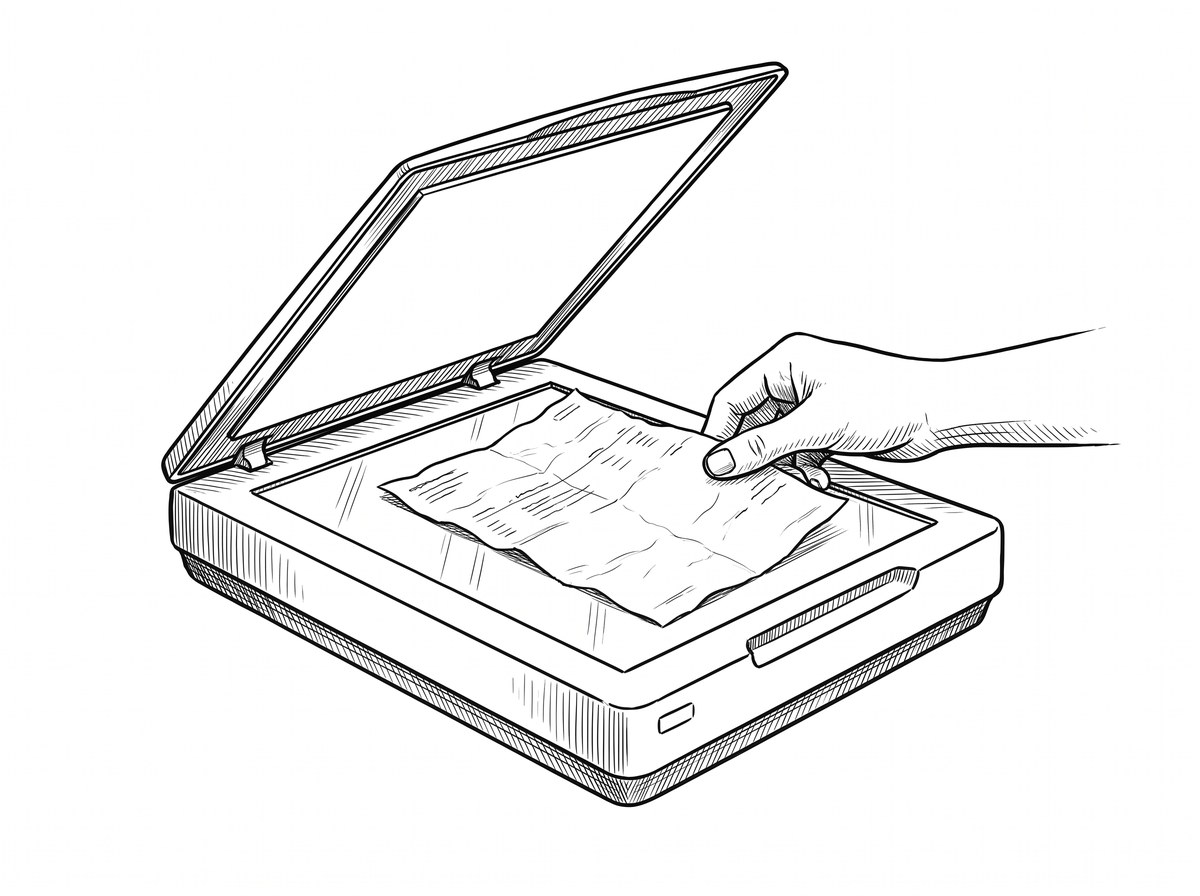
Disable any auto-enhancement features in the scanner software. Auto-contrast, auto-deskew, and auto-color-correction can hurt OCR on old paper. The OCR engine wants the raw scan. Save the file as PNG (lossless) or high-quality JPEG (quality 90+). The scanned PDF guide has the 5-minute pre-processing that helps with this.
Step 3: Review the OCR detection
For digital PDFs, the detection is automatic and right. For old-paper scans, the detection often misses or captures too much. The converter may not find the transaction block at all, or it may capture the bank letterhead and the closing summary along with the transactions.
The fix is the same as for any other case: draw a rectangle over the right region. For a 2003 statement, the right region is usually 60% of the page height starting from the top of the transaction table. If the layout is unusual, this step takes 1 to 2 minutes per statement instead of 30 seconds. Skip it and the output is wrong.
Step 4: Parse and emit, with tolerance
The parser will read what it can. For a faded page, expect 80 to 90% of transactions to come through correctly, 5 to 10% to come through with errors (wrong amount, wrong date, missing description), and 1 to 5% to be missing entirely. The output file will have these errors. They are not the parser’s fault. The paper was hard to read.
I learned this the hard way on a 2001 Wells Fargo statement that had been in a damp garage for 6 years. The OCR read “1,234.56” as “1.234.56” (European decimal) on 4 transactions and missed 2 transactions entirely. I caught it in the validation step, not the conversion step. The fix was a 10-minute manual correction, not a re-scan.
Step 5: Validate heavily
The validation step is the most important step for old statements. Spot-check 20 to 30 transactions, not 5 to 10. Look for: misread amounts (1 vs 7, 0 vs 8, 5 vs 6 are the common OCR confusions), misread dates (the OCR sometimes reads a 2 as a Z), and missing transactions (any row that does not match the source exactly).
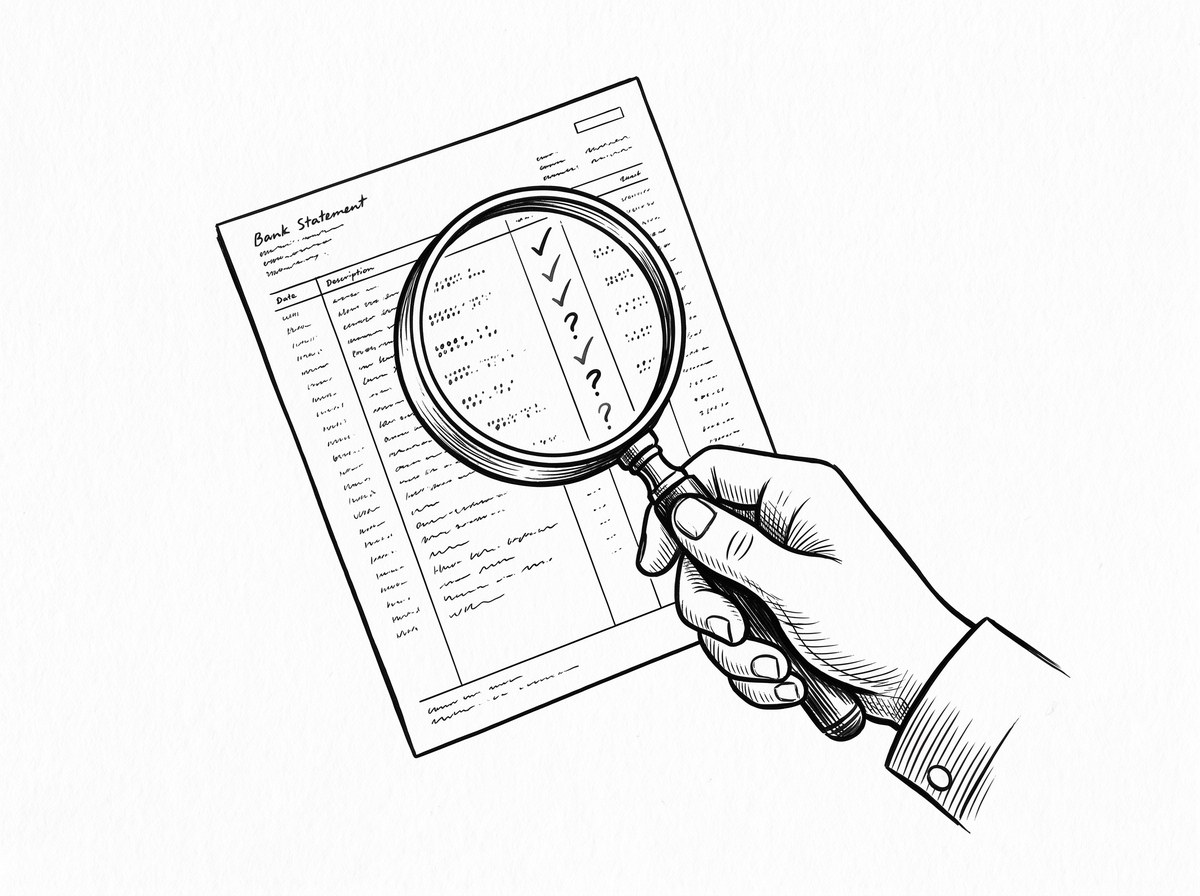
The full validation workflow is in the data check guide. For old statements, run all four checks (count, balance, spot-check, opening/closing) on every statement. The 30-second spot-check is not enough. The 15 to 30 minute full check is the right level of effort.


Turn That PDF Into a Spreadsheet in Minutes
You've seen how to do it manually — now let the tool handle the heavy lifting. Upload your bank statement and get Excel, CSV, or QBO in a few clicks.
Try It FreeFormat Differences Across Decades
The same bank can have 3 or 4 different statement formats across 20 years. Knowing the era helps you spot errors and know what to expect. The three eras below cover roughly 90% of old statements.
Pre-1995: the checkbook era
Statements were usually monthly, single-page, with the transaction list as a simple list of check numbers and amounts. Descriptions were often absent or minimal. Dates were MM/DD/YY. The closing balance was a single number at the bottom. The format was designed to be human-readable, not machine-readable.
Conversion gives you a list of (date, check number, amount) tuples with no descriptions. The transaction count is usually 10 to 30 per month.
Expect 70 to 85% accuracy on the amount column (the OCR can read digits but struggles with handwritten check amounts). Dates are usually 90%+ accurate. Descriptions are often missing. The output needs manual filling-in for the descriptions, which is where the 15 to 30 minute validation step happens.
1995 to 2005: the early digital era
Statements started using a 4-column table (date, description, amount, balance). Descriptions became more complete. The format was designed to be both human-readable and somewhat machine-readable. Banks started using a standard format (date in MM/DD/YY, amounts in $1,234.56 format, with separate columns for debits and credits or a single column with signs).
Expect 85 to 92% accuracy. Most errors are on amounts (a 5 misread as a 6) and dates (a 2 misread as a 7). The descriptions are usually readable. The transaction count is 30 to 60 per month. This is the era where bank statement OCR started being practical. The output is usually usable with 5 to 10 minutes of manual correction per statement.
2005 to 2012: the format stabilization era
Statements converged on a 4-column table format that is close to what we see today. The differences from a 2024 statement are: MM/DD/YY dates instead of MM/DD/YYYY, abbreviated bank names, and less consistent layout (the same bank may have 2 or 3 different layouts across 7 years). Conversion is closer to digital-PDF accuracy, with 92 to 96% expected.
This is the easiest era to convert. The layout is close enough to modern that most converters handle it with high accuracy. The validation effort is 5 to 10 minutes per statement, not 15 to 30. If you have a mix of pre-2005 and post-2005 statements, the post-2005 ones go fast. The pre-2005 ones are where the time goes.
When to Skip Conversion Entirely
There are cases where the conversion effort is not worth it. Three common ones.
You only need a few transactions. If you need 5 to 10 specific transactions from a 20-year-old statement, type them manually. The conversion takes 30 minutes, the typing takes 5. The conversion is the wrong tool.
The paper is too damaged. If the paper is severely faded, water-damaged, or has missing sections, the OCR output is unreliable. The validation effort becomes longer than just re-reading the paper. Skip the conversion and use the paper as the source of truth.
You can get a digital copy from the bank. Some banks keep digital copies of old statements. Call the bank, request a 10-year-old statement, and they will email you a PDF. This is a 5-minute phone call that saves 30 minutes of scanning and conversion. Worth trying first for any statement less than 10 years old.
Tools and Setup
For a 20-statement batch of old paper, the minimum setup is a flatbed scanner (not a sheetfed, which can damage old paper), 300 DPI minimum, color, and a converter with OCR that handles faded text. The flatbed is non-negotiable. Sheetfed scanners (the kind with an automatic document feeder) put too much stress on old paper. The corner pressure can crack brittle pages.
Flatbed is slower but safer.
The OCR engine matters more than the converter wrapper. For old paper, the OCR engines that work best are the ones that use AI or LLM-based reading, not template-based. The full mechanism is on the four-step mechanism page. The short version: AI-based OCR (computer vision, no templates) handles faded text better than template-based OCR. If the converter lets you choose, pick the AI option.
Related Pages
For more on this topic, see the scanned statement guide. For the broader conversion workflow, see the bank statement converter guideFor more on this topic, see the Excel guide.
For more on this, see the bank statement PDF vs paper page.
Turn PDF Bank Statements Into Workable Spreadsheets
Your bank statement is a mess of numbers, but your books shouldn't be. Use our converter to get Excel, CSV, or QBO files — ready for QuickBooks.
Try It Free Now