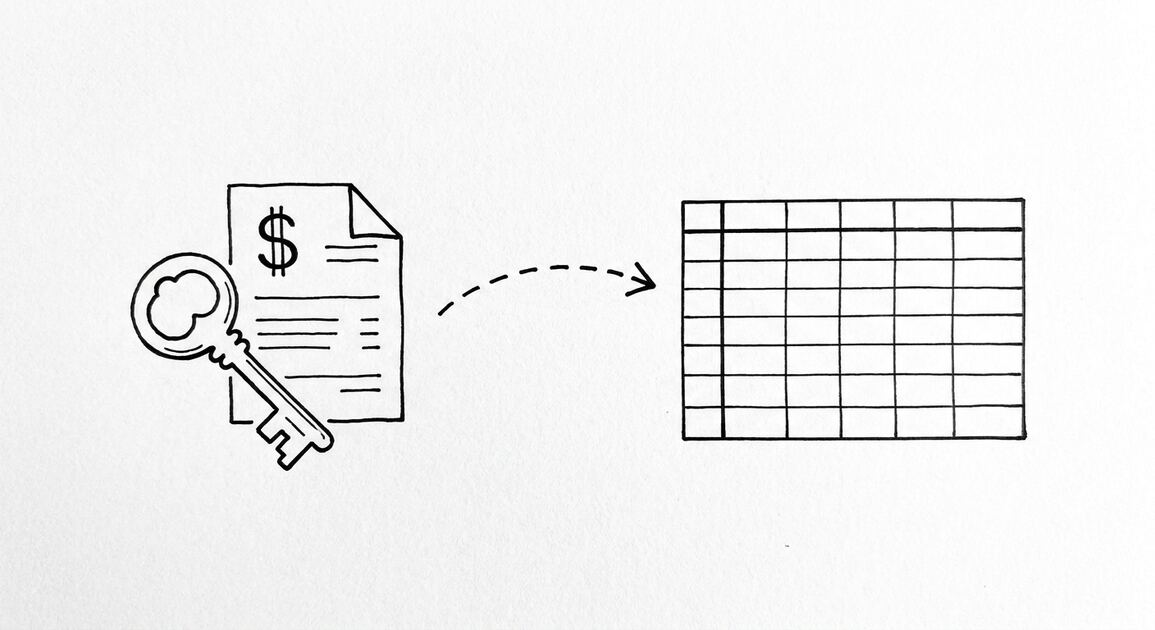

Extracting transactions from a PDF bank statement looks like copy-paste. It is four distinct steps, and each step can fail in ways that produce silently wrong output. The wrong output is worse than no output because you may not realize it is wrong until the books do not balance.
Approximately 15-30 minutes per statement disappear into troubleshooting when extraction fails. Knowing which of the 4 steps failed turns 30 minutes into 2 minutes.
TL;DR. Extracting transactions from a PDF is a 4-step process: text extraction, block detection, row parsing, balance verification. The first step differs for digital PDFs (fast, perfect) and scanned PDFs (slow, OCR-dependent). The next 3 steps are identical. Block detection fails when the page has multiple regions. Row parsing fails when the format is non-standard. Balance verification catches all the previous failures.
A bookkeeper has 30 bank statements in PDF format from 5 different banks. Some are digital (the bank’s website generated them). Some are scanned (the client printed and scanned the paper statement). The bookkeeper needs to know which statements will extract cleanly and which will need manual review.
The answer is in the 4 steps. The first step (text extraction) determines the rest. Digital PDFs skip the OCR step and proceed to the next 3 steps with high accuracy. Scanned PDFs need OCR first, which adds 30-60 seconds per page and a 1-5% error rate that the later steps must catch.
Step 1: Text Extraction (Digital vs Scanned)
The first step is getting the text out of the PDF. This step differs based on the source.
What most guides miss about PDF extraction is that the quality depends on the mechanism, not on the tool. Two tools that look different on the surface often run the same 4-step process underneath: read, find, parse, verify. The difference is in how well each step handles edge cases (merged cells, missing balances, non-standard date formats, scanned vs digital input). Choosing between tools based on UI alone misses the actual quality lever.
Digital PDFs are generated by the bank’s software. The text is selectable: you can copy and paste it. Extraction is instant and 100% accurate. The output is the raw text of the statement, with the layout preserved.
Scanned PDFs are images of paper statements. The text is not selectable. Extraction requires OCR (optical character recognition), which is a 30-60 second process per page. Accuracy is 95-99% on clean scans, 85-95% on noisy scans. The output is text with occasional errors that the next steps must handle.
Phone photos are camera captures of paper statements. They look like scanned PDFs but are often lower quality. OCR accuracy is 85-95%. The output requires more aggressive error handling in the later steps.
How to tell which type you have: open the PDF and try to select a single word of text. If you can select it, it is digital. If you cannot select it (the selection box covers a whole line but does not grab specific text), it is scanned.
Step 2: Block Detection
The second step is identifying the rectangular region on the page that contains the transaction list. This is the hardest step because most pages contain a header (account info), the transaction block (the rows), and a footer (summary, page numbers, ads). For more on password-protected bank statements, see the password-protected bank statements page.
The block detection algorithm walks through the text and identifies clusters of rows that have a consistent format (date, description, amount, balance). The first such cluster is the transaction block. The block extends until the row format changes or ends.
Common failure: the page has a summary table at the top (e.g., “Deposits: $5,000 / Withdrawals: $3,000 / Ending Balance: $2,000”) that looks like transaction rows but is not. The algorithm may include the summary as transactions, producing wrong output.
How to detect this failure: the output includes rows that have summary-like text (e.g., “Total Deposits”, “Beginning Balance”). These are not transactions. The block boundary is wrong.
How to fix: the algorithm should look for the first row that has a date and an amount, then identify the contiguous block of date-amount rows. Summary rows do not have dates. Transaction rows do. The block starts at the first date-amount row and ends at the last consecutive date-amount row.
From PDF to Excel in one click
Forget retyping line by line. Upload any bank statement, get a spreadsheet you can actually use. Your files are never stored, and you can test the converter with 3 free conversions.
Try it freeStep 3: Row Parsing
The third step is extracting the date, description, amount, and balance from each row in the block. This step fails when the row format is non-standard.
Standard format: the date is in the first column, the description in the second, the amount in the third, and the balance in the fourth. Most major banks use this format. Most converters handle it with 99%+ accuracy.
Non-standard format 1: the date is in the middle of the row, not the first column. Some credit unions and regional banks do this. The parser must identify the date by pattern matching, not by column position.
Non-standard format 2: the amount uses a different sign convention. Some banks show deposits as positive and withdrawals as negative (the standard). Some show the opposite. The parser must normalize to the standard convention.
Non-standard format 3: the description spans multiple lines. The first line is the merchant name. The second line is the location. The third line is a reference number. The parser must treat all three lines as one transaction, not three separate transactions.
Non-standard format 4: the running balance is omitted. Some banks (Capital One, some credit unions) do not print a running balance. The parser cannot walk the balance through the rows. The integrity check must be skipped or replaced with a sum check (deposits minus withdrawals equals net change).
Step 4: Balance Verification
The fourth step is the integrity check. The system walks the running balance through the parsed rows and confirms it matches the bank-printed ending balance. This step catches all the previous failures.
How it works: the first row’s balance is the starting balance. For each subsequent row, the system adds the amount (deposits positive, withdrawals negative) to the running balance. The final running balance should equal the bank-printed ending balance.
If the running balance matches: the extraction is correct. The output is reliable.
If the running balance does not match: the extraction has a bug. The most common causes are a missed transaction (the parser skipped a row), a duplicated transaction (the parser counted one row twice), or a sign convention error (deposits and withdrawals are inverted).
How to find the bug: walk through the rows manually. Find the row where the running balance diverges from the bank-printed balance. Look at the row’s amount and date. Compare to the source PDF. Identify what the parser got wrong.
For statements without a running balance: skip the balance verification. Instead, verify that the sum of deposits minus the sum of withdrawals equals the net change in balance. This is a weaker check but still catches major errors.
Why the 4 Steps Are Universal
The 4 steps apply to every PDF bank statement, regardless of the bank, the format, or the output destination. The first step changes (digital vs scanned) but the next 3 are identical.
The same 4 steps apply to a phone photo of a paper statement. The OCR step in the first stage handles the image-to-text conversion. The next 3 steps work on the extracted text the same way.
The same 4 steps apply to a bank website screenshot. OCR handles the image-to-text conversion. The next 3 steps work on the extracted text.
The same 4 steps apply to a CSV file from the bank. The first step (text extraction) is trivial (the CSV is already text). The next 3 steps work on the parsed rows.
When extraction fails, the failure is in one of the 4 steps. Diagnosing which step failed tells you the fix. The fix is the same for every statement of that type, not just the one that failed.
Common Failure Modes and Fixes
Failure 1: The output includes summary rows as transactions. The fix is in step 2. The block detection algorithm should require date+amount format, not just any text row.
Failure 2: The output total does not match the bank-printed ending balance. The fix is in step 3. Walk through the rows to find the bug. Common causes: missed transaction, duplicated transaction, sign convention error.
Failure 3: The OCR misread specific characters (0 as O, 1 as l, 5 as S). The fix is in step 1. Use a higher-quality scan, or apply OCR correction rules (replace common OCR errors with the expected characters based on context).
Failure 4: The dates are parsed in the wrong format (DD/MM parsed as MM/DD). The fix is in step 3. Detect the date format by looking at the range of values. If any “month” is greater than 12, the format is DD/MM. If any “day” is greater than 12, the format is MM/DD.
Failure 5: The descriptions are truncated or merged. The fix is in step 2. The block detection should not split descriptions across multiple lines. The full description is the concatenation of all lines until the next date+amount row.
When Extraction Is Not the Right Tool
For statements with under 10 transactions, manual entry is faster than extraction. The setup time is 2-3 minutes. Manual entry of 10 transactions is 3-5 minutes. The crossover is around 20-30 transactions.
For handwritten statements, extraction accuracy drops to 70-85% because OCR cannot reliably read handwriting. The manual review time exceeds the time saved. Manual entry is faster for handwritten statements.
For statements in a language the converter does not support, extraction fails on every row. Manual entry is the only option, or a converter with multilingual support.
What to Do Right Now
If you are about to extract transactions from a PDF, do these four things in this order.
First, check if the PDF is digital or scanned. Try to select text. If you can, it is digital and the extraction will be fast and accurate. If you cannot, it is scanned and the extraction will need OCR.
Second, look at the page layout. Identify the transaction block. Note the date format and the sign convention. This is the data the extractor needs to produce correct output.
Third, run the extraction with integrity checking enabled. Compare the output total to the bank-printed ending balance. If they match, the extraction succeeded. If they do not, walk through the rows to find the discrepancy.
Fourth, review the low-confidence rows. A good extractor marks rows where the parsing was uncertain. Spend 1-2 minutes reviewing those rows. The remaining rows are reliable.
For the actual extraction tool, use a PDF bank statement extractor that handles all 4 steps and produces verified output. The 2-5 minutes saved per statement compounds across every statement you extract. The bank statement data extraction pillar covers the broader mechanism, and the bank statement to Excel converter applies the same 4-step mechanism. For QuickBooks-specific import, the same extraction logic feeds the QBO output format.. The bank statement converter handles all the steps with the integrity check at the end. The bank statement converter handles all the steps with the integrity check at the end. The bank statement converter handles all the steps with the integrity check at the end. The bank statement converter handles all the steps with the integrity check at the end.
Turn any PDF statement into a clean sheet
Skip the typos and the hours of copying. Our converter handles any bank statement format and outputs Excel, CSV, or QBO for QuickBooks. No file retention, free to try.
Convert your statement