
You have a PDF bank statement (also called transaction history, account statement). You need it in CSV.
The wrong tool gives you a CSV with merged cells, chopped descriptions, and a balance that does not tie out.
What most guides miss about this: the right output format depends on the destination, not the source. The same PDF can produce 4 different output files, each with different downstream impact.
This page is the guide to converting a PDF bank statement to CSV. It covers the conversion workflow, the 5 things that go wrong, the 3 things to do after the conversion, and the difference between digital and scanned PDFs. The bank-specific conversion guides for 11 major US banks are linked below.
Converting a PDF bank statement to CSV (also called bank statement PDF to CSV or PDF bank statement to CSV) produces a plain-text file with one transaction per row. The columns are Date, Description, Amount, Balance. The output is the universal data format for tax software, custom scripts, and spreadsheet pivot tables. This is the PDF-specific workflow: for the format-agnostic version, see convert bank statement to CSV.
The conversion handles both digital and scanned PDFs. For digital PDFs, the mechanism is direct: read the table, parse the rows. For scanned PDFs, the mechanism is OCR + table detection. The digital path is faster and more accurate. For converting bank transactions from a PDF to CSV (the transactions specifically), see the extract transactions from PDF bank statement guide.
For specific banks, see the bank export guide. For the general PDF-to-Excel workflow, see the Excel guide. For the broader bank statement workflow, see the bank statement converter guide.
What “PDF Bank Statement to CSV” Actually Means
Converting a PDF bank statement to CSV means producing a plain-text file with one row per transaction, where each row has date, description, amount, and balance as separate columns, and the file opens cleanly in Excel, Google Sheets, and any accounting tool. The output is what software reads. The input is what the bank gave you. The conversion is the step in between.
The CSV file you’re producing
The CSV (Comma-Separated Values) is a plain-text file. The first line is the column header (date, description, amount, balance). Each following line is one transaction, with the fields separated by commas. Strings that contain commas are wrapped in quotes. The file is UTF-8 encoded by default. The full format spec is RFC 4180.
When CSV is the right output
CSV is the right output when the destination system accepts it natively. Xero, Wave, FreshBooks, and most mid-market accounting tools import CSV directly. CSV also works for spreadsheet analysis and for custom data pipelines.
CSV is the wrong output when QuickBooks is the destination (use QBO) or when the data is for human review with formatting (use Excel).
The 5-Step Workflow
The conversion from PDF to CSV runs in five steps. Each has a specific output and a specific check.
Step 1: Assess the PDF
Determine if the PDF is digital or scanned. Open the PDF and try to select text. If you can drag a cursor over the words and copy them, it is digital. If the selection tool does nothing, it is scanned.
Digital PDFs convert faster and more accurately. Scanned PDFs need OCR. The 10-second test determines the path. The full input assessment is on the PDF extraction guide.
Step 2: Upload to the converter
Upload the PDF to the converter. Most online converters accept the file via drag-and-drop. For multi-statement workflows, batch upload processes several files in one operation. The upload is encrypted in transit. The file is processed in memory. Nothing is written to disk during the conversion.
Step 3: Confirm the transaction block
The converter shows you which region of the PDF it identified as the transaction table. For digital PDFs from major US banks, the detection is automatic and correct. For scanned PDFs or unusual layouts, the detection may need a manual adjustment. Most converters let you draw a different rectangle over the right region. This 30-second step prevents a bad output.
Step 4: Parse and emit
The converter parses each transaction into date, description, amount, and balance, then writes the rows to a CSV file. The file has one header row and one row per transaction. The encoding is UTF-8. Strings with commas are quoted. The output is ready to download.
Step 5: Validate the CSV
Open the CSV in a text editor first to see the raw structure, then open it in Excel or Google Sheets to verify the columns line up. The transaction count should match the source statement. The last row’s running balance should match the source’s closing balance. This is the step that catches the rare error. The full data check guide has the workflow.
How do I convert a bank statement from a PDF to CSV?
Upload the PDF to a converter that produces CSV (not just Excel or QBO). The converter reads the PDF, finds the transaction block, parses each row, and writes the CSV. Download the file, open it in a text editor first to confirm the structure, then open it in Excel or your accounting tool. The five steps above are the full workflow.


From PDF to Excel in one click
Forget retyping line by line. Upload any bank statement, get a spreadsheet you can actually use. Your files are never stored, and you can test the converter with 3 free conversions.
Try it freeThe CSV Format: What You’re Getting
The CSV format is simple, but the details matter. Here is the structure you should expect.

Standard column structure
A standard bank statement CSV has four columns: Date, Description, Amount, Balance. The header row is the first line. Each following line is one transaction. Some converters add a fifth column for the transaction type (debit or credit) or the check number, but the four-column structure is the minimum.
Date format
Bank statements use a range of date formats. US banks typically use MM/DD/YYYY (01/15/2026) or MM/DD/YY (01/15/26). Some use YYYY-MM-DD. A good converter normalizes dates to a single format. For CSV imports into accounting software, ISO 8601 (YYYY-MM-DD) is the most compatible. The CSV conversion guide covers format handling in detail.
Amount format (single column vs split)
There are two common amount formats. Single column: positive numbers are deposits, negative numbers are withdrawals (parentheses also mean negative, e.g., (1,250.00)). Split columns: separate Debit and Credit columns, with the unused column empty for each row. Single column is more compact. Split columns are easier for some accounting tools to import. A good converter produces single column by default; some let you choose split.
Encoding (UTF-8, BOM, Excel compatibility)
CSV files are text. The encoding determines how characters are represented in bytes. UTF-8 is the standard. UTF-8 with BOM (Byte Order Mark) is what Excel on Windows uses to auto-detect the encoding. A converter that outputs UTF-8 with BOM is the most Excel-compatible.
Plain UTF-8 (no BOM) is fine for Google Sheets, accounting tools, and any modern application. The encoding rarely matters unless the descriptions contain non-ASCII characters.
Common CSV Pitfalls
Most CSV problems come from one of four pitfalls. Each has a specific cause and a specific fix.
Encoding issues
Excel on Windows sometimes opens UTF-8 CSV files as if they were in a different encoding (Windows-1252 or Latin-1). The result: characters like “café” become “café”, or em-dashes become question marks. The fix: a converter that outputs UTF-8 with BOM, or opening the CSV through the “Import” wizard in Excel and explicitly choosing UTF-8.
Commas in descriptions
Some transaction descriptions contain commas (“ACH DEBIT, ACME CORP”). A naive CSV writer treats the comma as a column separator, splitting the description into two columns. The fix: RFC 4180-compliant quoting. Any field that contains a comma, a quote, or a newline is wrapped in double quotes. A good converter does this automatically. The incorrect data guide covers the symptoms.
Date format mismatches
The source statement uses one date format. The destination system expects another. Common mismatches: 01/05/2026 (Jan 5) imported as May 1 in a system expecting DD/MM/YYYY, or 2026-01-05 imported as a string in a system expecting a date object. The fix: explicit date format specification during import, or a converter that normalizes to ISO 8601 (YYYY-MM-DD) which is unambiguous.
Sign convention (debits as negatives)
Bank statements show deposits as positive numbers and withdrawals as negative numbers (or in parentheses, or in a separate Withdrawals column). The CSV’s Amount column must preserve this sign convention. A converter that flips the sign by mistake produces a CSV where deposits look like withdrawals.
The fix: validate by checking the last row’s balance against the source. If the running balance is wrong, the signs are wrong.
CSV vs Excel vs QBO: When to Pick CSV
CSV is one of three common output formats. The right one depends on the destination system.
CSV for accounting imports
CSV is the right output for Xero, Wave, FreshBooks, and most mid-market accounting tools. They have CSV import wizards that map your columns to their fields. The conversion takes a few minutes and produces a clean import. The QuickBooks workflow is different because QuickBooks prefers QBO.
Excel for human review
Excel is the right output when the data is for human review or ad-hoc analysis. Each transaction becomes a row with formatted columns (date, currency, number). The file opens in Excel, Google Sheets, Numbers, and LibreOffice. The Excel conversion guide covers the format details.
QBO for QuickBooks
QBO is the right output for QuickBooks Online and QuickBooks Desktop. The file is a Web Connect file that QuickBooks imports as a native bank feed, with no column mapping. The QBO conversion guide covers the import workflow.
What’s the difference between CSV and Excel for bank statements?
CSV is a plain-text file with one row per transaction and fields separated by commas. Excel (.xlsx) is a binary file with formatted cells (date types, currency types, number types). CSV is smaller, simpler, and works in every tool.
Excel is better for human review because the cells are formatted. For accounting imports, CSV is usually the right choice. For review and analysis, Excel is better.
Bulk and Multi-Account Workflows
Three common scenarios that involve more than a single statement.
12-month conversion
You have 12 monthly statements for one account. Batch upload all 12 PDFs to the converter. The output is 12 CSV files, or one combined file depending on the tool. Sort the combined output by date. The reconciliation workbook reads the rows directly. Total time: 10 to 20 minutes for the full year.
Multi-account extraction
You have statements for 3 to 5 accounts (checking, savings, credit card, business, personal). Upload each account’s statements separately. The converter handles each batch independently. Combine the outputs in a single spreadsheet with an account-name column. Run the reconciliation across all accounts.
Combining the outputs
When you have multiple CSV files, combine them with a header check. The first line of each file is the column header. Strip the header from all but the first file, then concatenate. The result is one CSV with all transactions. A spreadsheet does this with Power Query or a simple CONCAT formula.
How to Validate the CSV
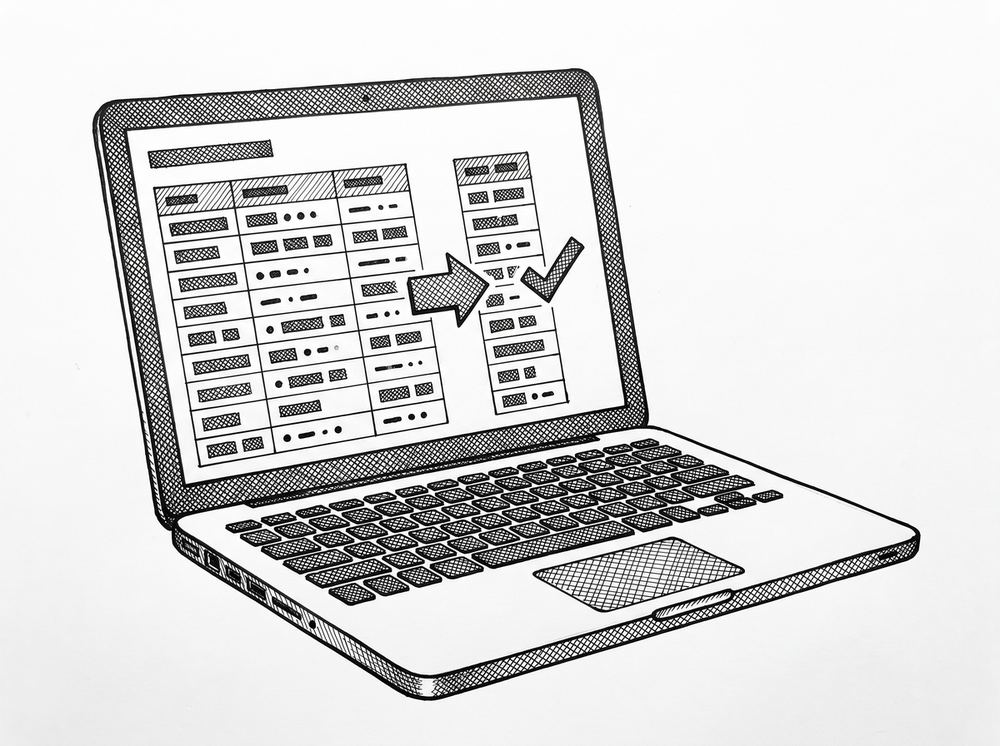
Validation is the strongest quality check. Four specific checks catch almost every error.
Open in text editor first
Open the CSV in a text editor (VS Code, Sublime, Notepad++) before opening it in a spreadsheet. The text editor shows the raw structure: the header row, the comma separators, the quote escaping. A quick scan catches encoding issues and quoting problems that a spreadsheet would hide. The text editor view is the ground truth.
Open in Excel or Sheets
After the text editor check, open the CSV in Excel or Google Sheets. Confirm the columns line up correctly: Date in column A, Description in column B, Amount in column C, Balance in column D. The cells should be formatted as date, text, number, number. If the dates are text or the amounts are text, the import needs an explicit format mapping.
Transaction count check
Count the transactions on the source statement. Count the rows in the CSV (excluding the header). They should match. This is the fastest check and catches the most common failure mode (missing page, dropped rows at a page break, or merged/split rows).
Balance verification
The last row in the CSV should have a running balance that matches the closing balance on the source statement. If the running balance walks correctly through every row, the amounts are correct. If it diverges at some point, an error occurred at that row and the rows after it inherit the error. This is the single strongest quality check for CSV output. For the related convert pdf bank statement to google sheets: the mechanism explained page, see the linked article.
Turn That PDF Into a Spreadsheet in Minutes
You've seen how to do it manually — now let the tool handle the heavy lifting. Upload your bank statement and get Excel, CSV, or QBO in a few clicks.
Try It Free