
A $500 charge followed by a $500 payment is +500, -500 in Excel. Get the sign wrong and the math is off by the payment amount. A bookkeeper runs a December credit card statement through a converter. The output says they spent $14,000. The actual spend was $11,000 with $3,000 in payments. The sign convention is wrong.
TL;DR. Charges positive, payments negative, refunds negative, fees positive, interest positive. The math verification: sum of all amounts in a month equals the net change in balance. The 5 edge cases (refunds, chargebacks, FX, fees, interest) each have a specific sign treatment that most converters get wrong.
For the broader workflow, see the credit card to Excel guide. For the parent pillar, see the credit card conversion guide.
What the Sign Convention Actually Means
The sign convention is the rule for whether an amount is positive or negative in the Excel output. For credit card statements, the standard convention is: charges are positive, payments are negative. The same convention applies to refunds (negative), fees (positive), and interest (positive).
What most guides miss about credit card statements is that the quality depends on the mechanism, not on the tool. Two tools that look different on the surface often run the same 4-step process underneath: read, find, parse, verify. The difference is in how well each step handles edge cases (merged cells, missing balances, non-standard date formats, scanned vs digital input). Choosing between tools based on UI alone misses the actual quality lever.
The convention exists because credit card balances are liabilities. Charges increase the balance owed. Payments decrease the balance owed. The Excel amount column reflects this: positive for what increases the balance, negative for what decreases it.
The accounting principle
Debits and credits follow the same logic for credit cards as for any liability account. A charge is a debit to the credit card account (increases the liability). A payment is a credit to the credit card account (decreases the liability). The Excel output is the monetary form of the accounting entries.
The 4 transaction types
Credit card statements have 4 transaction types. Charges (purchases) are positive. Payments are negative. Fees (annual, late, over-limit) are positive. Interest is positive. Each type has a specific sign treatment in the Excel output.
The 3 Industry Sign Conventions
Three sign conventions exist in the credit card statement world. Only one is the standard. The other two create errors that are hard to catch without a math check.
Convention 1: Charges positive, payments negative (standard)
This is the convention used by QuickBooks, Xero, Wave, and most accounting software. It is also the convention most modern converters use by default. A $500 charge is +500. A $500 payment is -500. The sum of all amounts equals the net change in balance.
Convention 2: All positive (converter default)
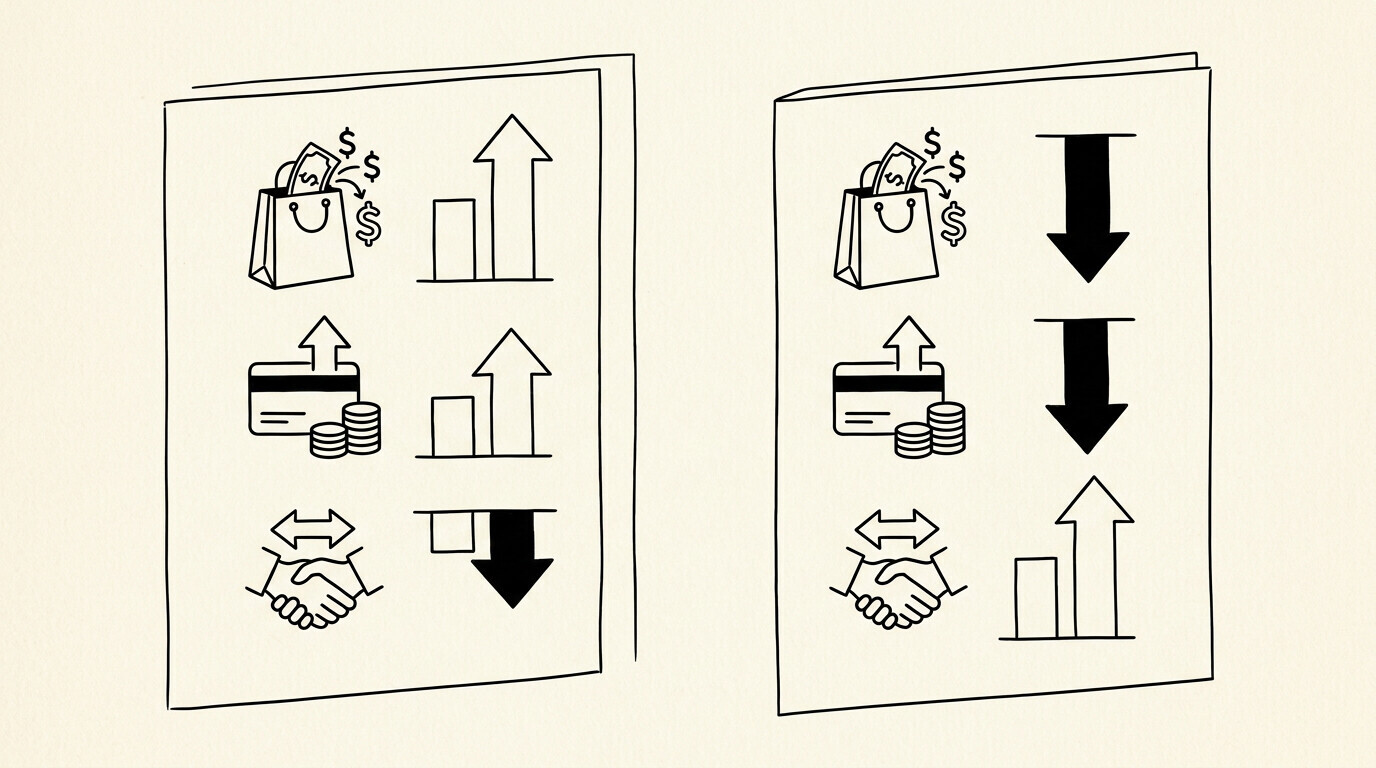
Some converters output all amounts as positive, treating charges and payments the same. The math is wrong by the payment amount. A $14,000 statement with $3,000 in payments shows as $14,000 spent, not $11,000. This is the most common sign convention error.
Convention 3: All negative (rare, export-only)
Some banks and export tools output all amounts as negative. The math is the same as convention 1, just with the signs flipped. QuickBooks will reject this on import because it expects charges positive, payments negative.

Turn That PDF Into a Spreadsheet in Minutes
You've seen how to do it manually — now let the tool handle the heavy lifting. Upload your bank statement and get Excel, CSV, or QBO in a few clicks.
Try It FreeThe 5 Edge Cases That Break the Convention
Five transaction types have specific sign treatments that most converters get wrong. Knowing these edge cases prevents the most common sign errors.
Edge case 1: Refunds
A refund is a negative charge. The original purchase was +200. The refund is -200. Net effect on balance: 0. Some converters output the refund as +200 (a new positive transaction), which doubles the apparent spend. For the full refund fix, see the refund fix guide.
Edge case 2: Chargebacks
A chargeback is a forced refund by the issuer. It shows as a negative charge with a different descriptor (often ‘CHGBK’ or ‘DISPUTE’). The sign is the same as a refund (negative), but the merchant name and the timing differ.
Edge case 3: Foreign transactions
A foreign transaction in the original currency is converted to USD by the card network. The Excel file shows the final USD amount. The exchange rate is not on the statement. A separate ‘Foreign Transaction Fee’ line shows the FX fee (1-3% of the foreign amount). For the full FX fix, see the FX fix guide.
Edge case 4: Annual fees
The annual fee is a charge, not a fee. It is positive in the Excel file. Some converters categorize it as a fee rather than a charge, which can confuse budget tracking. The line item on the statement is usually ‘ANNUAL FEE’ or ‘MEMBERSHIP FEE’.
Edge case 5: Interest charges
Interest is a charge, positive in the Excel file. It is calculated on the average daily balance. The interest charge appears once per statement, not per transaction. If the balance is paid in full each month, the interest charge is $0.
The Math Verification That Catches Errors
The math check is the strongest accuracy signal for a sign convention. If the sum of all amounts does not match the net change in balance, there is a sign error.
Step 1: Sum the amounts
Sum the amount column in the Excel file. The total should equal the net change in balance for the statement period: closing balance minus opening balance, plus payments made, minus new charges.
Step 2: Compare to balance change
Compare the sum of amounts to the actual change in balance. If they do not match, there is a sign error. The most common cause is a payment shown as positive instead of negative.
Step 3: Investigate any difference
If the sum of amounts does not match the balance change, identify the specific transaction. Sort by amount descending. The largest negative values should be payments. If they are not, the converter is wrong.
The QuickBooks and Xero Import Rules
The major accounting software packages all expect the standard convention. Charges positive, payments negative. The import format handles the signs automatically for native file types.
QuickBooks Online import
QuickBooks expects the standard convention: charges positive, payments negative. The QBO file format handles this automatically. The CSV import requires the sign convention to match what is in the file. If the file has all positive, QuickBooks will treat payments as charges.
Xero import
Xero expects the same convention as QuickBooks. Charges positive, payments negative. The Xero bank feed import handles this automatically for connected accounts. The CSV import requires the sign convention to match.
Wave and FreshBooks
Wave and FreshBooks follow the same convention. Charges positive, payments negative. The CSV import requires the sign convention to match the destination account’s expectations.
The Failure Mode
A common failure mode bookkeepers report is the sign convention being wrong on the converter. The result: a $14,000 spreadsheet for an $11,000 month. The fix: switch converters, or manually flip the signs on payment transactions. The math check (sum of amounts vs balance change) catches this every time.
The 5-Point Validation Checklist
Before treating the Excel file as final, run these 5 checks.
- Sum the amount column. The total should equal the net change in balance (closing balance minus opening balance).
- Sort by amount descending. The largest negative values should be payments.
- Count the transactions. The Excel count should match the statement count.
- Check the merchant descriptors. They should be the same as on the statement.
- Verify the closing balance. The last row’s balance should match the statement’s closing balance.
For the broader context, see the credit card to Excel guide. For related pages: credit card conversion pillar | refund fix | FX fix.
For a deeper understanding, see: credit card statement pillar. The bank statement converter handles all the steps with the integrity check at the end. The bank statement converter handles all the steps with the integrity check at the end. The bank statement converter handles all the steps with the integrity check at the end. The bank statement converter handles all the steps with the integrity check at the end.
From PDF to Excel in one click
Forget retyping line by line. Upload any bank statement, get a spreadsheet you can actually use. Your files are never stored, and you can test the converter with 3 free conversions.
Try it free