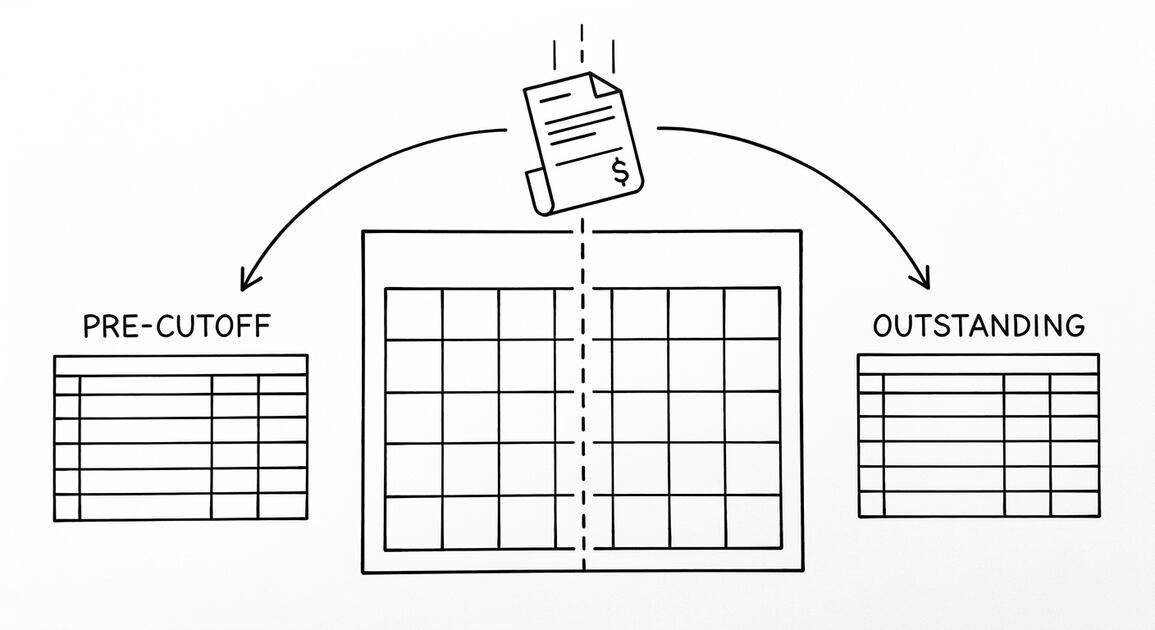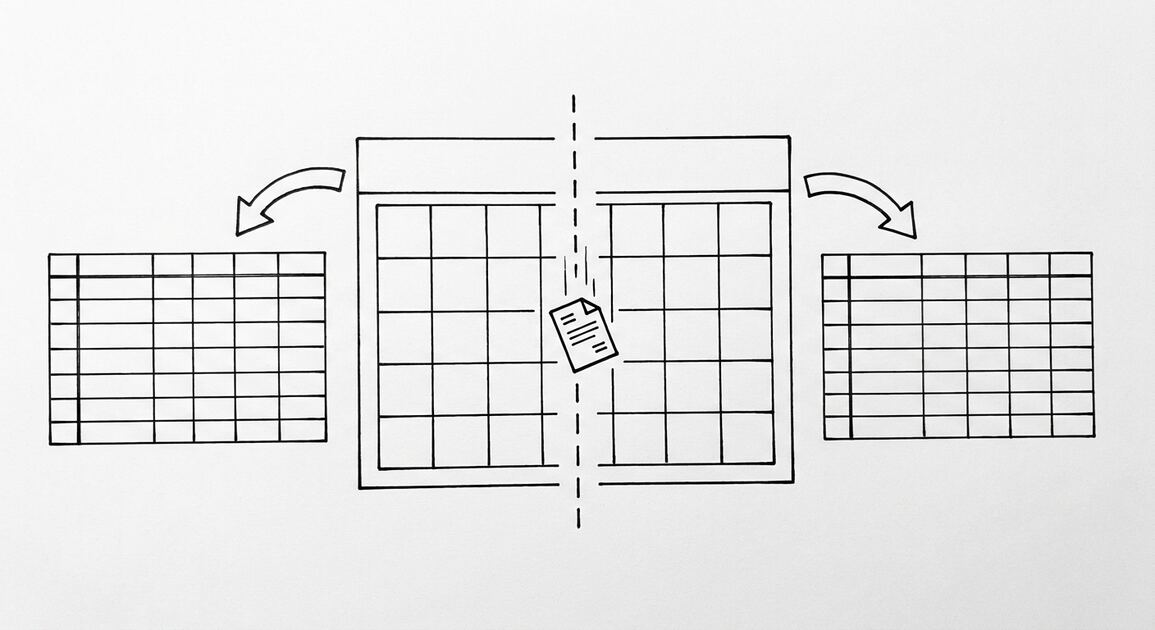

Converting a bank statement to Excel without retyping means extracting every transaction from the PDF and placing it into structured columns. The goal is a file you can sort, filter, and import into accounting software with no manual keying.
Most people reach for a spreadsheet because the PDF looks like a table but behaves like an image. The bank formatted it for reading, not for analysis. Retyping feels like the only option until you see how extraction tools handle the same file.
What the conversion actually involves
A bank statement PDF contains text positioned on a page. An extraction tool reads that text in reading order, groups lines into transactions, and writes each transaction as one row. The columns are usually Date, Description, Amount, and Balance.
The hard part is not reading the PDF. The hard part is keeping the rows aligned when a description wraps across two lines or when a page break splits a transaction. Good tools reconcile the running balance printed by the bank so a wrapped line does not become a duplicate row.
Why the running balance matters
The bank prints a running balance after each transaction. That number is a built-in checksum. If your extracted row does not change the balance by the amount shown, the row is wrong or out of order. Balance verification catches errors that visual review misses.
For a deeper walkthrough of the mechanics, see our guide to converting bank statements to Excel for the full process.
Why retyping is risky
Retyping a statement by hand introduces transcription errors. A single transposed digit changes a reconciliation by hundreds of dollars. Descriptions get shortened, which hides the merchant name you need later for categorization.
Time is the other cost. A three page statement can hold sixty transactions. At ten seconds per line that is ten minutes per statement, and most small businesses have twelve months of history to catch up on.
Turn any PDF statement into a clean sheet
Skip the typos and the hours of copying. Our converter handles any bank statement format and outputs Excel, CSV, or QBO for QuickBooks. No file retention, free to try.
Convert your statementThe four columns you want
Keep the output to four columns: Date, Description, Amount, Balance. Extra columns for debit and credit split the amount into two fields, which breaks sorting and summing in most tools.
One amount column with a sign convention is cleaner. Negative amounts for withdrawals and positive amounts for deposits, or the reverse, as long as it is consistent across the whole file.
Our export bank statement to Excel guide shows how to set up the column layout before importing.
Step by step conversion workflow
Follow these steps for a clean result every time. Each step is small and checkable, so a mistake shows up before it spreads through the file.
Step one: get the right PDF
Download the statement directly from your bank portal. A bank generated PDF carries a text layer that extraction tools can read. A scanned image does not. If you only have paper, scan it at three hundred dots per inch or higher.
Step two: run the extraction
Upload the PDF to a converter that supports your bank format. The tool reads the text layer, detects the table, and writes one row per transaction. Review the preview before downloading.
Step three: check the balance column
Compare the ending balance in the Excel file with the ending balance printed on the PDF. They must match exactly. If they do not, a row is missing or a number was misread.
Step four: save and name the file
Name the file with the account and period, such as checking_2025_01.xlsx. Consistent names make it easy to find the right statement during tax season or an audit.
For the detailed extraction sequence, see our PDF bank statement extraction steps walkthrough.
Converting scanned statements
Scanned statements need optical character recognition before extraction. The quality of the scan drives the quality of the result. Skewed pages, dark shadows, or low resolution all reduce accuracy.
Our guide to converting scanned bank statements covers the scan settings and cleanup steps that improve recognition.
Verifying the converted data
Verification is where most people stop too early. A file that looks right can still hide a missing transaction or a wrong decimal point. Run these checks before you rely on the file.
Check one: row count
Count the transactions on the PDF and compare with the row count in Excel. They should match. If Excel has fewer rows, a transaction was dropped, often because it sat at the bottom of a page.
Check two: running balance
Recompute the running balance from the first row to the last. Each row should move the balance by exactly the amount shown. A mismatch points to a misread number or a wrong sign.
Check three: totals
Sum the deposits and the withdrawals separately. Compare the totals with the summary lines the bank prints at the top or bottom of the statement. This catches a single wrong row even when the ending balance still matches.
See our guide on verifying converted bank statement data and our pre import verification checklist for the full review.
Records and proof of payment
Bank statements are not just spreadsheets. They are records. Per IRS Publication 552 (Rev. January 2011), bank statements are listed among basic records to keep as proof of income. The same publication states that a legible financial account statement prepared by a bank or other financial institution is accepted as proof of payment if it shows the items reflected in Table 2.
The publication also notes that it does not discuss records for operating a business. For business records it refers to Publication 583, Starting a Business and Keeping Records. Keep that distinction in mind when you set up a filing system for a company account.
According to the Internal Revenue Service, the above record keeping guidance applies to individual taxpayers.
Mortgage and lender requirements
Lenders have their own rules for bank statements. Per Fannie Mae Selling Guide B3-4.2-01 (05/04/2022), copies of bank statements used to verify deposits and assets must clearly identify the financial institution, the borrower as account holder, at least the last four digits of the account number, the time period covered, all deposits and withdrawal transactions, and the ending account balance.
The same guide sets different coverage periods. Purchase transactions require bank statements covering the most recent full two month period of account activity, which is 60 days, or the most recent quarter if account information is reported quarterly.
Refinance transactions require bank statements covering the most recent full one month period of account activity, which is 30 days, or the most recent quarter if account information is reported quarterly.
If the latest bank statement is more than 45 days earlier than the date of the loan application, the lender should ask the borrower for a more recent supplemental bank generated form showing at least the last four digits of the account number, balance, and date. Statements may be computer generated forms, including online account or portfolio statements downloaded by the borrower from the Internet.
According to the Fannie Mae Selling Guide, these verification rules apply to deposits and assets.
Choosing a converter
Pick a tool that verifies the balance rather than one that only copies text. Balance verification means each extracted row is checked against the bank printed running balance. That single feature removes most errors.
Privacy matters too. Files should be processed in memory and not stored on a server. Check the vendor policy before uploading a statement that contains account numbers and balances.
The Consumer Financial Protection Bureau works to create and support innovative and resilient consumer financial markets where consumers can choose the products and services that meet their individual needs. According to the Consumer Financial Protection Bureau, that mission shapes how financial tools should serve users.
Handling multiple accounts and periods
Most businesses run more than one account. Checking, savings, and a credit card each produce their own statement. Keep each account in its own workbook or in clearly labeled sheets so the balances do not blend together.
When you catch up several months at once, process one statement per sitting. Mixing periods in a single pass leads to duplicate rows and missed transactions. A simple checklist of account and month keeps the work honest.
Naming and storage
Store converted files in a folder per account and year. Use the account name and period in every file name. This small habit saves hours when a tax preparer or lender asks for a specific month.
Common pitfalls and how to avoid them
The first pitfall is trusting the preview. A preview can look perfect while a row is missing at a page break. Always run the balance check and the row count check before you trust the file.
The second pitfall is mixing debit and credit signs. Pick one convention and apply it to every row in the file. A mixed file will not sum correctly and will confuse any import tool.
The third pitfall is skipping verification because the statement is short. Short statements still hide transposed digits. The balance check takes seconds and catches the error that matters most.
Excel versus accounting software
Excel is the right first stop for review and cleanup. It lets you sort, filter, and spot anomalies before the data enters your books. Accounting software is the right final home for the data.
If you import the converted file into QuickBooks or similar, use the four column layout and let the import map the fields. A clean file imports in one pass. A messy file needs manual rekeying, which defeats the purpose.

When the statement is not a PDF
Some banks offer CSV or OFX downloads directly. Use those when available, since they skip extraction entirely. They still need the same verification checks, because bank exports can include pending transactions that never post.
For historical statements, the PDF is usually the only source. That is where extraction earns its keep. The method is the same whether the statement is one month old or five years old.
Convert your first three statements free and see the difference a verified file makes.
Turn any PDF statement into a clean sheet
Skip the typos and the hours of copying. Our converter handles any bank statement format and outputs Excel, CSV, or QBO for QuickBooks. No file retention, free to try.
Convert your statement