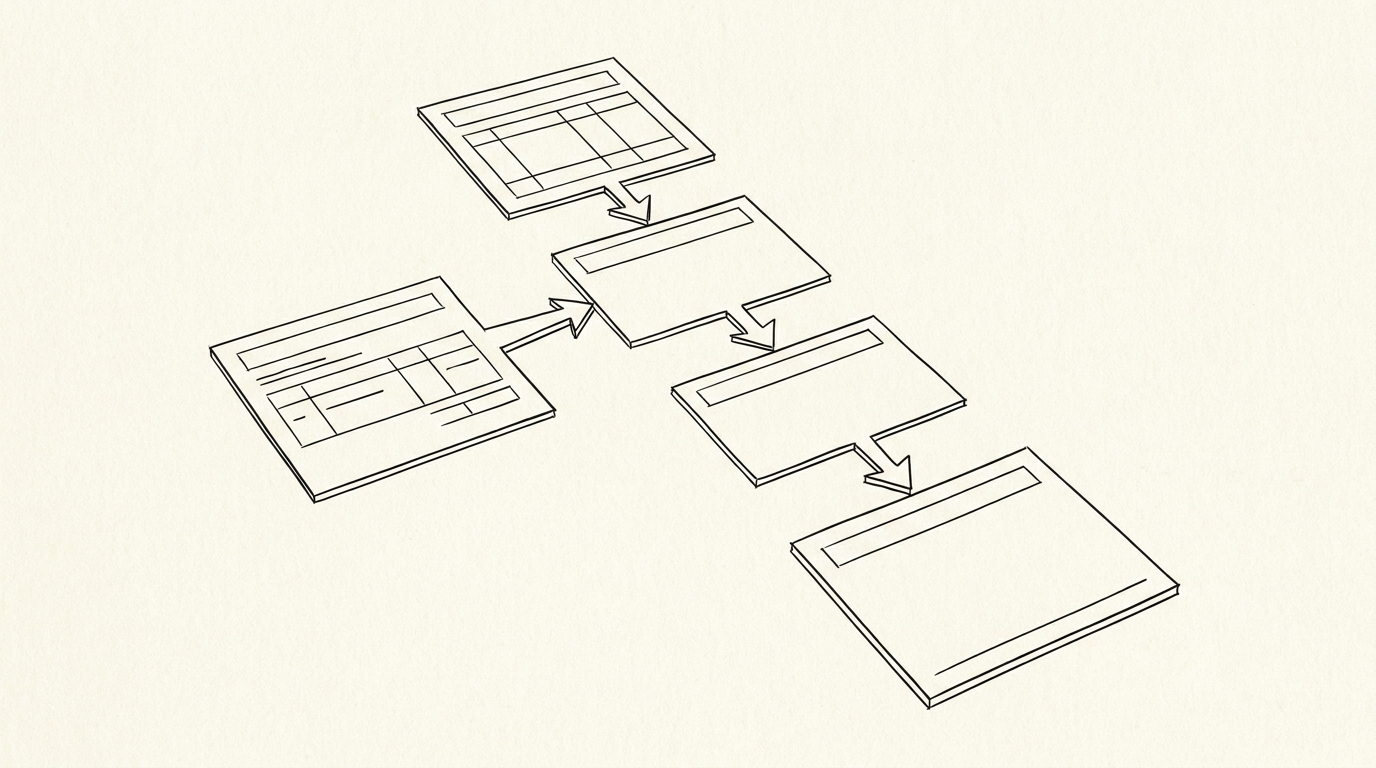

An online bank statement converter is a web tool that reads a bank statement PDF and rebuilds its transactions into an Excel or CSV file, without installing software. It runs in a browser or in the cloud, so you can use it from any device.
The output is a spreadsheet with columns such as Date, Description, Amount, and Balance that you can sort, filter, and reconcile.
For a small business owner, an online converter removes the friction of installing software on every computer and the risk of version mismatches. You upload a statement, wait a few seconds, and download a clean spreadsheet. That speed matters when you reconcile monthly or onboard a new client with years of history.
The best online converter is the one that reconciles every row against the printed running balance and handles your bank’s layout without leaking your data.
Key facts. Online converters process PDFs in the browser or cloud and need no installation. Accuracy is proven by the running balance on each row. Privacy and security should be checked before you upload a statement. Scanned PDFs may need OCR before conversion. Access from any device is the main convenience advantage.
Convenience check: if a converter cannot pass the running balance test on your own statement, its online access is worthless. Verify accuracy first, then weigh convenience.
What an online converter actually does
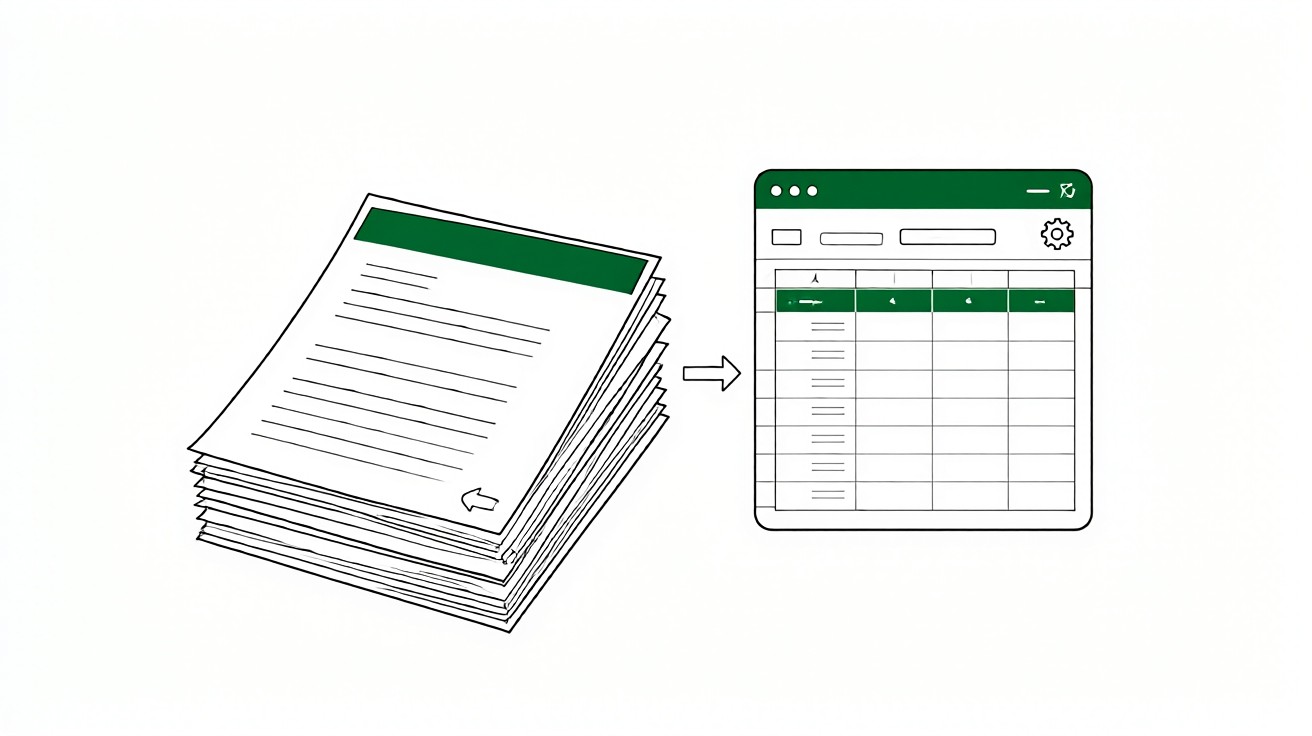
A PDF statement stores text by position. The bank prints dates, descriptions, amounts, and balances at specific coordinates so a human can read them. There is no underlying table. The converter reads those coordinates, groups text into rows, and assigns each value to a column.
Done well, you get one row per transaction with Date, Description, Amount, and Balance separated. Done poorly, you get merged columns, split rows, or missing transactions. The difference is in how the parser handles layout, not in how pretty the interface looks.
Parsing the document structure instead of the visible text is what separates a converter from a text grabber. Copy and paste captures visible text but not structure, so dates land in amount columns and descriptions break across lines.
The same logic applies to every bank, but each bank lays out its statement differently. Column order, date format, and how withdrawals are shown vary. A converter that handles one bank cleanly may struggle with another, so bank format support is a real evaluation criterion.
For a detailed walkthrough of the extraction itself, see how to convert a PDF bank statement to Excel.
Browser based and cloud based processing
Online converters fall into two groups. Browser based tools parse the PDF on your device and never send the file to a server. Cloud based tools upload the file, process it on a server, and return the spreadsheet.
Browser based processing keeps your statement on your machine, which helps with privacy. The tradeoff is that complex parsing or OCR may be slower or unavailable, since the work runs in your browser.
Cloud based processing can handle larger files, scanned PDFs, and heavier OCR with more power. The tradeoff is that your statement leaves your device, so you must trust the provider’s security and data handling.
Neither approach is automatically better. The right choice depends on your privacy needs, your file types, and your tolerance for upload steps. Many tools offer both modes or let you choose.
If you also need to compare installable options, read bank statement to Excel converter for the broader landscape.
Small businesses choose online converters for three reasons. First, no installation means any team member can run a conversion from any device. Second, updates happen on the server, so you always use the latest version. Third, trials are easy because there is nothing to download.
For a bookkeeper onboarding a new client, online access means you can process statements from the client’s office without installing software on their machine. For a freelancer tracking expenses, a clean Excel file is enough to reconcile receipts against the bank.
For a mortgage applicant or a renter, the statement period and ending balance are the fields that matter most. An online converter that exports those cleanly saves time during document review.
The convenience is real, but it should not override accuracy. A fast wrong answer costs more than a slow right one. Test on your own statements before you rely on any tool.
Turn PDF Bank Statements Into Workable Spreadsheets
Your bank statement is a mess of numbers, but your books shouldn't be. Use our converter to get Excel, CSV, or QBO files — ready for QuickBooks.
Try It Free NowAccuracy and the running balance test
Accuracy is the only metric that matters, and the running balance is the only objective proof. Every extracted row must change the balance by the amount shown. If a row does not, the extraction failed.
Count transactions first. Count on the PDF, then count extracted rows. A mismatch points to a split or merged row. This takes two minutes and catches most failures before you trust the output.
Then verify the running balance chain. Walk the rows in order. For each transaction, add deposits and subtract withdrawals from the previous balance. The result must equal the printed balance on that row. Pay attention to signs, since banks print withdrawals as negative or in parentheses.
Finally, confirm opening and closing balances match the PDF exactly. If all three checks pass on your own statements, the tool is worth considering. If any fail, move on.
| Check | Pass condition |
|---|---|
| Transaction count | Extracted rows equal PDF transactions |
| Running balance chain | Each row moves balance by its amount |
| Opening and closing balances | Match the PDF exactly |
For the full selection framework, see how to choose a bank statement converter.
Privacy and security before you upload
Your statement contains account numbers, balances, and transaction history. Before you upload one to any online converter, evaluate how the provider handles that data.
Check whether the file is encrypted in transit and at rest. Check how long it is retained and whether you can delete it. Check whether the provider uses your data to train models or shares it with third parties.
Browser based tools reduce exposure because the file never leaves your device. Cloud tools require more trust. Read the privacy policy and look for plain language about retention and deletion.
If you handle client statements, redact sensitive fields first when possible. See bank statement privacy redaction for practical steps.
| Question | Why it matters |
|---|---|
| Is the file encrypted in transit and at rest? | Protects data from interception |
| How long is it retained? | Limits exposure window |
| Can you delete it on demand? | Gives you control |
| Is it used for training or shared? | Affects confidentiality |
Scanned PDFs and OCR
If your statement is a scanned image rather than a text PDF, the converter must run OCR before it can read anything. OCR adds errors, especially on small fonts, skewed pages, or low contrast scans.
Prefer native text PDFs downloaded from your bank portal whenever possible. They extract more cleanly and avoid OCR entirely. If you only have a scanned copy, test the tool on that specific file before committing.
For a walkthrough focused on native PDF extraction, read bank statement converter to Excel.
When OCR is unavoidable, verify the output more carefully. Check merchant names, amounts, and dates by hand on a sample. OCR errors often look plausible, so the running balance test becomes even more important.
When you evaluate an online converter, run it on at least three of your own statements from different months. Layouts change, and a tool that works on one month may fail on another. Repeated testing on real files reveals edge cases that demos hide.
Also check how the tool handles multi page statements and transactions that span page breaks. These are common failure points. A converter that merges a split transaction or drops a row at the page boundary will not pass the running balance test.
Export format matters more than people expect. CSV imports cleanly into most accounting tools, while Excel preserves formatting and multiple sheets. If you reconcile in QuickBooks or Xero, check which format the converter offers and whether columns map without manual renaming.
Also check whether the tool supports date and number formats for your locale. US statements use MM/DD/YYYY and decimal points, while other regions differ. A converter that outputs dates in the wrong format creates sorting errors later.
Choosing the right online converter
Start with accuracy. Test on your own statements and require a clean running balance on every row. Then check the criteria that affect your workflow: wrapped descriptions, page breaks, OCR if needed, and the export format you actually use.
Match the tool to your volume and your accounting software, not to a feature list. A converter that passes your tests and exports the format you need is the right one, even if it lacks extras you will never use.
Keep the original PDF alongside the converted file. The statement remains the authoritative record. The spreadsheet is a working copy. For more on formats, see PDF bank statement to Excel.
Ask about supported banks before committing. A tool that covers your bank today but not a second bank you may add later creates migration work. Check whether new bank formats are added regularly and whether you can request one.
From Bank Statement to QuickBooks-Ready File
That manual cleanup you just read about? This tool skips it. Turn your PDF into QBO for QuickBooks without storing your data anywhere.
Start Converting