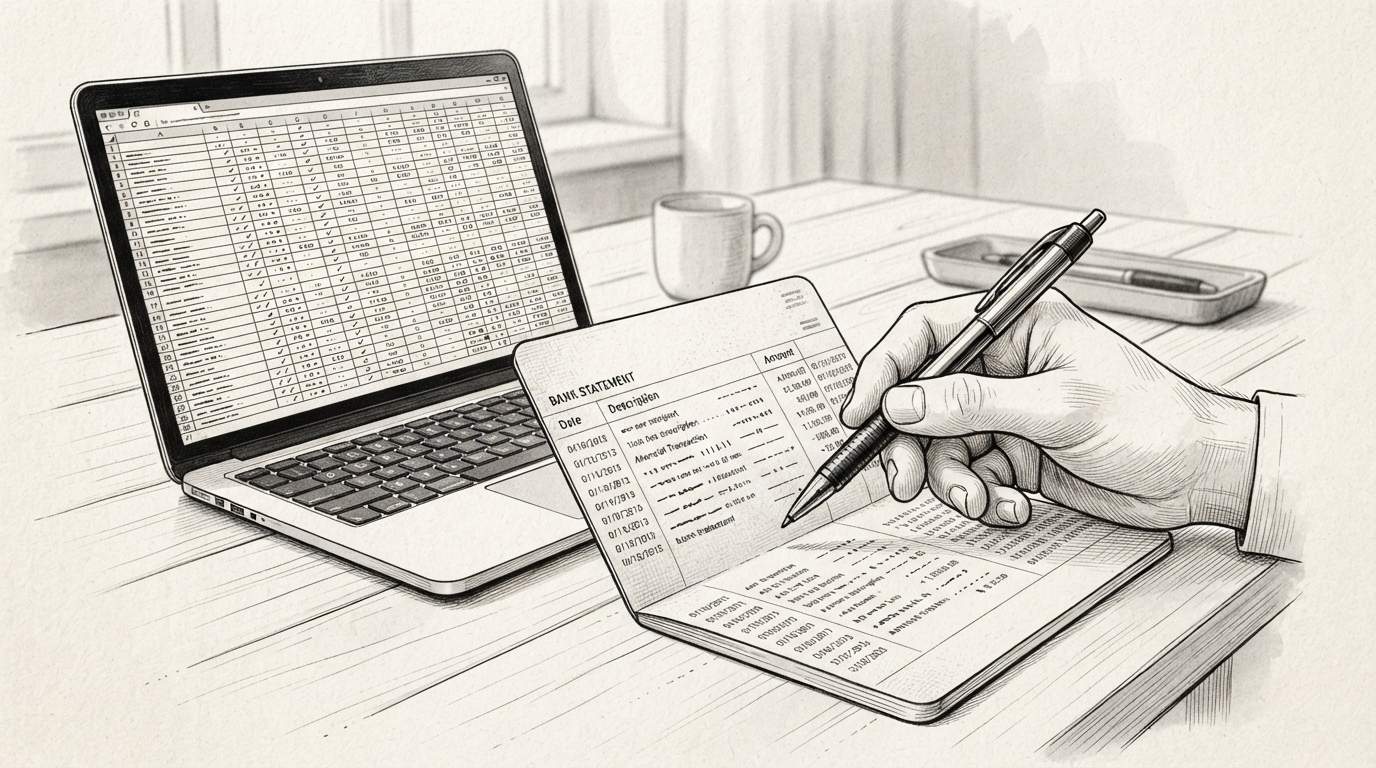

Some bank statements do not include a running balance column. Credit card statements often show only the transaction amount and a new balance at the end of the cycle. Older statements and certain credit union exports behave the same way.
That missing column changes how you verify a converted file, and it raises the risk of an unnoticed error. This guide walks through a practical workflow for converting statements without a running balance, how to check the result, and when to ask the bank for a better copy.
Which Statements Lack a Running Balance
A running balance is the running total after each transaction. When it is present, every row carries a check digit of sorts: the balance before plus or minus the transaction equals the balance after. Several common document types skip it.
- Credit card statements. Most cards list purchases, payments, fees, and interest, then a single statement balance. The per-transaction balance is rarely shown.
- Some credit union statements. Smaller institutions and older formats often print only amounts. The balance appears at the end of the period or on the next page.
- Older paper statements. Statements from the 1990s and early 2000s frequently omit the column to save space.
- CSV and PDF exports. Bank exports built for accounting imports sometimes drop the balance to keep the file narrow. The export is technically complete but lacks the audit trail.
- International formats. Some regional banks print balances only at month end or quarter end.
These formats are valid. They just require a different verification path.
Why Some Statements Lack a Running Balance
The absence is usually a design choice, not an error. Credit card issuers track a single revolving balance. Printing it after every purchase would clutter the page and add little value, since the cardholder sees one statement balance.
Credit unions with legacy printing systems often inherited templates that show only activity. Regulatory rules in some regions require only opening and closing balances, so issuers comply with the minimum.
Export formats follow a different logic. When a bank builds a CSV for accounting software, it includes the fields that software expects. If the target system computes balances itself, the bank may omit the column. The data is still complete, but the audit trail moves from the document to your software.
Understanding the reason matters. A statement without a running balance is not broken. It is simply designed for a different verification flow.
Turn PDF Bank Statements Into Workable Spreadsheets
Your bank statement is a mess of numbers, but your books shouldn't be. Use our converter to get Excel, CSV, or QBO files — ready for QuickBooks.
Try It Free NowWhy the Missing Column Matters
When a running balance exists, bank statement conversion accuracy is easy to confirm. You compare each converted balance to the source. A single mismatch flags an OCR or parsing error. Without that column, the safety net disappears. A misread digit, a skipped row, or a merged description can slip through.
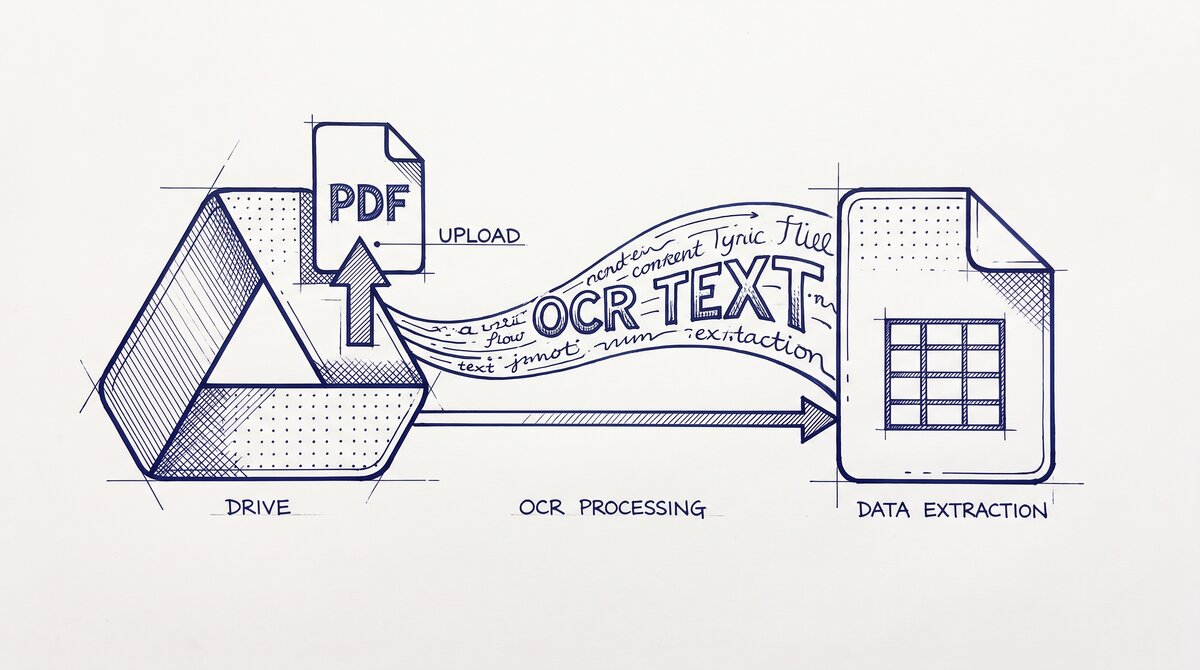
The risk is not theoretical. Optical character recognition handles printed digits well, but handwriting, faded ink, and dense tables still cause errors. Without a per-row check, those errors travel into your books unnoticed.
Alternative Verification Methods
You cannot verify row by row, but you can verify the file as a whole. Four methods cover most cases.
1. Transaction count check
Count the transactions on the source statement. Count the rows in the converted file. They should match. This catches skipped or duplicated rows, which are the most common conversion errors. It does not catch a misread amount on a row that still exists.
2. Opening and closing balance check
Find the opening balance and closing balance on the source. Then sum the converted rows: opening balance plus all credits minus all debits should equal the closing balance. This is a strong check. If it passes, the totals are right even if individual rows shifted.
3. Sum of debits and credits
Many statements print totals at the bottom: total deposits, total withdrawals, total fees. Compare those to the sums in your converted file. A mismatch points to a parsing error in a specific category.
4. Manual spot-check
Pick five to ten random transactions. Compare amount, date, and description to the source. This catches systematic errors like a misread decimal point that would pass the count check. Random sampling is the simplest way to gain confidence when no running balance exists.
When Alternative Methods Are Sufficient
These methods are enough for routine work. If your goal is monthly bookkeeping, expense categorization, or a quick review, the four checks give adequate confidence. They confirm that nothing large is wrong and that totals reconcile.
They are not enough when a single transaction matters. A misplaced decimal on a large payment changes the books even if totals still reconcile through an offsetting error. For tax, audit, or loan purposes, you need the running balance version or a bank-issued CSV.
Speed Versus Certainty Trade-Off
Without a running balance, you trade speed for certainty. A balance-verified conversion takes minutes because the column does the checking. A no-balance conversion takes ten to twenty minutes of manual work. The extra time buys reasonable confidence, not proof.
Decide based on stakes. For a low-value personal account, the faster path is fine. For a business account feeding financial statements, spend the time or get a better source. The cost of a wrong number usually exceeds the cost of a reissued statement.
Step-by-Step Workflow
Follow this sequence for any statement without a running balance.
- Prepare the source. Scan the statement at 300 DPI or higher. Flatten curled pages. Use a dark, even background. A clean scan reduces OCR errors before they start.
- Run the conversion. Use your bank statement conversion tool and export to a spreadsheet. Name the file with the account and period so it is easy to find later.
- Count transactions. Count rows on the source and in the converted file. Fix any mismatch before continuing.
- Check opening and closing balances. Enter the opening balance in a cell. Sum credits and debits. Confirm the result matches the closing balance on the source.
- Compare printed totals. If the statement shows total deposits and withdrawals, compare them to your sums.
- Spot-check random rows. Verify at least five transactions by hand, including one large transaction and one small one.
- Review descriptions. Read the description column for obvious OCR garbage. Misread merchant names are common and easy to fix now.
- Save and document. Note that no running balance was available and which checks you ran. This helps during audit or reconciliation later.
The full process takes ten to twenty minutes for a typical monthly statement. That is longer than a balance-verified conversion, but it is the honest cost of working without the column.
What Accuracy to Expect
With a running balance, you can reach near-perfect accuracy because every row is checked. Without it, expect a small residual risk. A well-scanned, clean statement converts at roughly ninety-eight to ninety-nine percent accuracy on amounts and dates. Descriptions run lower, often ninety to ninety-five percent, because OCR struggles with mixed fonts and logos.
The four checks above catch most errors. They will not catch a single misread amount that happens to keep the totals consistent. That is rare but possible. It is the reason spot-checking matters.
One more tip: re-run the conversion with a different tool or scan settings. Comparing two independent results is the cheapest way to find hidden errors when no running balance exists.
When to Escalate
Sometimes the right answer is to get a better statement. Escalate in these cases.
- The totals do not reconcile. If opening plus activity does not equal closing, something is wrong. Do not force it. Re-scan and re-convert. If it still fails, the source may be damaged.
- Heavy handwriting or stamps. Faded stamps and handwritten notes break OCR. Ask the bank for a clean reissue.
- Missing pages. A statement with gaps cannot be verified by any method. Request the complete document.
- High-value reconciliation. For tax filings, audits, or large loans, accuracy matters more than speed. Ask the bank for a statement that includes a running balance, or download the CSV from online banking, which often includes one.
- Repeated failures. If three conversions of the same statement disagree, stop converting and request a fresh copy.
Most banks can reissue a statement within a few business days. Online banking exports are often available immediately and usually include a balance column.
Limitations of Conversion Without a Balance
Be honest about what this workflow cannot do. It cannot prove that every row is correct. It can only prove that the totals are consistent and that a sample of rows matches. It cannot detect a row that was both misread and offset by another misread. It cannot replace human judgment on ambiguous transactions.
For routine bookkeeping, that level of confidence is usually enough. For anything that feeds a tax return, a loan application, or an audit, get the running balance version. The extra effort is small compared to the cost of a wrong number.
Related Resources
If you run into problems during conversion, see our troubleshooting guide. To verify converted data in more depth, read that dedicated guide. For export options, see export a bank statement to Excel and convert a bank statement to Excel.
Turn That PDF Into a Spreadsheet in Minutes
You've seen how to do it manually — now let the tool handle the heavy lifting. Upload your bank statement and get Excel, CSV, or QBO in a few clicks.
Try It Free