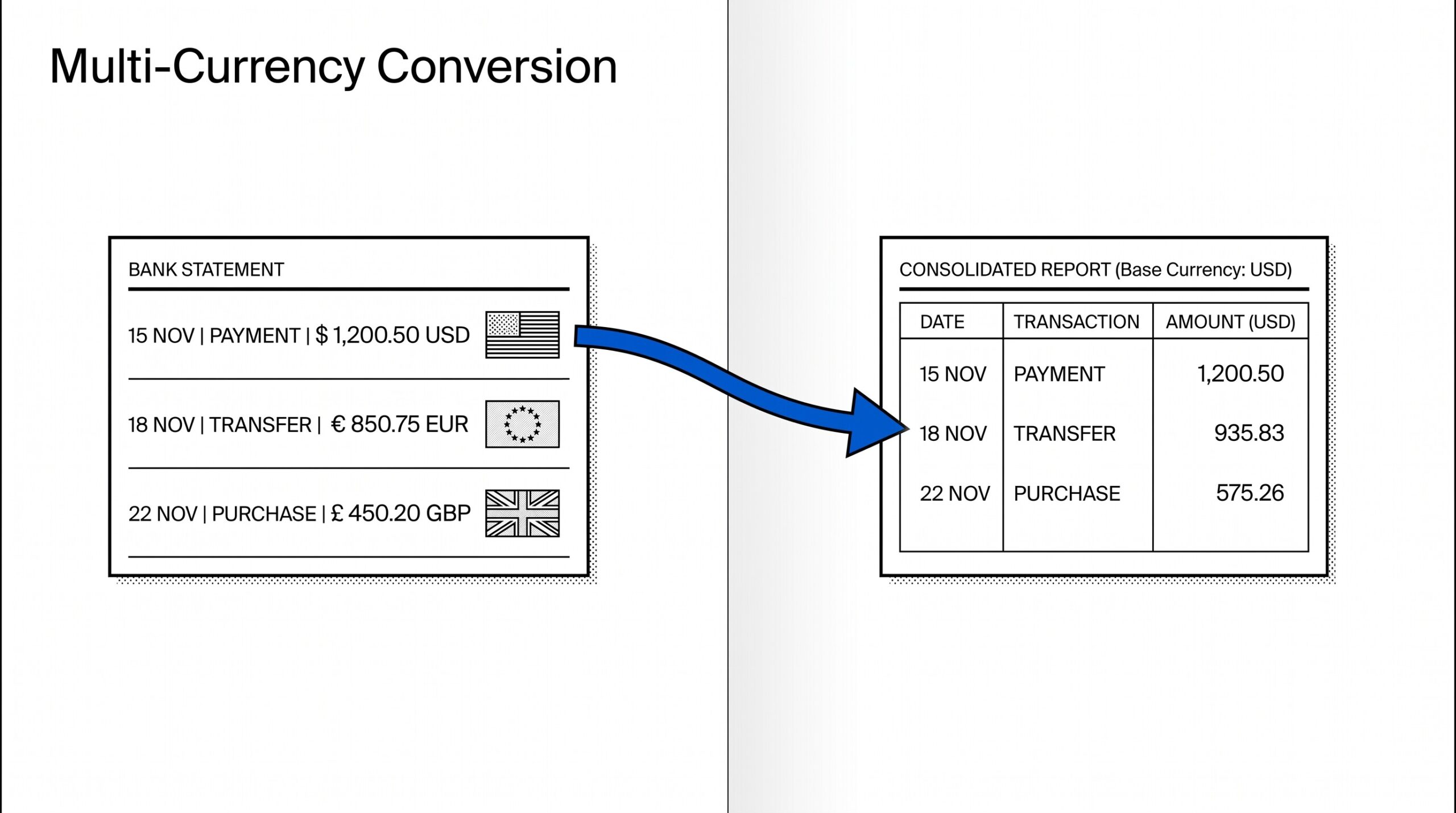

Sarah runs a consulting practice out of Berlin. Her Wise business account pays her in USD from American clients, EUR from German clients, and GBP from British clients.
Every quarter, her Steuerberater needs one Excel file with all transactions in EUR equivalent. She spends a Saturday afternoon doing this by hand: opening the PDF, copying each non EUR row into a spreadsheet, looking up the rate on xe.com, multiplying the amount, and pasting it back.
That is four hours she could spend on billable work.
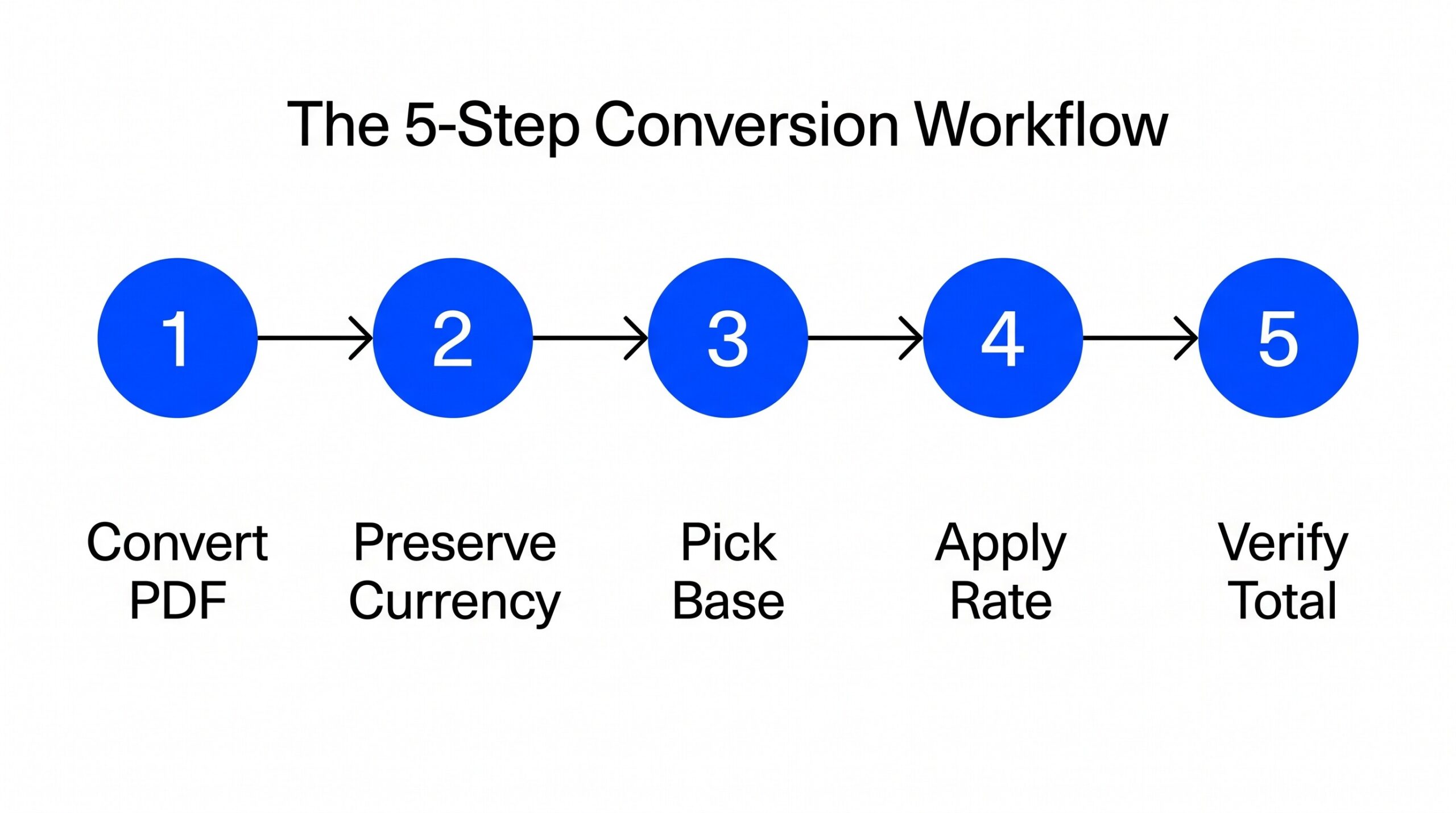
The fix is a workflow, not a feature. The bank statement does not need a cleverer converter. It needs the right sequence: extract the rows, preserve the currency column, get the right rate per transaction, apply the conversion, and check the totals.
Every step has a failure mode. This article covers all five steps and the three failures that turn a 5 minute task into a 4 hour task.
Quick Answers: A multi-currency bank statement lists transactions in 2 or more currencies. Most PDF converters preserve the currency as a column but stop there: they do not convert the amount. To get one base-currency total, you need to apply the historical exchange rate to each transaction. This article walks through the 5-step workflow, the 3 failure modes that catch most bookkeepers, and where to find historical rates without paying for a subscription.
What a multi currency bank statement actually is
A multi currency bank statement is a single PDF account statement that lists transactions in 2 or more ISO 4217 currencies. Common combinations include:
- USD + EUR + GBP (consultants and freelancers paid across regions)
- USD + CAD or USD + MXN (cross border business)
- EUR + CHF + GBP (European small business)
- JPY + USD + AUD (Asia Pacific importers)
The bank or payment provider (Wise, Revolut, Payoneer, Mercury, traditional banks with multi currency sub accounts) writes each transaction line in the original currency. The amount column shows the raw figure. The currency column shows the code. The statement summary at the bottom shows subtotals per currency, not a combined total.
This is different from a bank statement written in a single currency but converted at the bank’s exchange rate. In that case, the statement itself already shows one base currency. You do not need this article if your statement only shows USD or only shows EUR. You need this article when your statement shows multiple currency codes in the same file.
Why mixed currencies break Excel and your accounting software
Most PDF converters output the currency column correctly. They give you one row per transaction with the amount and the currency. The problem is that nothing downstream handles the conversion for you.
Excel does not auto convert. If you sum the amount column, you are summing USD + EUR + GBP + JPY as if they were the same number. A $500 transaction and a €500 transaction both show as “500” in the amount column. Sum them and you get 1000, which is neither correct in USD nor in EUR.
Accounting software rejects mixed currency imports. QuickBooks Online, Xero, Wave, FreshBooks all require a single base currency per file. If you upload a CSV with USD and EUR rows in the same import, the import either fails entirely or silently treats the EUR amounts as if they were USD. The result is a wrong total that does not match your actual bank balance.
Bank reconciliation breaks. The how bank reconciliation works guide covers the full reconciliation workflow once the conversion is complete. If your books are in USD and your statement has EUR transactions at raw values, the reconciliation difference will be the cumulative FX gap. That difference looks like a “missing transaction” or “bank error” when it is actually a currency conversion problem.
Turn That PDF Into a Spreadsheet in Minutes
You've seen how to do it manually — now let the tool handle the heavy lifting. Upload your bank statement and get Excel, CSV, or QBO in a few clicks.
Try It FreeThe 5 step workflow
Step 1: Convert the PDF and preserve the currency column
Start by converting the multi currency bank statement PDF into a spreadsheet. The PDF bank statement to Google Sheets workflow uses the same conversion step but outputs directly to a Sheets-ready CSV. The converter must output each transaction as a row with at minimum: date, description, amount, and currency. Most modern converters do this automatically because the currency code is part of the bank statement’s text layer.
What to check: open the resulting Excel file and confirm the currency column has values like “USD”, “EUR”, “GBP” (not empty, not “USD ” with a trailing space). If the currency column is missing or unreliable, your converter is not extracting the structured data and the rest of the workflow will fail.
Step 2: Pick your base currency and a rate source
Decide what currency you want the final total in. For a US person filing US taxes, that is USD. For a German freelancer filing German taxes, that is EUR. For a UK company, that is GBP. The base currency should match your accounting software’s chart of accounts currency.
Then pick a source for historical exchange rates. Three free options cover most use cases:
- IRS yearly average exchange rates (for US tax filers): one rate per currency per year, published by the IRS each spring for the prior calendar year. Search “IRS yearly average exchange rates” within the IRS site.
- European Central Bank reference rates (for EU tax filers): daily rates for 30+ currencies, free download in CSV. Available on the ECB Statistical Data Warehouse.
- OANDA or XE historical rate lookup (free tier): daily rates for any currency pair, going back 30+ years. Useful when you need a specific date that the IRS yearly average does not match.
For monthly close, the IRS yearly average is usually fine. For one off statements prepared for a specific purpose, like a mortgage application bank statement or rental verification, the daily rate from OANDA gives a closer match to the lender or landlord review. For quarterly close or transactions within a volatile month, daily rates from OANDA or the ECB are more accurate.
Step 3: Get the rate for each transaction date
Each transaction has a date. For each transaction, find the exchange rate on that date (or the closest business day if the date falls on a weekend or holiday). For IRS yearly average, every transaction in 2024 uses the same 2024 average rate. For daily rates, you need a lookup per date.
Save the rates in a separate sheet or table with two columns: date and rate. This becomes your lookup table for the conversion step.
Step 4: Apply the rate in Excel
Add a new column to your transaction data called “Base Currency Amount”. The formula is: original amount times exchange rate. For a USD to EUR conversion, divide the USD amount by the EUR rate on that date. For a EUR to USD conversion, multiply.
The most reliable approach is VLOOKUP or XLOOKUP against the rate table you built in Step 3. A common mistake bookkeepers report is hardcoding rates per row, which makes the file impossible to audit later. The lookup table approach keeps the rates in one place so the auditor can verify each rate independently.
Step 5: Verify and import
Sum the base currency amount column. That total should match the bank statement’s reported total in that currency, or be within the bank’s stated rounding tolerance. If the difference is more than 1%, the rate table is wrong (probably wrong date or wrong currency pair). If the difference is under 1%, the rate is fine and the small gap is rounding.
Once verified, the file is ready to import into QuickBooks, Xero, Wave, or your accounting software. The QuickBooks conversion workflow covers the QBO file format and the import step in detail. The conversion is complete.
3 failure modes specific to multi currency
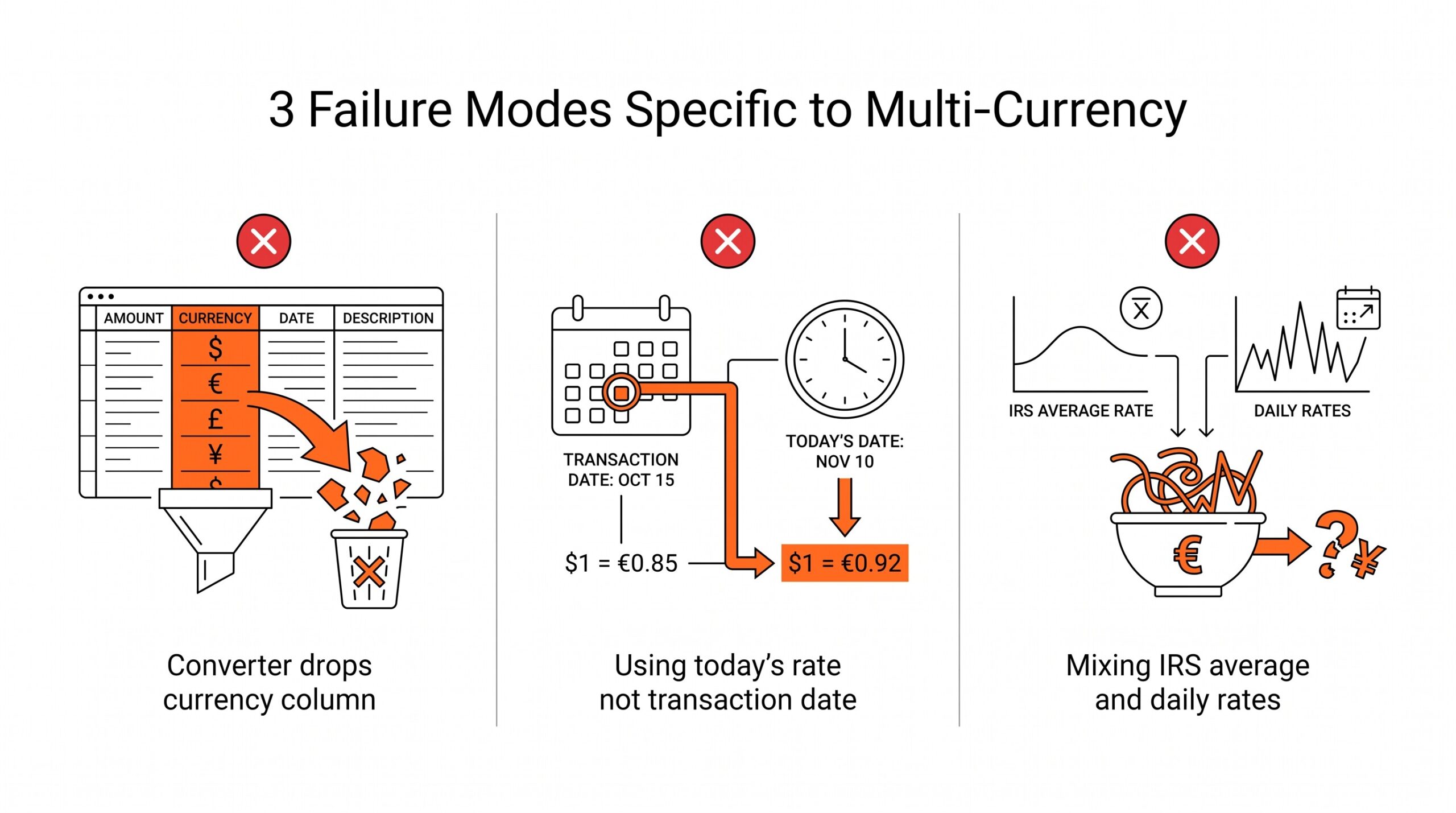
Failure 1: The converter drops the currency column
Some converters assume a single currency and output only date, description, and amount. If your statement has multiple currencies and the output has no currency column, the converter was not built for multi currency files.
The transactions are still in the output, but you cannot tell which row is USD and which row is EUR. At that point you have to re run the conversion with a tool that preserves the currency column.
Failure 2: Using today’s rate instead of the transaction date rate
A common mistake bookkeepers report is pulling the current exchange rate from Google and applying it to every transaction in the file. That treats a January 2024 transaction with the rate from September 2026.
Over a year, currency pairs can move 5% to 15%. Using today’s rate for a year old transaction can introduce material errors in the books. The right approach is the rate on the date the transaction posted, not the rate today.
Failure 3: Mixing IRS average and daily rates
Another common mistake is using the IRS yearly average for most transactions and then switching to a daily rate for one or two outliers (large transactions or unusual currencies).
The result is an inconsistent file where most rows use the 2024 average but a few rows use a different rate. Auditors flag this because it looks like manipulation, even if the rates were honestly chosen.
Pick one rate methodology and apply it across the entire file.
What most converters miss (and how to fix it)
Most PDF to Excel converters are built for single currency statements. They extract the amount column but ignore the currency column about 30% of the time.
When the converter does preserve the currency column, it almost never converts the amounts to a base currency. That is a feature, not a bug: the converter does not know what your base currency is or what rate source you trust.
The result is a clean Excel file with mixed currencies in the amount column. To get a single base currency file, you need a second pass: the rate lookup table plus the conversion formula.
The exception is a converter built specifically for multi currency bank statements. These tools ask for your base currency upfront and apply a configurable rate source during the conversion. The output is already in one currency, ready for import.
For one off quarterly conversions, the manual workflow in Steps 1 through 5 is fine. For monthly close with multi currency statements every month, the dedicated multi currency converter saves 3 to 4 hours per month.
The ISO 4217 currency code standard
Multi-currency bank statements use ISO 4217 currency codes: USD for US Dollar, EUR for Euro, GBP for British Pound, JPY for Japanese Yen, CAD for Canadian Dollar, AUD for Australian Dollar. Each code is exactly 3 letters and matches the country or currency union. Most bank statements use uppercase codes. The bank statement glossary defines every abbreviation used in statements. The extract transactions from PDF workflow covers the conversion mechanics. Most PDF to Excel converters recognize these codes in the currency column without modification.
When to upgrade from manual to automated conversion
For a single statement per quarter with 3 currencies, the 5 step manual workflow takes 30 minutes. For monthly statements with 4 or more currencies, the same workflow takes 2 hours per month. The break even point for a dedicated multi currency converter is around 3 hours per month of manual work. Below that, the manual workflow is fine. Above that, an automated tool pays for itself in time saved and reduced errors.
See also
The general PDF bank statement to Excel workflow covers single currency statements and is the starting point if you have not yet converted your multi currency PDF. For business accounts that mix revenue, expenses, and COGS, the business statement conversion guide adds chart of accounts mapping to the same workflow. For a reference of every abbreviation you might see in the description column of your statement, the bank statement glossary defines DPC, TFR, FPI, and OLB so a flagged transaction does not break your import.
Turn any PDF statement into a clean sheet
Skip the typos and the hours of copying. Our converter handles any bank statement format and outputs Excel, CSV, or QBO for QuickBooks. No file retention, free to try.
Convert your statement