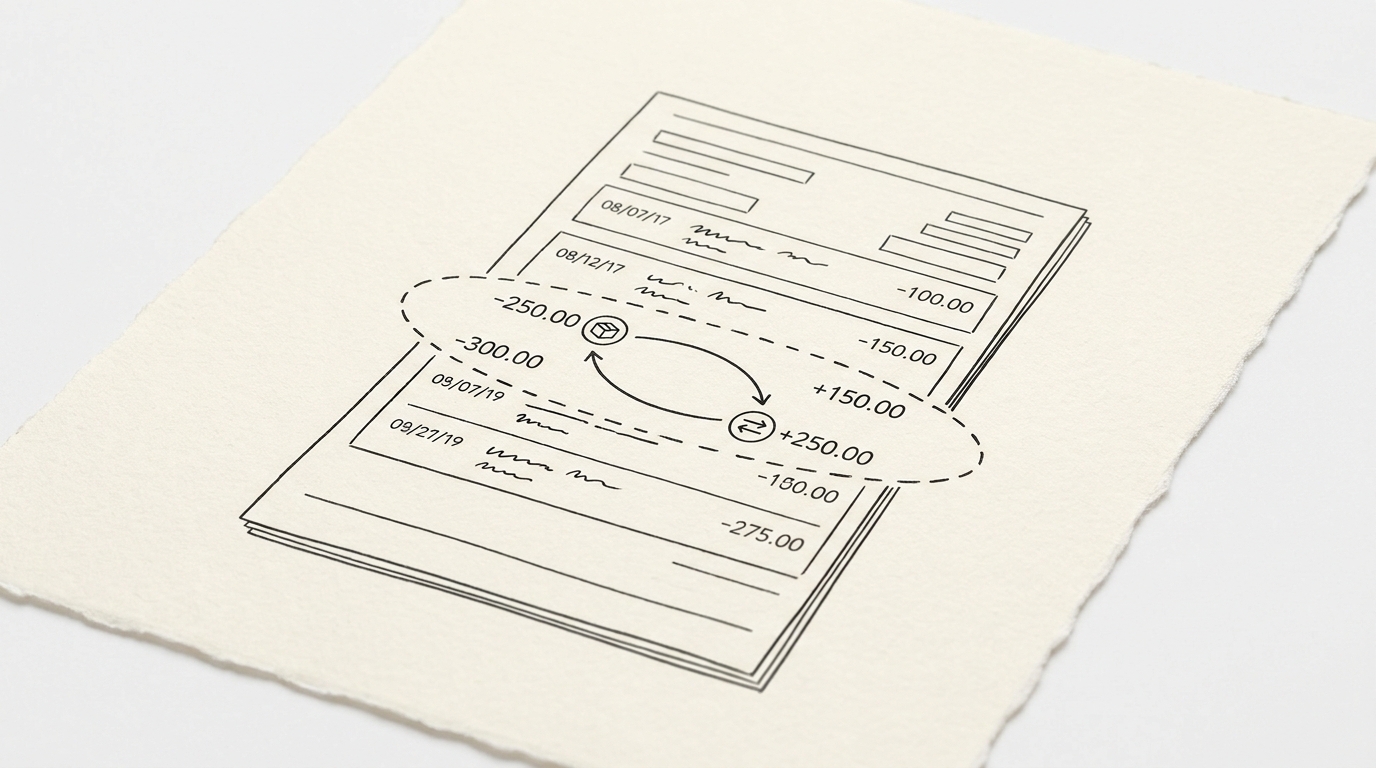

A $200 refund appears as a $200 charge in Excel. The math is off by $400. The fix is one formula, not a re-conversion. A user converts their December credit card statement. The Excel file shows a $200 ‘AMAZON.COM’ charge but the user returned the item and got a refund. The refund did not post until January, so it’s on a different statement.
TL;DR. Refunds on credit card statements typically show as a negative charge with the same merchant descriptor as the original. The 3 most common errors: refund appears as positive (math off by 2x), refund missing from the statement, refund on a different statement period. The fix is almost always a single-row manual addition to the Excel file, not a re-conversion.
For the broader credit card to Excel workflow, see the credit card to Excel guide.
The 3 Most Common Refund Errors
Refunds on credit card statements are the most common cause of reconciliation errors. The 3 errors below cover 90% of refund-related issues in Excel conversions.
Error 1: The refund appears as a positive charge
The refund should be a negative charge. If it appears as a positive amount in the Excel file, the sign is wrong. The math is off by 2x the refund amount. A $200 refund that shows as +$200 makes the spreadsheet say you spent $200 more than you did.
The cause is a converter that outputs all amounts as positive, treating refunds as new charges. The fix: change the sign of the refund row to negative. The merchant descriptor should match the original charge.
Error 2: The refund is missing from the statement
Refunds can take 3 to 14 days to post. They often appear on a different statement than the original charge. A December purchase refunded in January shows on the January statement, not December.
The fix: check the next 1 to 2 statements for the refund. If found, add it manually to the original statement’s Excel file with a note about the cross-statement timing. The note prevents the same confusion next month.
Error 3: The refund is on a different statement period
A December charge refunded in January shows on the January statement. The Excel file for December is missing the refund. The user adds a manual row to the December Excel file with the refund amount, date, and a note that the refund posted in January.
The Sign Convention for Refunds
Refunds follow the same sign convention as other credit card transactions. The standard is: charges positive, payments negative, refunds negative. The sign of a refund matches the sign of a payment: both are negative because both reduce the balance owed.
For the full sign convention deep dive, see the sign convention guide. For the math verification that catches refund errors, see the validation section below.

Turn That PDF Into a Spreadsheet in Minutes
You've seen how to do it manually — now let the tool handle the heavy lifting. Upload your bank statement and get Excel, CSV, or QBO in a few clicks.
Try It FreeThe 3 Manual Fixes
The fix for each of the 3 errors above is a single Excel operation, not a re-conversion. Re-conversion risks introducing the same error.
Fix 1: Sign flip
If the refund is on the statement but shows positive, change the sign to negative. In Excel, this is: select the cell, add a minus sign before the number, or use a formula = -A1 to flip the sign. The merchant descriptor should match the original charge.
Fix 2: Cross-statement add
If the refund posted on a later statement, add a manual row to the current statement’s Excel file. The row should have: the date the refund posted (not the original charge date), the merchant descriptor, the negative refund amount, and a note column explaining the cross-statement timing.
Fix 3: Chargeback handling
A chargeback is a forced refund by the issuer. It shows with a different descriptor (often ‘CHGBK’ or ‘DISPUTE’). The sign is still negative. The chargeback may appear on a different statement than the original charge. The fix is the same as Fix 2: add a manual row with the chargeback date, descriptor, amount, and a note.
The 5-Point Refund Validation
Before treating the Excel file as final, run these 5 refund-specific checks.
- Count of refunds on the source statement matches the count in the Excel file.
- Sum of refund amounts on the source statement matches the sum in the Excel file (and all are negative).
- Each refund’s merchant descriptor matches the original charge’s descriptor.
- Each refund’s date is within the statement period.
- Cross-statement check: any pending refunds from previous statements are accounted for.
How to Prevent the Error Next Time
The best prevention is a post-conversion review. Look for the merchant descriptors that are likely to have refunds: Amazon, large retailers, subscription services, travel bookings. For each one, check the source statement for the corresponding refund.
A common failure mode bookkeepers report is the most common refund error is treating the refund as a new transaction rather than a reversal. The Excel file should show the refund with a negative amount matching the original charge. If it shows as a new positive charge, the converter is wrong or the sign convention is wrong.
For the broader credit card to Excel workflow, see the credit card to Excel guide. For related fixes: sign convention guide | credit card conversion pillar.
For a deeper understanding, see: credit card statement pillar. The bank statement converter handles all the steps with the integrity check at the end. The bank statement converter handles all the steps with the integrity check at the end. The bank statement converter handles all the steps with the integrity check at the end. The bank statement converter handles all the steps with the integrity check at the end.
From Bank Statement to QuickBooks-Ready File
That manual cleanup you just read about? This tool skips it. Turn your PDF into QBO for QuickBooks without storing your data anywhere.
Start Converting