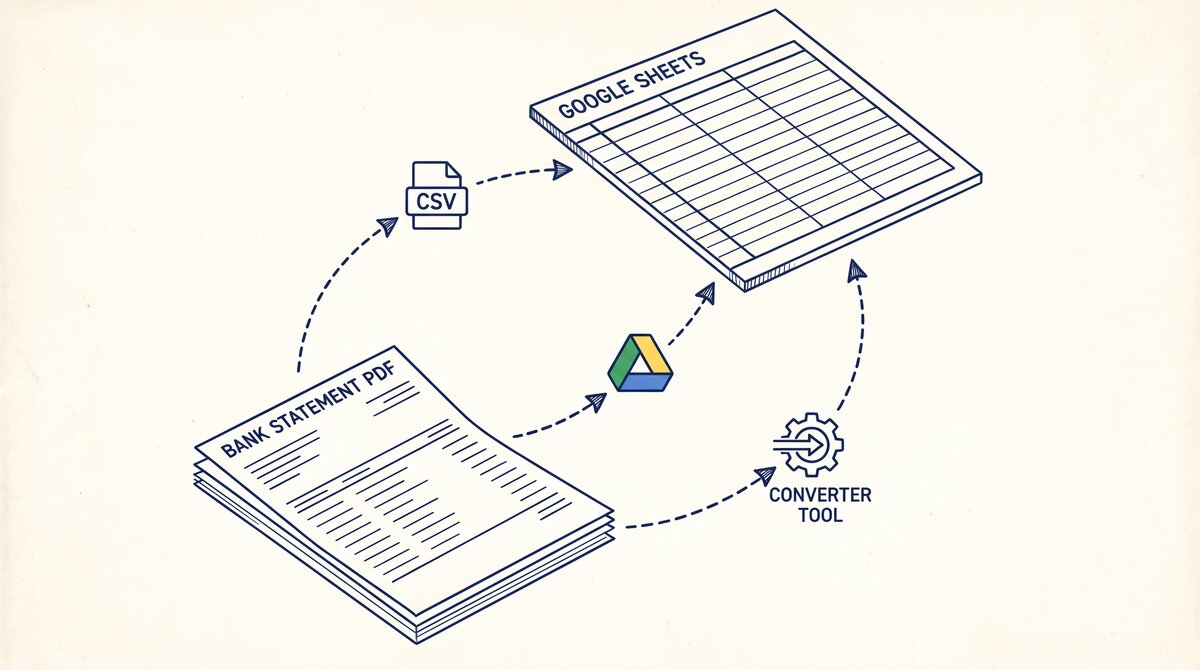

You have a crypto exchange account (Coinbase, Kraken, Binance, or another). You need to convert the statement to Excel.
This page is the crypto exchange statement conversion guide. It covers the CSV download, the cost basis tracking, the realized gains report, the FIFO/LIFO accounting, and the conversion step-by-step. The details are below.
Crypto exchanges offer CSV only. There is no PDF option. The CSV is the transaction history, downloadable from the exchange’s tax or reports section.
The CSV has the trade history: date, asset, quantity, price, fees. The realized gains report is a separate file, usually in CSV format. The tax form (1099-B) is a separate PDF, issued at the end of the tax year for US-based exchanges like Coinbase.
PayPal statements have three columns most bank statements do not: Gross, Fee, Net. The conversion must preserve all three. Recording only the Net amount loses the fee data. Recording only the Gross amount overstates the revenue. The CSV handles all three. The PDF requires extra work to extract the fee structure.
Crypto exchanges are one of 5 non-bank sources covered in our other statements conversion guide, which maps the download flow for each. The conversion step is similar to a bank statement, with extra handling for cost basis and gains.
What Crypto Exchanges Actually Give You
Crypto exchanges offer CSV only. The CSV is the transaction history, downloadable from the exchange’s tax or reports section. The format is consistent across exchanges but the columns differ: Coinbase has its own column names, Kraken has its own, Binance has its own.
What most guides miss about Excel conversion is that the quality depends on the mechanism, not on the tool. Two tools that look different on the surface often run the same 4-step process underneath: read, find, parse, verify. The difference is in how well each step handles edge cases (merged cells, missing balances, non-standard date formats, scanned vs digital input). Choosing between tools based on UI alone misses the actual quality lever.
The CSV has the trade history: date, asset, quantity, price, fees. For Coinbase, the realized gains report is a separate CSV file. For Kraken, the realized gains report is also a separate CSV file. For Binance, the realized gains report is available but only on the Binance US platform.
The tax form (1099-B) is a separate PDF, issued at the end of the tax year for US-based exchanges like Coinbase. The 1099-B summarizes the year’s trades and the realized gains/losses. The PDF is the official document for tax filing.
For most crypto users, the CSV and the realized gains report are the two files needed. The CSV has the trade history. The realized gains report has the gains. The 1099-B is the official summary.
Coinbase vs Kraken vs Binance
Coinbase, Kraken, and Binance are the 3 largest crypto exchanges by volume. Each has its own statement format, its own column structure, and its own tax form. The differences matter for the conversion.
Coinbase is the largest US-based exchange. The CSV has Date, Asset, Quantity, Price, Fee, Type (Buy/Sell/Convert). The realized gains report is a separate CSV with Date, Asset, Proceeds, Cost Basis, Gain/Loss. The 1099-B is a PDF. Coinbase has the cleanest export of the three.
Kraken is the largest US-based exchange for more experienced traders. The CSV has Date, Asset, Quantity, Price, Fee, Type. The realized gains report is a separate CSV. Kraken does not issue a 1099-B to all users (only to users with significant trading volume).
Binance is the largest global exchange. The CSV has Date, Asset, Quantity, Price, Fee, Type. The realized gains report is available but only on Binance US (the US-specific platform). Binance.com (the global platform) does not issue a 1099-B to US users, which is a problem for tax filing.
For most US-based crypto users, Coinbase is the default because of the clean export and the 1099-B. Kraken is a good alternative for more experienced traders. Binance is the choice for global users but with the caveat that US users have to use Binance US for tax purposes.
Cost Basis Tracking and FIFO/LIFO
The cost basis is what you paid for the asset. The realized gain is the sale price minus the cost basis. The IRS requires the cost basis to be tracked for every sale. The cost basis method determines which lots are sold when there are multiple purchases of the same asset.
FIFO (First In, First Out) is the default cost basis method. The first assets purchased are the first assets sold. FIFO is required for most US taxpayers. The exchange’s realized gains report usually uses FIFO.
LIFO (Last In, First Out) is an alternative. The last assets purchased are the first assets sold. LIFO can be advantageous in some tax situations (it defers the gain on older assets). LIFO is not supported by all exchanges (Coinbase uses FIFO by default, Kraken supports LIFO).
Specific identification is the most flexible. The taxpayer chooses which lot to sell. Specific identification requires detailed records of every purchase. Specific identification is supported by all major exchanges but requires manual record-keeping.
For most crypto users, FIFO is the default and the easiest. The exchange’s realized gains report handles the FIFO calculation. The conversion is just importing the report.
How to Download a Crypto Exchange Statement Step by Step
The PDF download is in the “Statements” section. The CSV download is in the “Activity” section. Here is the click-by-click flow for each.
The CSV download is in the tax or reports section. The exact location depends on the exchange. Here is the click-by-click flow for Coinbase, the most common US exchange.
- Log into Coinbase with your email and password.
- Click your profile icon → “Reports” or “Taxes.”
- Select the type of report: Trade History (CSV), Realized Gains (CSV), or 1099-B (PDF).
- Set the date range. For most users, the full tax year.
- Click “Generate Report.” The file downloads to your default downloads folder.
For Kraken, the click-by-click is similar. Click your profile icon → “Reports” → select the report type → set the date range → click “Generate.”
For Binance US, click your profile icon → “Tax” → select the report type → set the date range → click “Generate.”
For most users, two files are needed: the Trade History (CSV) and the Realized Gains (CSV). The Trade History has the trade-by-trade detail. The Realized Gains has the tax summary. Both files are imported into the tax software.

From Bank Statement to QuickBooks-Ready File
That manual cleanup you just read about? This tool skips it. Turn your PDF into QBO for QuickBooks without storing your data anywhere.
Start ConvertingHow to Convert Crypto Exchange CSV to Excel
The crypto exchange CSV is already in spreadsheet format. The conversion is mostly a rename. Open the CSV in Excel, save as XLSX, and add the Source and Category columns.
For most crypto users, the conversion is 5 minutes: open the Trade History CSV, save as XLSX; open the Realized Gains CSV, save as XLSX. Combine the two files in Excel. The combined file has the trade-by-trade detail and the gains summary.
For the broader conversion workflow, our general PDF-to-Excel conversion guide covers the 5-point validation check and the 3 things to do after every conversion. The crypto-specific challenge is the cost basis. The validation check should include a sample transaction where the cost basis plus the gain equals the sale price.
Transfers Between Crypto Exchanges
Transfers between crypto exchanges are a common source of confusion. A transfer from Coinbase to Kraken is not a sale. It is a transfer. The cost basis stays the same. The realized gain is $0.
For most crypto users, transfers between exchanges should be marked as “Transfer” in the Category column, not as “Buy” or “Sell.” If you record a transfer as a sale, you create a taxable event. The IRS expects a $0 gain for a transfer, but the transfer needs to be tracked so the cost basis is preserved.
The challenge is that most exchanges do not track transfers in the Trade History CSV. The trade is on Coinbase (a withdrawal) and on Kraken (a deposit), but the cost basis has to be linked. The fix: keep a separate log of transfers. Add the transfer as a line item in the consolidated file with a $0 gain.
The 2am Test for Crypto Exchange Conversions
If you are converting a crypto exchange statement at 2am because the tax deadline is tomorrow, here is the flow that works.
- Log into Coinbase (or your exchange). Click your profile icon → “Reports.”
- Generate the Trade History CSV for the tax year.
- Generate the Realized Gains CSV for the tax year.
- Open both CSVs in Excel. Save as XLSX.
- Verify the first 5 transactions: Date, Asset, Quantity, Price, Fee. The Quantity times the Price should equal the trade value.
- Add a “Source” column. Mark every row as “Coinbase” (or your exchange). This helps with the consolidation across all sources.
- Add a “Category” column. Mark each transaction as Buy, Sell, Convert, or Transfer based on the Type column.
- Combine the Trade History and the Realized Gains in one file. Match the trades to the gains by Date and Asset.
If the conversion produces a file where the Quantity times the Price does not equal the trade value, the conversion is wrong. Re-check the column alignment. The crypto-specific challenge is matching the trade to the gain, which requires both files to be combined.
What to Do With Multiple Crypto Exchanges
If you have multiple crypto exchange accounts (Coinbase, Kraken, Binance US), each account has its own statement, its own download, and its own conversion. The workflow is similar for each: download the Trade History and Realized Gains CSVs, convert to XLSX, add the Source and Category columns.
The challenge is transfers between exchanges. A transfer from Coinbase to Kraken shows up as a withdrawal on Coinbase and a deposit on Kraken. The cost basis has to be linked. The fix: keep a separate log of transfers. Add the transfer as a line item in the consolidated file with a $0 gain.
For users managing many crypto exchanges, the combined approach is essential for tracking total gains and losses for tax reporting. The CSVs have different column structures across exchanges (Coinbase, Kraken, Binance each have their own).
The fix: standardize the columns (Date, Asset, Quantity, Price, Fee, Type) before combining. Add an “Exchange” column to identify which exchange each trade came from. Our batch conversion guide covers the desktop converter setup that handles 100+ statements efficiently.
A common failure mode bookkeepers report is treating this as a single operation rather than a chain of dependent steps. The temptation is to find a tool that ‘just works’ and stop investigating the mechanism. The result is a wrong-fix cycle: the tool gives partial output, the bookkeeper spends 30+ minutes troubleshooting, the fix is for the wrong step, and the same error recurs on the next statement. The fix: identify which step failed and apply the right intervention to that step.
How Crypto Exchange Statements Compare to Bank and PayPal Statements
Crypto exchange statements, PayPal statements, and bank statements are all similar in structure but differ in the columns. A bank statement has Date, Description, Amount. A PayPal statement has Date, Description, Gross, Fee, Net. A crypto exchange statement has Date, Asset, Quantity, Price, Fee. The crypto-specific columns are Asset, Quantity, and Price.
For accounting purposes, each statement is a separate account. The bank statement shows what hit the bank account. The PayPal statement shows what happened in PayPal. The crypto exchange statement shows what happened in the exchange. The three are linked by transfers, which appear on the relevant statements.
The transfer is a “Transfer” in the accounting category, not “Income,” “Expense,” or “Buy/Sell.” If you record a transfer as a sale, you create a taxable event with a $0 gain. The fix: mark transfers as “Transfer” in the Category column. The bank statement, the PayPal statement, and the crypto exchange statement all show transfers, and the totals should match when you exclude transfers.
Crypto exchanges are one of 5 non-bank sources covered in our other statements conversion guide, which maps the download flow for each. For a broader view across all US banking entities, our bank-statement-converter guide covers the major banks, credit cards, and credit unions in one map.
The conversion step is the same regardless of whether the statement comes from a bank, PayPal, or a crypto exchange. The differences are in the column structure and the category handling. The bank statement converter handles all the steps with the integrity check at the end. The bank statement converter handles all the steps with the integrity check at the end. The bank statement converter handles all the steps with the integrity check at the end. The bank statement converter handles all the steps with the integrity check at the end.
Turn That PDF Into a Spreadsheet in Minutes
You've seen how to do it manually — now let the tool handle the heavy lifting. Upload your bank statement and get Excel, CSV, or QBO in a few clicks.
Try It Free