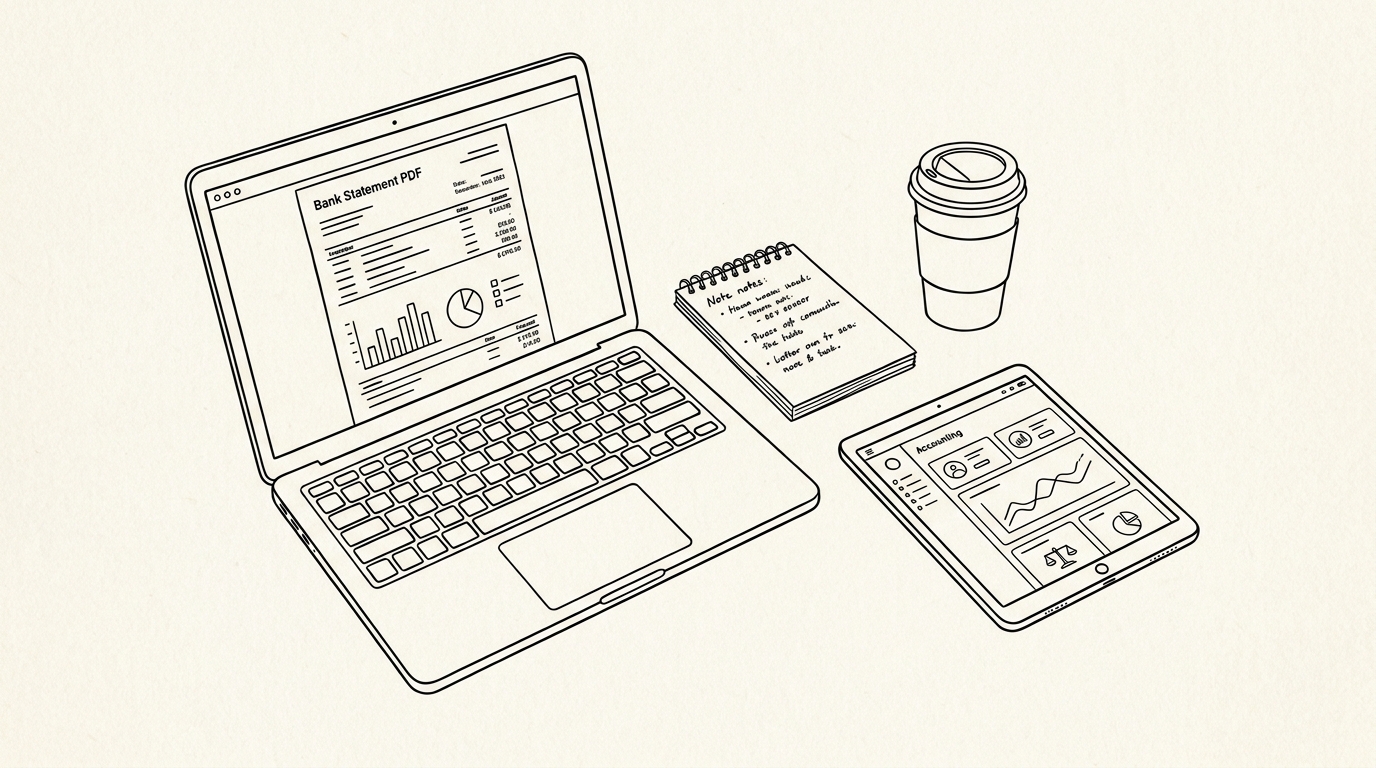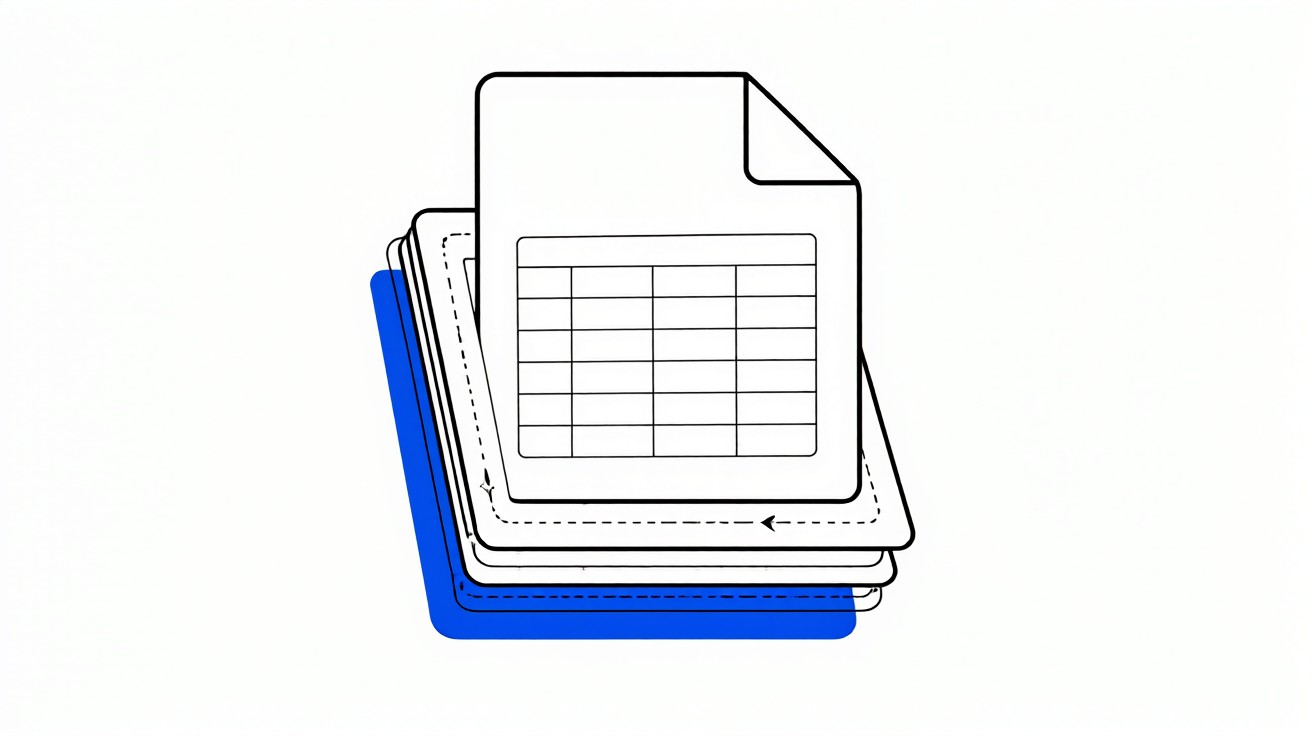

A PDF-to-Excel converter for bank statements is software that reads a digital PDF statement and rebuilds its transactions into a sortable spreadsheet with columns for Date, Description, Amount, and Balance. The PDF stores text by position, not as a table, so the converter must reconstruct the grid before anything can be sorted or reconciled.
For a small business owner, the statement is the source of truth for cash flow, yet a PDF cannot be filtered or summed. Converting to Excel turns a read-only report into a dataset you can reconcile against your books. The running balance printed after each transaction gives you a built-in check on every row.
The running balance printed after each transaction acts as a built-in checksum: if an extracted row does not change the balance by the amount shown, the row is wrong or out of order.
Key facts. A PDF stores text by position, so columns must be reconstructed during extraction. The running balance is a built-in checksum for every row. Common failures include wrapped descriptions, page breaks that split a transaction, and merged columns. Every row must reconcile against the opening and closing balances. Scanned statements need OCR first; native text PDFs can be parsed directly.
Balance verification compares each extracted row against the printed running balance so errors surface before the file reaches your books.
How a PDF-to-Excel converter reads a bank statement
A PDF is a page description format. It records where each piece of text appears, not what table it belongs to. Your bank designs the statement for human reading, with headers, footers, and summary boxes mixed among the transactions.
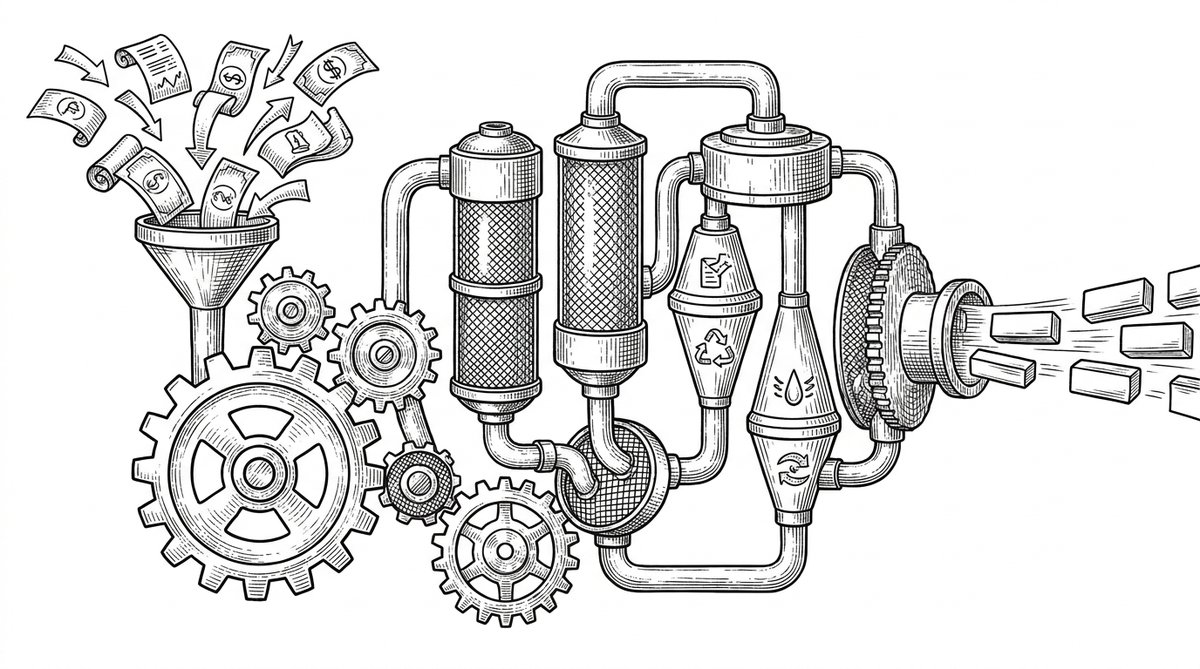
The converter reads the text layer, groups characters into words, and groups words into lines by their vertical position. It then assigns each line to a column based on horizontal position. The result is a set of rows with Date, Description, Amount, and Balance.
This is why output quality depends on two things: the PDF’s text layer and the converter’s parsing logic. A clean digital PDF from your bank downloads as text. A scanned image has no text layer at all. For the full step-by-step process, see how to convert a bank statement to Excel.
Native text PDF versus scanned PDF
Native text PDFs can be parsed directly. The text is already there, positioned on the page. Most converters handle these well, though layout still varies by bank.
Scanned PDFs contain images of pages. They need OCR before conversion. OCR introduces its own errors, especially with small fonts, stamps, and two-column layouts. Treat OCR output as a draft that needs review.
Do not assume a converter supports scanned statements. Check the product’s stated input rules. Educational content about OCR is not the same as a product feature. A good bank statement to Excel converter publishes its input rules clearly.
Turn PDF Bank Statements Into Workable Spreadsheets
Your bank statement is a mess of numbers, but your books shouldn't be. Use our converter to get Excel, CSV, or QBO files — ready for QuickBooks.
Try It Free NowCommon extraction failures and how to spot them
Wrapped descriptions break columns. A long merchant name may wrap to a second line, and a naive parser can read it as a new transaction.
Page breaks split transactions. The last row on one page and the first row on the next may be parts of the same entry.
Merged columns happen when Date and Description overlap horizontally, or when Amount and Balance sit too close.
You can spot these by checking the row count against the statement and by reconciling balances. A single failure usually shows up as a balance mismatch.
| Failure | What it looks like | How to detect |
|---|---|---|
| Wrapped description | One transaction appears as two rows | Row count exceeds statement count |
| Split transaction | Partial row at page boundary | Balance jumps without a matching amount |
| Merged columns | Description text inside Amount column | Non-numeric values in Amount or Balance |
| Missing row | Gap in the sequence | Closing balance does not reconcile |
Evaluation criteria for a converter
When comparing tools, focus on accuracy, verification, format support, privacy, and cost. Avoid claims you cannot verify, such as exact bank counts or 100 percent accuracy.
Accuracy means the extracted fields match the statement. Verification means the tool checks rows against the running balance. Format support means the outputs you need, such as XLSX, CSV, Google Sheets, or QBO.
Privacy means knowing what happens to your data. Look for clear statements about retention and third-party processing. For a deeper look at the conversion itself, read PDF bank statement to Excel.
A converter should publish its input rules and verification method. If those are missing, treat the tool as unverified.
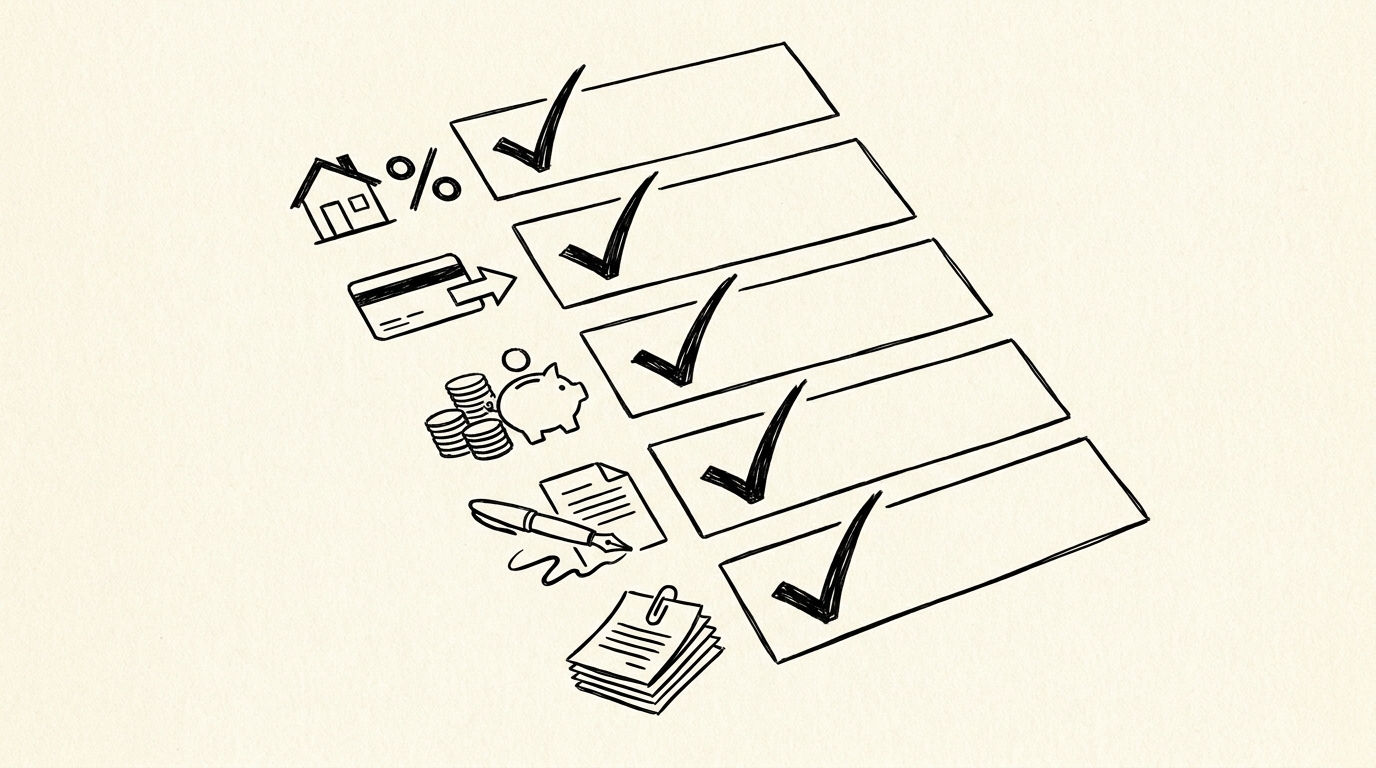
Verification steps after conversion
Open the exported file and confirm the opening balance matches the statement.
Check each running balance: subtract or add the transaction amount and compare to the printed balance.
Confirm the closing balance matches the statement.
Count rows and compare to the transaction count on the statement.
For a structured checklist, see bank statement accuracy verification. If balances do not match, find the first mismatched row and inspect the description and amounts.
When to choose Excel over other formats
Excel suits human review and editing. CSV suits software imports. Google Sheets suits shared workflows. QBO suits QuickBooks.
Choose based on the next step in your workflow, not on habit. See how to choose a bank statement output format for a detailed comparison.
Most small business owners start with Excel because it is familiar and easy to audit. Move to CSV or QBO once the workflow is stable.
From PDF to Excel in one click
Forget retyping line by line. Upload any bank statement, get a spreadsheet you can actually use. Your files are never stored, and you can test the converter with 3 free conversions.
Try it free