
You have a bank account. You need the statement in Excel.
Most banks offer a PDF download. Some offer CSV. The wrong download gives you a file the converter cannot handle.
This page is the guide to exporting bank statements to Excel. It covers the 3 download formats (PDF, CSV, OFX/QFX), the 2 export paths (portal vs email), the 5 things that differ between banks, and the 3 things to do after the export. The bank-specific export guides for 11 major US banks are linked below.
Exporting a bank statement to Excel takes the statement from the bank’s online portal and turns it into a file you can open in Excel. The export step is different from the conversion step: the export is the bank’s download, the conversion is the data extraction.
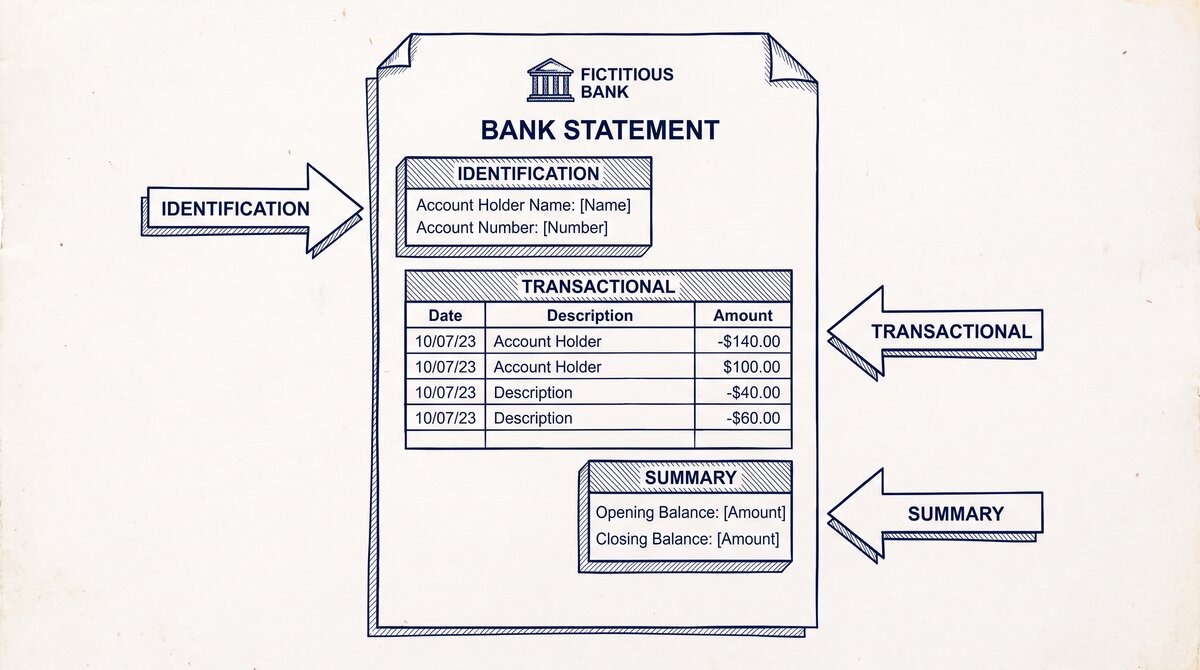
Most banks offer 2 download formats: PDF (the official statement) and CSV or OFX/QFX (the raw transaction data). For Excel output, the PDF + converter path is most common. For CSV output, the bank’s CSV download is enough. For QBO output (QuickBooks), the OFX/QFX download imports directly.
For specific banks, see the bank export guide. For the conversion step, see the Excel guide.
The 2 Ways to Get a Bank Statement into Excel
In 2026, there are 2 distinct paths from bank statement (also called a monthly statement or account statement) to Excel. Each path has a different starting point, a different output, and a different cost.
Path 1: Bank’s built-in export. Most bank portals (Chase, Bank of America, Wells Fargo, Citibank, Capital One, PNC, TD Bank, US Bank) have a “Download” or “Export” button in the statements or transactions section. The output is CSV, OFX, or QFX.
You download the file, open in Excel, and save as .xlsx. The export is free, instant, and the data is the bank’s own. The trade-off: limited to what the bank shows you, usually the last 30-90 days, sometimes missing the balance column, and the format is the bank’s choice (not yours).
Path 2: Convert the PDF statement. You download the PDF statement from the bank, run it through a converter, and get Excel. The converter handles any bank’s PDF, any date range, scanned PDFs, password-protected PDFs. The trade-off: takes 1-3 minutes per statement, may require a paid tier (3 free conversions on most tools).
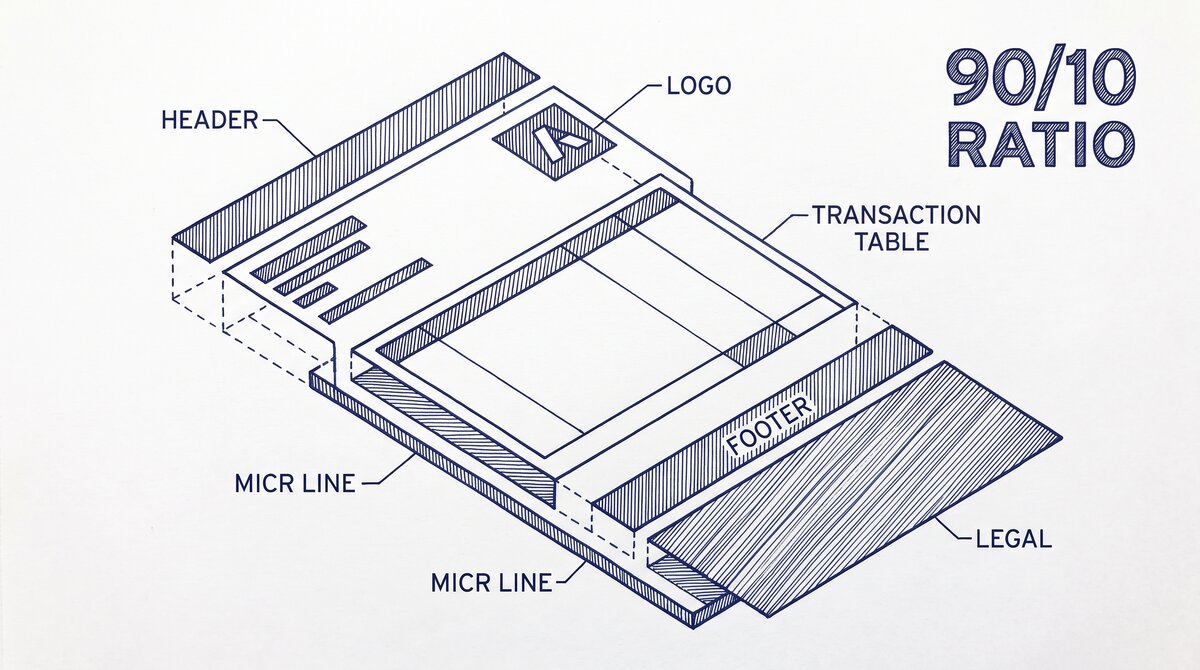
For 90% of users, the bank’s built-in export is the right starting point. It is free, instant, and the data is correct. For the 10% with PDF-only banks, scanned statements, or unusual date ranges, the converter handles it. The two paths coexist.
Path 1: The Bank’s Built-in Export
How to Download a Bank Statement PDF from Your Bank
The 4-step workflow to get a bank statement PDF from any major US bank. Works for Chase, Bank of America, Wells Fargo, Citibank, Capital One, PNC, TD Bank, US Bank, and most credit unions.
Step 1: Log in to your bank’s online portal. Use a desktop browser (not the mobile app) for the most reliable experience. The mobile app usually hides the download options behind extra menus.
Step 2: Navigate to Statements & Documents. The path varies by bank: Chase: top menu > Statements & Documents. Bank of America: Accounts > Statements & Documents. Wells Fargo: Accounts > Statements & Documents. Most major banks follow the same pattern.
Step 3: Select the account and statement period. Pick the account (checking, savings, credit card) and the statement month. Banks typically offer 7 years of e-statements online, with the most recent 90 days available for instant download. Older statements may require a request.
Step 4: Click Download or Export. The button label is usually “Download,” “Download PDF,” “Export,” or “View / Save Statement.” The file downloads as a PDF. Some banks offer CSV, OFX, or QFX as alternatives, but the PDF is the universal format and what the converter workflow expects.
The file is now on your computer, typically in your Downloads folder. The PDF is the bank’s official record of the statement period. You can open it in any PDF reader, forward it to a tax preparer, or convert it to Excel/CSV for your own bookkeeping.
If your bank does not have an online portal (rare, mostly small credit unions), the PDF is mailed to you or available in-branch. The download workflow above covers 95% of US bank accounts.
What About e-Statements vs Paper Statements?
An e-statement is the electronic version of the paper statement. Same content, same legal status under the Truth in Savings Act, but delivered as a PDF instead of a printed document. Most US banks default to e-statements for customers who signed up for online banking. You can opt back into paper statements if you prefer, but most users find e-statements faster, more searchable, and easier to archive.
The PDF you download from your bank’s portal IS the e-statement. There is no separate “e-statement format”, the e-statement is a standard PDF, just delivered electronically instead of by mail. The conversion workflow works the same way for both.
The bank export is the fastest path to Excel. Here is the workflow for the major US banks.
Chase. Log in to chase.com. Go to Statements & Documents. Select the account. Click “Download.” The output is CSV or PDF. CSV is the export. Open in Excel, save as .xlsx. Chase’s CSV includes date, description, amount, balance, and the check number for check transactions.
Bank of America. Log in to bankofamerica.com. Go to Statements & Documents. Select the account. Click “Download transactions” or “Export.” The output is CSV, OFX, or QFX. CSV includes date, description, amount, and the running balance. OFX/QFX is the Quicken format and works in QuickBooks as well.
Wells Fargo. Log in to wellsfargo.com. Go to Statements & Documents. Select the account. Click “Download” or “Export.” Output is CSV, OFX, or QFX. Wells Fargo’s CSV is well-formatted: date in MM/DD/YYYY, amounts in standard format, balance included.
Citibank, Capital One, PNC, TD Bank, US Bank. All major US banks have similar export flows. The button is usually labeled “Download,” “Export,” “Download transactions,” or “Save as spreadsheet.” The output is one of: CSV, OFX, QFX, or PDF (for the full statement). CSV is the export format. OFX/QFX is for Quicken/QuickBooks.
The bank’s export is free, instant, and the data is the bank’s own. For monthly bookkeeping with a bank that has a good export, this is the right path.
From PDF to Excel in one click
Forget retyping line by line. Upload any bank statement, get a spreadsheet you can actually use. Your files are never stored, and you can test the converter with 3 free conversions.
Try it freeThe 3 Common Export Problems (and Fixes)
Three issues show up across the major US bank exports. Each has a specific fix in Excel.
Problem 1: Wrong date format. US banks usually use MM/DD/YYYY in the CSV. UK and EU banks use DD/MM/YYYY. Some banks use YYYY-MM-DD. When the format is wrong, Excel reads “03/04/2024” as March 4 in the US (correct) or April 3 in the UK (wrong). The fix: select the date column, use Text to Columns in Excel, set the date format explicitly, save.
Problem 2: Wrong decimal separator. US banks use period (1,234.56). EU banks use comma (1.234,56). When the separator is wrong, Excel reads amounts as text instead of numbers. The fix: Find and Replace the wrong separator with the right one, then format the column as Number or Currency.
Problem 3: Missing balance column. Some banks (especially credit cards) do not include the running balance in the CSV. The fix: add a calculated column in Excel that sums the amount column, or accept that the balance is not available from the export.
Each of these is a 30-60 second fix in Excel. The bank’s CSV is 80% of the way to clean Excel. The 2-minute cleanup is faster than a converter round-trip.
When the Bank’s Export Is Not Enough
Five real cases where the bank’s export fails and a converter is the right path.
Case 1: PDF-only statements. Some banks (especially credit unions and smaller regional banks) do not have a CSV export. The only download is the PDF statement. The fix: use a converter on the PDF. The output is Excel.
Case 2: Scanned PDF statements. Older statements (pre-2018) are often scanned images, not text. The bank’s export may not include them. The fix: use a converter with OCR. The scanned PDF converts to Excel in 1-3 minutes.
Case 3: Password-protected PDFs. Some banks password-protect the PDF statement. The bank’s export may or may not include password-protected periods. The fix: use a converter that handles password-protected PDFs. The password guide has the workflow.
Case 4: Date range beyond 90 days. Most bank portals limit the export to the last 90 days. For older statements, you need the PDF statement from the bank’s archive or a statement request. The fix: download the PDF, use a converter.
Case 5: Multiple statements at once. The bank’s export is one account at a time. For a bookkeeper with 12 clients, that’s 12 export sessions. The fix: a batch converter takes 12 PDFs and outputs 12 Excels in one batch.
These 5 cases are the 10% where the converter beats the bank’s export. For the 90% with a current US bank and a recent statement, the bank export is fine.
Path 2: The Converter Workflow
When the bank’s export is not enough, the converter is the path. Here is the workflow.
Step 1: Download the PDF statement. Log in to the bank portal. Go to Statements. Download the statement as PDF. The file is the bank’s official statement. Some banks email the statement as a PDF attachment. The file is the same either way.
Step 2: Upload to the converter. Open the converter in your browser. Drag the PDF into the upload area or click to browse. The converter reads the PDF and identifies the bank. Most tools auto-detect the bank from the PDF content. Free tier: 1 file at a time. Paid tier: multiple files at once.
Step 3: Select the output format. Choose Excel (.xlsx). Most converters default to Excel. Other options: CSV, Google Sheets, QBO. The output is the same data, different format.
Step 4: Download the Excel. The conversion takes 30-90 seconds for a typical statement. The output is a .xlsx file with the same 4 columns: date, description, amount, balance. The output is clean Excel, no cleanup needed. The accuracy is 99%+ against the statement’s printed balance.
Total time: 1-3 minutes per statement. The free tier covers 3 statements. The paid tiers cover monthly volume.
The Decision: Bank Export or Converter
Three questions to decide between the bank’s export and the converter.
Question 1: Is the bank one of the major US banks with a CSV export? Chase, Bank of America, Wells Fargo, Citibank, Capital One, PNC, TD Bank, US Bank all have CSV exports. If yes, the bank export is faster. If no (credit union, regional bank, international), use the converter.
Question 2: Is the date range within the bank’s export window (usually 90 days)? If yes, the bank export covers it. If no (older statements, full year for tax), use the converter on the PDF statement.
Question 3: Is the statement a scanned PDF (image, not text)? If yes, the bank export may not include it. Use the converter with OCR. If no, the bank export is fine.
3 yes answers = bank export. 0-2 yes answers = converter. The decision is about the data, not about loyalty to either path.
A common failure mode bookkeepers report is treating this as a single operation rather than a chain of dependent steps. The temptation is to find a tool that ‘just works’ and stop investigating the mechanism. The result is a wrong-fix cycle: the tool gives partial output, the bookkeeper spends 30+ minutes troubleshooting, the fix is for the wrong step, and the same error recurs on the next statement. The fix: identify which step failed and apply the right intervention to that step.
Related Pages
For more on this topic, see the Excel guide. For the broader conversion workflow, see the bank statement converter guideFor more on this topic, see the converter guide. For the related large national bank statement export: chase, boa, wells fargo, citi page, see the linked article. For the related how to export an hsbc bank statement to excel page, see the linked article.
From Bank Statement to QuickBooks-Ready File
That manual cleanup you just read about? This tool skips it. Turn your PDF into QBO for QuickBooks without storing your data anywhere.
Start Converting