
A bank statement converter to Excel is software that reads a digital PDF bank statement and rebuilds its transactions into a sortable, filterable spreadsheet. Typical columns are Date, Description, Amount, and Balance. The PDF is built for reading, not analysis. The columns do not exist until the software reconstructs them from positioned text.
A converter to Excel is judged by how reliably it does that reconstruction across your banks and your volume. Accuracy, bank format support, and export fit matter more than interface polish or a long feature list.
For a small business owner, the software choice matters because bad extraction costs more than the tool. Retyping introduces transcription errors, and months of history do not scale by hand. The right converter saves hours and keeps your books clean. The wrong one creates cleanup work that eats the savings.
The right converter to Excel reconciles every row against the printed running balance and exports a file your accounting workflow can use without rework.
Key facts. A converter reads positioned PDF text and reconstructs transaction rows into Excel columns. Accuracy is proven by the running balance, where every row must change the balance by its amount. Evaluate handling of wrapped descriptions, page-break splits, and export formats. Manual retyping does not scale and invites transcription errors. The right choice depends on volume, bank formats, and downstream accounting needs.
Balance verification is the single non-negotiable test: if an extracted row does not change the running balance by the amount shown, the extraction failed.
What the software actually does
A PDF statement stores text by position. The bank prints dates, descriptions, amounts, and balances at specific coordinates so a human can read them. There is no underlying table. The converter reads those coordinates, groups text into rows, and assigns each value to a column.
Done well, you get one row per transaction with Date, Description, Amount, and Balance separated. Done poorly, you get merged columns, split rows, or missing transactions. The difference shows up in reconciliation time.
This is why copy and paste fails. Pasting captures visible text but not structure, so dates land in amount columns and descriptions break across lines. Parsing document structure instead of visible text separates a converter from a text grabber. See how to convert a PDF bank statement to Excel for extraction mechanics.
The same logic applies to every bank, but each bank lays out its statement differently. Column order, date format, and how withdrawals are shown vary. A converter that handles one bank cleanly may struggle with another. Bank format support is a real evaluation criterion, not a marketing line.
Common failure modes deserve attention before you buy. Merged columns happen when the parser cannot tell where one field ends and the next begins. Phantom rows appear when a wrapped description is treated as a new transaction. Dropped rows occur at page boundaries. Knowing these patterns helps you test with intent.
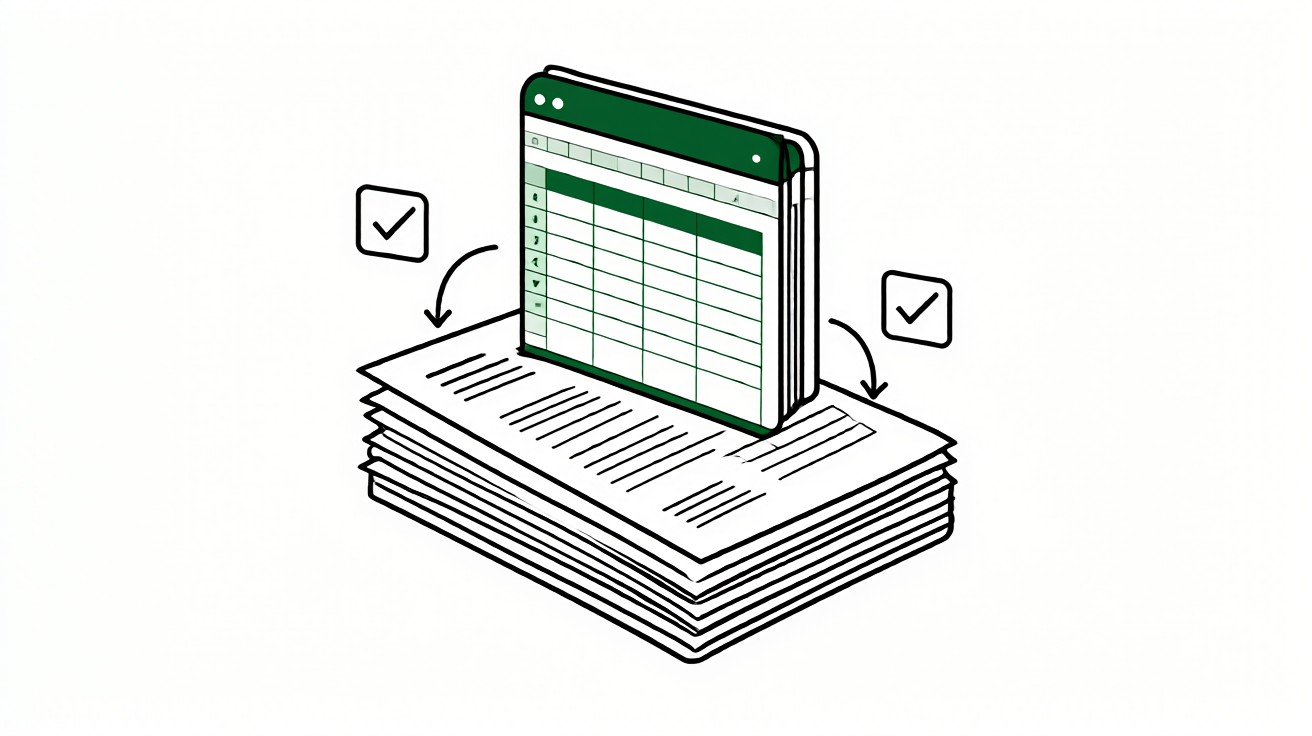
Excel output adds value beyond extraction. Sorting, filtering, and pivot tables let you analyze spend by category or month. That analysis only works if the columns are clean and consistent from the start.
The criteria that matter most
Accuracy measured by the running balance. Every extracted row must change the balance by the amount shown. This is the only objective test. If a tool cannot pass it on your statements, nothing else matters.
Handling of wrapped descriptions. A long merchant name or memo continues on the next visual line. A weak parser creates an extra row with a blank date and amount. A strong one merges the lines into one transaction.
Page-break splits. Transactions that straddle a page boundary can be dropped or split. Check the first and last rows of every page in a sample extraction.
Export formats. Excel for human review, CSV for software import, Google Sheets for shared workflows, and QBO for direct bookkeeping import. Match the format to the next step in your workflow. For a deeper comparison, read how to choose a bank statement output format.
Two additional signals help. Speed on large files matters when you process months of history. Consistency across repeated runs matters when the same statement is reprocessed after a correction. Both are easy to check in a trial.
Bank format coverage is worth verifying directly. Ask whether your specific bank and statement type are supported, not just whether the tool supports many banks. A long supported list does not guarantee your layout.
| Criterion | Why it matters | How to test |
|---|---|---|
| Running balance accuracy | Objective proof of correct extraction | Reconcile each row |
| Wrapped descriptions | Prevents phantom rows | Inspect long descriptions |
| Page-break handling | Prevents missing transactions | Check page boundaries |
| Export formats | Avoids manual reformatting | Confirm your target format |
From Bank Statement to QuickBooks-Ready File
That manual cleanup you just read about? This tool skips it. Turn your PDF into QBO for QuickBooks without storing your data anywhere.
Start ConvertingHow to test accuracy before you commit
Never trust a demo on a perfect statement. Download three real statements from your own bank: one short month, one with many transactions, and one spanning a page break. Run them through the tool and inspect the output row by row.
Count transactions first. Count on the PDF, then count extracted rows. A mismatch points to a split or merged row. This takes two minutes and catches most failures.
Then verify the running balance chain. Walk the rows in order. For each transaction, add deposits and subtract withdrawals from the previous balance. The result must equal the printed balance on that row. Pay attention to signs, since banks print withdrawals as negative or in parentheses.
Finally, confirm opening and closing balances match the PDF exactly. If all three checks pass on your own statements, the tool is worth considering. If any fail, move on. For a step-by-step method, see how to convert a bank statement to Excel.
Test edge cases too. Refunds, reversals, and negative amounts can break parsers that handle normal rows fine. Include a statement with at least one reversal in your test set.
| Check | Pass condition |
|---|---|
| Transaction count | Extracted rows equal PDF transactions |
| Running balance chain | Each row moves balance by its amount |
| Opening and closing balances | Match the PDF exactly |
Volume, bank formats, and software fit
The right tool depends on three things beyond accuracy. Volume: a few statements a year is different from processing months of history for a new client. Bank formats: your bank layout may not be supported even if the tool supports fifty others. Software fit: the output must feed your accounting system without rekeying.
For a bookkeeper onboarding a new client, batch handling and consistent column order matter more than a pretty interface. For a freelancer tracking expenses, a clean Excel file may be enough. For a mortgage applicant, the statement period and ending balance are the fields that matter most.
If your output feeds QuickBooks, confirm the tool exports QBO directly or produces a CSV that maps cleanly. The broader selection framework at how to choose a bank statement converter walks through these tradeoffs in more depth. For a direct comparison of converter options, see bank statement to Excel converter.
Ask about supported banks before committing. A tool that covers your bank today but not a second bank you may add later creates migration work. Check whether new bank formats are added regularly and whether you can request one.
History depth matters for bookkeepers. Confirm the tool handles large files and multi-month statements without slowing down or dropping rows. Test with your longest real statement.
Manual entry versus a converter
Manual retyping introduces transcription errors and does not scale across months of history. A single transposed digit throws off reconciliation, and you may not notice until tax time. A converter removes the typing and leaves verification, which is faster and more reliable.
That said, a converter is not magic. It still requires review. The time you save is the typing, not the checking. Budget a few minutes per statement to verify the running balance and confirm totals.
The tradeoff is clear: manual entry costs hours and risks errors; a converter costs minutes and risks a wrong row that the running balance will catch. For most small businesses, the converter wins once you have more than one or two statements to process.
Manual entry has one narrow advantage. It forces you to read every transaction, which can surface unfamiliar charges. A converter skips that reading, so schedule a quick scan of the description column after extraction.
Choosing with confidence
Start with accuracy. Test on your own statements and require a clean running balance on every row. Then check the criteria that affect your workflow: wrapped descriptions, page breaks, and the export format you actually use.
Match the tool to your volume and your accounting software, not to a feature list. A converter that passes your tests and exports the format you need is the right one, even if it lacks extras you will never use.
Keep the original PDF alongside the converted file. The statement remains the authoritative record; the spreadsheet is a working copy. When your pipeline needs a lighter format, plain text keeps software imports simple and avoids spreadsheet formatting surprises.
Re-test after updates. A software update can change parsing behavior. Keep one sample statement and re-run it after each update to catch regressions early.
Turn PDF Bank Statements Into Workable Spreadsheets
Your bank statement is a mess of numbers, but your books shouldn't be. Use our converter to get Excel, CSV, or QBO files — ready for QuickBooks.
Try It Free Now