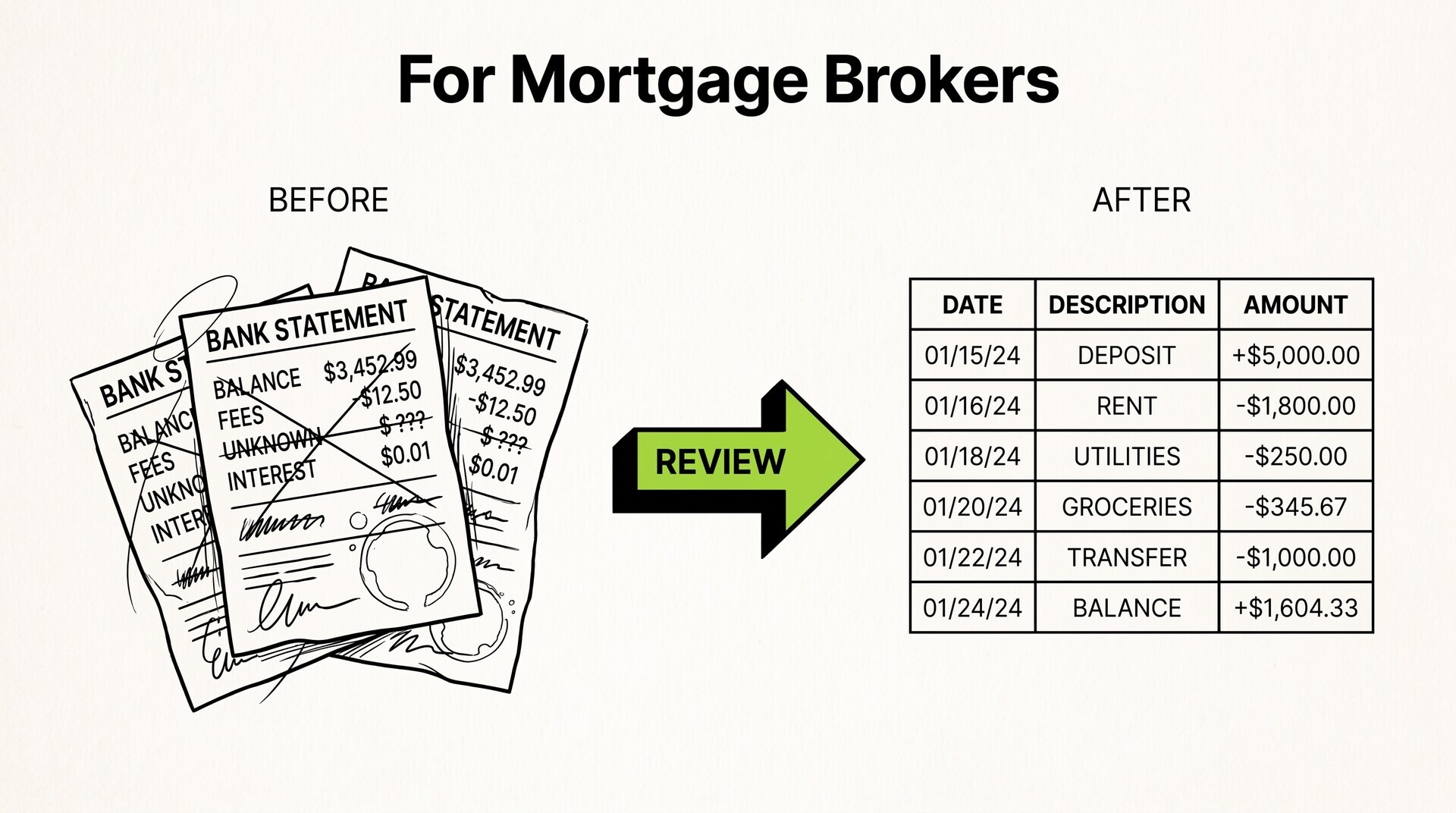

Bank statement accuracy verification is the process of confirming that a converted statement reproduces every transaction, amount, and running balance from the original PDF without error. It combines row counts, running-balance checks, and reconciliation against your books. The goal is a file you can trust for bookkeeping, tax preparation, or audit support.
For a small business owner, an unverified conversion is a liability. A single dropped deposit or duplicated withdrawal distorts profit, tax liability, and cash visibility. Verification takes minutes and prevents errors that surface months later at the worst time.
The only trustworthy converted statement is one where every row moves the running balance by the printed amount and the closing balance matches the PDF to the cent.
Key facts. The running balance printed by the bank is a built-in checksum for each row. Compare opening and closing balances between the original and converted file. Count transactions and compare against the statement totals. Check for duplicate rows, missing transactions, and misaligned columns. Reconcile the converted file to your books before relying on it.
Running balance verification is the single non-negotiable test: if an extracted row does not change the balance by the amount shown, the extraction failed and must be corrected before use.
What accuracy verification actually means
Accuracy is not visual similarity. A converted file can look clean while hiding a dropped row, a merged description, or a transposed digit. Verification tests the data, not the appearance. It answers one question: does this file reproduce the bank record exactly.
There are three layers. Structural accuracy means the right number of rows and columns. Numerical accuracy means amounts and balances match. Relational accuracy means each row connects to the correct account, date, and running balance. You need all three before the file is safe to use.
Verification should happen immediately after conversion, while the source PDF is open. Waiting until month end multiplies the effort and lets errors compound. Build the check into your workflow as a fixed step, not an optional one.
Visual checks fail because the eye reads patterns, not values. A missing row of forty dollars is invisible when the page looks right. Only arithmetic catches it. Treat the converted file as untrusted until the numbers prove otherwise.
For a step by step conversion walkthrough, see how to convert a bank statement to Excel.
The running balance check, your built in checksum
The bank prints a running balance after every transaction. That balance is the sum of all prior transactions plus the current one. Because the bank computes it, you can use it to validate your converted data independently of the converter.
Walk the rows in order. Start from the opening balance. For each row, apply the transaction amount: add deposits, subtract withdrawals. The result must equal the printed balance on that row. If it does not, either the amount, the sign, or the row order is wrong.
Verify the opening balance first. It must match the previous statement closing balance or the account opening figure. If the opening balance is wrong, every subsequent check is unreliable. Correct it before walking the chain.
Pay attention to signs. Some banks show withdrawals as negative numbers. Others use parentheses or a separate debit column. A converter that flips a sign will fail the running balance check even when the digits are correct. Fix the sign, not the data.
Page boundaries are the common failure point. A transaction split across a page break can be dropped or duplicated. Check the last row of one page and the first row of the next. The balance must flow continuously with no jump or duplicate.
Credit and debit orientation varies by bank. Some statements list deposits on the left and withdrawals on the right. Others stack them in one column with signs. Know your bank layout before you judge a sign error. The running balance reveals the truth.
For a deeper explanation of reading statements, see how to read a bank statement.
From PDF to Excel in one click
Forget retyping line by line. Upload any bank statement, get a spreadsheet you can actually use. Your files are never stored, and you can test the converter with 3 free conversions.
Try it freeRow counts and statement totals
Count transactions on the PDF before you look at the converted file. Then count extracted rows. A mismatch of even one row signals a split or merged transaction. This takes two minutes and catches most failures.
Compare totals as well. Sum all deposits and all withdrawals in the converted file. The net change must equal the difference between the opening and closing balances. If it does not, a row is missing or duplicated, or an amount is wrong.
Some statements print transaction counts and totals in a summary box. Use those printed figures as your reference. They are independent of your extraction and catch errors the running balance might miss, such as a row with the wrong amount but a compensating error.
Page headers and footers inflate row counts when parsed as transactions. A bank name, page number, or disclaimer can appear as a phantom row. Subtract those from your count and confirm they are not in the converted data. If they are, remove them.
| Check | Reference source | Pass condition |
|---|---|---|
| Transaction count | PDF rows or printed summary | Extracted rows equal PDF transactions |
| Deposit total | Statement summary | Sum matches printed total |
| Withdrawal total | Statement summary | Sum matches printed total |
| Net change | Opening and closing balances | Equals closing minus opening |
For a structured process, see the bank statement reconciliation checklist.
Duplicate rows, missing transactions, and misaligned columns
Duplicate rows often come from page headers or footers being parsed as transactions. A row that repeats the same date, amount, and balance is a red flag. Remove it and confirm the running balance still chains correctly.
Missing transactions usually occur at page boundaries or when a wrapped description is dropped. Compare the first and last transactions on each page. If a transaction exists on the PDF but not in the file, re-run the conversion or add the row manually with a note.
Misaligned columns happen when the parser cannot tell where one field ends and the next begins. An amount may land in the description column, or a date may merge with a merchant name. Scan a sample of rows for values in the wrong field before importing.
Wrapped descriptions deserve special attention. A long merchant name or memo continues on the next visual line. A weak parser creates an extra row with a blank date and amount. A strong one merges the lines into one transaction. Check for blank-date rows.
Currency and decimal separators cause silent errors. A European statement uses a comma for decimals and a period for thousands. A parser expecting US format can misread thirty thousand as thirty. Confirm the locale matches the bank and recheck the totals.
If you suspect extraction problems, how to verify converted bank statement data covers the detailed checks.
Reconciling the converted file to your books
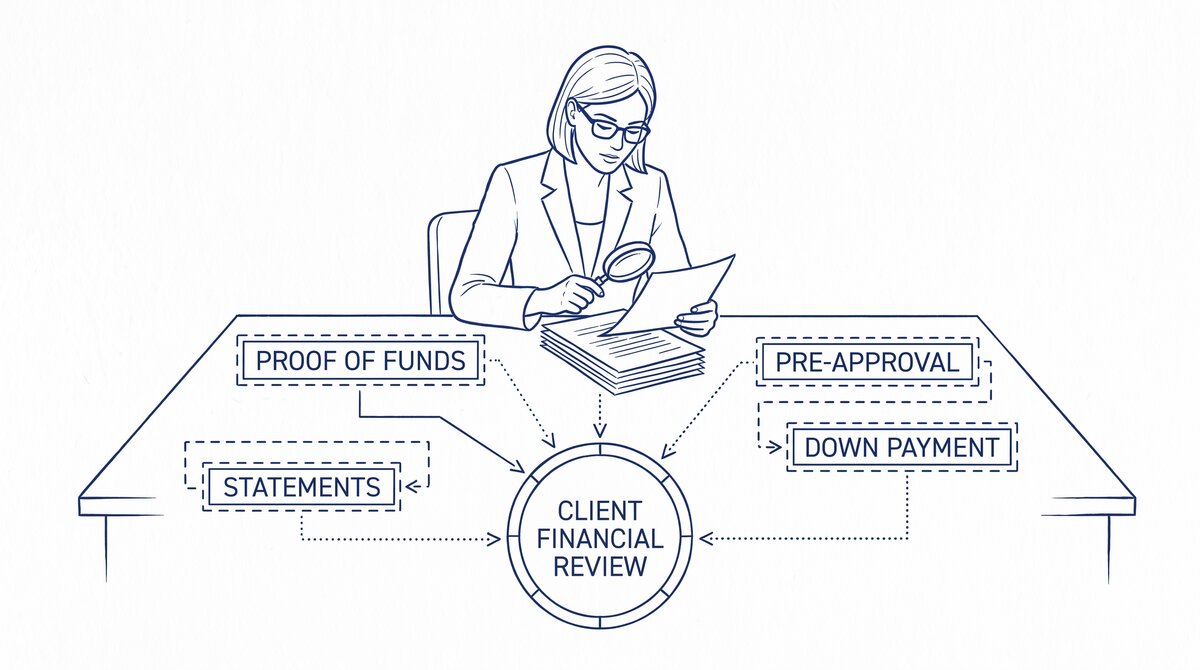
Verification against the PDF proves the conversion is faithful. Reconciliation against your books proves the file fits your accounting workflow. Both are required before you rely on the data.
Import the converted file into your accounting software or spreadsheet. Match each transaction to your existing records. Deposits should match invoices or sales. Withdrawals should match bills or expenses. Unmatched items need investigation.
Compare the converted closing balance to your bank balance in the software. They must agree. If they do not, either a transaction is missing in your books or the conversion contains an error that the PDF checks did not catch.
Timing differences are normal. A deposit recorded in your books on Friday may clear on Monday. The statement reflects clearing dates. Reconcile on clearing dates, not entry dates, and document the difference so it is not flagged again next month.
Keep the original PDF alongside the converted file. The statement remains the authoritative record. The spreadsheet is a working copy. Never delete the source once the conversion is complete.
Record keeping guidance from the IRS supports retaining statements and supporting documents for the period required for your tax situation. Consult your tax professional for the retention period that applies to you.
A repeatable verification checklist
Build this checklist into every conversion. It takes five minutes and prevents errors that cost hours later.
| Step | Action | Pass condition |
|---|---|---|
| 1 | Count transactions on the PDF | Known reference count |
| 2 | Count extracted rows | Equals reference count |
| 3 | Verify running balance chain | Each row moves balance by its amount |
| 4 | Compare opening and closing balances | Match the PDF exactly |
| 5 | Check for duplicates and blanks | None found |
| 6 | Sum deposits and withdrawals | Match statement totals |
| 7 | Reconcile to your books | Closing balance agrees |
Save your test outputs and notes. They become your baseline when you evaluate a new converter or when a bank changes its statement format. Consistency across months is as important as accuracy on any single statement.
If a spreadsheet suits your review step better, convert a bank statement to CSV follows the same verification logic. Apply the same checks to any converter you consider, including Easy Statement Sheet.
Also check privacy before uploading financial documents. A trustworthy converter processes the statement in memory and does not retain the file. Ask what happens to your data and where it is processed.
Turn PDF Bank Statements Into Workable Spreadsheets
Your bank statement is a mess of numbers, but your books shouldn't be. Use our converter to get Excel, CSV, or QBO files — ready for QuickBooks.
Try It Free Now