
Tax season rewards the business owners who prepare all year. If you only pull statements in March, you spend days chasing missing months, reconciling duplicates, and reformatting PDFs while your CPA waits. A simple annual workflow turns that scramble into a few hours of calm, predictable work. This guide lays out that workflow from January through filing day, including when to convert monthly, when to batch at year end, and how to hand a clean package to your CPA.
Why an Annual Workflow Beats Ad-Hoc Conversion
Ad-hoc conversion means downloading statements whenever you remember, converting each one by hand, and hoping nothing is missing. It works for one or two accounts. It fails the moment you add a credit card, a savings account, or a second business entity. Months get skipped. Duplicates sneak in. Personal charges mix with business ones. The result is a pile of CSVs no one can trust.
An annual workflow treats statement collection as a routine, like payroll. You gather every month, review every quarter, convert once at year end, and hand off a single organized package. The work spreads across twelve months instead of crushing one weekend. Errors surface in February, not on April 14.
The mechanism behind this difference is simple. Ad-hoc work has no checkpoints, so errors compound silently until someone notices a mismatch during filing. An annual workflow adds three checkpoints: monthly collection confirms nothing is missing, quarterly review catches categorization drift, and year-end conversion produces one consistent dataset. Each checkpoint is cheap because it handles a small batch, and each one prevents a larger problem later.
The Annual Timeline at a Glance
Four phases carry you from the first statement of the year to a filed return. Each phase has a clear job, and none of them require more than a few minutes per month.
- Monthly collection: download statements for every account on a fixed day.
- Quarterly review: spot check categories, catch missing months, flag personal charges.
- Year-end conversion: convert all statements to CSV or Excel in one batch.
- CPA handoff: deliver the organized package with a summary and notes.
From Bank Statement to QuickBooks-Ready File
That manual cleanup you just read about? This tool skips it. Turn your PDF into QBO for QuickBooks without storing your data anywhere.
Start ConvertingPhase 1: Monthly Collection
Pick one day each month, such as the fifth, and download statements for every account. Do not wait for tax season. Banks often keep only the last twelve to twenty-four months of statements online, and some charge fees for older copies. Downloading monthly protects you from that clock.
Collect from every account that touches the business, even ones you rarely use. That includes business checking, business savings, personal checking used for business charges, credit cards, merchant accounts, and payment processors like Stripe or PayPal. If a card was used for even one business purchase, its statement belongs in the folder.
Save each file with a consistent name the moment it downloads. A good pattern is YYYY-MM-AccountName.pdf, for example 2026-03-Chase-Business.pdf. Consistent names sort themselves and make duplicates obvious at a glance.
The condition that determines whether monthly collection is worth the effort is your account count. With one account, quarterly downloads are fine. With three or more, monthly collection is the only reliable way to avoid gaps, because the chance of forgetting one account rises with each additional statement.
Phase 2: Quarterly Review
Once a quarter, spend fifteen minutes reviewing what you collected. Open the folder, confirm twelve months exist for each account so far, and skim for surprises. Look for large unexplained charges, personal purchases on business cards, and any month that appears twice or not at all.
Quarterly review is also where you start tagging. You do not need full Schedule C categories yet, but noting whether a charge is business or personal saves hours later. A simple spreadsheet column with Business or Personal is enough at this stage.
This review catches the two most common errors early: a missing statement you can still download for free, and a duplicate month that would double count income or expenses.
The relationship between monthly collection and quarterly review is what makes the annual workflow reliable. Collection ensures completeness, review ensures accuracy, and conversion ensures usability. Skip any one and the whole chain weakens.
Phase 3: Year-End Conversion
After December closes, convert every statement into a usable format. Most tax software and CPAs prefer CSV. Excel works well for review and reconciliation. PDFs are for storage, not analysis. If you need help choosing, see the guide on how to bank statement conversion works and when each format fits.
For the tax prep angle specifically, our piece on how to convert bank statements for tax preparation walks through CPA-ready CSV layouts. For the mechanics of each format, see how to convert a bank statement to CSV and how to convert a bank statement to Excel.
Batch conversion beats monthly conversion for most businesses. One reason is consistency: converting all months in one pass applies the same column mapping and date format every time. Another is cost: most conversion tools charge per statement, and annual batches are easier to budget. Convert monthly only if you need live cash flow dashboards or if your bank drops older statements before year end.
Convert-as-You-Go vs Batch-at-Year-End
Both approaches are valid, and the right choice depends on how you use the data. Convert-as-you-go gives you running totals, catches errors the same month they happen, and feeds monthly reports. The cost is more conversion work spread across the year and a risk of inconsistent formatting between batches.
Batch-at-year-end concentrates the work into one session, guarantees consistent columns, and pairs naturally with the quarterly review habit. The downside is a longer session in January and a delay before you spot problems.
A hybrid often wins: convert monthly for your primary operating account, batch annually for savings and credit cards. Whatever you choose, decide once and document it so next year repeats cleanly.
Phase 4: Organizing Converted Data
Conversion without organization just moves the mess. Use a folder structure that mirrors the annual workflow and a naming convention that sorts automatically.
- Year folder, such as Tax-2026.
- Subfolders: Statements-PDF, Statements-CSV, Statements-Excel.
- Account subfolders inside each, such as Chase-Business and Amex-Card.
- File names like 2026-03-Chase-Business.csv.
Keep originals and converted files in parallel folders. Never overwrite a PDF with a CSV. If a conversion looks wrong, you want the source file one click away. Run through the conversion checklist before moving files into the final folder, and learn how to verify converted data so totals match the PDF.
Categorizing Transactions
Once everything is in CSV, categorize each transaction. For sole proprietors and single-member LLCs, the destination is Schedule C of Form 1040. Common categories include advertising, car and truck expenses, commissions, contract labor, insurance, legal and professional services, office expense, rent, repairs, supplies, taxes and licenses, travel, meals, and utilities.
Start with the big buckets. Mark every transaction as business or personal first. Then split business items into Schedule C categories. Personal items go into a separate tab or file and never into the business totals. If you use a personal card for business, that separation is the single most important step in the whole workflow.
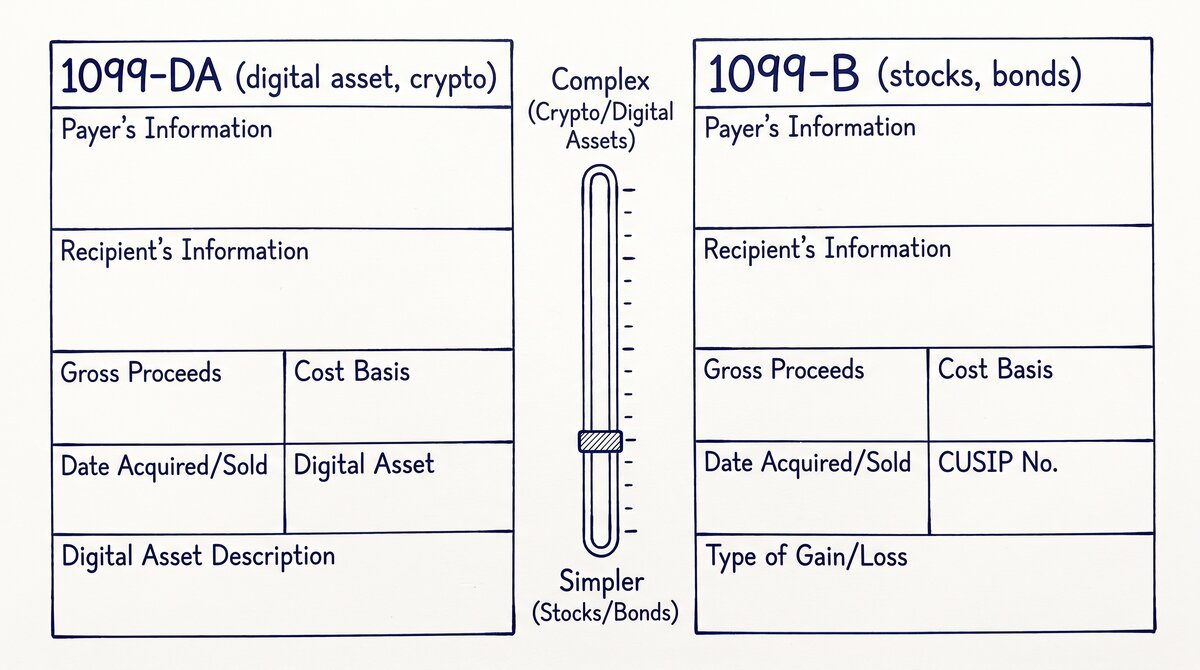
Watch for income that arrives without a 1099. Payment processors and clients may not issue one, but the income still counts. Reconcile deposits against your books rather than relying on 1099 totals alone.
Handing Off to Your CPA
A good handoff package saves your CPA time and saves you money. Include the following in one zipped folder.
- One CSV per account per year, or per month if your CPA prefers monthly detail.
- A summary sheet with total income, total expenses, and net by category.
- The original PDFs for reference.
- A notes file listing personal charges, missing months, and any unusual items.
- Your prior year return for comparison.
Ask your CPA which format they want before converting. Some prefer Excel with tabs per account. Others want one consolidated CSV. Matching their preference avoids rework and keeps the handoff smooth.
Common Pitfalls and How to Avoid Them
Missing statements are the most common problem. Fix it by downloading monthly and keeping a simple tracker. Duplicate months happen when you re-download a statement and forget to delete the old copy. Naming files with YYYY-MM prevents this. Personal versus business mixing is the most expensive error because it inflates deductions and invites audit risk. Tag every transaction before filing.
Other pitfalls include converting before checking for fees, forgetting merchant accounts and payment processors, and skipping the verification step. A five minute totals check against the PDF catches most conversion errors.
Annual Tax Season Checklist
- Download statements monthly for every account.
- Review quarterly for missing or duplicate months.
- After December closes, convert all statements to CSV.
- Verify totals against the original PDFs.
- Categorize each transaction as business or personal.
- Map business items to Schedule C categories.
- Build a summary sheet with totals by category.
- Assemble the handoff folder with CSVs, PDFs, and notes.
- Confirm format preference with your CPA.
- File and archive the year folder.
Run this workflow once and tax season becomes routine. The monthly habit takes minutes, the quarterly review takes fifteen, and the year-end conversion is a single focused session instead of a crisis. Start with this month’s statements and you are already ahead.
From Bank Statement to QuickBooks-Ready File
That manual cleanup you just read about? This tool skips it. Turn your PDF into QBO for QuickBooks without storing your data anywhere.
Start Converting