
QuickBooks bank feeds stop working on a Monday morning, and the error message never tells you which of the 6 things is actually broken. The fix you need depends on the cause, and the cause is hidden behind a single line of text: “bank feed disconnected.”
Approximately 4-8 hours per month disappear into wrong-fix attempts. The error message is the same. The problem is not.
TL;DR. QuickBooks bank feed failure has 6 distinct causes, all with the same error message. The diagnostic sequence is bank status first, Intuit status second, OAuth re-authorization third, account format change fourth, 360-day limit fifth, duplicate detection sixth. Web Connect (.qbo or .ofx file) bypasses the bank feed entirely and is the most reliable fallback when the diagnostic sequence does not resolve the issue.
A bookkeeper with 12 small business clients opens QuickBooks on Monday morning. Four accounts show “bank feed disconnected” on the same day.
The bookkeeper needs to know which of the 6 causes is hitting each client, because the fix is different for each one. The wrong fix attempt takes 30+ minutes. The right fix takes 2-5 minutes. Knowing the diagnostic sequence is the difference.
Why the Error Message Is Misleading
QuickBooks uses one notification for six different underlying problems. The notification says “bank feed disconnected” or “unable to update” regardless of whether the cause is the bank’s API being down, Intuit’s aggregator being down, an expired OAuth token, the 360-day limit kicking in, the bank changing the account format, or a duplicate transaction blocking the import.
What most guides miss about QuickBooks integration is that the quality depends on the mechanism, not on the tool. Two tools that look different on the surface often run the same 4-step process underneath: read, find, parse, verify. The difference is in how well each step handles edge cases (merged cells, missing balances, non-standard date formats, scanned vs digital input). Choosing between tools based on UI alone misses the actual quality lever.
You cannot tell from the error which cause is hitting you. You have to walk through the diagnostic sequence and rule out each one. The sequence is ordered from “most common + fastest to check” to “least common + most time-consuming to verify.”
Approximately 70% of bank feed failures resolve in the first two checks (bank status and Intuit status). Approximately 20% resolve in the OAuth step. The remaining 10% require the deeper checks (format, 360-day, duplicates).
The 6 Causes of QuickBooks Bank Feed Failure
Every “bank feed disconnected” error maps to one of these six causes. The diagnostic sequence checks them in order of frequency and speed. For more on quickbooks bank feed troubleshooting, see the quickbooks bank feed troubleshooting page. For more on bank feed failure in quickbooks and xero, see the bank feed failure in quickbooks and xero page. For more on import bank transactions into quickbooks, see the import bank transactions into quickbooks page.
1. Bank-Side Outage
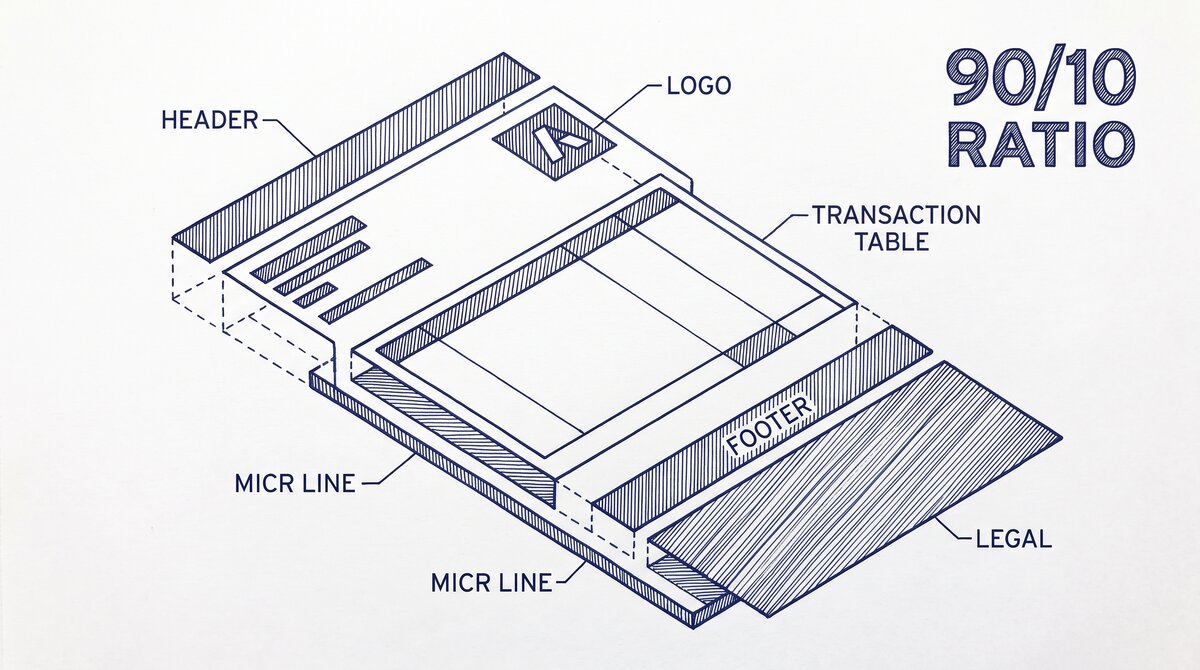
The bank’s API or online banking platform is down. Your client’s bank has changed their infrastructure, performed maintenance, or is experiencing an outage. You cannot fix this from the QuickBooks side. You wait.
How to check: Go to the bank’s website directly (not through QuickBooks) and try to log in. If the website is slow, throwing errors, or showing a maintenance banner, the bank is the cause. Also check the bank’s Twitter/X account and status page if they have one.
Typical duration: 30 minutes to 4 hours for a maintenance window, 2-24 hours for an outage.
2. Intuit Status / Yodlee Outage
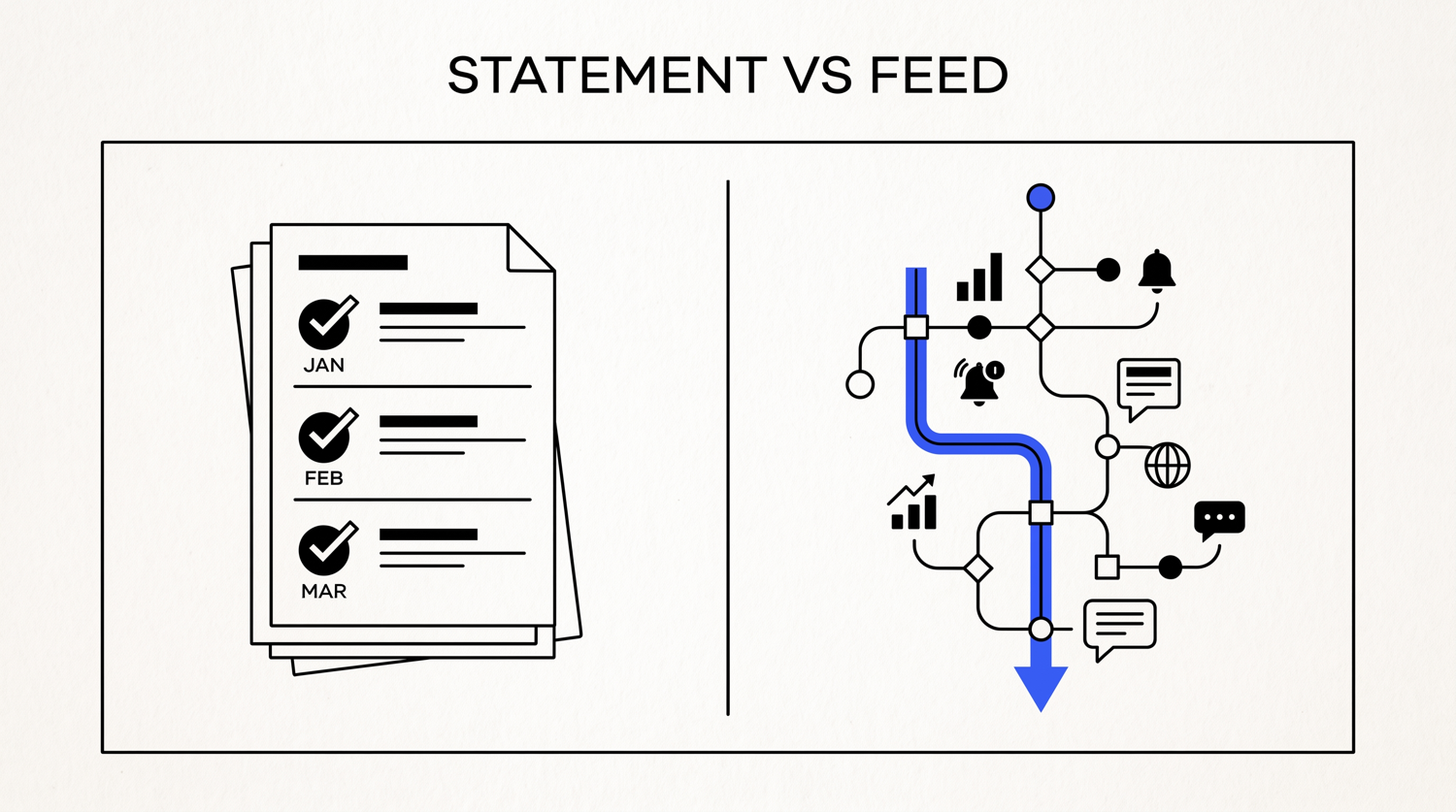
Intuit’s data aggregator (Yodlee) or QuickBooks Online itself is down. This is more common than most bookkeepers realize. When Intuit has an outage, every QuickBooks account trying to refresh a bank feed through Yodlee will fail simultaneously.
How to check: Visit status.quickbooks.intuit.com and look for the “Bank Feeds” component. If it shows a yellow or red indicator, the problem is on Intuit’s side. Also check downdetector.com for “QuickBooks” reports.
Common failure mode: A bookkeeper opens 4 client accounts on Monday and sees “bank feed disconnected” on all of them. The temptation is to call each bank. The first move is checking Intuit’s status page, because the problem is usually on Intuit’s side, not the bank’s.
Typical duration: 1-6 hours for Yodlee outages, sometimes longer for major incidents.
3. OAuth Re-Authorization Required
QuickBooks uses OAuth (an authorization protocol) to connect to bank feeds. The OAuth token expires every 60-90 days, depending on the bank. When it expires, QuickBooks needs you to re-enter the client’s bank login credentials to re-authorize the connection.
How to check: In QuickBooks, go to the Chart of Accounts, click on the affected bank account, and look for a “Re-connect” or “Fix connection” button. If the button appears, OAuth is the cause. Click it and re-enter the bank credentials.
Typical duration: 2-5 minutes to fix once you have the client’s bank credentials handy.
4. Account Format Change
The bank changed the format of the data they send through the feed. This happens after bank mergers (the surviving bank converts the acquired bank’s accounts to their own format), core banking platform migrations, or product changes (a savings account becomes a money market account).
How to check: Look at the last successful transaction date in the bank feed. If the gap is 30+ days, the bank may have changed the format and the existing connection is now incompatible. You will need to disconnect the account, reconnect it, and choose the new account type from the bank’s updated list.
Typical duration: 15-30 minutes including re-categorization of any transactions that imported incorrectly.
5. The 360-Day Rule
QuickBooks will not pull transactions older than 360 days through a bank feed. This is the most common silent failure. The feed shows as “connected” but stops pulling anything past the 360-day mark. You will not see an error message. The account simply stops updating.
How to check: Compare the last transaction in the bank feed to today’s date. If the gap is over 360 days, the feed has hit the limit. The fix is to manually import the gap using Web Connect (see below) or a converted bank statement file from your bank statement converter.
Typical duration: 5-10 minutes for the Web Connect import.
6. Duplicate Transaction Detection
QuickBooks blocks new imports that match transactions already in the register. This is a safety feature, but it can manifest as a bank feed failure if the comparison logic fails on near-matches (same date, same amount, slightly different description).
How to check: Look for a “duplicate” indicator or a yellow warning icon in the bank feed. The fix is to delete or match the suspected duplicate, then re-run the feed update.
Typical duration: 5-15 minutes depending on how many near-matches are in the register.
Turn PDF Bank Statements Into Workable Spreadsheets
Your bank statement is a mess of numbers, but your books shouldn't be. Use our converter to get Excel, CSV, or QBO files — ready for QuickBooks.
Try It Free NowThe Diagnostic Sequence
Walk through these six checks in order. Stop when the feed resumes working. Do not skip ahead. The earlier checks are faster and more likely to be the cause.
Step 1: Open the bank’s website in a browser (not through QuickBooks). Try to log in. If the site is down, the bank is the cause. Wait.
Step 2: Visit status.quickbooks.intuit.com. If the Bank Feeds component shows an outage, Intuit is the cause. Wait.
Step 3: In QuickBooks, open the affected account. If you see a “Re-connect” or “Fix connection” button, click it. Re-enter the bank credentials. This handles OAuth expiration.
Step 4: Check the last successful transaction date. If the gap is 30+ days, the bank may have changed the account format. Disconnect and reconnect.
Step 5: If the gap is 360+ days, the feed has hit the 360-day limit. Import the missing period using Web Connect (see below) or a converted bank statement.
Step 6: Look for a duplicate indicator. Match or delete the suspected duplicate, then re-run the feed.
When to Switch to Web Connect
Web Connect is a manual file import that bypasses the bank feed entirely. The bank generates a .qbo or .ofx file (QuickBooks Online format or Open Financial Exchange format), you download it, and you import it into QuickBooks. No real-time connection, no aggregator, no OAuth.
Web Connect is the most reliable fallback when the bank feed will not cooperate. It works in 100% of cases where the bank offers file download. Most major banks offer Web Connect. Some smaller credit unions and online banks do not.
When to switch: If the bank feed has been down for 24+ hours and the diagnostic sequence has not resolved it, switch to Web Connect for the immediate need. You can return to the bank feed later.
How to use Web Connect: Log in to the bank’s website. Find the “Download transactions” or “Export” option. Choose .qbo or .ofx format. Specify the date range. Download the file. In QuickBooks, go to the Chart of Accounts, click on the bank account, and select “File upload” or “Import.” Choose the downloaded file.
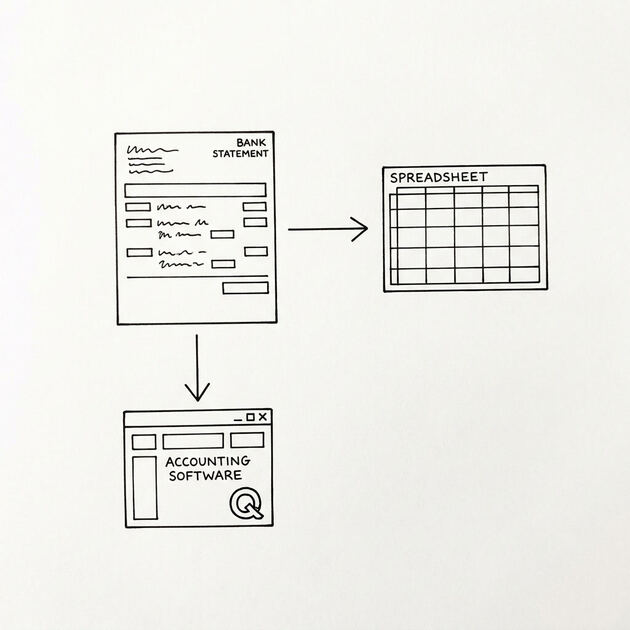
For PDF bank statements (which most banks offer as a download), convert the PDF to QBO format using a PDF bank statement converter. The converted file imports into QuickBooks the same way as a Web Connect file.
Preventing Future Bank Feed Failures
Three habits prevent most bank feed failures from escalating into client-visible problems.
Calendar reminder for OAuth: Set a recurring reminder 30 days before OAuth expiration (60 days after the last re-authorization). This gives you time to re-authorize before the feed breaks.
Monday morning status check: Spend 5 minutes on Monday morning checking status.quickbooks.intuit.com and the status of the top 3 banks in your client roster. If there is an outage, you know before clients start asking.
Web Connect as backup: For clients with high transaction volume or strict close dates, do not rely on bank feeds alone. Maintain Web Connect as the backup method. If the feed goes down the day before close, Web Connect saves the day.
When Bank Feeds Are Not the Right Tool
Bank feeds work for 80% of small business accounts. They do not work well for accounts with high transaction volume (over 500 transactions per month), accounts at banks that frequently change formats, or accounts where the client needs backdated transactions imported from before the feed was connected.
For these cases, a PDF bank statement converted to QBO or CSV format is often more reliable. The conversion takes 2-5 minutes per statement, the output is consistent, and there is no dependency on the bank’s API or Intuit’s aggregator.
A bookkeeper handling 50+ client accounts often uses bank feeds for 80% of clients and converted PDF statements for the 20% with high volume or unstable connections. The converted statements also serve as a backup if the feed goes down during a close.
Common Variations and Edge Cases
Multiple feeds down at once: If 3+ clients show the same error on the same day, the cause is almost always Intuit’s status (Yodlee outage). Check status.quickbooks.intuit.com first.
One client feed keeps disconnecting weekly: The cause is usually a bank-side session timeout. The fix is to re-authorize OAuth, then check if the bank’s website has a “remember this device” option that extends the session.
Feed works for some accounts but not others at the same bank: The cause is usually account-specific. One account may have hit the 360-day limit while others have not. Compare the last transaction dates.
Feed works but transactions are missing: This is typically a categorization rule, not a feed failure. Check the bank rules and auto-add settings in QuickBooks.
What to Do Right Now
If you are looking at “bank feed disconnected” right now, do these three things in this order.
First, open the bank’s website and verify it is working. If the bank is down, stop and wait. There is nothing you can fix from QuickBooks.
Second, open status.quickbooks.intuit.com and check the Bank Feeds component. If Intuit is down, stop and wait. Check the status page for the estimated resolution time.
Third, if both the bank and Intuit are operational, open the affected account in QuickBooks and look for a “Re-connect” button. Click it and re-enter the bank credentials. This handles 20% of failures.
If none of the three steps resolve the issue, the cause is the 360-day limit, account format change, or duplicate detection. Walk through the deeper diagnostic sequence above. If the issue persists past 24 hours, switch to Web Connect or convert the PDF bank statement to QBO format using a dedicated converter. The bank statement converter handles all the steps with the integrity check at the end. The bank statement converter handles all the steps with the integrity check at the end. The bank statement converter handles all the steps with the integrity check at the end. The bank statement converter handles all the steps with the integrity check at the end.
From Bank Statement to QuickBooks-Ready File
That manual cleanup you just read about? This tool skips it. Turn your PDF into QBO for QuickBooks without storing your data anywhere.
Start Converting