
A bank statement is a record of transactions formatted for reading, not for analysis, so the data must be reshaped before LibreOffice Calc can work with it. LibreOffice Calc imports CSV files, and each statement must become a clean table with consistent columns before it can be sorted, filtered, or reconciled.
Converting a bank statement to LibreOffice Calc means extracting the transactions, shaping them into a CSV, and importing them without retyping. The work is front loaded, but it pays back in hours saved and errors avoided.
For a small business owner, this matters because manual entry is slow and error prone. A month of transactions can take hours to key in, and one transposed digit throws off the books. A clean import removes that labor and keeps the ledger accurate, as long as the file is shaped and checked first.
Shape the file once, map the columns carefully, and reconcile after import: that is the reliable path from bank statement to LibreOffice Calc.
Key facts. LibreOffice Calc imports CSV files. Column design should include Date, Description, Amount, and Balance for reconciliation. The running balance acts as a checksum after import. Native text PDFs parse directly; scanned PDFs need OCR first. Calc supports formulas and charts for categorization and budgeting.
Accuracy depends on a clean CSV: one misaligned column or mixed date format can break sorting and reconciliation, so verify the preview before you commit the import.
Why LibreOffice Calc suits statement work
LibreOffice Calc is a free spreadsheet with full formula, chart, and CSV support. It handles the tasks a small business owner needs after conversion: categorizing expenses, running totals, and budget checks. Because it is open source and offline capable, it also fits privacy conscious workflows where data stays on your machine.
The catch is that Calc does not read PDFs natively. A statement must arrive as CSV. That is not a weakness; it is a boundary. CSV is the common language between converters and spreadsheets, so once you have a clean CSV, Calc does the rest.
Calc also shines after import. Pivot tables summarize by category, formulas compute running totals, and charts visualize spending. These tools turn a flat transaction list into real insight, which is the point of converting in the first place.
If you are still deciding between destinations, read how to choose a bank statement output format. CSV suits software pipelines and spreadsheet review, while Excel suits teams already on Microsoft tools.
If your workflow lives in the browser instead, see convert a bank statement to Google Sheets for the cloud specific steps.
| Destination | Strength | Best for |
|---|---|---|
| LibreOffice Calc | Free, offline, formula and chart support | Privacy conscious review and budgeting |
| Excel | Wide compatibility, familiar interface | Teams on Microsoft tools |
| Google Sheets | Browser based collaboration | Shared cloud workflows |
CSV as the bridge
CSV is plain text with commas separating fields. Calc reads it reliably when the file is consistent: one row per transaction, one field per column, and no stray commas inside descriptions. Quoting handles commas inside text, but simpler is better.
The conversion step is where noise is removed. Headers, footers, page numbers, and running balances that belong to the report format are stripped. What remains is a flat list of transactions with consistent fields. That flat list is what Calc expects.
For a detailed look at producing the CSV itself, see convert a bank statement to CSV. The same extraction steps apply here; only the final review happens in Calc.
| CSV rule | Why it matters |
|---|---|
| One row per transaction | Prevents phantom rows |
| Consistent date format | Enables sorting and filtering |
| Numbers without symbols | Enables math and totals |
| UTF-8 encoding | Preserves descriptions |
Refunds and fees deserve attention too. A refund is a negative expense, and a fee is a small charge that is easy to miss. Tag these explicitly so totals stay honest.
From Bank Statement to QuickBooks-Ready File
That manual cleanup you just read about? This tool skips it. Turn your PDF into QBO for QuickBooks without storing your data anywhere.
Start ConvertingColumn design for reconciliation
Design four columns at minimum: Date, Description, Amount, and Balance. Date anchors the row. Description explains it. Amount is the signed value. Balance is the running total from the statement and serves as a checksum.
Optional columns help: a Category column for grouping, a Type column for deposit or withdrawal, and a Reference column for check numbers. Add these after the core four are stable. Extra columns are easy to insert; fixing a broken core is hard.
The Balance column is the key. After import, every row should move the balance by its amount. If it does not, either the amount is wrong or a row is missing. This single check catches most conversion errors.
For a broader extraction workflow, read how to convert a bank statement to Excel. The column design there carries over to CSV and Calc.
| Column | Purpose | Example |
|---|---|---|
| Date | Row anchor | 2026-11-03 |
| Description | What happened | Coffee shop |
| Amount | Signed value | -4.50 |
| Balance | Checksum | 1,234.56 |

Step by step import into Calc
Step one is extraction. Upload the PDF to a converter and let it detect the table. Review the proposed rows, check the count against the statement, and fix wrapped descriptions or page break splits before exporting.
Step two is shaping. Set column order, date format, and number format. Save as CSV with UTF-8 encoding so descriptions survive. Avoid thousand separators in numbers; Calc can format them later.
Step three is the import. Open Calc, choose File then Import, select the CSV, and set the separator and encoding. Map each column to its type: date as date, amount as number, description as text. Do not let Calc guess types blindly.
Step four is review. Scan the first and last rows, check a few descriptions, and confirm the count. Fix anything odd before saving as an ODS or XLSX file.
Step five is reconciliation. Compare opening and closing balances to the statement. Walk the running balance row by row. If they match, the import is sound.
Consider a dry run with one page first. Import a small batch, reconcile it, and confirm the mapping before processing the full month. Catching an error on ten rows is far cheaper than catching it on three hundred.
| Step | Action | Check |
|---|---|---|
| 1 | Extract transactions | Row count matches statement |
| 2 | Shape the file | Columns, dates, and formats set |
| 3 | Import CSV | Column types mapped |
| 4 | Review rows | Descriptions and counts correct |
| 5 | Reconcile | Opening and closing balances match |
Verifying with the running balance
Reconciliation is the proof. After import, compare the sheet’s opening balance to the statement’s opening balance, and the closing balance to the closing balance. They must match exactly. If they do not, the import has a gap.
Walk the running balance row by row. Each transaction should move the balance by its amount. A mismatch points to a wrong amount, a flipped sign, or a missing row. Fix the source file and reimport rather than editing the sheet by hand.
Watch for duplicates. If you import the same statement twice, every row doubles. Calc will not warn you. Compare row counts and check for identical entries before you finalize.
Also check signs. Deposits should appear as positive amounts and withdrawals as negative, or vice versa depending on your convention. A sign flip turns a payment into a deposit and corrupts totals until corrected.
Formulas make this check fast. A simple running balance formula in the Balance column lets you recompute the total and compare it to the statement. If the last computed value matches the statement’s closing balance, the rows are consistent.
For a tool that helps automate extraction and review, see bank statement to Excel converter. A clean extraction upstream makes reconciliation downstream much easier.
Common pitfalls and how to fix them
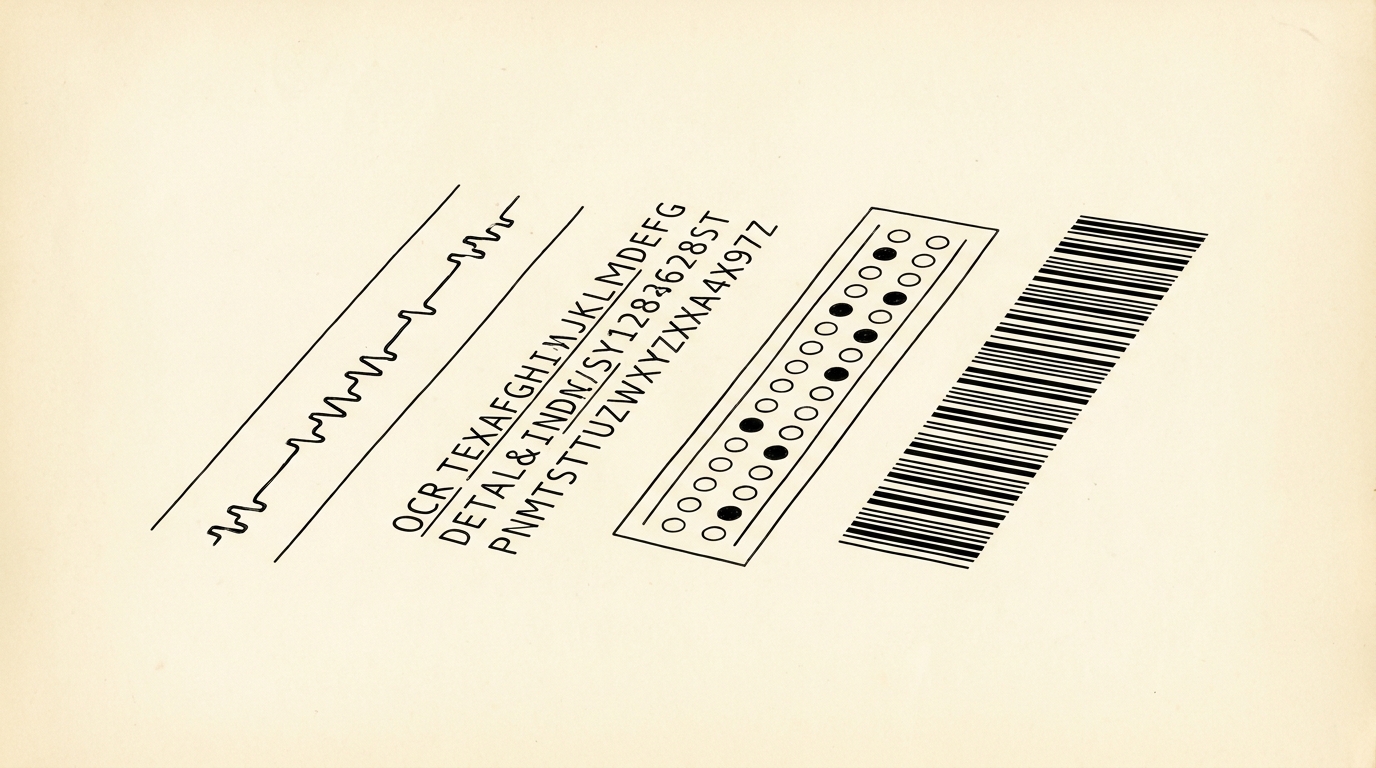
Scanned statements are the first hurdle. A scanned PDF is an image with no text layer. OCR is required, and OCR errors in amounts are common. Whenever possible, download a digital statement with a text layer from your bank portal. Note that OCR here is general industry knowledge, not a product feature of the converter.
Wrapped description lines create phantom rows. A long memo continues on the next visual line, and a naive parser treats it as a new transaction. Merge those lines during extraction.
Page breaks can split a transaction across two pages. Check the first and last rows of every page, and rejoin any partial rows.
Encoding problems hide in descriptions. Accented characters and smart quotes can turn into garbage. Save the file as UTF-8 and spot check a few rows before importing.
Finally, avoid mixing date formats. A file with both MM/DD/YYYY and DD/MM/YYYY rows will sort incorrectly. Standardize on ISO format YYYY-MM-DD before import.
Keep a short log of each import: source file name, date range, row count, and whether reconciliation passed. That log becomes your audit trail and makes future imports faster because you can reuse the same column mapping.
Filtering by category reveals patterns once the data is clean. Select the transaction range, apply a filter, and group by category to see where money goes each month. This step turns raw transactions into a budget review.
Back up the original CSV before you start editing. If a reconciliation fails, you can return to the source file instead of re-extracting from the PDF. Keep one folder per statement with the PDF, the CSV, and the final sheet.
If you also use Apple Numbers, the workflow is similar but the import dialog differs. Read convert a bank statement to Numbers for the specifics.
Turn any PDF statement into a clean sheet
Skip the typos and the hours of copying. Our converter handles any bank statement format and outputs Excel, CSV, or QBO for QuickBooks. No file retention, free to try.
Convert your statement