
Why output format matters after conversion
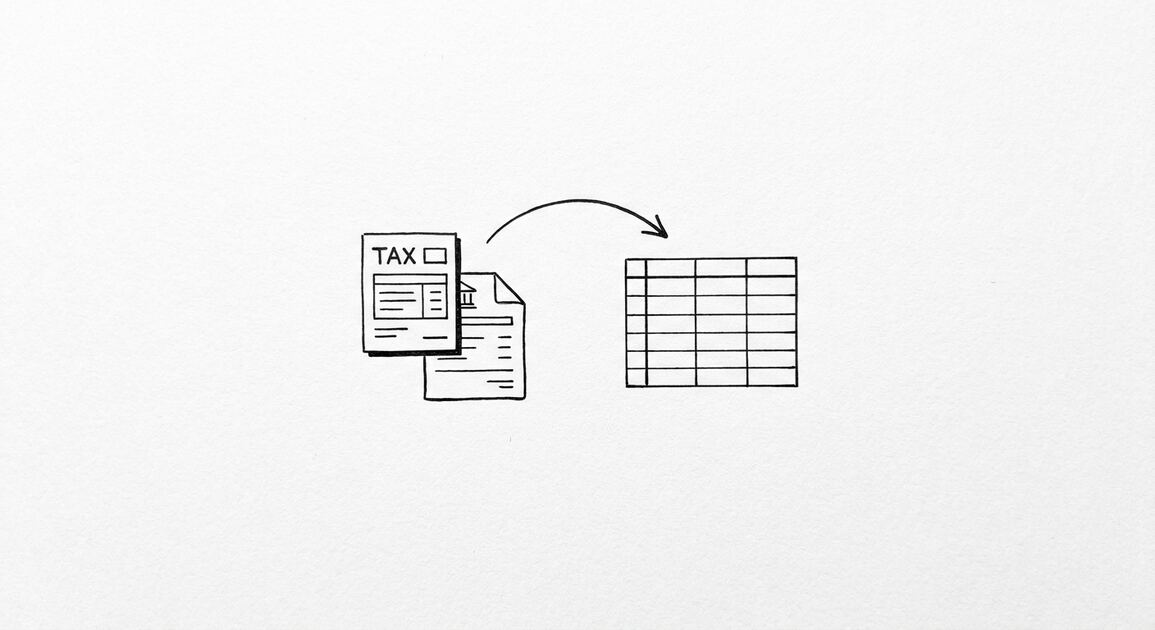
The format you pick after converting a bank or credit-card statement to a workable dataset determines how easily the rest of your workflow runs.
Most readers convert statements to feed a downstream tool: a spreadsheet review for monthly close, an accounting import for QuickBooks, an automated pipeline for analysis, or a shared Google Sheet with a remote bookkeeper.
Each of these downstream tools assumes a different shape. Picking the wrong format forces manual cleanup that the conversion step was supposed to eliminate.
This page walks the four canonical output formats and the decision logic that ties each one to the downstream job-to-be-done.
The four canonical formats at a glance
The canonical outputs for a converted statement are Excel .xlsx, CSV .csv, a Google Sheets-compatible spreadsheet, and QuickBooks Web Connect .qbo.
Each format is a different route to a different destination. They are not interchangeable ways of saying the same thing.
Excel holds the same rows in a human-friendly spreadsheet. CSV is the universal interchange format any tool or script can read.
Google Sheets-compatible output drops the data directly into a cloud spreadsheet for review. QBO packages the data for QuickBooks import.
Picking the right format is the first step in designing a workflow that scales across clients, banks, and tools.
Turn That PDF Into a Spreadsheet in Minutes
You've seen how to do it manually — now let the tool handle the heavy lifting. Upload your bank statement and get Excel, CSV, or QBO in a few clicks.
Try It FreePick XLSX when a person will work directly with the data
Excel .xlsx is the right call when the next step is human review on the spreadsheet itself: sorting, filtering, adding manual categories, or computing formulas across rows.
A common case is month-end review: open the converted statement, scan for unknowns, add a category column, build a pivot on top.
Excel is also the right format when you are sharing the converted file with a tax preparer or accountant who will do their own analysis in their workbook.
Excel preserves the four canonical columns plus any added fields cleanly. It also supports local sorting and filtering without any third-party tool.

Pick CSV when software or scripts consume the data
CSV is the universal interchange format. If the next step is an import, a database load, a script, or a data pipeline, CSV is the safe default.
CSV is also the format the smallest number of downstream tools will refuse. Most accounting tools, analytics tools, and database loaders treat CSV as the lingua franca.
Two practical cautions: CSV does not preserve rich text formatting in the Description column. It also has no native date format guarantee.
If your downstream tool expects a specific date layout (MM/DD/YYYY versus YYYY-MM-DD), confirm before you import the file. Some tools silently reject rows with mismatched dates.
Pick Google Sheets-compatible output when the review happens in the cloud
If your bookkeeper reviews the data in a shared Google Sheet rather than in a desktop spreadsheet, the Google Sheets-compatible output is the cleanest choice.
Some converters push the data into a Google Sheet directly via API. Others export a flat file that opens correctly when imported.
Cloud-based review means multiple stakeholders can add comments, mark items, or assign follow-up without passing a file around. The previous spreadsheet no longer needs to be re-saved and re-shared.
For remote teams and contractors, this format reduces the email-bouncing of one xlsx file as the canonical ledger.
Pick QBO when QuickBooks is the destination
QBO is the right output when the next step is a QuickBooks import. The file follows QuickBooks Web Connect conventions for transaction records.
QBO files can usually be matched against the bank feed in QuickBooks Online or Desktop. The import usually creates a batch of transactions for review in the bank register.
For businesses that standardize on QuickBooks, picking QBO avoids the second step of exporting from Excel back into QuickBooks.
QBO is more specific than CSV. It is also less universal than CSV. Never pick QBO if the downstream tool is not QuickBooks.
The decision rule in one sentence
The format follows the downstream tool: XLSX for a human, CSV for a script, Google Sheets-compatible for a shared cloud sheet, QBO for QuickBooks.
When in doubt, default to CSV unless you have a specific reason to pick one of the other three. CSV is the lowest commitment.
If the downstream tool expects a specific date or column layout, the format may need adjusting after conversion. The converter produces the rows. The downstream tool decides the layout.
Worked example: small business monthly close
A small business owner converts a Chase business checking statement at month-end. The next step is bookkeeping in QuickBooks.
The owner picks QBO first. The QBO file imports cleanly into QuickBooks. The bookkeeper reviews the register, categorizes the rows, and reconciles.
For the spreadsheet pivot the owner wants for cash-flow analysis, the converter can also produce an XLSX file. That XLSX becomes the analysis workbook.
Two formats from one conversion. The format picked depends on what happens next to each copy.
Worked example: bookkeeper batch processing 30 clients
A bookkeeper serving 30 small businesses converts monthly statements for every client. The downstream tool is a per-client QuickBooks file.
Each conversion is output as QBO. The QBO goes directly into the matching client file. No spreadsheet intermediaries are required.
For an internal summary the bookkeeper wants in Google Sheets, a parallel set of files is exported as Google Sheets-compatible output.
The per-client QuickBooks import is the system of record. The Google Sheet is the cross-client reporting layer.
Privacy and verification matter across every format
Across every output format, two qualities separate a trustworthy converter from a fragile one: balance verification and data retention discipline.
Balance verification means the converter checks that the printed running balance on the original statement matches the sum of the extracted deposits and withdrawals. Verification catches extraction errors early.
Data retention discipline means the uploaded statement contents and the converted financial rows are not persistently stored after the file is delivered. Volatile memory only.
These qualities are independent of the output format. A CSV file with a verified balance and zero persistent retention is more trustworthy than an XLSX file without either guardrail.
How this fits the full conversion workflow
Independently of any specific tool, the conversion workflow is: extract transactions, validate against the printed balance, then deliver in the format your downstream tool expects. The four canonical columns are Date, Description, Amount, and Balance, with the merchant category code or rail label preserved as inline text on credit-card or bank-account statements.
For converting supported bank or credit-card statements directly into the four canonical columns, Easy Statement Sheet is one practical option. The service supports XLSX, CSV, Google Sheets-compatible, and QBO outputs, all driven by the downstream use case.
The service verifies the extracted rows against the printed running balance before delivering the file. Statement contents and converted rows are processed in volatile memory and are not persistently retained after download.
Select the output that matches what happens next. XLSX for human review. CSV for any software consumer. Google Sheets-compatible output for shared cloud review. QBO for QuickBooks import.
Special case: scanned versus digital statements
The decision rule above applies to a converted digital PDF statement. Scanned statements behave differently and most online converters do not accept them.
A digital PDF is generated by the bank or card issuer at statement time. The numbers and merchant strings are text. An OCR engine reads them into rows.
A scanned statement is a flat image of a paper document. The numbers and merchant strings are pixels. Reliable extraction requires a more expensive OCR pipeline.
If your source is a scanned statement, confirm the converter supports it before assuming any of the four output formats will work as expected.
Edge case: bank feeds and recurring exports
Some accountants set up recurring bank-feed exports straight into QuickBooks. A converted statement can repeat the same flow without manual intervention.
When the source bank supports a direct QuickBooks feed, the converted QBO output has less value. It still works as a one-time import for catch-up work.
When the source bank does not support a direct feed, QBO output from the conversion becomes the bridge that makes recurring bookkeeping feasible.
The export decision depends on whether the QuickBooks feed is live, broken, or simply not offered. Each scenario changes the cost-benefit of the conversion step.
When the format decision crosses an accountant’s handoff
Many conversions end at a tax preparer or external bookkeeper. The format you pick affects how the handoff happens.
A CSV file drops into a tax preparer’s workflow with predictable column positions. The preparer runs their own macros on top.
An XLSX file with named sheets gives the preparer a workbook view they can extend. They add their own categories, totals, and tax-form mappings.
A QBO file imports into QuickBooks and the tax preparer reviews the register entries after the fact. The preparer is downstream of QuickBooks in this case.
Pick the format that the next person in the handoff chain expects. Do not pick the format that is convenient for you.
Quick reference table
Use this table as a quick rule of thumb. Pick the format row that matches your downstream consumer.
XLSX row: pick when a person is reviewing the data on the spreadsheet. Best for formula analysis, sorting, and category enrichment.
CSV row: pick when scripts, pipelines, or accounting tools consume the data. Most portable. Verify the date layout downstream.
Google Sheets row: pick when shared review happens in the cloud. Drop the data into a shared sheet for comment-based workflows.
QBO row: pick when QuickBooks is the system of record. The output imports directly and produces register entries for review.
For multi-format needs, run the conversion twice with different output choices. Each format is independent.
Turn PDF Bank Statements Into Workable Spreadsheets
Your bank statement is a mess of numbers, but your books shouldn't be. Use our converter to get Excel, CSV, or QBO files — ready for QuickBooks.
Try It Free Now