
You are a freelance web designer who earned $86,000 from three different clients last year. In mid-January, the mail brought three separate 1099-NEC envelopes, one from each client. Each PDF shows what they paid you, what they withheld, and their tax ID.
Your CPA wants the data in Excel before your meeting next Thursday, and you also want to reconcile the amounts with your bank deposits to make sure no payments were missed or misreported. You have a folder of three PDFs, a vague sense that the data is structured, and no patience for retyping numbers by hand from a tax form.
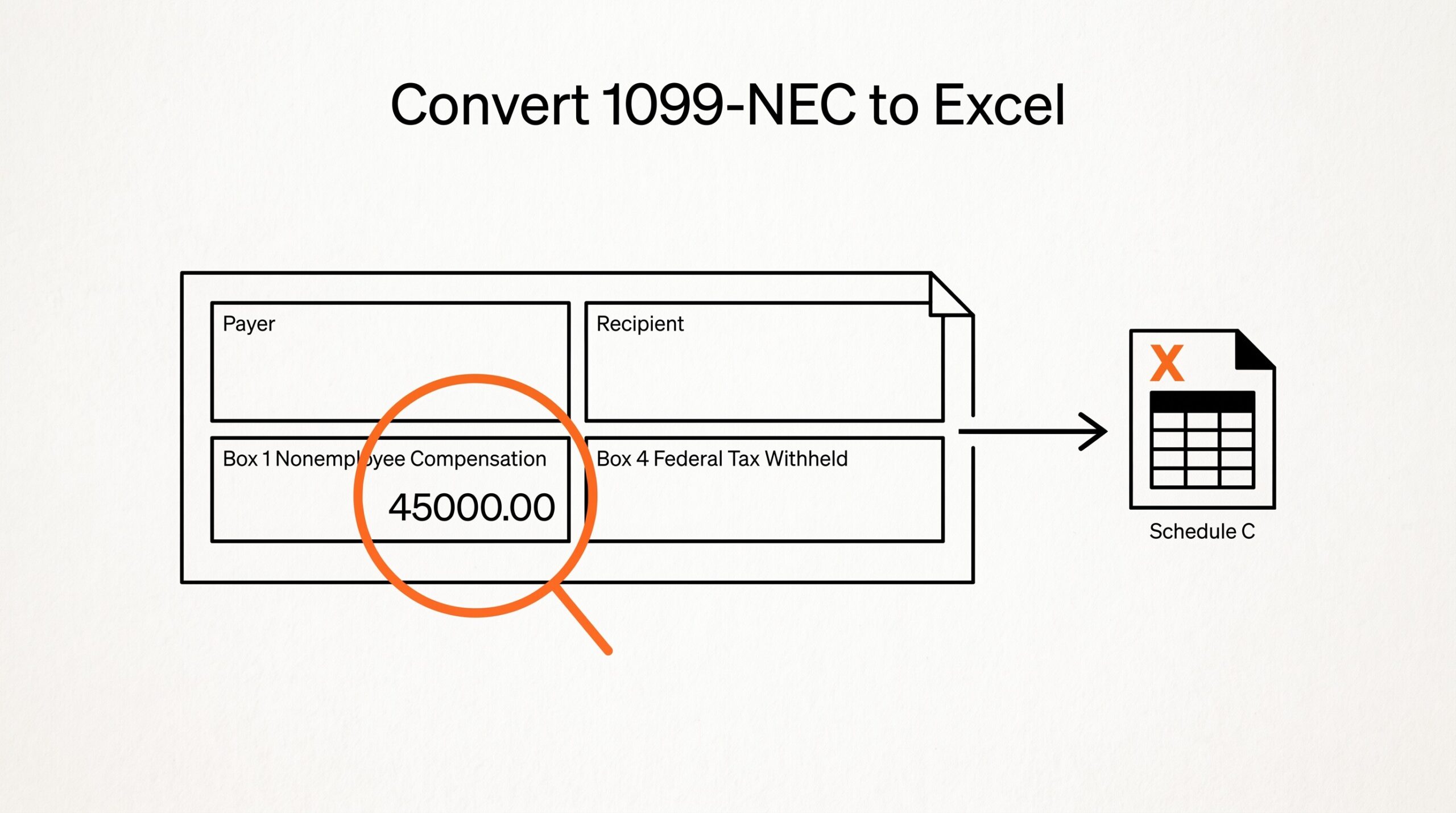
Converting a 1099-NEC PDF to Excel is straightforward once you know which fields matter and what to do with them after extraction. The 1099-NEC has standardized boxes that show up on every form: Box 1 reports the nonemployee compensation you received, Box 4 reports any federal income tax withheld, and Box 5 reports state tax withheld. The conversion tool extracts these fields into structured columns.
Imagine you are a freelance designer opening three envelopes in mid-January. Inside each one is a 1099-NEC PDF from a different client you worked with last year. Each shows the amount paid, the payer’s tax ID, and (for one of them) a small amount of federal tax withheld.
Your CPA wants the data in Excel by Thursday, and you also want to reconcile every deposit from those clients against what each payer reported.
Once the data is in Excel, you can sort, filter, total, and reconcile with your bank deposits before handing the file to your CPA. The whole workflow, from PDF to reconciled Excel, typically takes less than 15 minutes per form.
Quick Answers: A 1099-NEC is the IRS form that payers use to report nonemployee compensation over $600 paid to independent contractors. Converting a 1099-NEC PDF to Excel extracts the standardized fields (payer info, recipient info, Box 1 nonemployee compensation, Box 4 federal tax withheld, Box 5 state tax withheld) into spreadsheet columns.
ESS converts 1099-NEC PDFs to Excel with the same workflow used for bank statements. After conversion, the Box 1 totals flow to IRS Schedule C Line 1, and Box 4 federal tax withheld flows to Form 1040 as a tax payment credit.
What the 1099-NEC Form Actually Contains
The 1099-NEC has a standardized layout that the IRS publishes. Whether you received a digital PDF or a scanned paper form, the same fields appear in the same general locations. Knowing what the form contains helps you verify that the conversion captured everything.
The top section identifies the payer (the business that paid you). The fields include the payer’s legal name, address, telephone number, and federal Taxpayer Identification Number (TIN), which is typically their Employer Identification Number (EIN). The payer also reports their contact person and account number if applicable.
This section is useful for cross-referencing with your own records and with the deposits that show up on your bank statement.
The middle section identifies the recipient (you, the contractor). The fields include your name, address, and federal TIN, which is typically your Social Security Number (SSN) for sole proprietors or your EIN if you operate as a corporation or LLC and elected to be taxed as a corporation.
Some 1099-NEC forms also include your email address and phone number if the payer has that on file.
The bottom section contains the numbered boxes with the actual financial amounts. The most important boxes for conversion are:
- Box 1: Nonemployee compensation. This is the total amount the payer paid you during the calendar year. For tax purposes, this typically flows to Schedule C Line 1 (gross receipts) for sole proprietors or to the appropriate income line for corporations and partnerships.
- Box 2: Payer made direct sales totaling $5,000 or more of consumer products to a person for resale. This box is checked only for specific situations (buy-sell or deposit-commission arrangements) and is empty for most contractors.
- Box 3: Reserved. This box is reserved by the IRS and typically empty.
- Box 4: Federal income tax withheld. This is the amount the payer withheld from your payments and remitted to the IRS on your behalf. It is typically 0% for independent contractors, but some payers withhold backup withholding (24%) if you failed to provide a valid W-9. The amount in Box 4 flows to Form 1040 Line 25c as a federal tax payment.
- Box 5: State tax withheld. If you are in a state with income tax and the payer withheld state taxes, the amount appears here. The state itself is identified in Box 6, and the state ID appears in Box 7.
- Box 6: State identifier (two-letter state code). Empty if no state withholding.
- Box 7: State ID number. Empty if no state withholding.
For more on the broader landscape of 1099 forms and how they interact with bank statements, the 1099-DA form overview covers the related IRS form for digital asset transactions, which has a different structure but similar reconciliation workflow.
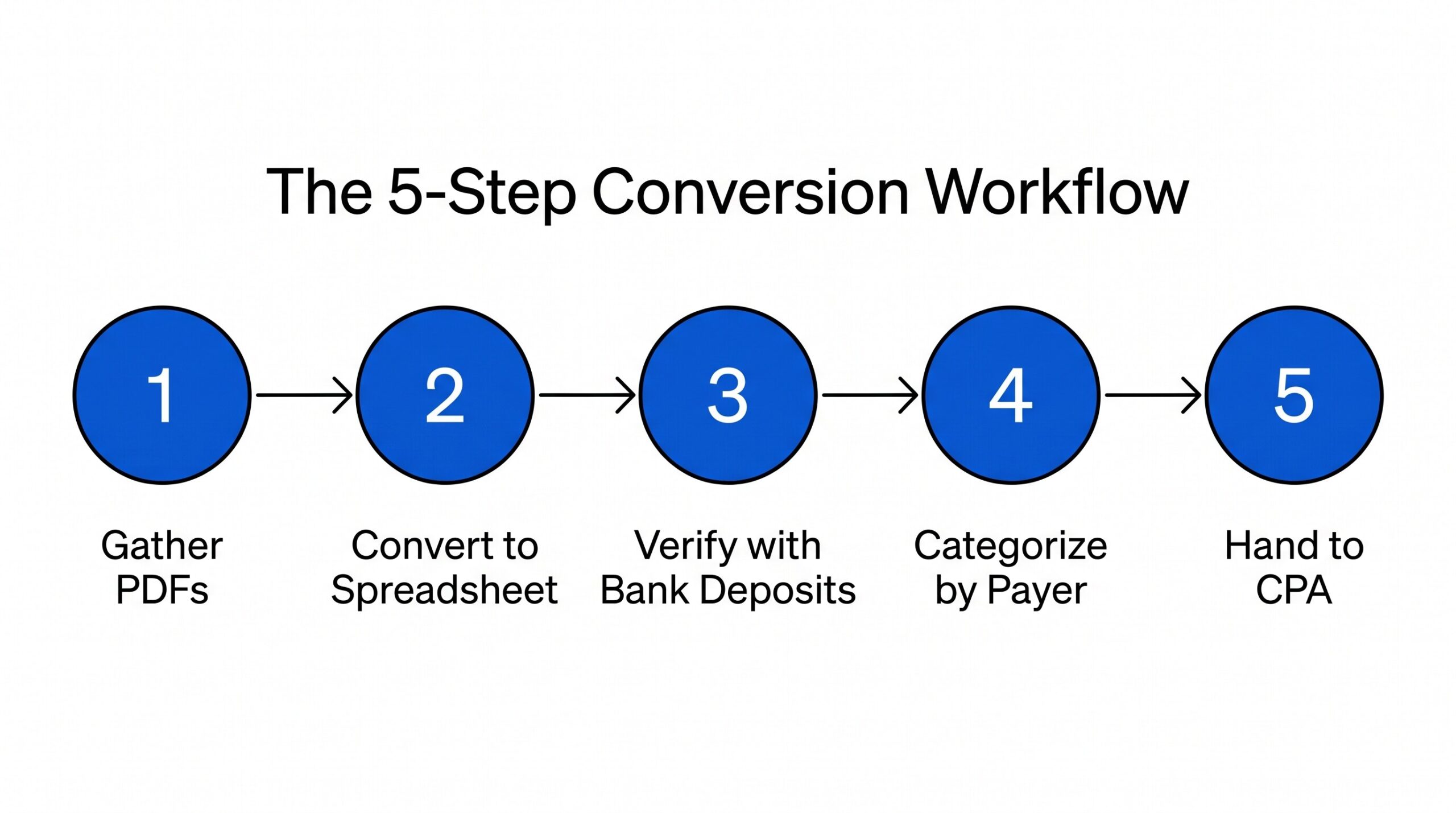
The 5-Step Workflow for Converting 1099-NEC to Excel
The conversion workflow is the same regardless of which specific tool you use. Five steps take a PDF from “received in the mail” to “ready for the CPA.”
Step 1: Gather all your 1099-NEC PDFs. Most contractors receive multiple 1099-NECs from different payers. Put them all in one folder with clear filenames (e.g., “1099-NEC-ACME-CORP-2025.pdf”). Having all the forms in one place before you start conversion prevents the scenario where you remember a missing form halfway through the workflow.
Step 2: Verify each form is complete and legible. Before conversion, open each PDF and confirm that all fields are visible. Scanned paper forms sometimes have faded areas, missing corners, or unclear text that affects OCR accuracy. If a form has illegible sections, contact the payer for a replacement.
ESS conversion works with both digital PDFs and scanned paper forms, but the conversion accuracy depends on the form quality.
Step 3: Convert each PDF to a structured spreadsheet. The extraction process is similar to the PDF transaction extraction workflow used for bank statements, but the form layout differs and the output targets the 1099-NEC box structure. Upload each PDF to your conversion tool. ESS reads both digital PDFs (where text is selectable) and scanned paper forms (where OCR is needed).
The output is a row per 1099-NEC, with columns for each Box. For multiple forms, the output typically combines them into one spreadsheet with one row per payer.
Step 4: Verify the extracted data. Open the converted Excel and check that each row matches the original PDF. Spot-check three fields per row: payer name (Box 1 / header), Box 1 amount, and Box 4 amount if non-zero. If any field looks wrong, compare back to the PDF to confirm whether the conversion misread the form or the form had an error.
Most conversions are accurate to 99%+ on digital PDFs and 95%+ on scanned paper forms.
Step 5: Reconcile with bank deposits. For each 1099-NEC, look up the payments from that payer in your bank statement. The total of the bank deposits from that payer should match (or be close to) the Box 1 amount on the 1099-NEC.
Differences typically fall into three categories: timing (payments near year-end may post in January of the next year), fees (a payment processor fee may reduce the net deposit), or errors. Reconcile before sending to your CPA.
From Bank Statement to QuickBooks-Ready File
That manual cleanup you just read about? This tool skips it. Turn your PDF into QBO for QuickBooks without storing your data anywhere.
Start ConvertingReconciling 1099-NEC with Your Bank Statement
Reconciliation is the most important step in the workflow, and the one that most articles skip. The goal is to confirm that the income reported on your 1099-NEC matches what actually hit your bank account. Three things can cause a mismatch.
For a broader view of how to categorize bank deposits across all income types, the bank transaction categorization workflow covers the consistent rules that make reconciliation work. Timing differences. A payment dated December 28 may not clear your bank account until January 2, meaning the deposit shows up in the next year’s bank statement rather than the current year’s.
The 1099-NEC reports the payment based on when it was issued, not when it cleared. So if you did $10,000 of work in December and the client paid you on December 28, the 1099-NEC for the current year shows $10,000, but your bank statement shows the deposit in January of next year. This is normal and not an error.
Payment processor fees. If your client paid you through a payment processor like PayPal or Stripe, the processor may charge a fee that comes out of your deposit. Your bank statement shows the net deposit (after the fee), while the 1099-NEC typically reports the gross amount the client paid.
So your $1,000 invoice may show as $970 in the bank with a $30 PayPal fee, but the 1099-NEC reports $1,000.
Errors. Sometimes payers report incorrect amounts. A typo, a missing payment, or a duplicated payment can create a mismatch between the 1099-NEC and your actual deposits. When this happens, contact the payer to issue a corrected 1099-NEC. The IRS has a specific form for this, called a corrected 1099-NEC, which the payer files with both you and the IRS.
For a broader workflow on reconciling bank statements with tax documents, the 1099-DA bank statement reconciliation guide covers a similar process for digital asset transactions. The principles (timing, fees, errors) apply across 1099 form types.
How 1099-NEC Income Flows to Schedule C
Once the 1099-NEC data is in Excel and reconciled with bank deposits, the next step is using it for tax filing. For sole proprietors (which covers most independent contractors), the income flows to Schedule C as part of gross receipts.
Box 1 (Nonemployee compensation) typically goes to Schedule C Line 1 (Gross receipts). If you have multiple 1099-NECs from different payers, you sum the Box 1 amounts and report the total on Line 1. You may also add any cash income not reported on 1099-NEC to Line 1, but you should not double-count by including the same income twice.
Box 4 (Federal tax withheld) typically goes to Form 1040 Line 25c (Federal income tax withheld from Form W-2 and 1099). This is a tax payment credit, not an expense. The amount in Box 4 reduces your tax bill dollar-for-dollar. If you have multiple 1099-NECs with Box 4 amounts, sum them and report on Line 25c.
Box 5 (State tax withheld) typically goes to your state income tax return as a payment. The state withholding is separate from federal withholding and applies to your state tax liability. If you file in multiple states or have 1099-NECs from payers in different states, each state’s withholding is reported separately.