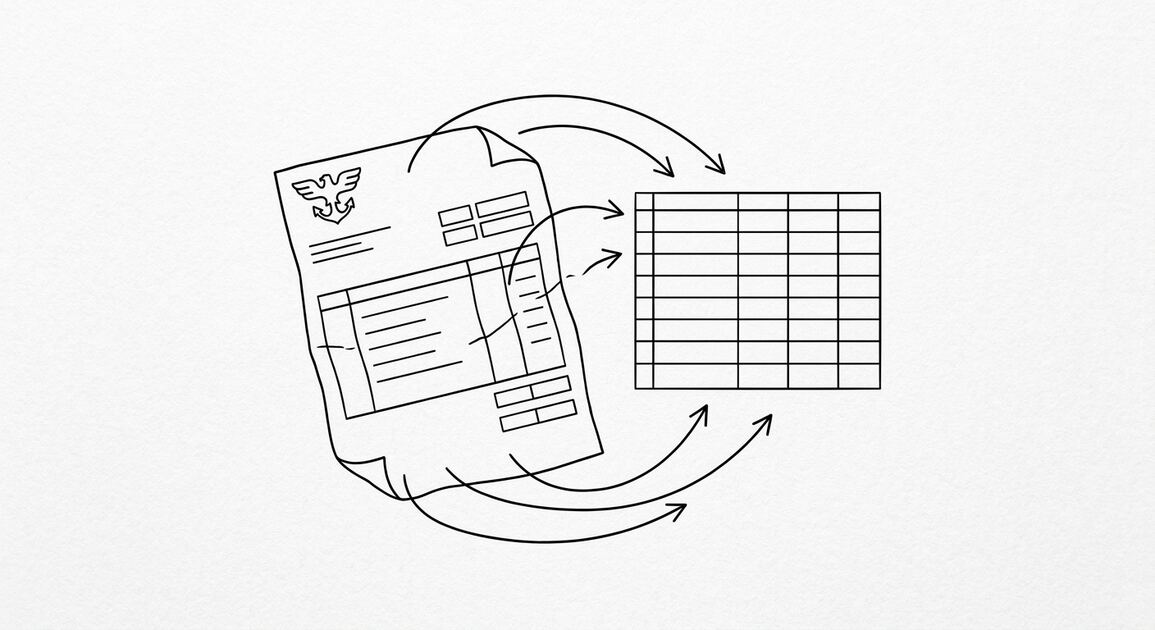

You have a bank statement. You need it in QuickBooks.
The wrong tool gives you a CSV that does not match QuickBooks’ column format, or a QBO file that does not import at all.
What most guides miss about this: the right output format depends on the destination, not the source. The same PDF can produce 4 different output files, each with different downstream impact.
This page is the guide to converting a bank statement to QuickBooks. It covers the 3 QuickBooks-compatible output formats (QBO, CSV, Excel), the import dance in QuickBooks Online and QuickBooks Desktop, and the 5 things that go wrong. The bank-specific conversion guides for 11 major US banks are linked below.
Converting a bank statement for QuickBooks (also called bank statement to QuickBooks, or convert PDF bank statement for QuickBooks) produces a file that QuickBooks imports as a native bank feed. The QBO format is the cleanest. CSV works but requires column mapping. Excel works for review but requires manual entry into QuickBooks.
For QuickBooks Online, the QBO file imports through Banking, then Upload transactions. For QuickBooks Desktop, the QBO file imports through File, then Utilities, then Import, then Web Connect. The import is automatic once the format matches QuickBooks’s expectations. The input PDF can be a digital or scanned bank statement; the QBO output is the same in both cases.
For specific banks, see the bank export guide. For the QBO format specifically (technical spec, file structure, OFX standard), see the QBO conversion guide. For the broader bank statement workflow, see the bank statement converter guide.
The QuickBooks Import Path at a Glance
There are three ways to get bank statement data into QuickBooks. The path you pick depends on which QuickBooks you use (Online vs Desktop), how recent the data is (last 90 days vs older), and what format the source data is in (PDF vs CSV vs QBO).
The Online vs Desktop difference
QuickBooks Online (the SaaS version) is more flexible on input. It accepts QBO, QFX, OFX, and CSV files. CSV requires manual column mapping during import. QuickBooks Desktop (Pro, Premier, Enterprise) is stricter: it only accepts .qbo Web Connect files for bank transaction imports. Not CSV, not Excel, not PDF. If you have Desktop, your path is QBO and only QBO.
The 3 import paths
The three paths are: (1) Direct bank feed, where QuickBooks Online connects to your bank and syncs transactions automatically; (2) QBO file upload, where you import a .qbo file you generated from a bank statement; (3) CSV file upload, where you import a .csv file (Online only). Each path has its place.
Path 1: Direct Bank Feed (QuickBooks Online Only)
The direct bank feed is the easiest path when it works. QuickBooks Online connects to your bank through Intuit’s bank feed network, signs in with your banking credentials, and pulls transactions automatically. Transactions sync daily. No file conversion, no upload, no mapping.
How it works
You go to Banking, Link account, search for your bank, sign in with your bank credentials, and QuickBooks pulls the last 90 days of transactions. From then on, new transactions appear in the For Review tab daily. You categorize and match them. The feed stays connected as long as your bank supports it.
The 90-day limit
Direct bank feeds only pull the last 90 days of transactions. If you need older data (the 6 months before you set up the feed, last year’s reconciliation, historical client work), the direct feed cannot help. You need Path 2 (QBO) or Path 3 (CSV). This is the single most common reason a direct-feed user ends up on this page.
When to use it
Use direct bank feed for ongoing bookkeeping, daily transaction sync, and the last 90 days of new accounts. Do not use it for historical data, paper statements, or banks that do not support QuickBooks feeds.


From Bank Statement to QuickBooks-Ready File
That manual cleanup you just read about? This tool skips it. Turn your PDF into QBO for QuickBooks without storing your data anywhere.
Start ConvertingPath 2: QBO File Upload (Both Online and Desktop)
The QBO file is the canonical format for QuickBooks imports. It works in both Online and Desktop. The conversion is not optional for Desktop, but it is also the cleanest path for Online.

What a QBO file is
A QBO file is a Web Connect file, the bank transaction format QuickBooks reads natively. It is a structured text file with a .qbo extension that identifies the financial institution, the account, the account type, and each transaction with a unique ID.
The format is based on OFX (Open Financial Exchange). When QuickBooks reads a QBO file, it knows exactly where each field goes. No column mapping.
How to import into QuickBooks Online
Go to Transactions, then Bank transactions in the left menu. Click the dropdown arrow next to Link account and choose Upload from file. Select your .qbo file. Pick the QuickBooks account the transactions belong to (this must be an account in your chart of accounts, not the bank’s name).
Review the preview, deselect anything you do not want, and click Continue. The transactions land in the For Review tab ready to match and categorize.
How to import into QuickBooks Desktop
Open QuickBooks Desktop. Go to File, then Utilities, then Import, then Web Connect Files. Browse to your .qbo file and select Open.
The Select Bank Account dialog opens. Choose Use an existing QuickBooks account and pick the matching account, or Create a new QuickBooks account. Click Continue. QuickBooks confirms the data has been imported and sends the transactions to the Bank Feeds Center.
Open Banking, then Bank Feeds Center, then open the account and review the Transactions List. Add new transactions, match the ones QuickBooks recognizes against existing entries, and confirm.
The 350 KB / 1,000 line limit
QuickBooks Online has an official file size limit of 350 KB and a row limit of 1,000 lines per upload. A 1,000-transaction statement with a 4-column CSV runs about 70 KB. A 5,000-transaction statement runs about 350 KB.
If your file exceeds 1,000 lines, split it. The convention is to split by month, one statement period per file. This keeps each file under the limit and makes reconciliation cleaner.
The ACCTID silent failure
This is the most common silent failure of QBO imports. The QBO file contains an ACCTID field that identifies which account the transactions belong to.
If the ACCTID in the QBO file does not match the account number QuickBooks has on file, the import completes successfully but adds 0 transactions. No error. No warning. The file is valid, the import is valid, but nothing lands in the register.
The fix: open the .qbo file in a text editor and find the ACCTID field. Compare it to the account number in QuickBooks. If they differ, the import goes nowhere. Either edit the .qbo file’s ACCTID to match, or update the account in QuickBooks to match. The QBO conversion guide has the field structure details.
QBO vs QFX: why the extension matters
QBO (Web Connect) and QFX (Quicken Web Connect) are different file formats with different extensions. QuickBooks Online accepts both. QuickBooks Desktop only accepts QBO.
If you have a QFX file (from a Quicken export or a bank that offers QFX but not QBO), it will fail in Desktop. The fix: convert QFX to QBO, or use a bank that offers QBO directly. Renaming the extension from .qfx to .qbo usually fails validation.
Path 3: CSV File Upload (QuickBooks Online Only)
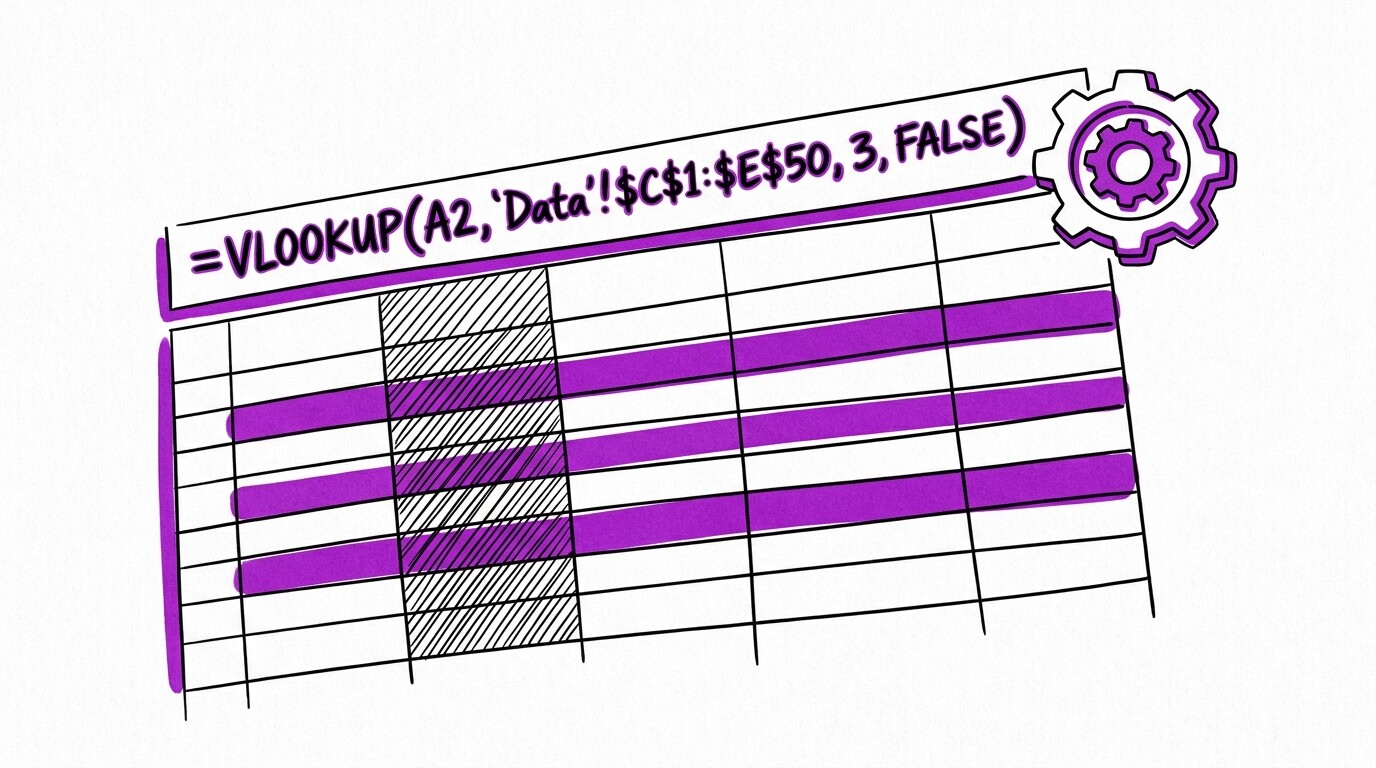
CSV is the fallback for QuickBooks Online. It works, but it requires manual column mapping. Use it when you have CSV data that is not in QBO format, or when you need to clean the data in a spreadsheet before importing.
When CSV is right
CSV is right when you have transaction data in a spreadsheet and you want to review or clean it before importing. The CSV must have at minimum a Date column, a Description column, and an Amount column. Some versions accept separate Debit and Credit columns. The full CSV format details are on the CSV format specification page.
The column mapping step
After uploading the CSV, QuickBooks shows you a column mapping screen. You tell it which column is the date, which is the description, which is the amount. You also tell it the date format (MM/DD/YYYY for US accounts, YYYY-MM-DD for international).
You tell it whether amounts are in one column (negatives for debits) or two columns (separate debit and credit). This is the manual step that QBO imports skip. It takes 30 seconds per import, but it is the most common source of import errors.
Why Desktop doesn’t accept CSV
QuickBooks Desktop bank feeds only accept .qbo Web Connect files. This is an architectural choice in the Desktop product: bank feeds are designed to be file-based, automatic, and structured. CSV is too flexible (the column mapping is implicit in the data), and Desktop chose not to support it. The workaround: convert your CSV to QBO first, then import.
The Real-World Workflow
What does this look like in practice? Here is a real bookkeeper’s monthly workflow, with numbers.
Maria’s monthly import
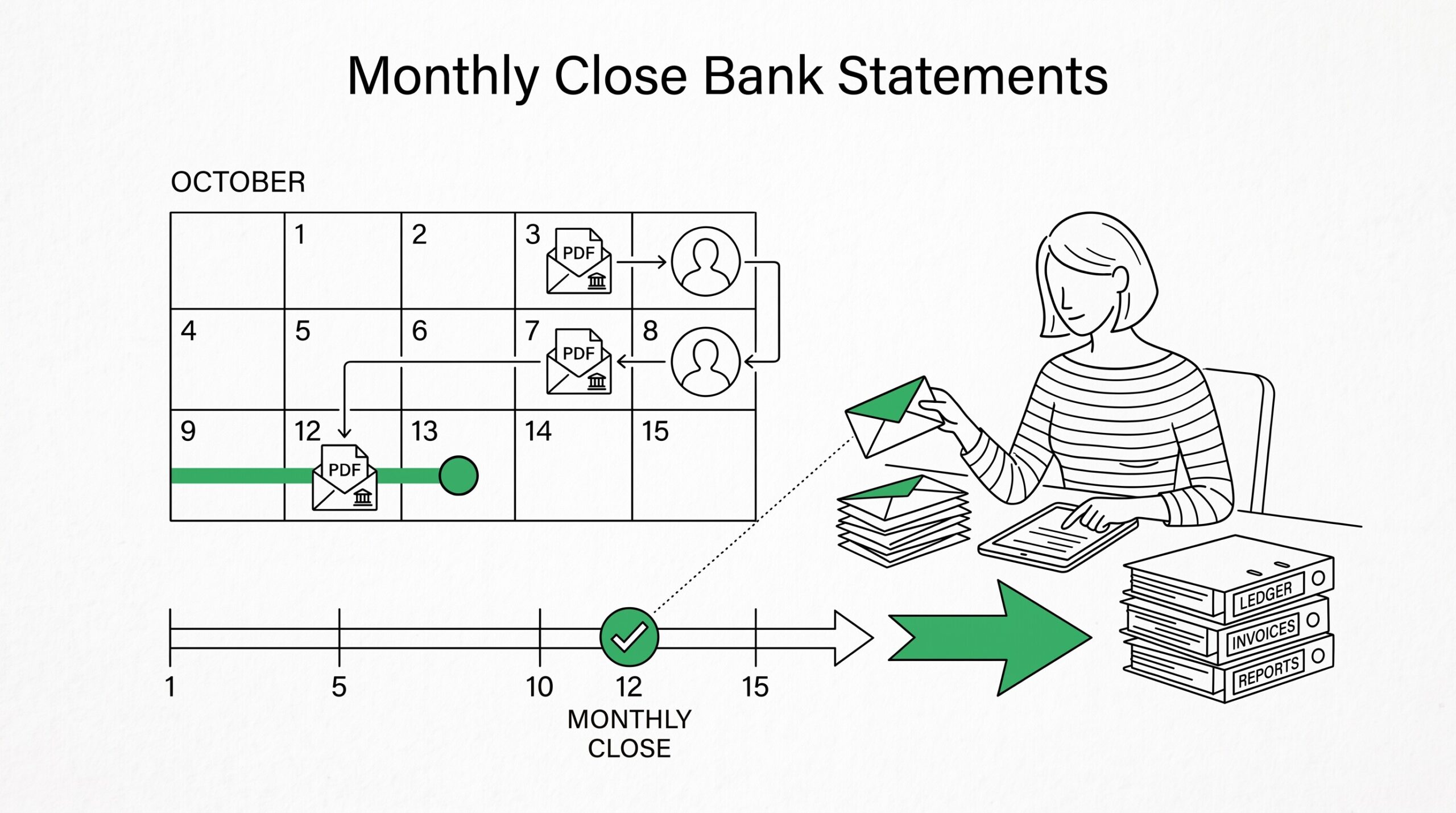
Maria runs a small bookkeeping practice. She has 14 QuickBooks Desktop clients. Each month, each client’s CPA emails her 3-5 PDF bank statements (one per account: checking, savings, credit card, business). That is 42-70 statements per month. Each statement has 100-300 transactions.
Without the QBO conversion path, Maria would be typing 8,400-14,000 transactions by hand each month. With the QBO path: she converts each PDF to QBO (about 15 seconds per statement), imports via Web Connect (about 30 seconds per statement), then matches the transactions in the Bank Feeds Center (about 2-3 minutes per statement).
Total time across all 14 clients: 4-5 hours per month. That is 8,000+ transactions per month, imported and matched in 4-5 hours.
Convert one statement period at a time
The rule for clean reconciliation: convert and import one statement period at a time, oldest first. Chronological order keeps running balances meaningful and makes gaps obvious.
If you batch 12 months into one import, you cannot tell which month has a missing transaction until the balances do not tie. One period at a time also keeps each file under the 1,000-line and 350 KB limits, eliminating a class of import errors.
Reconcile after each import
Reconcile after each month, checking the QuickBooks register against the closing balance printed on that statement. Errors surface one month at a time instead of compounding across a year. The full reconciliation workflow is on the data check guide.
Common Import Errors
A common failure mode in this scenario: underestimating the time required. The fix: plan for 2x your initial estimate.
Five errors show up more than any others. Each has a specific cause and a specific fix.
Import succeeds, 0 transactions added
The ACCTID mismatch. The QBO file’s ACCTID does not match the account number in QuickBooks. Open the .qbo file in a text editor, find the ACCTID field, compare it to the account number in QuickBooks, and fix the mismatch. Covered in detail above.
“File too large” error
The QBO or CSV file exceeds QuickBooks Online’s 350 KB or 1,000 line limit. Split the file by month, one statement period per file, and re-import. Each file should be under 350 KB and under 1,000 lines.
“Invalid date format” error
The dates in the file use a format QuickBooks cannot parse. Common cause: the file uses DD/MM/YYYY (EU format) and the QuickBooks account is set to US locale (MM/DD/YYYY). The fix: either re-export the file with US date format, or change the QuickBooks account locale to match the source.
Duplicate transactions
Overlapping date ranges. You imported January through March, then imported February again. QuickBooks’ built-in duplicate detection catches most of these (it matches on date, amount, and description), but rare cases slip through. The fix: before importing, check the date of the last transaction already in QuickBooks. Make sure the new file starts the day after.
“Account not found” error
QuickBooks cannot find the destination account. Either the account does not exist in your chart of accounts, or the account name in the file does not match. The fix: create the account in QuickBooks first, then re-import. Or rename the file’s account reference to match an existing account.
What to Do After the Import
The import is the middle of the workflow, not the end. Three steps after the import complete the bookkeeping loop.

Match transactions in Bank Feeds Center
Open the Bank Feeds Center (Banking, then Bank Feeds). The imported transactions are in the Transactions List. Each transaction has QuickBooks’ best guess at a match (if a transaction with the same date, amount, and payee already exists in the register). Confirm the matches that are correct. Add the ones that do not match as new transactions.
Categorize
Each transaction needs an account category (Office Supplies, Travel, Utilities, etc.). QuickBooks learns your categories over time, so the second month of imports goes faster than the first. For new accounts, set up the chart of accounts first, then import.
Reconcile
Run the reconciliation: the QuickBooks register balance should match the statement’s closing balance. If they match, the import is correct. If they do not, find the discrepancy. Most discrepancies are a missed transaction, a duplicate, or a wrong amount. The full reconciliation workflow is on the data check guide.
For the focused import step, see the import guide.
Turn That PDF Into a Spreadsheet in Minutes
You've seen how to do it manually — now let the tool handle the heavy lifting. Upload your bank statement and get Excel, CSV, or QBO in a few clicks.
Try It Free