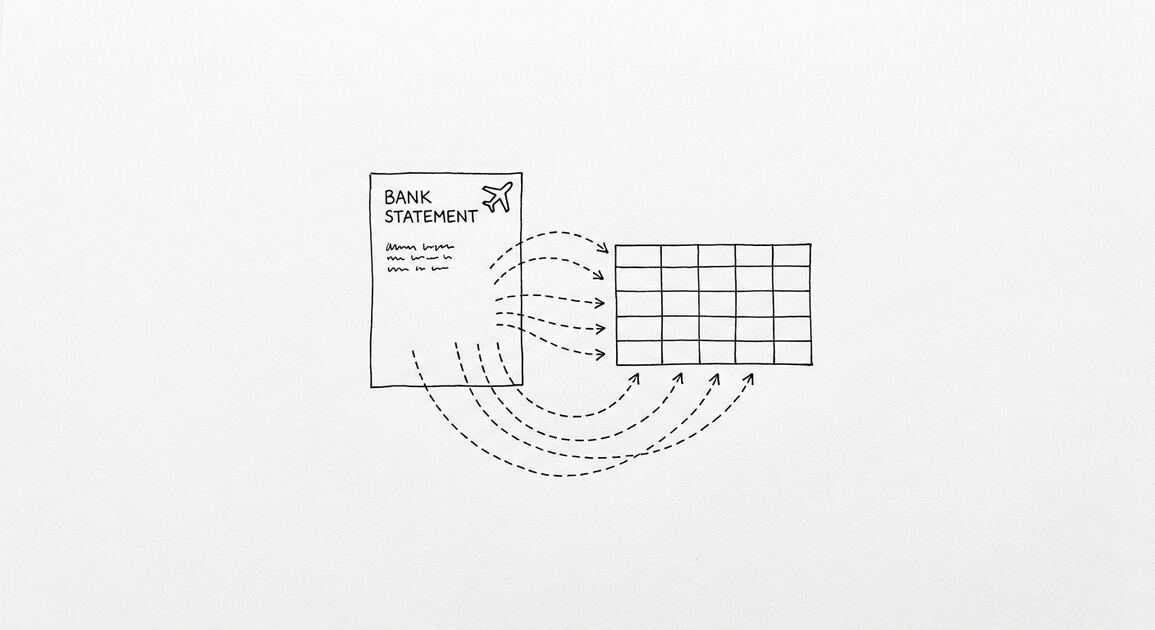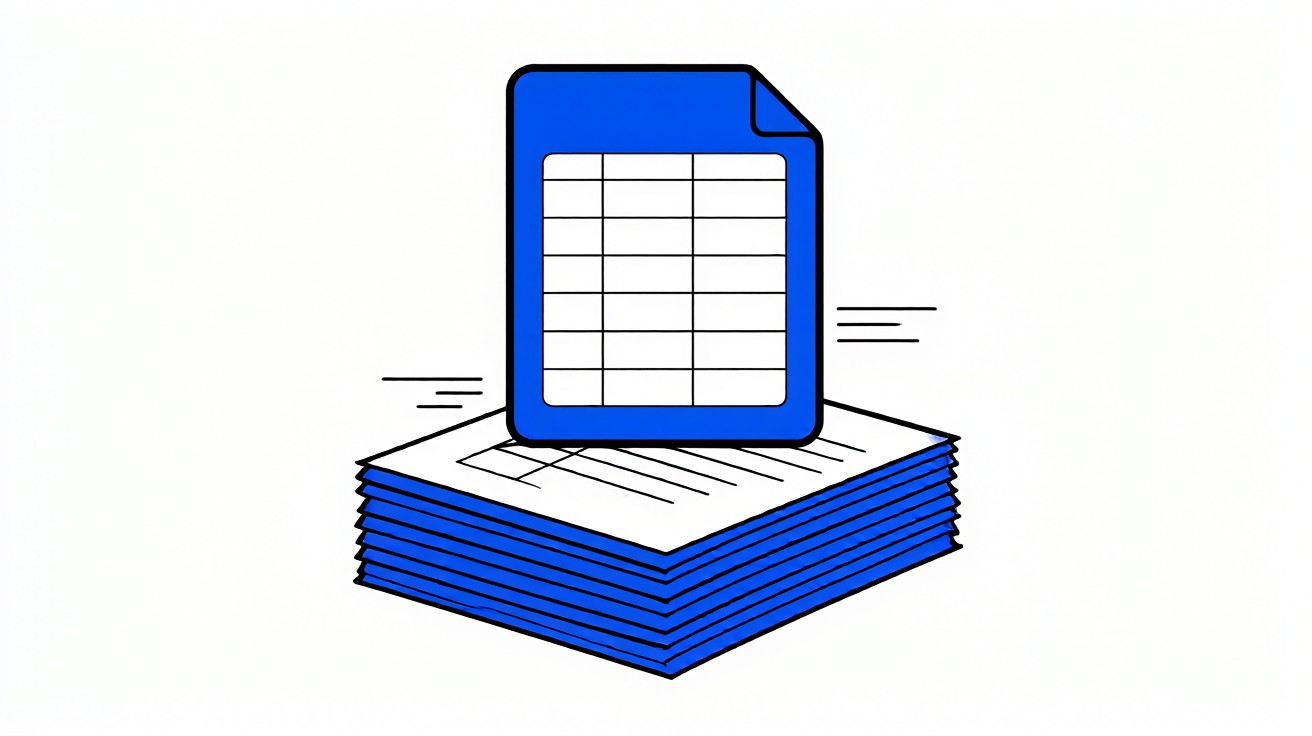

A PDF bank statement is a text-positioned document: transactions are laid out for reading, not for analysis, so the columns must be reconstructed during extraction. The dates, descriptions, amounts, and balances you see on screen are placed by coordinates, not stored as a grid. Converting to Excel means rebuilding that grid so every field lands in the correct column.
For a small business owner, this matters because the statement is the source of truth for cash flow. You cannot sort, filter, or reconcile a PDF. You need rows and columns that a spreadsheet or accounting tool can read. The good news is that the running balance printed after each transaction acts as a built-in checksum, so you can verify the result yourself.
The running balance printed after each transaction acts as a built-in checksum: if an extracted row does not change the balance by the amount shown, the row is wrong or out of order.
Key facts. A PDF bank statement stores text by position, so columns must be reconstructed during extraction. The running balance is a built-in checksum for every row. Common failures include wrapped descriptions, page breaks that split a transaction, and merged columns. Every row must reconcile against the opening and closing balances. Scanned statements need OCR first; native text PDFs can be parsed directly.
Balance verification compares each extracted row against the printed running balance so errors surface before the file reaches your books.
Why a PDF bank statement is not a spreadsheet
A PDF is a page description format. It records where each piece of text appears, not what table it belongs to. Your bank designs the statement for human reading, with headers, footers, and summary boxes mixed among the transactions.
That layout is the problem. A transaction description can wrap across two lines. A page break can land in the middle of a row. Column headers can repeat on every page. None of these structures survive a simple copy and paste.
Extraction therefore means reading the positioned text and deciding which pieces form one transaction. The tool must detect row boundaries, assign each value to a column, and keep the order intact. Done well, you get one row per transaction with Date, Description, Amount, and Balance in separate columns.
If you have ever pasted statement text into Excel and watched dates land in the amount column, you have seen this firsthand. The fix is not better pasting. It is parsing the document structure instead of the visible text.
A native text PDF carries an embedded text layer. You can select words with your cursor, search the document, and copy text cleanly. These files can be parsed directly, because the characters and their positions are already stored inside the file.
A scanned statement is an image. It has no text layer at all. The pages are photographs of paper. Before any extraction can happen, the image must pass through OCR to recover the characters. OCR adds a step, and it introduces its own errors, especially with small fonts, faint printing, or skewed pages.
If your download is image only, request a digital statement from your bank portal instead. Most banks offer a PDF download that preserves the text layer. That single change removes the OCR step and usually improves accuracy.
When OCR is unavoidable, treat the result as a draft. Verify every row against the printed running balance, because OCR errors in amounts are common and easy to miss by eye.
What you need before you start
Confirm that your statement is a native text PDF. Open it and try to select a word with your cursor. If the text highlights, the document carries embedded text and can be parsed directly. If nothing selects, the file is image only and needs OCR first.
Download the statement straight from your bank portal. Avoid scanned copies, screenshots, or statements forwarded by email. A clean download preserves the embedded text layer and gives the best extraction results.
Check the statement for the basics before converting. You need an opening balance, a list of transactions, and a closing balance. If any of these are missing or unclear, resolve that with your bank first, because extraction cannot fix a defective source.
For a walkthrough of the broader conversion process, see how to convert a bank statement to Excel. If you are still choosing a tool, read how to choose a bank statement converter.
Turn any PDF statement into a clean sheet
Skip the typos and the hours of copying. Our converter handles any bank statement format and outputs Excel, CSV, or QBO for QuickBooks. No file retention, free to try.
Convert your statementStep-by-step: convert a PDF bank statement to Excel
Step one is to upload the PDF to your converter and let it detect the transaction table. A good tool reads the positioned text, identifies the column structure, and proposes rows. Review that proposal before exporting.
Step two is to check the row count. Count the transactions on the PDF and compare it to the extracted rows. A mismatch almost always means a wrapped description was split into two rows or a page break ate a transaction.
Step three is to verify the running balance column. Each row should change the balance by its amount. If a row shows a deposit of five hundred dollars but the balance does not move by five hundred, the row is wrong or out of order. Fix it before exporting.
Step four is to export to Excel. Use XLSX when a human will review, edit, or reconcile the data. The format keeps numbers as numbers and dates as dates, which matters for sorting and formulas.
Step five is to reconcile the file. Compare the extracted opening balance and closing balance to the PDF. They must match exactly. If they do not, find the row where the running balance breaks and correct it.
| Step | Action | What to check |
|---|---|---|
| 1 | Upload and detect table | Column structure looks correct |
| 2 | Count rows | Matches PDF transaction count |
| 3 | Verify running balance | Each row moves balance by its amount |
| 4 | Export to Excel | XLSX for human review |
| 5 | Reconcile | Opening and closing balances match |

Common extraction failures and how to spot them
Wrapped description lines are the most common issue. A long merchant name or memo continues on the next visual line, and a naive parser treats it as a new transaction. The result is an extra row with a blank date and amount.
Page breaks that split a transaction are next. If a row starts at the bottom of one page and finishes at the top of the next, the parser may drop half of it or create a partial row. Always check the first and last rows of each page.
Merged cells collapse two columns into one. This happens when a description contains a number that looks like an amount, or when the parser misreads column boundaries. You will see a date where an amount should be, or a description that includes a dollar figure.
Duplicate headers repeated on every page can also be imported as data rows. Filter them out by checking for rows where the description equals a column header like Date or Balance.
| Failure mode | Symptom | Fix |
|---|---|---|
| Wrapped description | Extra row with blank date and amount | Merge lines into one row |
| Page break split | Partial row at page edge | Rejoin the two halves |
| Merged columns | Number in wrong column | Reassign to correct field |
| Duplicate header | Header text in data rows | Delete those rows |
For a bank-specific walkthrough, see Chase statement to Excel. The same checks apply to most major banks.
Verifying the numbers with the running balance
The running balance is the single best validation tool you have. It is printed by the bank after every transaction, so it is independent of your extraction. Use it as a checksum rather than trusting the extracted amounts alone.
Walk the rows in order. For each transaction, add deposits and subtract withdrawals from the previous balance. The result should equal the printed balance on that row. If it does not, one of three things is wrong: the amount, the sign, or the row order.
Pay attention to signs. Banks print withdrawals as negative or in parentheses, and deposits as positive. A parser that flips a sign will still produce a plausible looking row, but the running balance will expose it immediately.
Also watch for out of order rows. Some statements list pending transactions or group them by type. If the running balance jumps backward, the rows are not in chronological order. Sort by date only after you confirm the balance chain.
After every row checks out, confirm the final balance equals the closing balance on the PDF. That single match is your proof that the file is complete and accurate. If you need a lighter format for software import, see convert bank statement to CSV.
Extraction accuracy is not the same as reconciliation. A file can be perfectly extracted and still be used incorrectly. Reconciliation means confirming that the extracted data matches the statement and that it ties to your books.
Start with the three balances: opening, transaction-level running, and closing. All three must agree with the PDF. Then match the extracted totals to your accounting records for the same period, watching for duplicate or missing transactions.
For tax or lending purposes, keep the original PDF alongside the converted file. The PDF remains the authoritative record, and the Excel file is a working copy. Reconvert if you ever need to refresh the data.
Business owners and bookkeepers often use these files for reconciliation, expense analysis, or preparing documents for a lender. The extraction step gets you the data; the reconciliation step makes it trustworthy.
Choosing the output format and next steps
Excel is the right choice when a person will review or edit the data. CSV suits software pipelines and accounting imports. Google Sheets fits shared workflows. QuickBooks format suits direct import into bookkeeping software.
Match the format to the next step, not to habit. If the file goes to a bookkeeper, ask which format they prefer. If it feeds an automated pipeline, CSV or QBO is usually better than Excel.
For help deciding, read how to choose a bank statement output format. For the broader conversion picture, return to the bank statement to Excel guide above.
Finally, keep your original PDF. The converted file is a working copy, but the statement remains the authoritative record. Store both, and reconvert if you ever need a fresh extraction.
Turn PDF Bank Statements Into Workable Spreadsheets
Your bank statement is a mess of numbers, but your books shouldn't be. Use our converter to get Excel, CSV, or QBO files — ready for QuickBooks.
Try It Free Now